> ## Documentation Index
> Fetch the complete documentation index at: https://docs.airmdr.com/llms.txt
> Use this file to discover all available pages before exploring further.
# AbuseIPDB
> AbuseIPDB API allows you to integrate AbuseIPDB's data into applications, check the reputation of IP addresses and report abusive IPs. This API is useful for applications that need to prevent malicious activities such as hacking attempts, DDoS attacks, and spam.
### Pre-requisites
User/Admin with an existing Abuse IPDB account, if not
1. Go to the [AbuseIPDB](https://www.abuseipdb.com/).
2. In the top right corner, click on **"Sign Up"** to create a new account.
3. Provide the necessary details (username, email address, password, etc.) and click **"Create Account"**.
4. **Verify your email** if prompted.
You will need to confirm your email address by clicking the link in the verification email.
### Generate AbuseIPDB API
You will need an API key to interact with the AbuseIPDB.
1. Login to the [AbuseIPDB](https://www.abuseipdb.com/) as an administrator.
2. Provide the necessary credentials (**Email** and **Password**), and click **Sign In**.
1. Select the drop-down list, **User Name** → **Account**.\\
 2. Go to the **API** tab.
3. Click **Create Key**.\\
2. Go to the **API** tab.
3. Click **Create Key**.\\
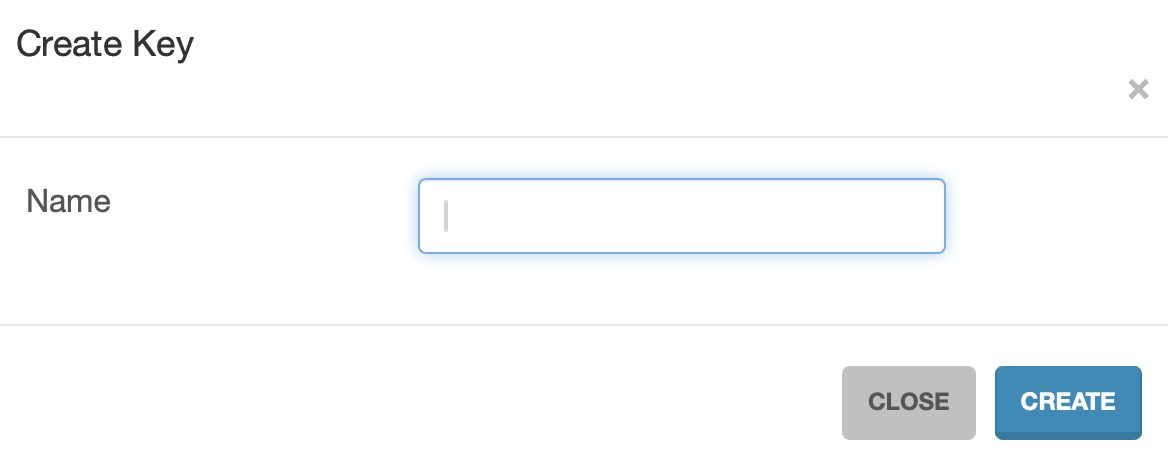
 4. Provide unique **Name** to your API Key and click **CREATE**.\\
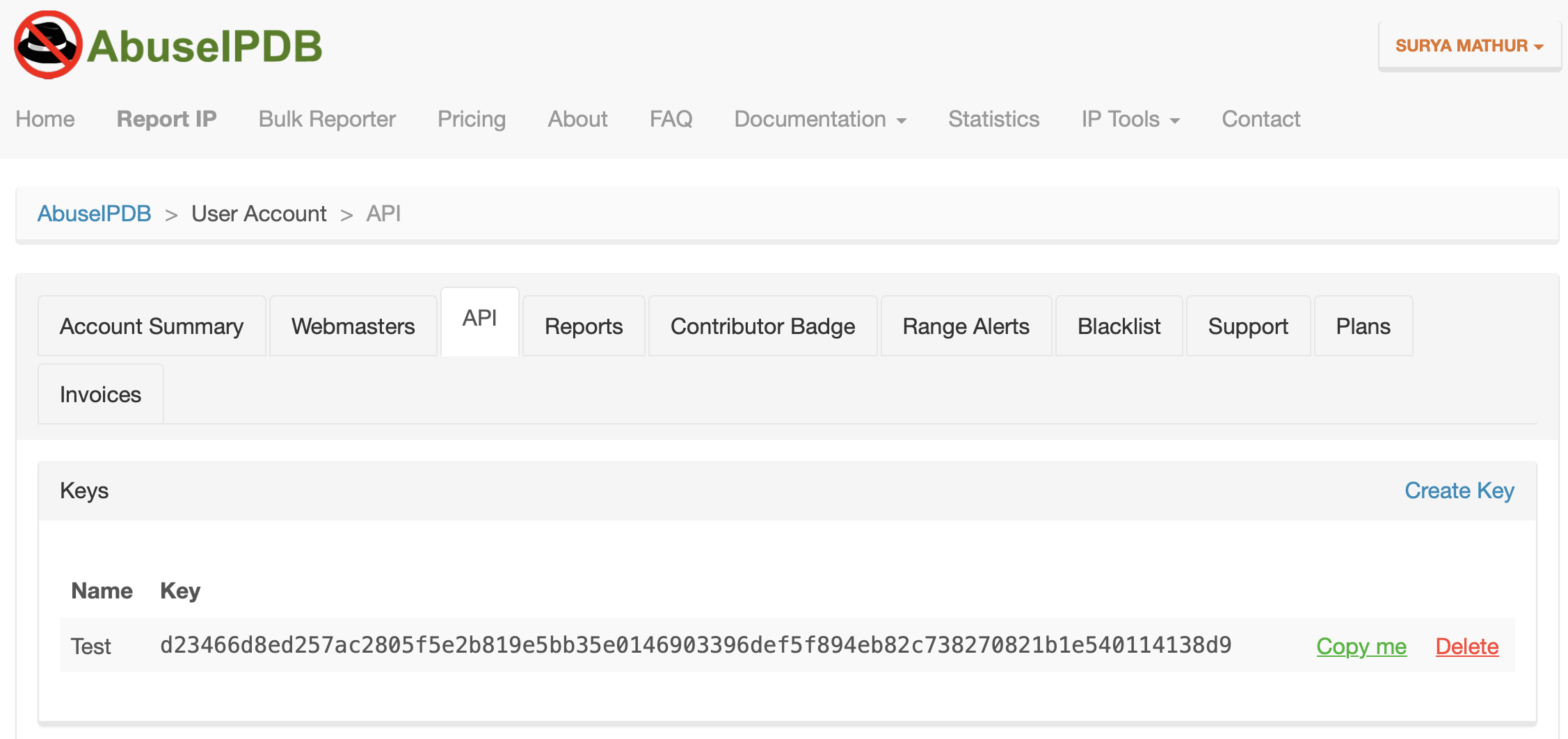
 5. API Key will be generated, copy and use this key to make API requests.
 You can View/Copy/Delete all the generated API Keys under Keys section.
Email the **API Key** to AirMDR or self Configure AbuseIPDB in the AirMDR Integrations Dashboard.
### Evaluate AbuseIPDB API Test
Open **cURL** and run the following command to check if your API Access is working:
**Example cURL request:**
```
curl -X GET "https://api.abuseipdb.com/api/v2/check" \
-d ipAddress=8.8.8.8 \
-H "Key: " \
-H "Accept: application/json"
```
Replace `8.8.8.8` with the IP you want to check and `` with your generated API key
### Configure AbuseIPDB in the AirMDR Integrations Dashboard
1. Navigate to [AirMDR](https://app.airmdr.com/auth/login), provide the credentials, and click **Login**.\\
You can View/Copy/Delete all the generated API Keys under Keys section.
Email the **API Key** to AirMDR or self Configure AbuseIPDB in the AirMDR Integrations Dashboard.
### Evaluate AbuseIPDB API Test
Open **cURL** and run the following command to check if your API Access is working:
**Example cURL request:**
```
curl -X GET "https://api.abuseipdb.com/api/v2/check" \
-d ipAddress=8.8.8.8 \
-H "Key: " \
-H "Accept: application/json"
```
Replace `8.8.8.8` with the IP you want to check and `` with your generated API key
### Configure AbuseIPDB in the AirMDR Integrations Dashboard
1. Navigate to [AirMDR](https://app.airmdr.com/auth/login), provide the credentials, and click **Login**.\\
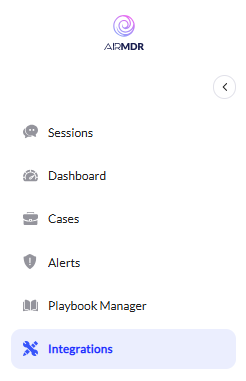 2. Navigate to the AirMDR Integrations Dashboard in the left navigation pane and select **Integrations**.
3. Use the search option, enter the keyword "**AbuseIPDB**", select the **Connections** tab, and click **Add New Connection**.
2. Navigate to the AirMDR Integrations Dashboard in the left navigation pane and select **Integrations**.
3. Use the search option, enter the keyword "**AbuseIPDB**", select the **Connections** tab, and click **Add New Connection**.
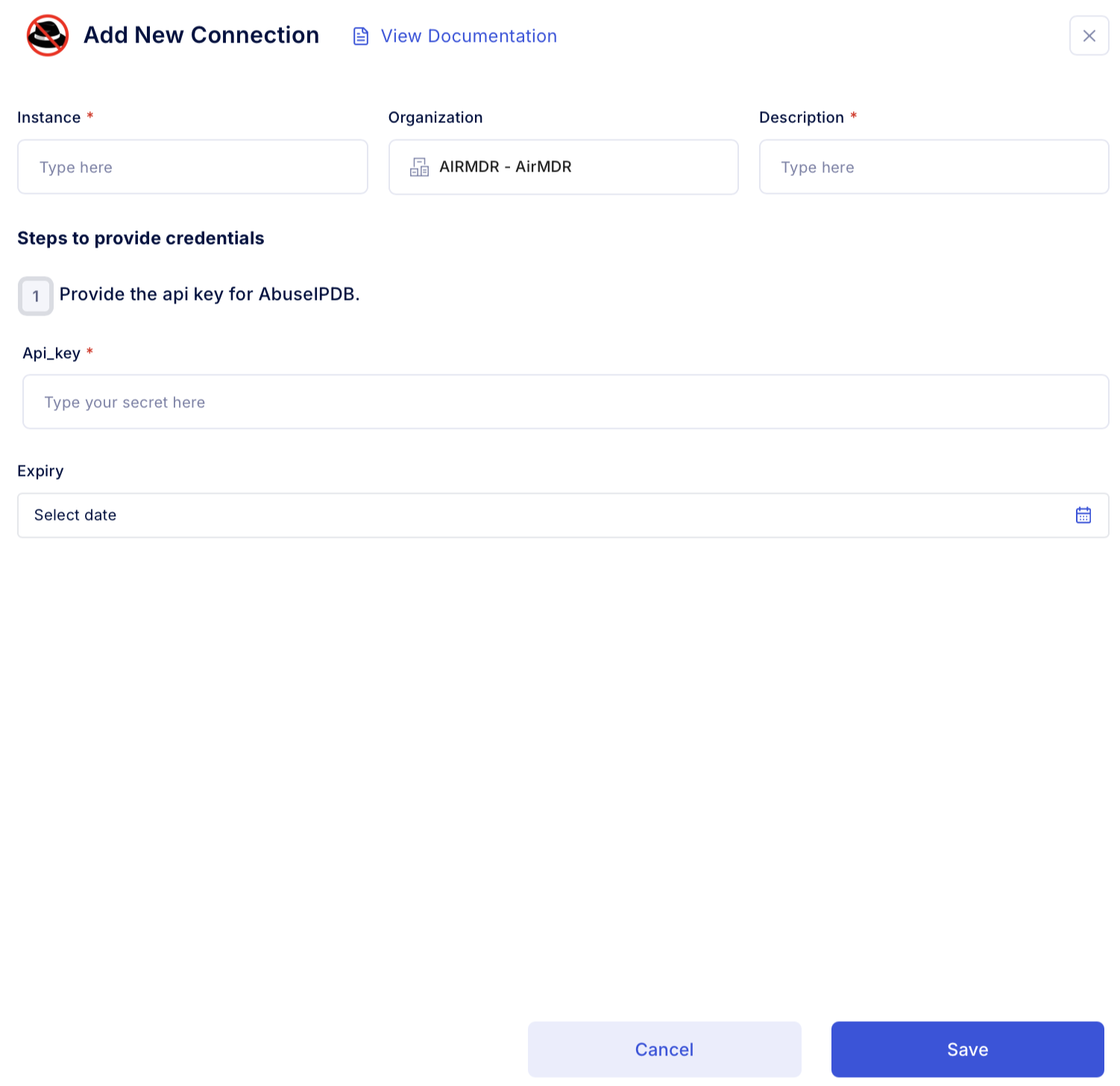
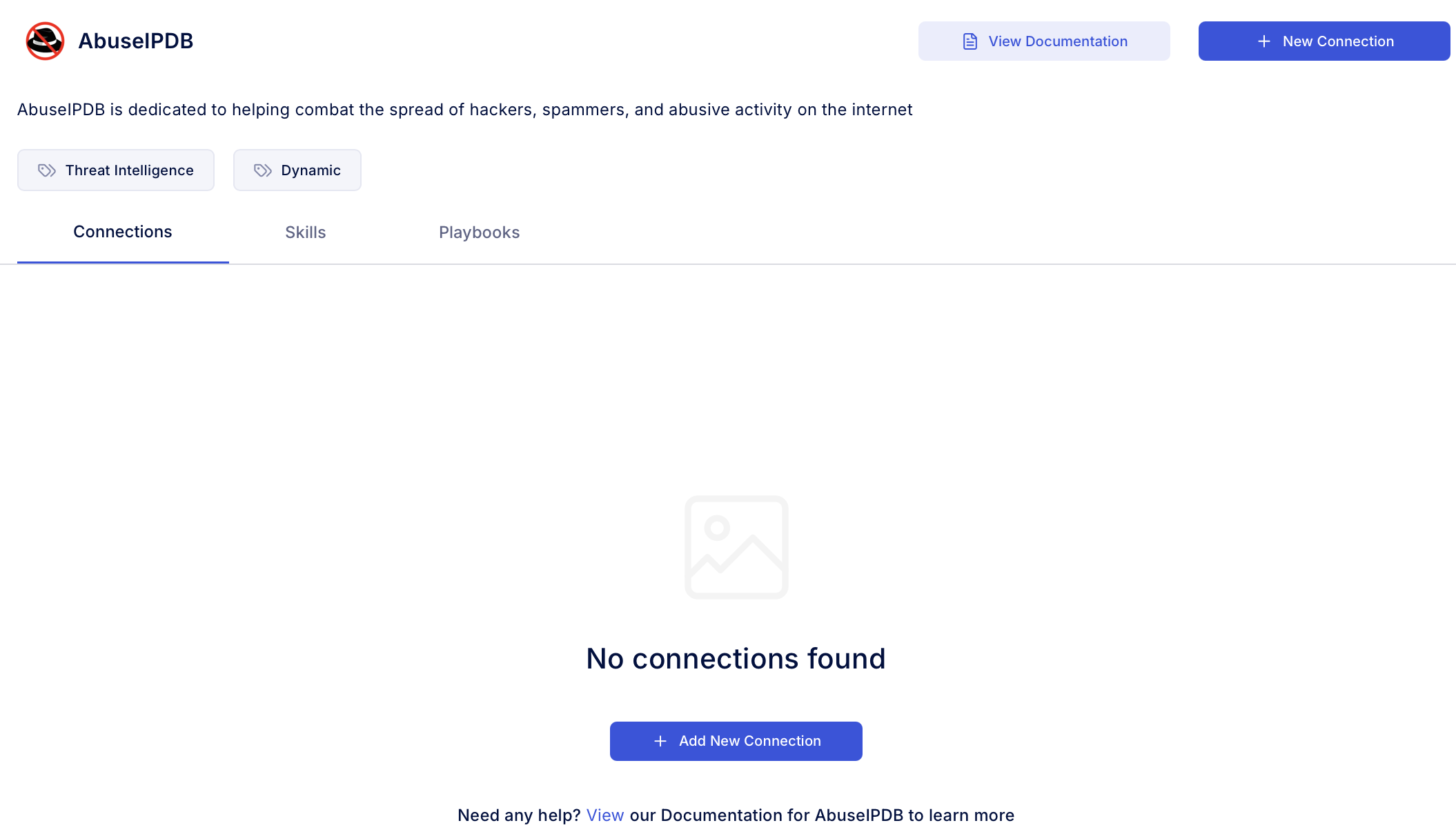 4. Enter an unique name to the **Instance** (e.g., your org name-AbuseIPDB) and brief **Description** to easily identify the user connection by AirMDR.
5. Enter the generated **API key** and Expiry (optional) in the Authentication Details field params, and click **Save.**
4. Enter an unique name to the **Instance** (e.g., your org name-AbuseIPDB) and brief **Description** to easily identify the user connection by AirMDR.
5. Enter the generated **API key** and Expiry (optional) in the Authentication Details field params, and click **Save.**