> ## Documentation Index
> Fetch the complete documentation index at: https://docs.airmdr.com/llms.txt
> Use this file to discover all available pages before exploring further.
# Active Directory (AD) Microsoft
> The Microsoft Active Directory (AD) integration enables AirMDR to query directory services using LDAP to retrieve user, group, and organisational information from Active Directory. This allows AirMDR to enrich alerts with identity context, validate user attributes during investigations, and automate response workflows based on directory data directly within AirMDR playbooks.
## **Purpose**
This guide explains how to integrate the **Microsoft Active Directory (AD) integration** with AirMDR to query directory information such as users, groups, and organizational units using the **LDAP protocol**.
This integration is typically used for:
* **User enrichment during investigations**
* **Identity validation during incident response**
* **Mapping AD users to security events**
* **Group membership lookups**
AirMDR connects to Active Directory using **LDAP queries executed through a service account**.
## Pre-requisites
Before setting up the Microsoft Active Directory integration in AirMDR, ensure the following requirements are met:
### Active Directory Environment
* A **Microsoft Active Directory Domain Services (AD DS)** environment must be available.
* At least one **Domain Controller (DC)** must be reachable from the AirMDR environment.
* LDAP services must be enabled on the Domain Controller.
* If **LDAPS (port 636)** is used:
* The Domain Controller must have a **valid TLS certificate**
* The certificate must be issued by a **trusted certificate authority**
* TLS must be enabled on the LDAP service
LDAPS is recommended to ensure **encrypted communication between AirMDR and Active Directory**.
## **Authentication Method**
AirMDR authenticates to Active Directory using a **service account and LDAP bind** using **username and password**
### **Required Parameters**
| Parameter | Description |
| :---------- | :--------------------------------- |
| LDAP Server | Domain Controller hostname or IP |
| Port | LDAP or LDAPS port |
| Username | Service account used for LDAP bind |
| Password | Password of the service account |
| Base DN | Directory search base |
## Supported Versions
The AirMDR Active Directory integration supports:
* Microsoft **Active Directory Domain Services (AD DS)**
* Windows Server **2012 / 2016 / 2019 / 2022**
* LDAP / LDAPS directory services
* On-premises Active Directory deployments
Azure AD (Entra ID) is not supported through LDAP. Use the Microsoft Graph integration instead.
## Generate Microsoft Active Directory (AD) LDAP server details, Service account credentials and Base Distinguished Name (DN)
1. Log in to the **Domain Controller**.
2. Open **Server Manager**.
3. Navigate to Tools → Active Directory Users and Computers
4. In the left navigation panel, identify your **Domain Controller hostname**.\
Example: [dc01.company](http://dc01.company).local
This will be used as the **LDAP Server**.
Active Directory supports two LDAP ports:
| Protocol | Port |
| :------------------ | :--- |
| LDAP | 389 |
| LDAPS (Secure LDAP) | 636 |
To verify:
1. Open **Command Prompt** on the domain controller.
2. Run:
```text theme={null}
nltest /dsgetdc:
```
Example:
```text theme={null}
nltest /dsgetdc:company.local
```
This returns the active domain controller and confirms LDAP services.
AirMDR recommends **LDAPS (port 636)** for encrypted connections.
A **dedicated service account** should be created for the integration.
1. Navigate to open Server Manager → Tools → Active Directory Users and Computers.
2. Click on "**Create a new user in the current container**".
 3. Enter the required Field Values.
| Field | Value (Example) |
| :------------------ | :--------------- |
| **First Name** | `AirMDR` |
| **Last Name** | `Service` |
| **User Logon Name** | `airmdr-service` |
3. Enter the required Field Values.
| Field | Value (Example) |
| :------------------ | :--------------- |
| **First Name** | `AirMDR` |
| **Last Name** | `Service` |
| **User Logon Name** | `airmdr-service` |
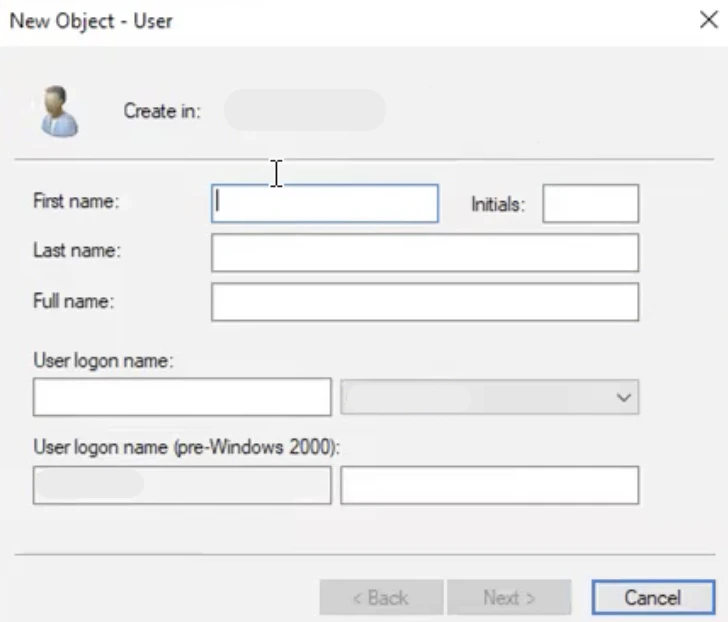 4. Click **Next**.
5. Configure password settings:
* Set a secure password
* Uncheck **User must change password at next logon**
* Enable **Password never expires** (recommended for service accounts)
4. Click **Next**.
5. Configure password settings:
* Set a secure password
* Uncheck **User must change password at next logon**
* Enable **Password never expires** (recommended for service accounts)
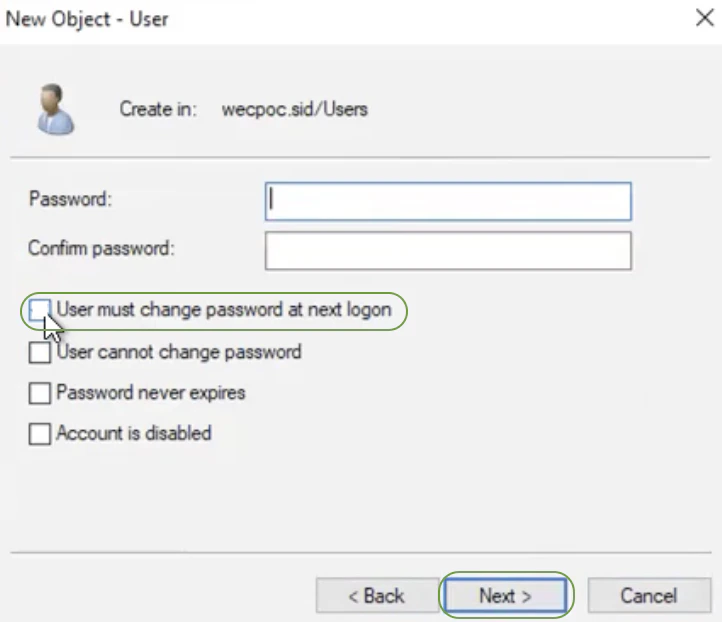 6. Click **Finish**.
 The service account will be used as the **LDAP bind user**.
The LDAP bind username can be expressed in either format:
**User Principal Name (UPN):** [airmdr-service@company.local](mailto:airmdr-service@company.local)
or
**Domain format:** COMPANY\airmdr-service
Either format is accepted by most LDAP clients.
The **Base DN** defines where LDAP searches begin in the directory tree.
To obtain it:
1. Navigate to open Server Manager → Tools → Active Directory Users and Computers.
2. Right-click the **domain root**.
3. Select Properties
4. Go to the **Attribute Editor** tab.
5. Locate the attribute: distinguishedName\
Example value: DC=company,DC=local
This becomes the **Base DN** used by AirMDR for LDAP searches.
**Example Credentials retrieved to configure the Microsoft AD Integration in AirMDR**
| Field | Values (Example) |
| :---------- | :------------------------------------------------------------------ |
| LDAP Server | [dc01.company](http://dc01.company).local |
| Port | 636 |
| Username | [airmdr-service@company.local](mailto:airmdr-service@company.local) |
| Password | \*\*\*\*\*\*\*\* |
| Base DN | DC=company,DC=local |
**Example Configuration:**
```text theme={null}
{
"ldap_server": "dc01.company.local",
"port": 636,
"username": "airmdr-service@company.local",
"password": "********",
"base_dn": "DC=company,DC=local"
}
```
## Data Flow & Security
### Data Retrieved
The integration typically queries:
* User objects
* Group memberships
* Email addresses
* Security identifiers (SID)
* Organizational unit membership
### Encryption
| Layer | Method |
| :--------- | :------------------------------------- |
| In Transit | TLS (LDAPS) |
| At Rest | Encrypted credential storage in AirMDR |
### Network Ports
| Port | Protocol |
| :--- | :------------------ |
| 389 | LDAP |
| 636 | LDAPS (recommended) |
### Skills Provided by this Integration
| **Skill ID** | **Purpose** |
| :------------------------------------- | :------------------------------------------------------------------------------------------------------------------------ |
| Disable Active Directory (Onprem) User | Disables the specified user account in Active Directory (Onprem) by setting the ACCOUNTDISABLE flag on userAccountControl |
To view the details of Input Parameters and Output for the respective skills
* Go to [AirMDR → Active Directory](https://app.airmdr.com/integrationsv2/b3e7c2a1-4f85-4d91-9c6e-1a2b3c4d5e6f/skills?search=active+) Integration page.
* Select the **Skills** tab and click on the required listed skills.
### Configure Active Directory in AirMDR Integrations Dashboard
1. Navigate to [AirMDR](https://app.airmdr.com/auth/login), provide the credentials and click **Login**.
2. Navigate to the AirMDR Integrations Dashboard in the left navigation pane and select **Integrations**.
3. Use the search option, enter the keyword "**Active Directory**", select the **Connections** tab, and click **+** **Add New Connection**.
4. Enter an unique name to the **Instance** (e.g., `your org name-Active Directory`) and brief **Description** to easily identify the user connection by AirMDR.
5. Enter the generated **LDAP Server** details, **Service Account Credentials**, and **base Distinguished Name (DN)** in the Authentication Details field params, and click **Save.**
### **Error Handling**
| Error | Cause | Resolution |
| :----------------------- | :----------------------- | :----------------------- |
| LDAP bind failed | Incorrect credentials | Verify username/password |
| Cannot connect to server | Network/firewall issue | Confirm LDAP port access |
| Invalid Base DN | Incorrect directory path | Verify distinguishedName |
| TLS handshake error | LDAPS certificate issue | Validate DC certificates |
### **Support & Maintenance**
* 📧 Contact [**AirMDR Support**](mailto:support@airmdr.com) through your designated support channel.
* 🔁 Rotate credentials regularly in Microsoft **Active Directory (AD).**
* 🔄 If a domain controller changes:
* Update the **LDAP Server hostname** in the integration configuration.
The service account will be used as the **LDAP bind user**.
The LDAP bind username can be expressed in either format:
**User Principal Name (UPN):** [airmdr-service@company.local](mailto:airmdr-service@company.local)
or
**Domain format:** COMPANY\airmdr-service
Either format is accepted by most LDAP clients.
The **Base DN** defines where LDAP searches begin in the directory tree.
To obtain it:
1. Navigate to open Server Manager → Tools → Active Directory Users and Computers.
2. Right-click the **domain root**.
3. Select Properties
4. Go to the **Attribute Editor** tab.
5. Locate the attribute: distinguishedName\
Example value: DC=company,DC=local
This becomes the **Base DN** used by AirMDR for LDAP searches.
**Example Credentials retrieved to configure the Microsoft AD Integration in AirMDR**
| Field | Values (Example) |
| :---------- | :------------------------------------------------------------------ |
| LDAP Server | [dc01.company](http://dc01.company).local |
| Port | 636 |
| Username | [airmdr-service@company.local](mailto:airmdr-service@company.local) |
| Password | \*\*\*\*\*\*\*\* |
| Base DN | DC=company,DC=local |
**Example Configuration:**
```text theme={null}
{
"ldap_server": "dc01.company.local",
"port": 636,
"username": "airmdr-service@company.local",
"password": "********",
"base_dn": "DC=company,DC=local"
}
```
## Data Flow & Security
### Data Retrieved
The integration typically queries:
* User objects
* Group memberships
* Email addresses
* Security identifiers (SID)
* Organizational unit membership
### Encryption
| Layer | Method |
| :--------- | :------------------------------------- |
| In Transit | TLS (LDAPS) |
| At Rest | Encrypted credential storage in AirMDR |
### Network Ports
| Port | Protocol |
| :--- | :------------------ |
| 389 | LDAP |
| 636 | LDAPS (recommended) |
### Skills Provided by this Integration
| **Skill ID** | **Purpose** |
| :------------------------------------- | :------------------------------------------------------------------------------------------------------------------------ |
| Disable Active Directory (Onprem) User | Disables the specified user account in Active Directory (Onprem) by setting the ACCOUNTDISABLE flag on userAccountControl |
To view the details of Input Parameters and Output for the respective skills
* Go to [AirMDR → Active Directory](https://app.airmdr.com/integrationsv2/b3e7c2a1-4f85-4d91-9c6e-1a2b3c4d5e6f/skills?search=active+) Integration page.
* Select the **Skills** tab and click on the required listed skills.
### Configure Active Directory in AirMDR Integrations Dashboard
1. Navigate to [AirMDR](https://app.airmdr.com/auth/login), provide the credentials and click **Login**.
2. Navigate to the AirMDR Integrations Dashboard in the left navigation pane and select **Integrations**.
3. Use the search option, enter the keyword "**Active Directory**", select the **Connections** tab, and click **+** **Add New Connection**.
4. Enter an unique name to the **Instance** (e.g., `your org name-Active Directory`) and brief **Description** to easily identify the user connection by AirMDR.
5. Enter the generated **LDAP Server** details, **Service Account Credentials**, and **base Distinguished Name (DN)** in the Authentication Details field params, and click **Save.**
### **Error Handling**
| Error | Cause | Resolution |
| :----------------------- | :----------------------- | :----------------------- |
| LDAP bind failed | Incorrect credentials | Verify username/password |
| Cannot connect to server | Network/firewall issue | Confirm LDAP port access |
| Invalid Base DN | Incorrect directory path | Verify distinguishedName |
| TLS handshake error | LDAPS certificate issue | Validate DC certificates |
### **Support & Maintenance**
* 📧 Contact [**AirMDR Support**](mailto:support@airmdr.com) through your designated support channel.
* 🔁 Rotate credentials regularly in Microsoft **Active Directory (AD).**
* 🔄 If a domain controller changes:
* Update the **LDAP Server hostname** in the integration configuration.