> ## Documentation Index
> Fetch the complete documentation index at: https://docs.airmdr.com/llms.txt
> Use this file to discover all available pages before exploring further.
# Astrix
> Astrix Networks is a non-human identity security platform supports on securing non-human identities (NHIs). NHIs include service accounts, API keys, and other machine-to-machine credentials that often have extensive access permissions and can pose significant security risks if not properly managed.
### Astrix's OAuth 2.0 authentication system Integration
To integrate your application with Astrix's OAuth 2.0 authentication system, you will need to obtain specific credentials and endpoints:
1. **Auth URL**: The URL where users are directed to authorize your application.
2. **Base URL**: The root URL for Astrix's API endpoints.
3. **Client ID**: A public identifier for your application, provided when you register your app with Astrix.
4. **Client Secret**: A confidential key used alongside the Client ID to authenticate your application.
5. **Audience**: Identifies the intended recipient(s) of the access token, ensuring it's used for the correct API.
### Generate Astrix OAuth 2.0 authentication credentials
1. Go to Astrix [developer Portal](https://astrix.security/).
2. Provide the required details about your application
* Name of the application,
* Description of the application,
* Website URL.
3. Upon successful registration, Astrix will issue
* **Client ID**
* **Client Secret**
1. The **Auth URL** is typically provided in Astrix's OAuth 2.0 documentation. It's the endpoint where users will authenticate and authorize your application.
2. The **Base URL** is the root endpoint for Astrix's APIs. This is also usually specified in their API documentation.
1. The **Audience** parameter ensures that the access token is intended for the correct API.
2. Astrix's documentation will specify the expected audience value. It's often a URL or URI identifying the API resource.
3. When making authorization requests, include the audience parameter to specify the intended recipient of the token.
### Evaluate Auth Token with credentials
Open **cURL** and run the following command to check if your API Access is working:
**Example cURL request:**
```
curl -X POST "https://" \
-H "Content-Type: application/json" \
-d '{
"client_id": "YOUR_CLIENT_ID",
"client_secret": "YOUR_CLIENT_SECRET",
"grant_type": "client_credentials",
"audience": "YOUR_AUDIENCE"
}'
```
### Configure Astrix in AirMDR Integrations Dashboard
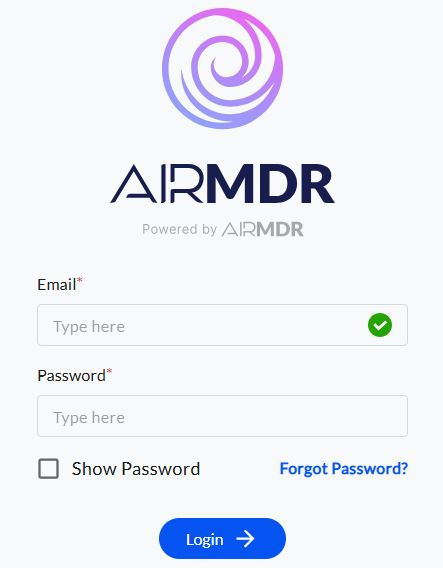
1. Navigate to [AirMDR](https://app.airmdr.com/auth/login), provide the credentials and click **Login.**
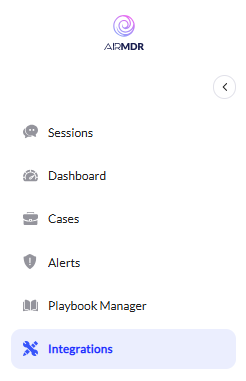
 2. Navigate to the AirMDR Integrations Dashboard in the left navigation pane and select **Integrations.**
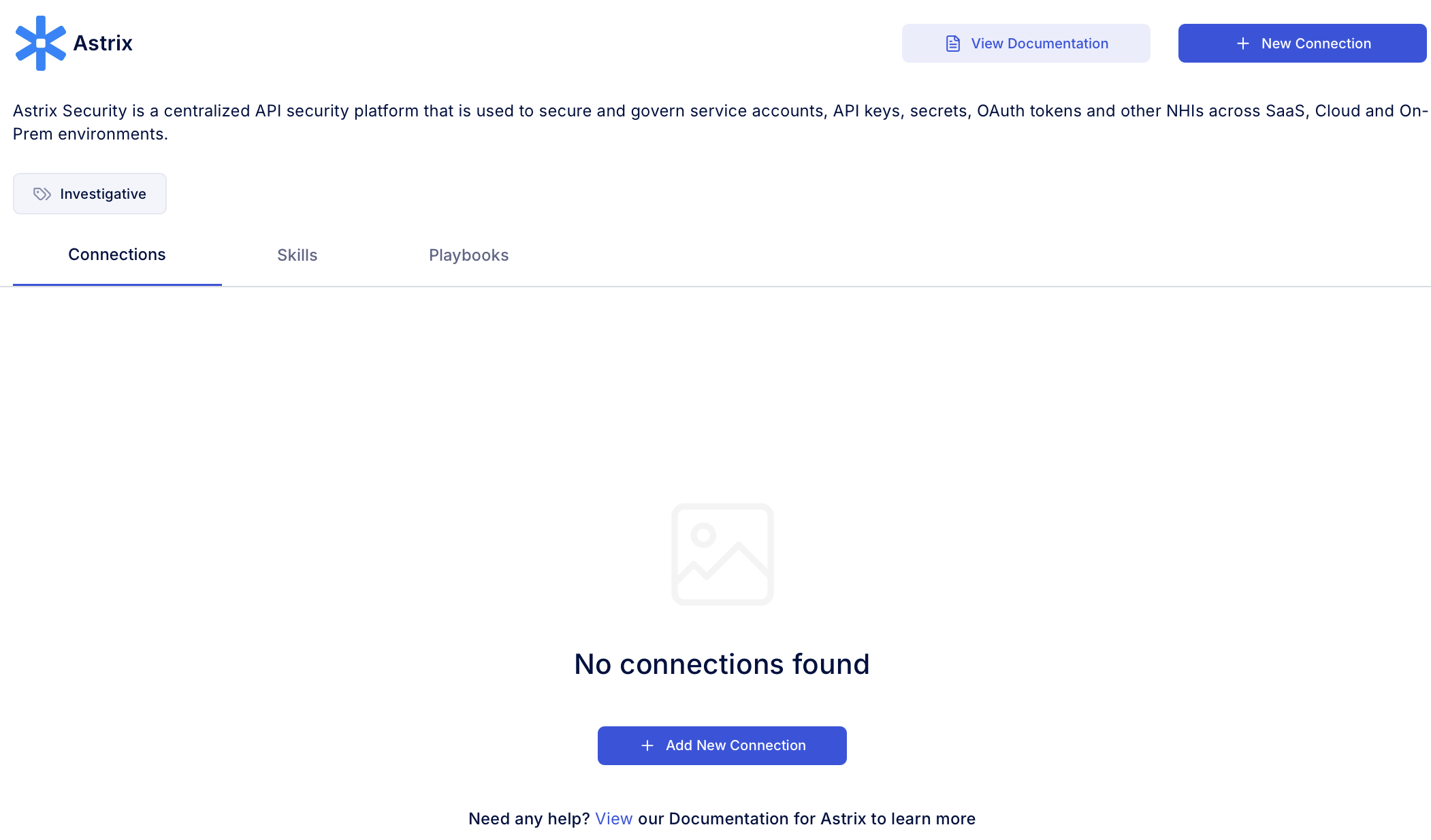
 3. Use the search option, enter the keyword "**Astrix**", select the **Connections** tab, and click **Add New Connection**.
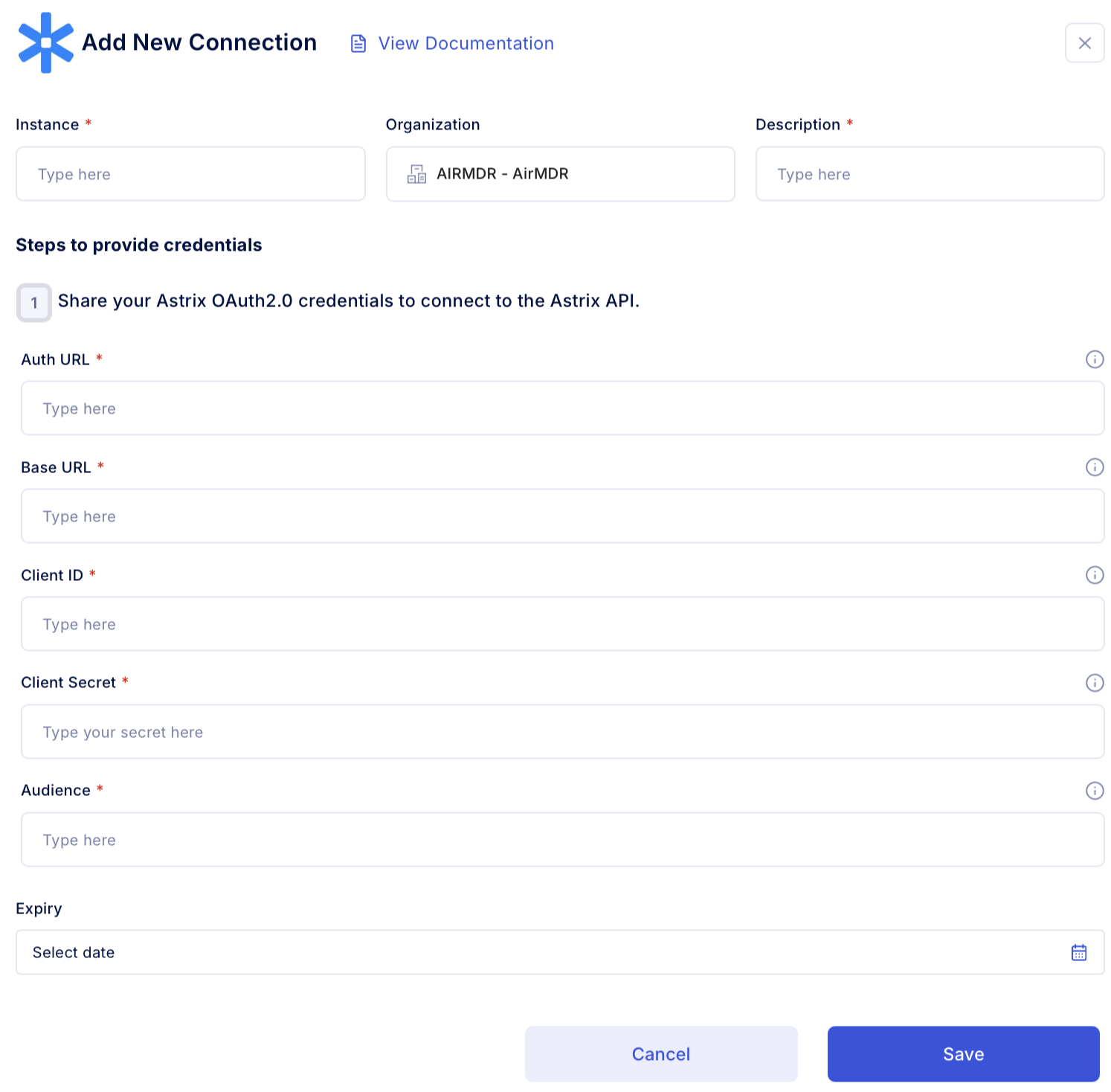
 4. Enter an unique name to the **Instance** (e.g., your org name-Astrix) and brief **Description** to easily identify the user connection by AirMDR.
5. Enter the generated **Auth URL, Base URL, Client ID, Client Secret** and the **Audience** in the Authentication Details field params, and click **Save.**
4. Enter an unique name to the **Instance** (e.g., your org name-Astrix) and brief **Description** to easily identify the user connection by AirMDR.
5. Enter the generated **Auth URL, Base URL, Client ID, Client Secret** and the **Audience** in the Authentication Details field params, and click **Save.**