> ## Documentation Index
> Fetch the complete documentation index at: https://docs.airmdr.com/llms.txt
> Use this file to discover all available pages before exploring further.
# Microsoft Sentinel (Azure Sentinel)
> Microsoft Sentinel is a cloud native security information and event management (SIEM) and security orchestration, automation, and response (SOAR) solution that runs in the Azure cloud.
### Pre-requisites
User organization must have an active **Azure subscription**.
### Set Up App Registrations in the Azure Portal
App registrations in **Microsoft Entra ID (Azure AD)** allow applications to authenticate and access Microsoft resources securely.
1. Log in to your [Azure Portal](https://portal.azure.com/).
2. Go to **Microsoft Entra ID** (formerly Azure AD).
3. In the left menu, click **App registrations**.
1. Click **+ New registration**.
2. Provide the mandatory details: (**Name**: Enter a name for your app (e.g., `airmdr-azure-sentinel-reader`) and **Supported Account Types**: Select ***Accounts in any organizational directory (Any Microsoft Entra ID tenant - Multitenant)*** option).
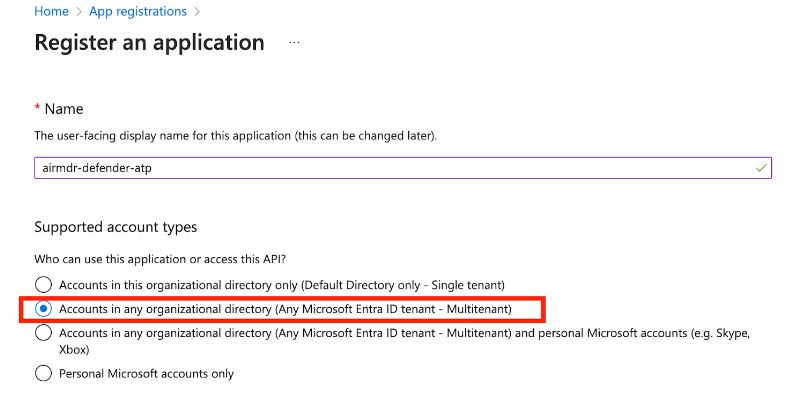 3. Click **Register**.
**Redirect URI (Optional)**: If your app uses authentication, enter a URL (e.g., `https://myapp.com/auth`).
1. After successful registration, you will see the **App Overview** page.
Copy **Application (Client) ID** – Identifies your app.
Copy **Directory (Tenant) ID** – Identifies your Azure AD tenant.
1. In the application Overview page left navigation pane, select **Manage** dropdown.
2. Click **API Permissions**.
3. Click **+ Add a permission**
4. In the Request API permissions window pane > Select an API > Microsoft APIs, select "**Azure Service Management**".
5. Choose **Application permissions**.
6. In the Select permissions → Permissions
7. Select **user impersonation** and then click **Add permissions** at the bottom of the page.
8. Click on Add a permission and select **Microsoft Graph.**
9. Choose **Application permissions**.
10. Select the required permissions (`SecurityAlert.Read.All`, `SecurityIncident.Read.All`,`SecurityEvents.Read.All`).
11. Click **Add a permission**.
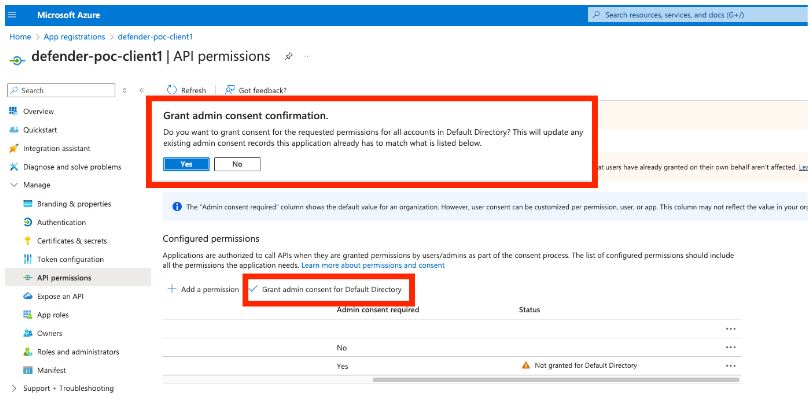
12. Select **Grant admin consent confirmation** and click **Yes** to allow access.
3. Click **Register**.
**Redirect URI (Optional)**: If your app uses authentication, enter a URL (e.g., `https://myapp.com/auth`).
1. After successful registration, you will see the **App Overview** page.
Copy **Application (Client) ID** – Identifies your app.
Copy **Directory (Tenant) ID** – Identifies your Azure AD tenant.
1. In the application Overview page left navigation pane, select **Manage** dropdown.
2. Click **API Permissions**.
3. Click **+ Add a permission**
4. In the Request API permissions window pane > Select an API > Microsoft APIs, select "**Azure Service Management**".
5. Choose **Application permissions**.
6. In the Select permissions → Permissions
7. Select **user impersonation** and then click **Add permissions** at the bottom of the page.
8. Click on Add a permission and select **Microsoft Graph.**
9. Choose **Application permissions**.
10. Select the required permissions (`SecurityAlert.Read.All`, `SecurityIncident.Read.All`,`SecurityEvents.Read.All`).
11. Click **Add a permission**.
12. Select **Grant admin consent confirmation** and click **Yes** to allow access.
 1. In the application Overview page left navigation pane, select **Manage** dropdown.
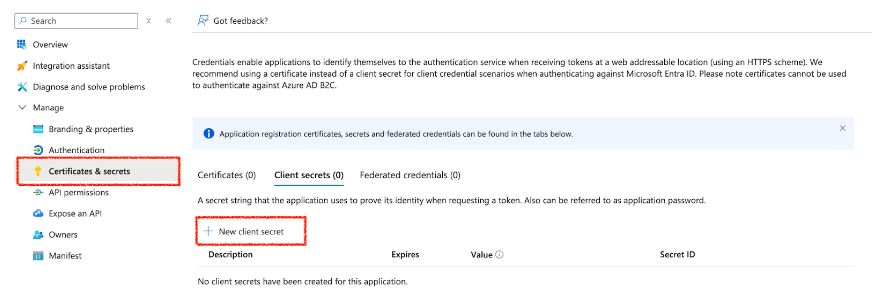
2. Click **Certificates & secrets**.
3. Click **+ New client secret**.
1. In the application Overview page left navigation pane, select **Manage** dropdown.
2. Click **Certificates & secrets**.
3. Click **+ New client secret**.
 4. Enter a description (e.g., `MySecretKey`) and set expiration.
5. Click **Add**.
Copy and secure the **Value** (**Client Secret**) immediately – (It won’t be shown again!)
1. Search for the **Log analytics workspace** (which is linked to Azure Sentinel)
2. In the **Overview** tab.
3. Copy the required values:
* **Subscription ID**
* **Resource Group Name**
* **WorkspaceID**
* **Workspace Name**
Email all the values **Tenant ID**, **Client ID**, **Client Secret Value, Subscription ID, Resource Group Name, Workspace ID** and the **Workspace Name** to AirMDR or self Configure Microsoft Sentinel (Azure Sentinel) in AirMDR Integrations Dashboard.
1. Navigate to **Log analytics workspaces**.
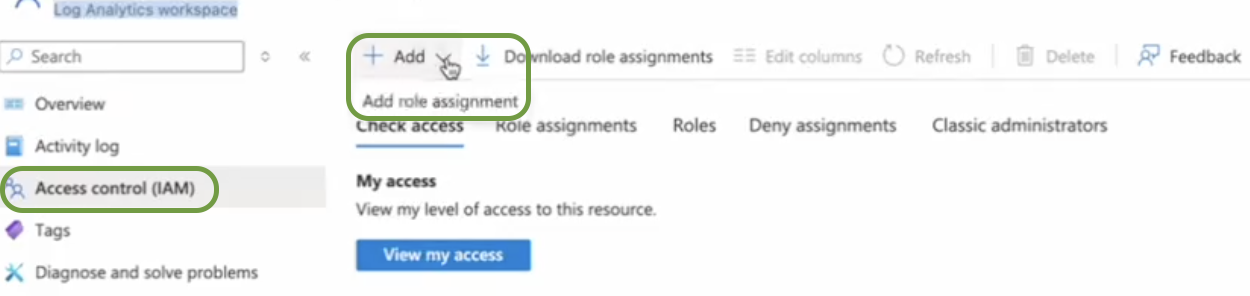
2. Select **Access Control (IAM)**.
3. In the **+Add** drop-down, select **Add role assignment**.
4. Enter a description (e.g., `MySecretKey`) and set expiration.
5. Click **Add**.
Copy and secure the **Value** (**Client Secret**) immediately – (It won’t be shown again!)
1. Search for the **Log analytics workspace** (which is linked to Azure Sentinel)
2. In the **Overview** tab.
3. Copy the required values:
* **Subscription ID**
* **Resource Group Name**
* **WorkspaceID**
* **Workspace Name**
Email all the values **Tenant ID**, **Client ID**, **Client Secret Value, Subscription ID, Resource Group Name, Workspace ID** and the **Workspace Name** to AirMDR or self Configure Microsoft Sentinel (Azure Sentinel) in AirMDR Integrations Dashboard.
1. Navigate to **Log analytics workspaces**.
2. Select **Access Control (IAM)**.
3. In the **+Add** drop-down, select **Add role assignment**.
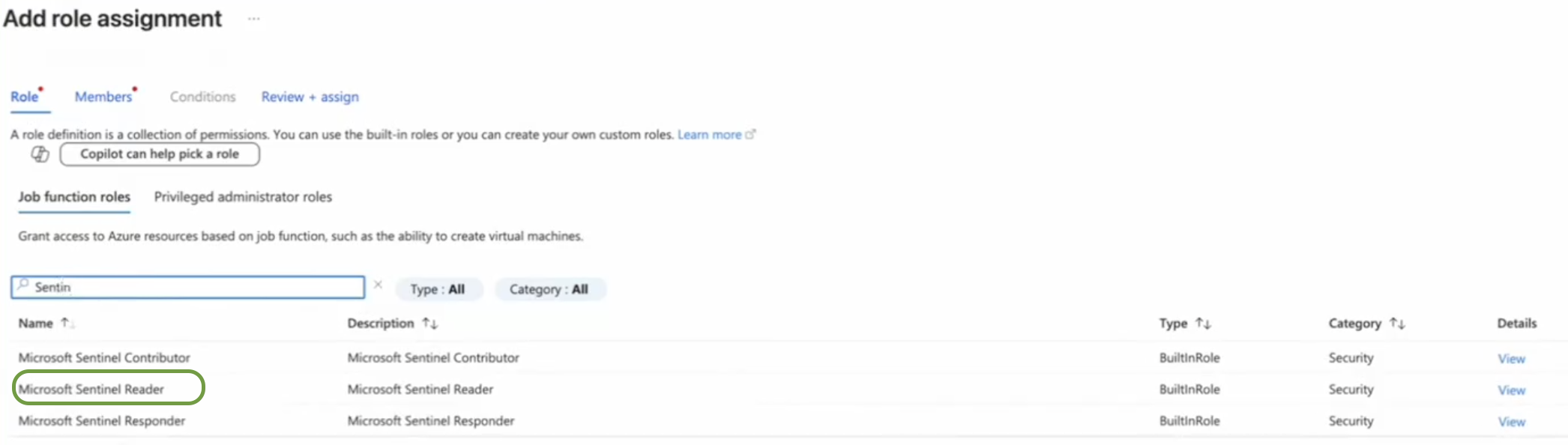
 4. In the **Role** page, search and select **Microsoft SentinelReader** roles, click **Next**.
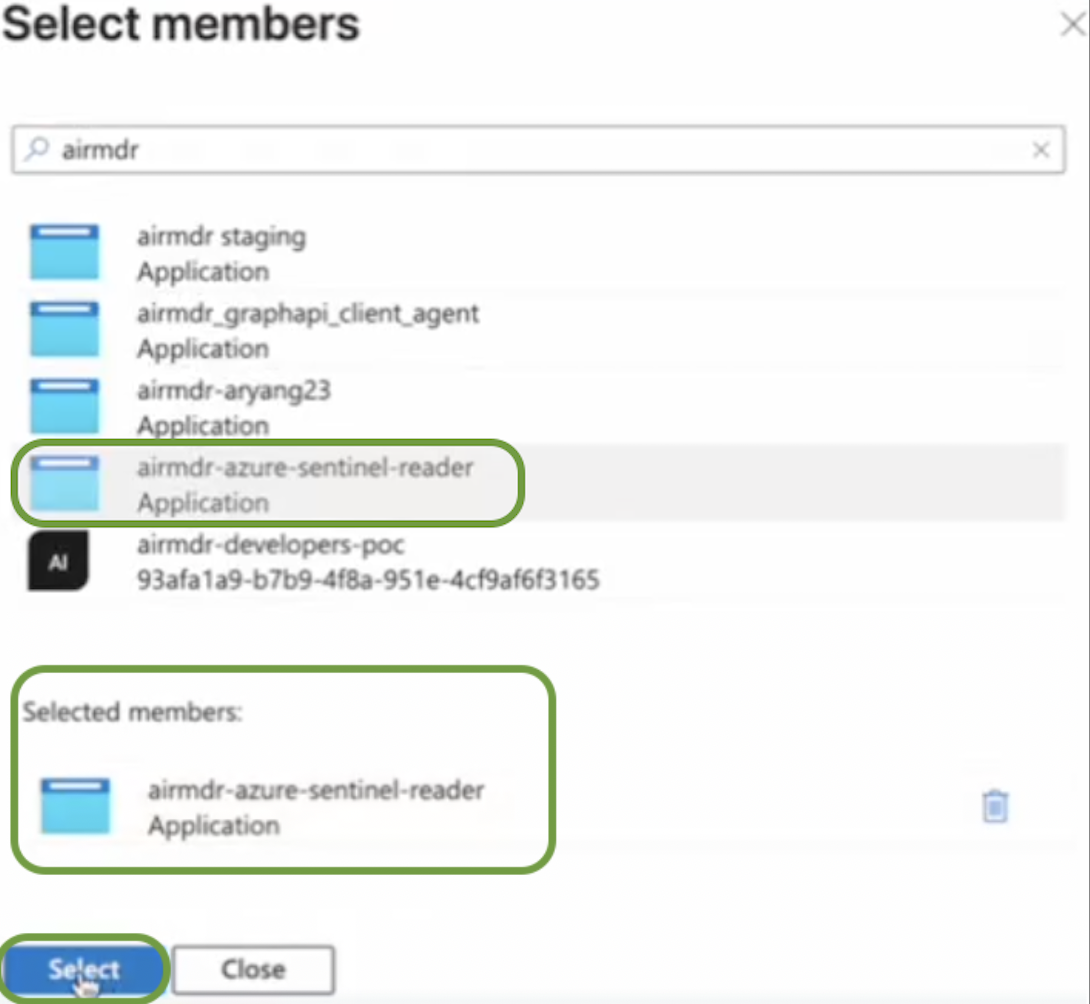
 5. In the **Members** page, click on **+ Select members**.
 6. Search and double-click on the member (e.g., `airmdr-azure-sentinel-reader`) created earlier, click **Select** at the bottom of the page.
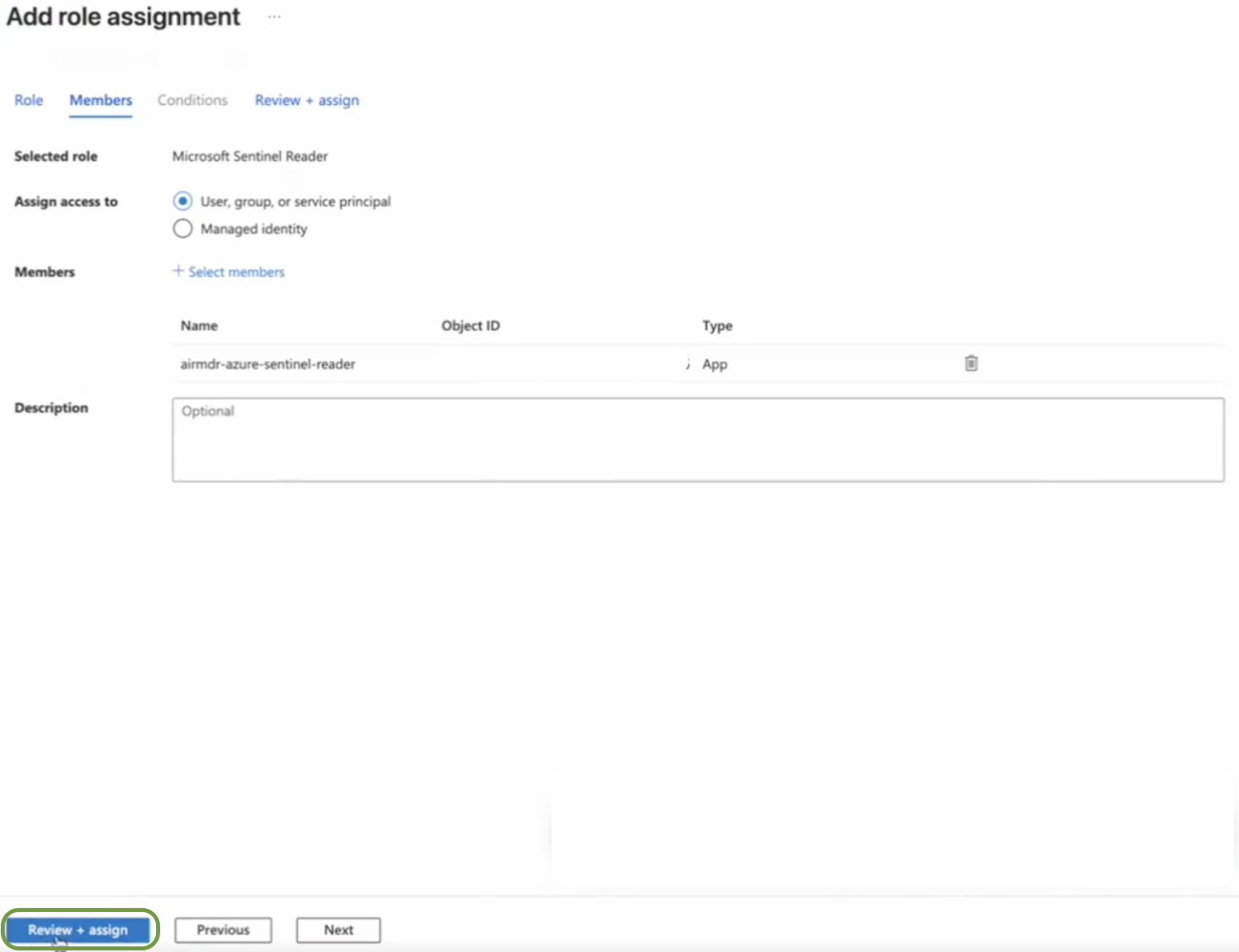
 7. Click on the **Review + assign** bottom at the left bottom of the page.
 ### Configure Microsoft Sentinel (Azure Sentinel) in AirMDR Integrations Dashboard
1. Navigate to [AirMDR](https://app.airmdr.com/auth/login), provide the credentials and click **Login.**
### Configure Microsoft Sentinel (Azure Sentinel) in AirMDR Integrations Dashboard
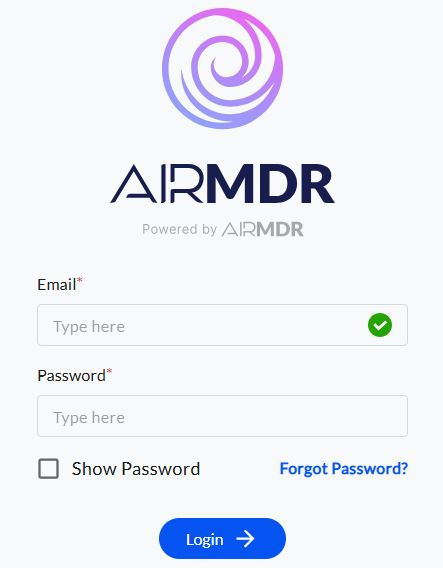
1. Navigate to [AirMDR](https://app.airmdr.com/auth/login), provide the credentials and click **Login.**
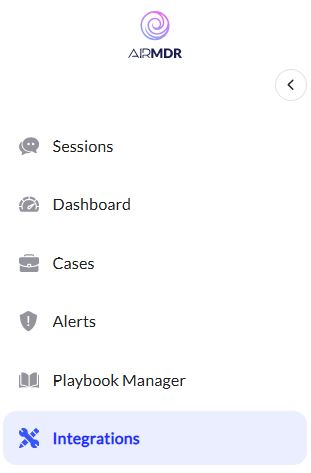
 2. Navigate to the AirMDR Integrations Dashboard in the left navigation pane and select **Integrations.**
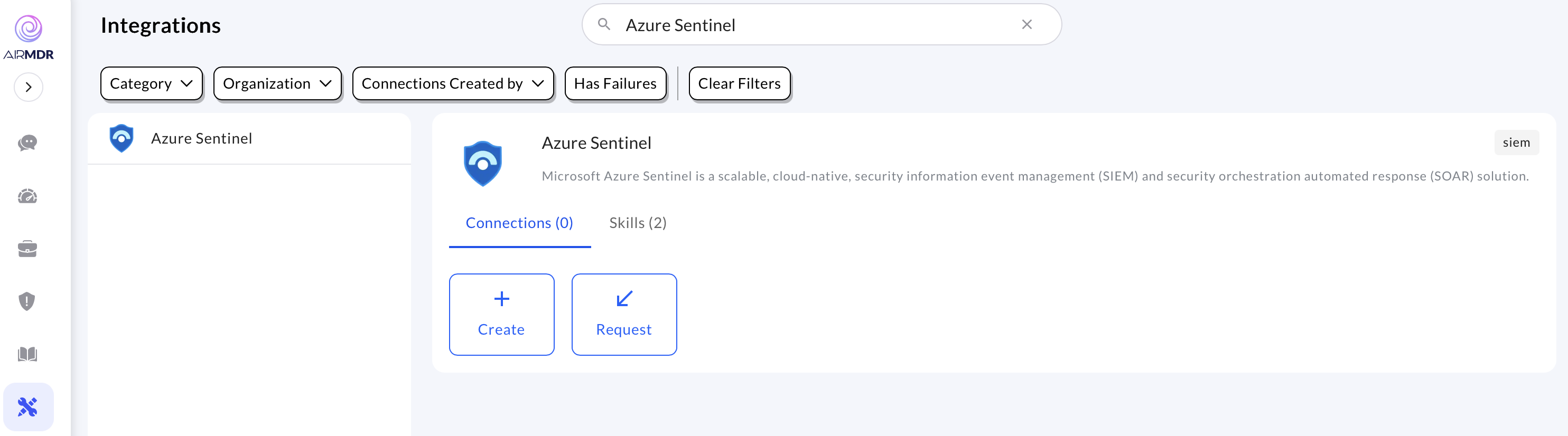
 3. Use the search option, enter the keyword "**Azure Sentinel**", select the **Connections** tab, and click the **+ Create** icon.
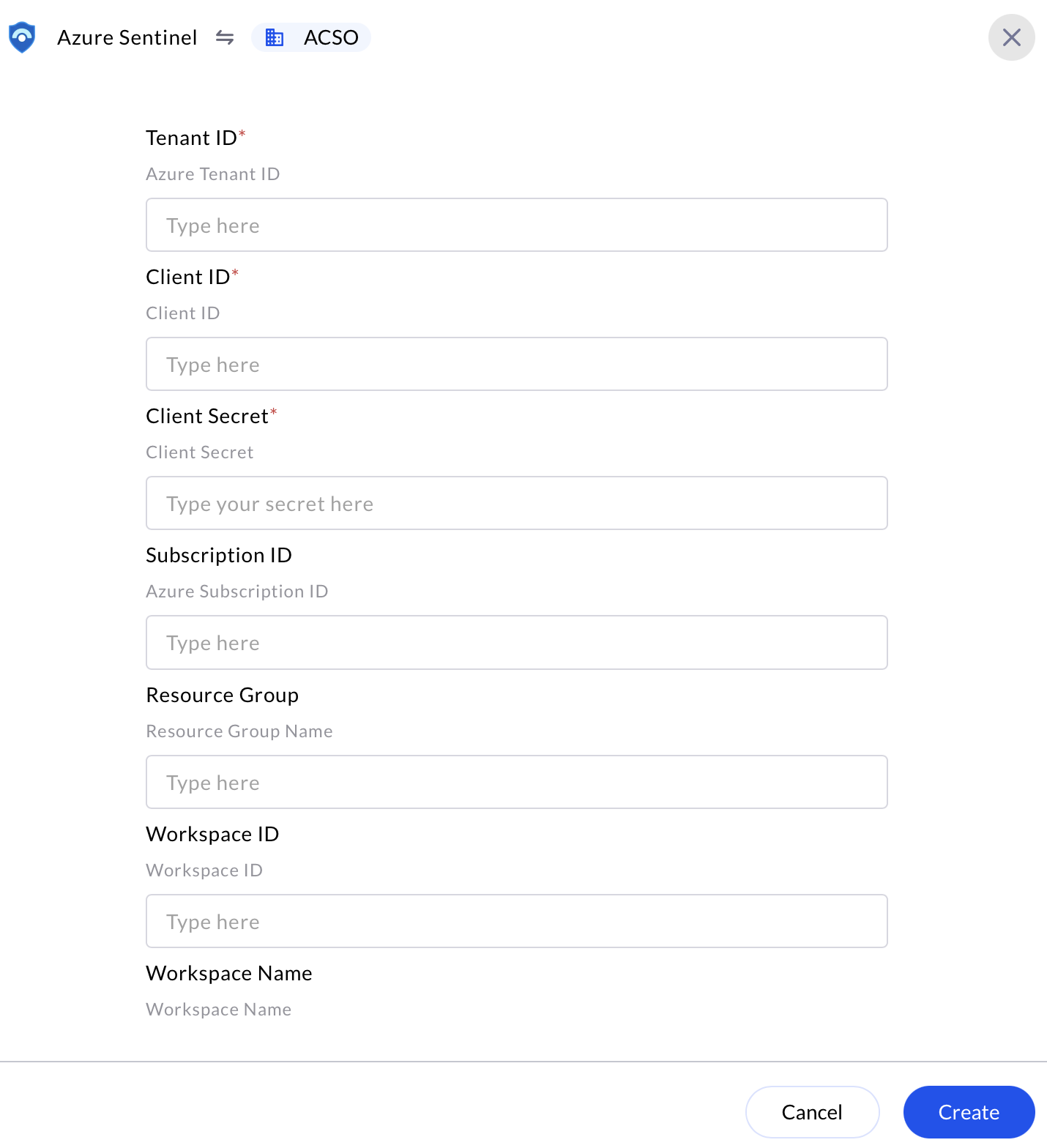
 4. Enter the generated **Tenant ID**, **Client ID**, **Client Secret, Subscription ID, Resource Group, Workspace ID** and the **Workspace Name** in the Authentication Details field params, and click **Create.**
 ### Evaluate Microsoft Sentinel (Azure Sentinel)
### Pre-requisites
**Azure App Registration** with API permissions for **Azure Sentinel**.
**Client ID, Tenant ID, and Client Secret**.
Open **cURL** and run the following command to check if your API Access is working:
Azure Sentinel uses **OAuth 2.0 authentication**. First, request an access token from **Microsoft Entra ID (Azure AD)**:
```
curl -X POST https://login.microsoftonline.com//oauth2/v2.0/token \
-H "Content-Type: application/x-www-form-urlencoded" \
-d "grant_type=client_credentials" \
-d "client_id=" \
-d "client_secret=" \
-d "scope=https://api.loganalytics.io/.default"
```
**Replace:**
* `` – Your Azure Directory (Tenant) ID.
* `` – Your App Registration **Client ID**.
* `` – Your App Registration **Client Secret**.
**Expected Response (Success)**:
```json theme={null}
{
"token_type": "Bearer",
"expires_in": 3599,
"access_token": "eyJ0eXAiOiJKV1QiLCJhb..."
}
```
* This verifies if the user can retrieve **device information** based on the assigned scope.
**Test API Access with MDE**
Once you have the `access_token`, use it in API calls.
* **To Get Device List**
```
curl -X GET "https://api.security.microsoft.com/api/machines" \
-H "Authorization: Bearer " \
-H "Content-Type: application/json"
```
**Expected Response:**
A JSON list of devices onboarded to Defender for Endpoint.
* **To Get Alerts**
```
curl -X GET "https://api.security.microsoft.com/api/alerts" \
-H "Authorization: Bearer " \
-H "Content-Type: application/json"
```
**Expected Response:**
A list of security alerts detected by Microsoft Sentinel (Azure Sentinel).
**Authentication and Authorization Errors**
| Error Code / Message | Cause | Fix |
| --------------------- | --------------------------------------------------------- | -------------------------------------------------------- |
| `invalid_client` | Wrong client ID or secret | Double-check values, regenerate secret if needed |
| `unauthorized_client` | App doesn't have correct permissions | Assign proper API permissions + grant admin consent |
| `invalid_grant` | Wrong `grant_type` or malformed request | Use `grant_type=client_credentials`, validate all fields |
| `AADSTS700016` | App not found | Check client ID, ensure app exists in AAD |
| `AADSTS7000215` | Invalid client secret | Recreate secret in App Registration |
| `AADSTS700011` | Redirect URI mismatch (usually not for Sentinel) | Applicable in interactive auth, not client creds flow |
| `403 Forbidden` | Token works, but app doesn’t have access to the workspace | Assign `Log Analytics Reader`/`Contributor` role to app |
**Troubleshooting Authentication Issues**
| Error Code | Possible Issue | Solution |
| --------------------------- | ---------------------------- | -------------------------------------- |
| `401 Unauthorized` | Invalid token | Regenerate token, check credentials |
| `403 Forbidden` | Insufficient API permissions | Grant admin consent in Azure Portal |
| `400 BAD REQUEST` | Incorrect request format | Verify API endpoint and headers |
| `500 Internal Server Error` | Service issue | Retry later, check the Defender status |
### Evaluate Microsoft Sentinel (Azure Sentinel)
### Pre-requisites
**Azure App Registration** with API permissions for **Azure Sentinel**.
**Client ID, Tenant ID, and Client Secret**.
Open **cURL** and run the following command to check if your API Access is working:
Azure Sentinel uses **OAuth 2.0 authentication**. First, request an access token from **Microsoft Entra ID (Azure AD)**:
```
curl -X POST https://login.microsoftonline.com//oauth2/v2.0/token \
-H "Content-Type: application/x-www-form-urlencoded" \
-d "grant_type=client_credentials" \
-d "client_id=" \
-d "client_secret=" \
-d "scope=https://api.loganalytics.io/.default"
```
**Replace:**
* `` – Your Azure Directory (Tenant) ID.
* `` – Your App Registration **Client ID**.
* `` – Your App Registration **Client Secret**.
**Expected Response (Success)**:
```json theme={null}
{
"token_type": "Bearer",
"expires_in": 3599,
"access_token": "eyJ0eXAiOiJKV1QiLCJhb..."
}
```
* This verifies if the user can retrieve **device information** based on the assigned scope.
**Test API Access with MDE**
Once you have the `access_token`, use it in API calls.
* **To Get Device List**
```
curl -X GET "https://api.security.microsoft.com/api/machines" \
-H "Authorization: Bearer " \
-H "Content-Type: application/json"
```
**Expected Response:**
A JSON list of devices onboarded to Defender for Endpoint.
* **To Get Alerts**
```
curl -X GET "https://api.security.microsoft.com/api/alerts" \
-H "Authorization: Bearer " \
-H "Content-Type: application/json"
```
**Expected Response:**
A list of security alerts detected by Microsoft Sentinel (Azure Sentinel).
**Authentication and Authorization Errors**
| Error Code / Message | Cause | Fix |
| --------------------- | --------------------------------------------------------- | -------------------------------------------------------- |
| `invalid_client` | Wrong client ID or secret | Double-check values, regenerate secret if needed |
| `unauthorized_client` | App doesn't have correct permissions | Assign proper API permissions + grant admin consent |
| `invalid_grant` | Wrong `grant_type` or malformed request | Use `grant_type=client_credentials`, validate all fields |
| `AADSTS700016` | App not found | Check client ID, ensure app exists in AAD |
| `AADSTS7000215` | Invalid client secret | Recreate secret in App Registration |
| `AADSTS700011` | Redirect URI mismatch (usually not for Sentinel) | Applicable in interactive auth, not client creds flow |
| `403 Forbidden` | Token works, but app doesn’t have access to the workspace | Assign `Log Analytics Reader`/`Contributor` role to app |
**Troubleshooting Authentication Issues**
| Error Code | Possible Issue | Solution |
| --------------------------- | ---------------------------- | -------------------------------------- |
| `401 Unauthorized` | Invalid token | Regenerate token, check credentials |
| `403 Forbidden` | Insufficient API permissions | Grant admin consent in Azure Portal |
| `400 BAD REQUEST` | Incorrect request format | Verify API endpoint and headers |
| `500 Internal Server Error` | Service issue | Retry later, check the Defender status |