> ## Documentation Index
> Fetch the complete documentation index at: https://docs.airmdr.com/llms.txt
> Use this file to discover all available pages before exploring further.
# Datadog
> Datadog is a cloud-based monitoring, security, and analytics platform that provides real-time visibility into applications, infrastructure, logs, and security metrics. It helps organizations detect issues, optimize performance, and enhance security.
### Pre-requisites
Only users with an **Admin** or **Standard** role can create new keys.
### Generate Datadog API Key and Application Key
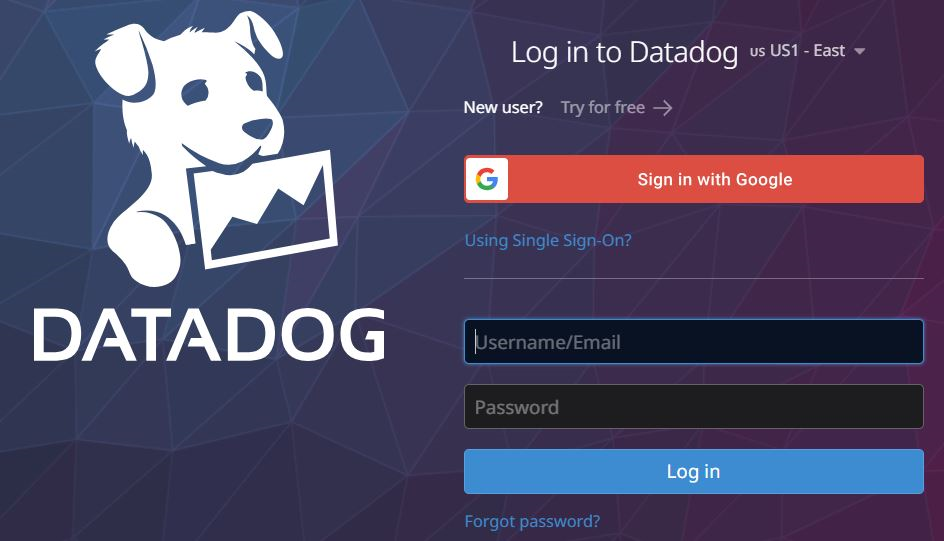
1. Login to the [Datadog](https://app.datadoghq.com/) Account.
2. Provide the necessary credentials (**email** and **password**), and click **Sign In**.
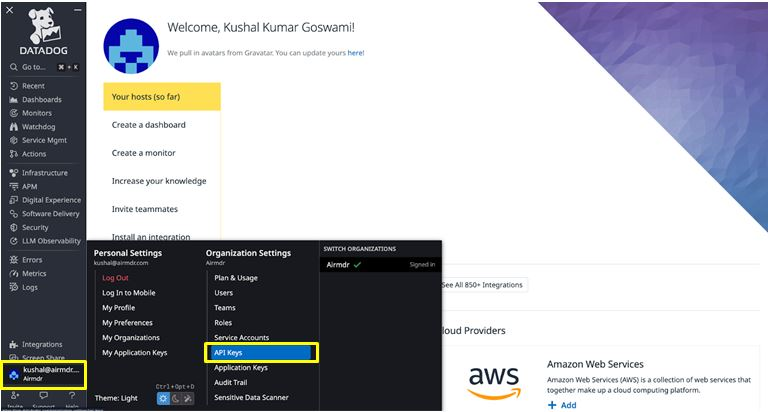
 1. After logging in, click on your profile icon (bottom-left corner).
2. Select **Organization Settings**, click on **API Keys**.
1. After logging in, click on your profile icon (bottom-left corner).
2. Select **Organization Settings**, click on **API Keys**.
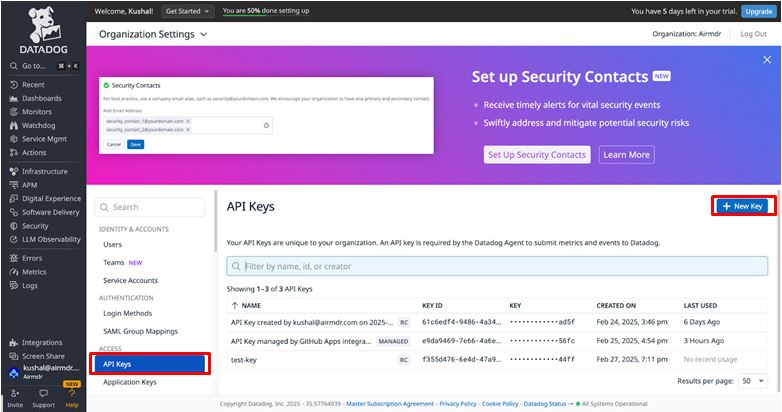
 1. Click on **+ New Key** button.
 2. Enter a **Name** for the New API Key (e.g., `Test-API-Key`).
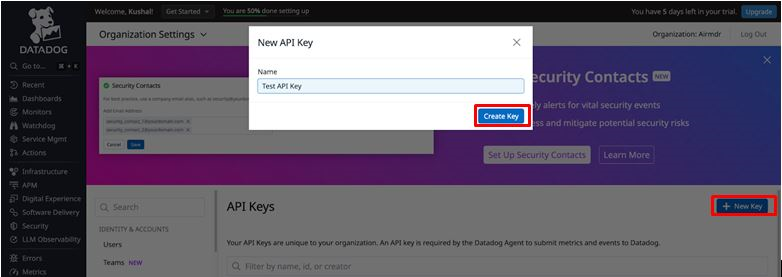 3. Click **Create Key**.
4. **Copy** and securely store the generated **API Key** (you won’t be able to see it again).
3. Click **Create Key**.
4. **Copy** and securely store the generated **API Key** (you won’t be able to see it again).
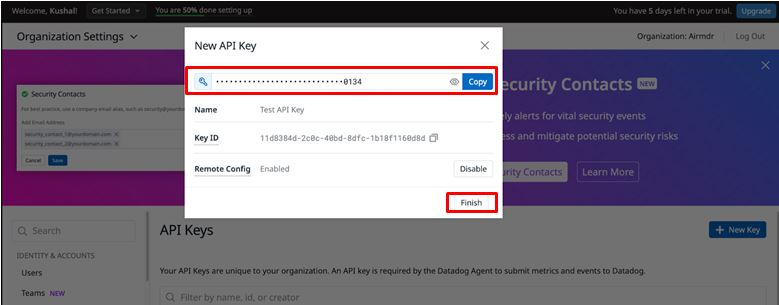 📌 **Note:** API Keys are used for authentication when sending logs, metrics, and traces to Datadog.
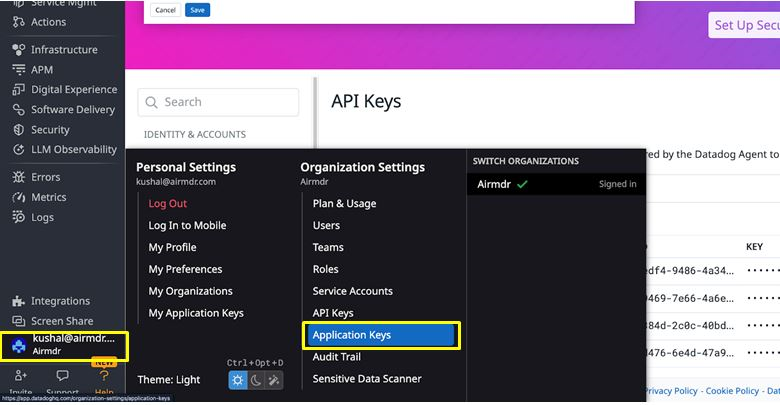
1. Click on your profile icon (bottom-left corner).
2. Select **Organization Settings**, click on **Application Keys**.
📌 **Note:** API Keys are used for authentication when sending logs, metrics, and traces to Datadog.
1. Click on your profile icon (bottom-left corner).
2. Select **Organization Settings**, click on **Application Keys**.
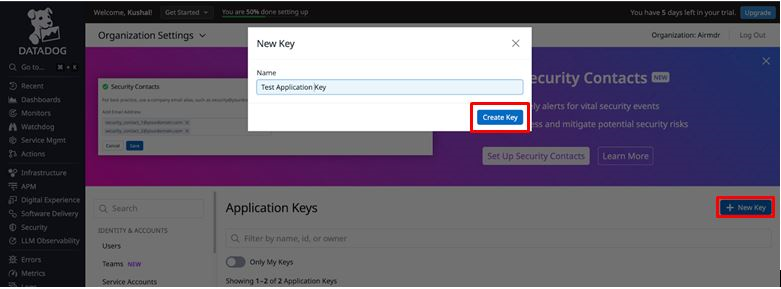
 3. Click **New Key**.
4. Enter a name for the Application Key (e.g., `Test-Application-Key`).
5. Click **Create Key**.
3. Click **New Key**.
4. Enter a name for the Application Key (e.g., `Test-Application-Key`).
5. Click **Create Key**.
 6. **Copy** and securely store the **Application Key**.
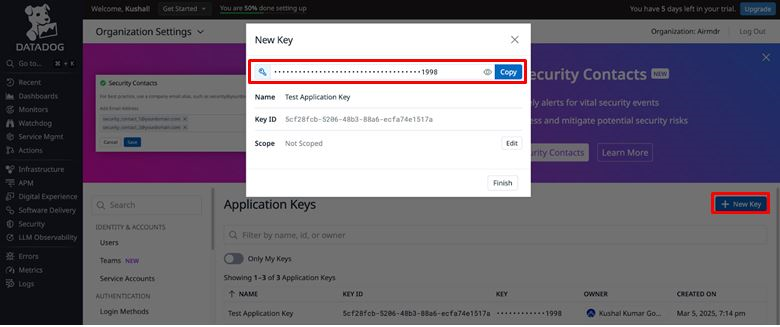 📌 **Note:** Application Keys are used for **making authenticated API requests** to Datadog (e.g., retrieving logs, dashboards, or managing configurations).
Share the **API Key** and **Application Key** securely to AirMDR.\
(or) \
Self Configure Datadog API in the AirMDR Integrations Dashboard.
### Skills Provided by this Integration
| Skill ID | Purpose |
| ---------------------------- | ------------------------------------------------------------------------------ |
| Fetch Signals from Datadog | Fetches signals that match a specific query in the Datadog dashboard. |
| Fetch Logs from Datadog | Fetches logs that match a log search query in datdog dashboard. |
| Fetch Incidents from Datadog | Fetches incident details that match a specific query in the Datadog dashboard. |
To view the details of Input Parameters and Output for the respective skills
* Go to [AirMDR → DataDog](https://app.airmdr.com/integrations?search=datadog) Integration page.
* Select the **Skills** tab and click on the required listed skills.
### Configure Datadog API in AirMDR Integrations Dashboard
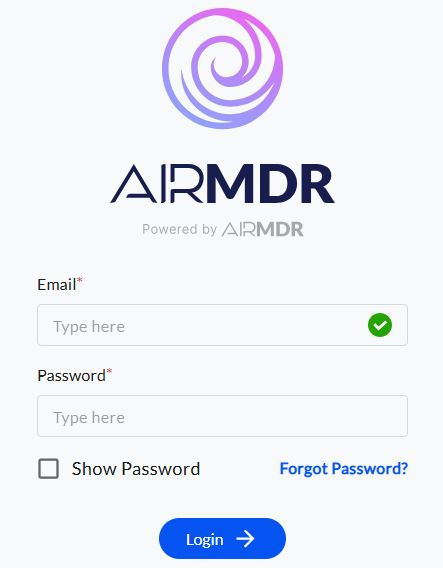
1. Navigate to [AirMDR](https://app.airmdr.com/auth/login), provide the credentials and click **Login**
📌 **Note:** Application Keys are used for **making authenticated API requests** to Datadog (e.g., retrieving logs, dashboards, or managing configurations).
Share the **API Key** and **Application Key** securely to AirMDR.\
(or) \
Self Configure Datadog API in the AirMDR Integrations Dashboard.
### Skills Provided by this Integration
| Skill ID | Purpose |
| ---------------------------- | ------------------------------------------------------------------------------ |
| Fetch Signals from Datadog | Fetches signals that match a specific query in the Datadog dashboard. |
| Fetch Logs from Datadog | Fetches logs that match a log search query in datdog dashboard. |
| Fetch Incidents from Datadog | Fetches incident details that match a specific query in the Datadog dashboard. |
To view the details of Input Parameters and Output for the respective skills
* Go to [AirMDR → DataDog](https://app.airmdr.com/integrations?search=datadog) Integration page.
* Select the **Skills** tab and click on the required listed skills.
### Configure Datadog API in AirMDR Integrations Dashboard
1. Navigate to [AirMDR](https://app.airmdr.com/auth/login), provide the credentials and click **Login**
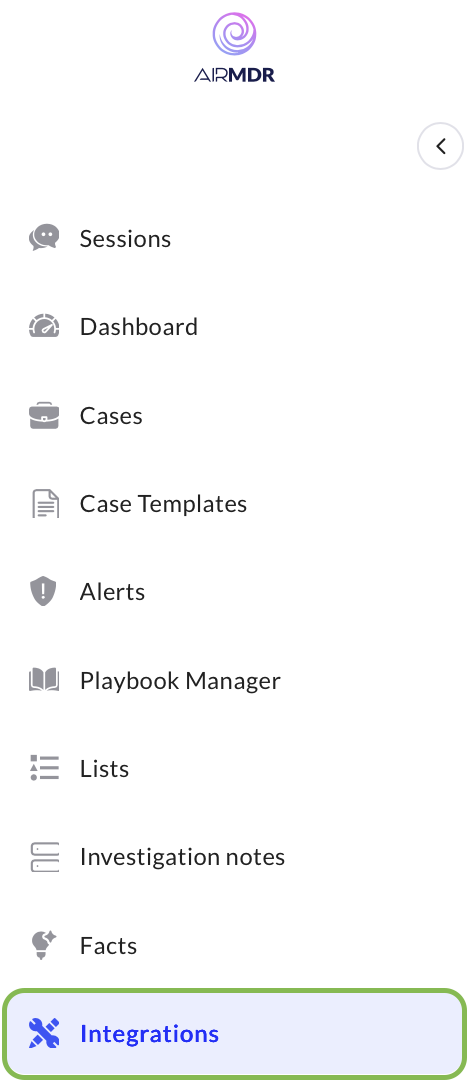
 2. Navigate to the AirMDR Integrations Dashboard in the left navigation pane and select **Integrations.**
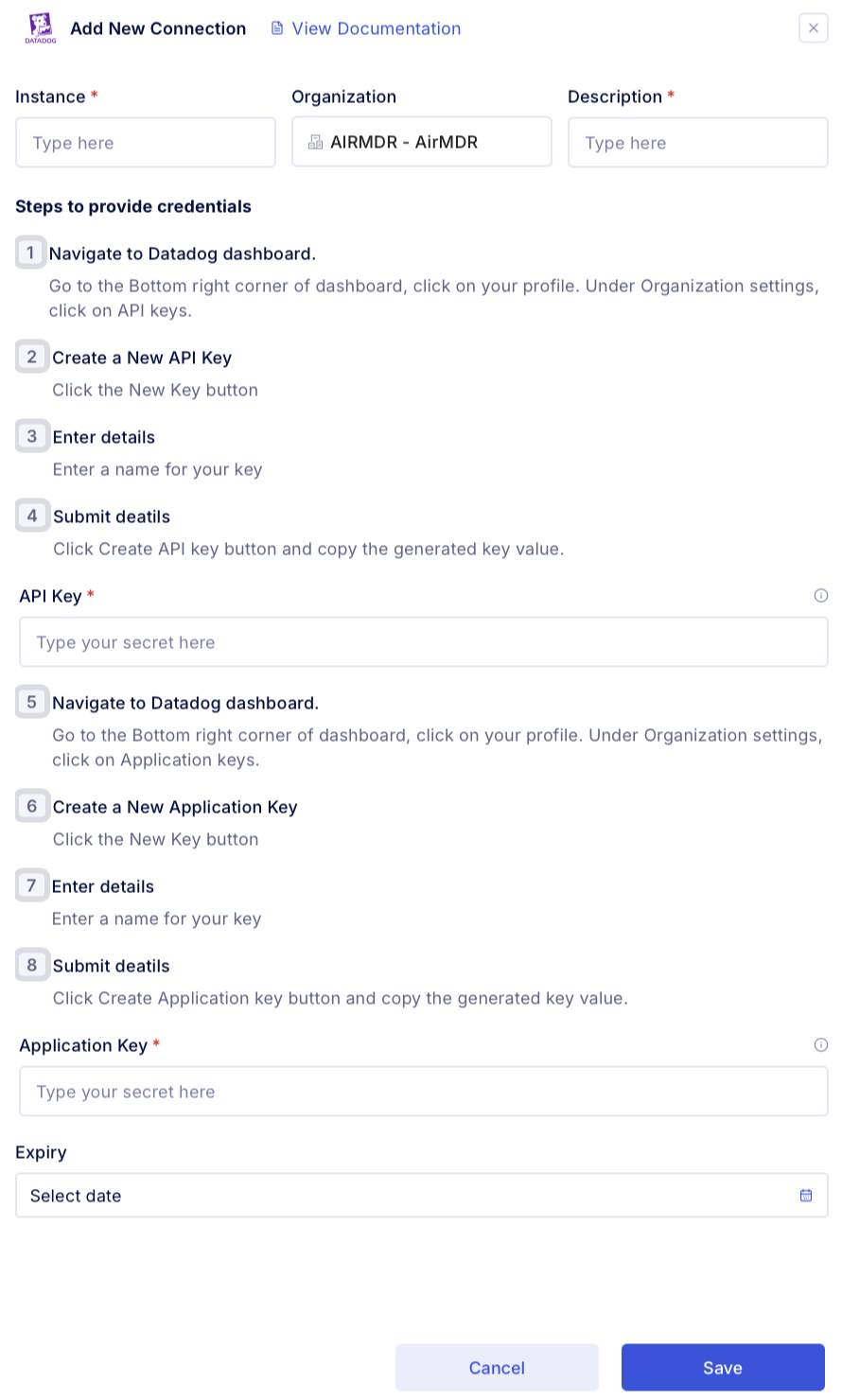
 3. Use the search option, enter the keyword "**Datadog**", select the **Connections** tab, and click **Add New Connection**.
4. Enter an unique name to the Instance (e.g., `your org name-Datadog`) and brief **Description** to easily identify the user connection by AirMDR.
5. Enter the generated **API Key**, **Application Key** and Expiry (optional) in the Authentication Details field params, and click **Save.**
3. Use the search option, enter the keyword "**Datadog**", select the **Connections** tab, and click **Add New Connection**.
4. Enter an unique name to the Instance (e.g., `your org name-Datadog`) and brief **Description** to easily identify the user connection by AirMDR.
5. Enter the generated **API Key**, **Application Key** and Expiry (optional) in the Authentication Details field params, and click **Save.**
 ### Evaluate Datadog API & Application Keys
Open **cURL** and run the following command to check if your API Key is working:
```
curl -X GET 'https://api.datadoghq.com/api/v2/users?page[size]=1&page[offset]=1' \
-H 'Content-Type: application/json' \
-H 'DD-API-KEY: your_api_key_here' \
-H 'DD-APPLICATION-KEY: your_application_key_here' \
-H 'Accept: application/json'
```
Response
```
{"valid": true}
```
### Evaluate Datadog API & Application Keys
Open **cURL** and run the following command to check if your API Key is working:
```
curl -X GET 'https://api.datadoghq.com/api/v2/users?page[size]=1&page[offset]=1' \
-H 'Content-Type: application/json' \
-H 'DD-API-KEY: your_api_key_here' \
-H 'DD-APPLICATION-KEY: your_application_key_here' \
-H 'Accept: application/json'
```
Response
```
{"valid": true}
```