> ## Documentation Index
> Fetch the complete documentation index at: https://docs.airmdr.com/llms.txt
> Use this file to discover all available pages before exploring further.
# Google Cloud Platform - Security Command Center
> Security Command Center (SCC) is Google Cloud’s centralized security and risk management platform. It helps detect, investigate, and remediate security threats, vulnerabilities, and misconfigurations across Google Cloud resources.
### Pre-requisites
User Organization must define **Owner** or **Security Admin** role (`roles/owner` or `roles/securitycenter.admin`) in your GCP organization.
User must have **Organization Admin** permissions to enable services at the organization level.
1. Select your organization, and enter keyword "Security" in the search bar.
2. Select the **Security Command Center**.
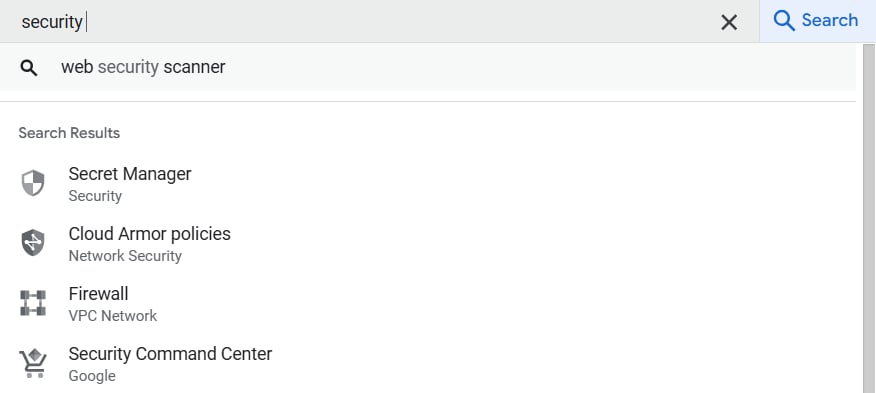 3. Click on "**GET THE SECURITY COMMAND CENTER**".
4. Make sure Service Tier is **Premium (Paid)** for your organization.\
\
**SCC Editions: Standard vs. Premium Feature support (For reference)**
| Feature | Standard (Free) | Premium (Paid) |
| :------------------------------- | :-------------- | :------------- |
| Security Health Analytics | ✅ Basic | ✅ Advanced |
| Event Threat Detection | ❌ No | ✅ Yes |
| Container & VM Threat Detection | ❌ No | ✅ Yes |
| Continuous Compliance Monitoring | ❌ No | ✅ Yes |
| Automated Security Insights | ❌ No | ✅ Yes |
| Component | Supported Details |
| :------------------------ | :----------------------------------- |
| Cloud Platform | Google Cloud Platform |
| Security Product | Google Cloud Security Command Center |
| Authentication Method | Service Account JSON |
| Required Identifier | Organization ID |
| AirMDR Configuration Type | Cloud API-based integration |
| API Used | Security Command Center API |
| Base Endpoint | `https://console.cloud.google.com` |
AirMDR uses a Google Cloud service account JSON key to authenticate with Security Command Center.
### Required Authentication Details
| Field | Required | Description | Where to Get It |
| :------------------- | :------- | :------------------------------------------------------------------- | :---------------------------------------------------- |
| Service Account JSON | Yes | JSON key file used by AirMDR to authenticate with Google Cloud APIs. | Google Cloud Console > IAM & Admin > Service Accounts |
| Organization ID | Yes | Numeric identifier of the Google Cloud organization. | Google Cloud Console organization settings |
The service account must have permission to read Security Command Center findings from the target organization.
Recommended minimum role:
| Role | Purpose |
| :------------------------------ | :----------------------------------------------------------------------- |
| Security Center Findings Viewer | Allows the service account to retrieve Security Command Center findings. |
Additional roles may be required depending on the customer’s GCP hierarchy, organization policies, and AirMDR use case.
Use least-privilege access. Assign only the permissions required for AirMDR to retrieve Security Command Center findings.
### Setup Steps
This section explains how to collect the two required values for AirMDR:
* `service_account_json`
* `organization_id`
1. Sign in to the [Google Cloud Console](https://console.cloud.google.com/welcome).
2. In the ribbon, click on your project name.
3. From the top project selector, select the project that will be used for the AirMDR integration.
Confirm that you are working under the correct organization and project.
The selected project is where the service account and API configuration will be managed.
1. In [Google Cloud Console](https://console.cloud.google.com/welcome), open the navigation menu.
2. Go to **APIs & Services**.
3. Select **Library**.
4. Search for **Security Command Center API**.
5. Open the API page.
6. Click **Enable**.
1. In [Google Cloud Console](https://console.cloud.google.com/welcome), open the navigation menu.
2. Go to **IAM & Admin**.
3. Select **Service Accounts**.
4. Click **Create Service Account**.
5. Enter the following details:
| Field | Example Value | Description |
| :------------------- | :----------------------------------------------- | :------------------------------------------- |
| Service account name | `airmdr-integration-gcp` | Display name for the service account. |
| Service account ID | `airmdr-integration-gcp` | Unique ID generated for the service account. |
| Description | `Service account for AirMDR GCP SCC integration` | Optional description for tracking usage. |
6. Click **Create and Continue**.
7. Skip role assignment (Permissions and Principals with access) at this step if the role will be assigned at the organization level.
8. Click **Done**.
1. Search the service account created for AirMDR.\
For example: `airmdr-integration-gcp`(as shown)
3. Click on "**GET THE SECURITY COMMAND CENTER**".
4. Make sure Service Tier is **Premium (Paid)** for your organization.\
\
**SCC Editions: Standard vs. Premium Feature support (For reference)**
| Feature | Standard (Free) | Premium (Paid) |
| :------------------------------- | :-------------- | :------------- |
| Security Health Analytics | ✅ Basic | ✅ Advanced |
| Event Threat Detection | ❌ No | ✅ Yes |
| Container & VM Threat Detection | ❌ No | ✅ Yes |
| Continuous Compliance Monitoring | ❌ No | ✅ Yes |
| Automated Security Insights | ❌ No | ✅ Yes |
| Component | Supported Details |
| :------------------------ | :----------------------------------- |
| Cloud Platform | Google Cloud Platform |
| Security Product | Google Cloud Security Command Center |
| Authentication Method | Service Account JSON |
| Required Identifier | Organization ID |
| AirMDR Configuration Type | Cloud API-based integration |
| API Used | Security Command Center API |
| Base Endpoint | `https://console.cloud.google.com` |
AirMDR uses a Google Cloud service account JSON key to authenticate with Security Command Center.
### Required Authentication Details
| Field | Required | Description | Where to Get It |
| :------------------- | :------- | :------------------------------------------------------------------- | :---------------------------------------------------- |
| Service Account JSON | Yes | JSON key file used by AirMDR to authenticate with Google Cloud APIs. | Google Cloud Console > IAM & Admin > Service Accounts |
| Organization ID | Yes | Numeric identifier of the Google Cloud organization. | Google Cloud Console organization settings |
The service account must have permission to read Security Command Center findings from the target organization.
Recommended minimum role:
| Role | Purpose |
| :------------------------------ | :----------------------------------------------------------------------- |
| Security Center Findings Viewer | Allows the service account to retrieve Security Command Center findings. |
Additional roles may be required depending on the customer’s GCP hierarchy, organization policies, and AirMDR use case.
Use least-privilege access. Assign only the permissions required for AirMDR to retrieve Security Command Center findings.
### Setup Steps
This section explains how to collect the two required values for AirMDR:
* `service_account_json`
* `organization_id`
1. Sign in to the [Google Cloud Console](https://console.cloud.google.com/welcome).
2. In the ribbon, click on your project name.
3. From the top project selector, select the project that will be used for the AirMDR integration.
Confirm that you are working under the correct organization and project.
The selected project is where the service account and API configuration will be managed.
1. In [Google Cloud Console](https://console.cloud.google.com/welcome), open the navigation menu.
2. Go to **APIs & Services**.
3. Select **Library**.
4. Search for **Security Command Center API**.
5. Open the API page.
6. Click **Enable**.
1. In [Google Cloud Console](https://console.cloud.google.com/welcome), open the navigation menu.
2. Go to **IAM & Admin**.
3. Select **Service Accounts**.
4. Click **Create Service Account**.
5. Enter the following details:
| Field | Example Value | Description |
| :------------------- | :----------------------------------------------- | :------------------------------------------- |
| Service account name | `airmdr-integration-gcp` | Display name for the service account. |
| Service account ID | `airmdr-integration-gcp` | Unique ID generated for the service account. |
| Description | `Service account for AirMDR GCP SCC integration` | Optional description for tracking usage. |
6. Click **Create and Continue**.
7. Skip role assignment (Permissions and Principals with access) at this step if the role will be assigned at the organization level.
8. Click **Done**.
1. Search the service account created for AirMDR.\
For example: `airmdr-integration-gcp`(as shown)
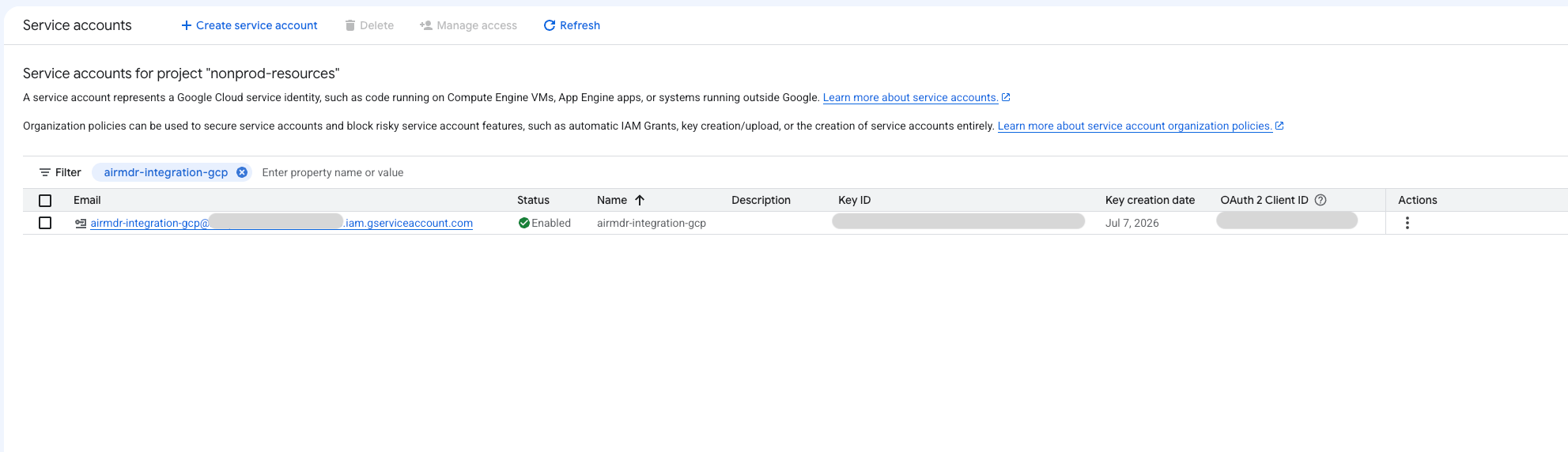 2. Open the **Keys** tab.
3. Click **Add Key** drop-down.
2. Open the **Keys** tab.
3. Click **Add Key** drop-down.
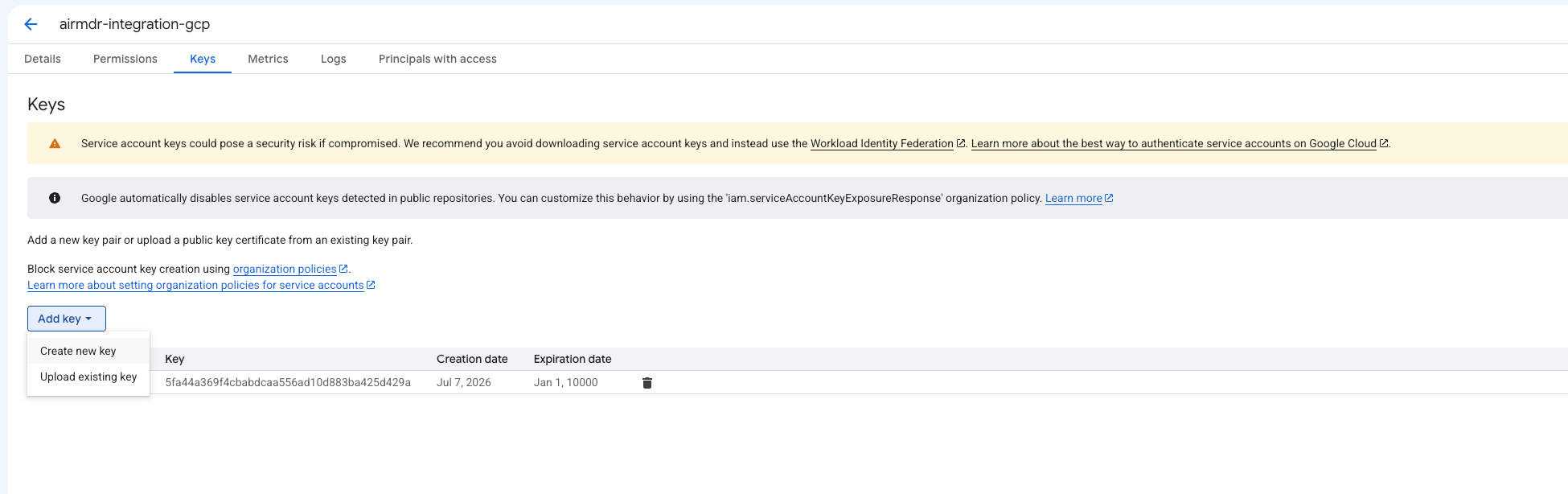 4. Select **Create new key**.
5. Select **JSON** as the key type.
4. Select **Create new key**.
5. Select **JSON** as the key type.
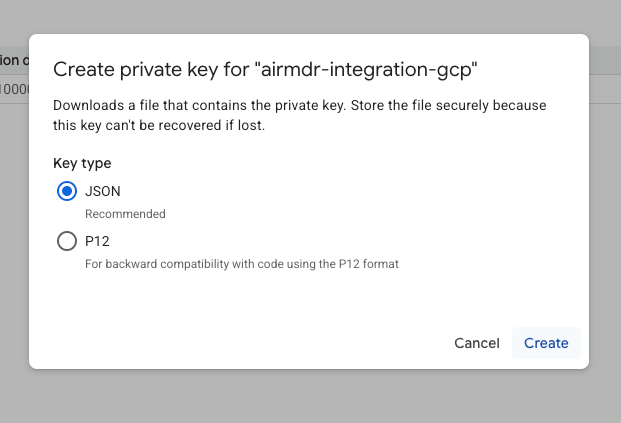 6. Click **Create**.
Permission updates for service accounts may take a few minutes to propagate. If access is not granted immediately, wait a few minutes and try again.
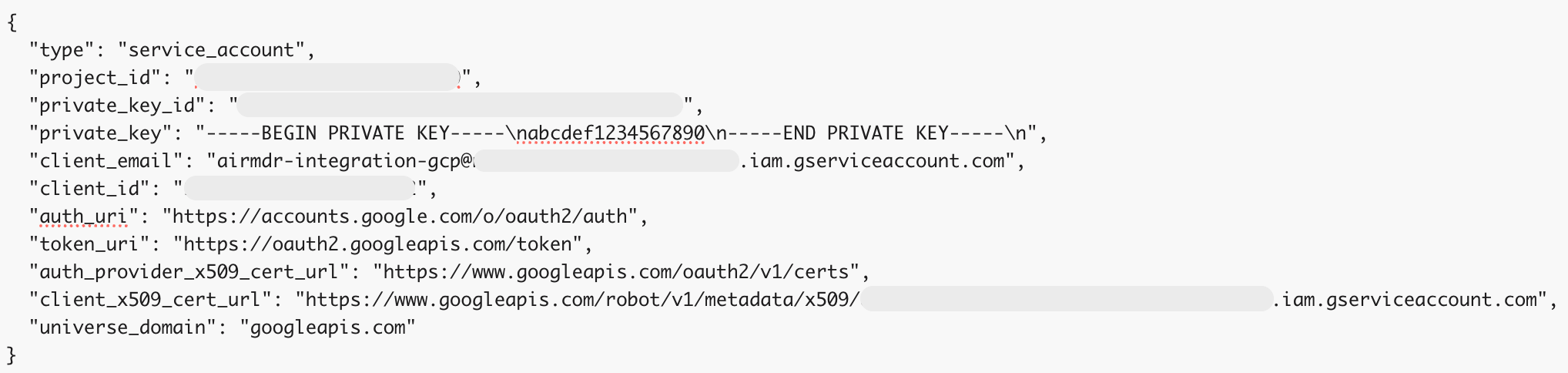
7. The JSON file is downloaded automatically.\
The downloaded file is the `service_account_json` required in AirMDR.\
**Example JSON Structure:**
6. Click **Create**.
Permission updates for service accounts may take a few minutes to propagate. If access is not granted immediately, wait a few minutes and try again.
7. The JSON file is downloaded automatically.\
The downloaded file is the `service_account_json` required in AirMDR.\
**Example JSON Structure:**
 Store the JSON key securely. Do not share it over email, chat, or unsecured channels.
1. In [Google Cloud Console](https://console.cloud.google.com/welcome), go to **IAM & Admin**.
2. Select **IAM**.
Make sure the correct organization is selected.
Store the JSON key securely. Do not share it over email, chat, or unsecured channels.
1. In [Google Cloud Console](https://console.cloud.google.com/welcome), go to **IAM & Admin**.
2. Select **IAM**.
Make sure the correct organization is selected.
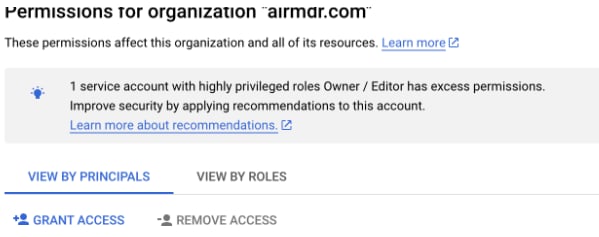
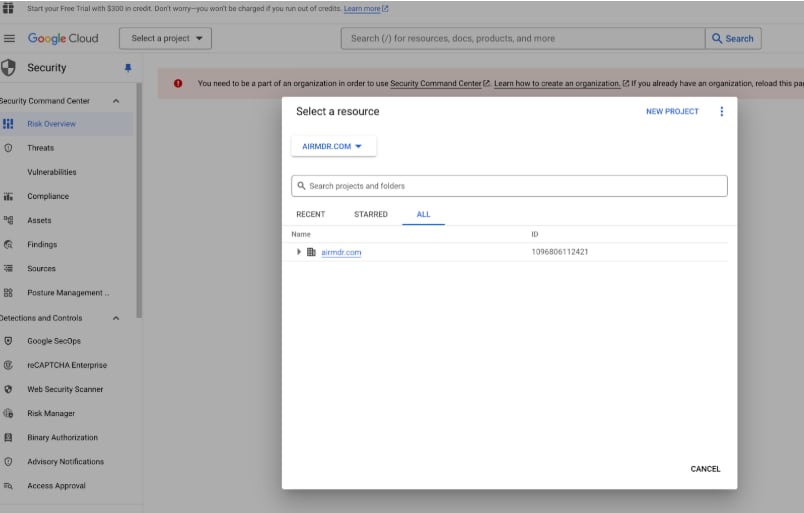 3. Click **Grant Access**.
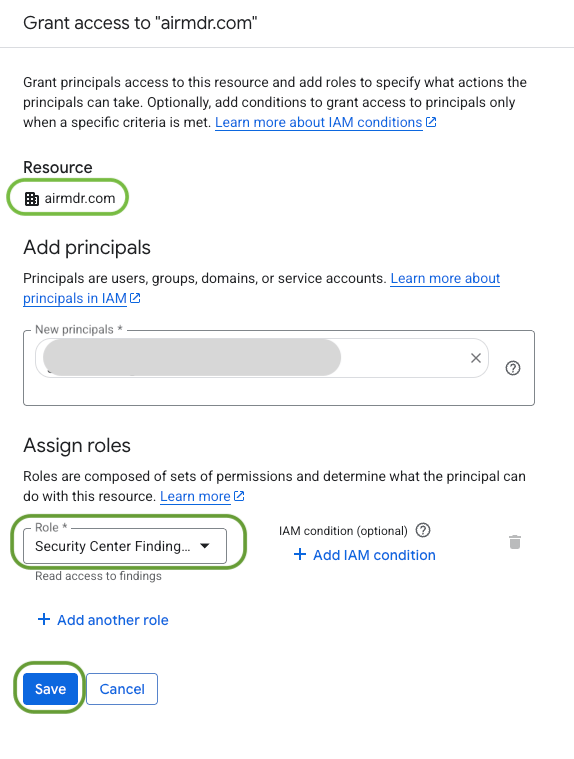
 4. In **Add Principals → New principals**, enter the service account email.\
Example: [airmdr-integration-gcp@example-project.iam.gserviceaccount.com](mailto:airmdr-integration-gcp@example-project.iam.gserviceaccount.com)
5. In **Assign Roles → Select a role**, search for and select:
* **Security Center Findings Viewer (**`roles/securitycenter.viewer`**)** → Grants read access
Make sure the correct Organisation is selected under **Resource**.\
For example: [airmdr.com](http://airmdr.com) (Reference only as shown below)
6. Click **Save**.
4. In **Add Principals → New principals**, enter the service account email.\
Example: [airmdr-integration-gcp@example-project.iam.gserviceaccount.com](mailto:airmdr-integration-gcp@example-project.iam.gserviceaccount.com)
5. In **Assign Roles → Select a role**, search for and select:
* **Security Center Findings Viewer (**`roles/securitycenter.viewer`**)** → Grants read access
Make sure the correct Organisation is selected under **Resource**.\
For example: [airmdr.com](http://airmdr.com) (Reference only as shown below)
6. Click **Save**.
 When finished, you should have a service account named **airmdr-agent**, credentials for this service account in a JSON file saved to your host.
1. In [Google Cloud Console](https://console.cloud.google.com/welcome), open the project selector at the top.
When finished, you should have a service account named **airmdr-agent**, credentials for this service account in a JSON file saved to your host.
1. In [Google Cloud Console](https://console.cloud.google.com/welcome), open the project selector at the top.
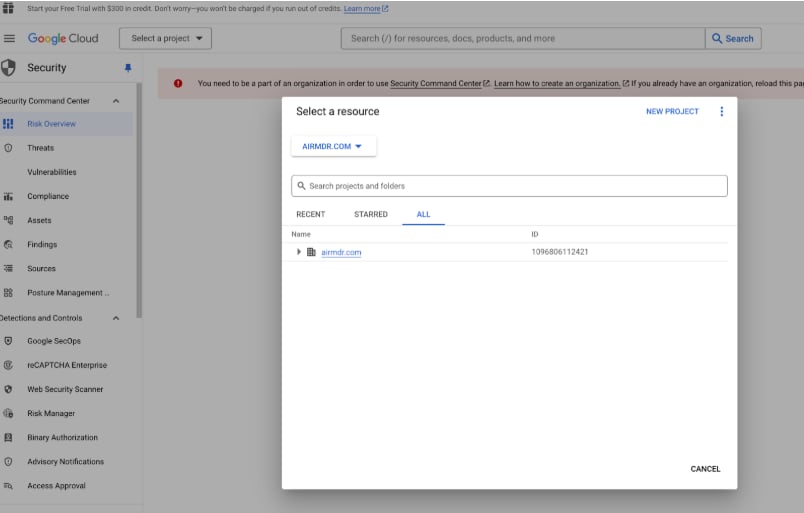 2. Select the required organization.
3. Click the three-dot menu or **More** option.
4. Select **Settings**.
5. Locate the **Organization ID** field.
6. Copy the numeric organization ID.\
Example: **123456789012**
This value is the `organization_id` required in AirMDR.
### Configure GCP Security Command Center API in AirMDR Integrations Dashboard
1. Navigate to [AirMDR](https://app.airmdr.com/auth/login), provide the credentials and click **Login**
2. Navigate to the AirMDR Integrations Dashboard in the left navigation pane and select **Integrations**.
3. Use the search option, enter the keyword "**Google Cloud Provider**", select the **Connections** tab, and click **+ Create** button.
4. Enter an unique name to the Instance (e.g., `your org name-GCP`) to easily identify the user connection by AirMDR.
5. Enter the application credentials like **Service\_account\_json** and **Organization\_id** in the Authentication Details field params, and click **Save**.
### Skills provided by this Integration
| **Skill ID** | **Purpose** |
| :--------------------------------------- | :-------------------------------------------------------------------------------------------------------------------------------------------------------------------------------------------------------------------------------------------------------------------------------------------------------------------------------------------------------------------------------------------------------------------------------------------------------------------------------------------------------------------------------------------------------------------------------------------------------------------------------------------------------------------------------------------------------------------------------------------------------------------------------------------------------------------------------------------------------------------------------------------------------------------------------------------------------------------------------------------------------------------------------------------------------------------------------------------------------------------------------------------------------------------------------------------------------------------------------------------------------------------------------------------------------------------------------------------------------------------------------------------------------------------------------------------------------------------------------------------------------------------------------------------------------------------------------------------------------------------------------------------------------------------------- |
| Get GCP security command center findings | Retrieve detailed findings from Google Cloud Platform's Security Command Center. |
| Get GCP GKE Workload Metrics | Retrieves time-series performance metrics for GKE (Google Kubernetes Engine) workloads from GCP Cloud Monitoring using the ListTimeSeries API (google-cloud-monitoring Python SDK). Cloud Monitoring collects resource and workload metrics from GKE clusters including container CPU usage, memory consumption, and pod network throughput. Supports four predefined metric aliases: 'cpu' (kubernetes.io/container/cpu/core\_usage\_time, rate in cores/s), 'memory' (kubernetes.io/container/memory/used\_bytes, bytes), 'network\_rx' (kubernetes.io/pod/network/received\_bytes\_count, rate in bytes/s), and 'network\_tx' (kubernetes.io/pod/network/sent\_bytes\_count, rate in bytes/s). Raw GCP metric type strings (e.g., kubernetes.io/container/cpu/limit\_utilization) are also accepted for metrics not covered by the aliases.
2. Select the required organization.
3. Click the three-dot menu or **More** option.
4. Select **Settings**.
5. Locate the **Organization ID** field.
6. Copy the numeric organization ID.\
Example: **123456789012**
This value is the `organization_id` required in AirMDR.
### Configure GCP Security Command Center API in AirMDR Integrations Dashboard
1. Navigate to [AirMDR](https://app.airmdr.com/auth/login), provide the credentials and click **Login**
2. Navigate to the AirMDR Integrations Dashboard in the left navigation pane and select **Integrations**.
3. Use the search option, enter the keyword "**Google Cloud Provider**", select the **Connections** tab, and click **+ Create** button.
4. Enter an unique name to the Instance (e.g., `your org name-GCP`) to easily identify the user connection by AirMDR.
5. Enter the application credentials like **Service\_account\_json** and **Organization\_id** in the Authentication Details field params, and click **Save**.
### Skills provided by this Integration
| **Skill ID** | **Purpose** |
| :--------------------------------------- | :-------------------------------------------------------------------------------------------------------------------------------------------------------------------------------------------------------------------------------------------------------------------------------------------------------------------------------------------------------------------------------------------------------------------------------------------------------------------------------------------------------------------------------------------------------------------------------------------------------------------------------------------------------------------------------------------------------------------------------------------------------------------------------------------------------------------------------------------------------------------------------------------------------------------------------------------------------------------------------------------------------------------------------------------------------------------------------------------------------------------------------------------------------------------------------------------------------------------------------------------------------------------------------------------------------------------------------------------------------------------------------------------------------------------------------------------------------------------------------------------------------------------------------------------------------------------------------------------------------------------------------------------------------------------------- |
| Get GCP security command center findings | Retrieve detailed findings from Google Cloud Platform's Security Command Center. |
| Get GCP GKE Workload Metrics | Retrieves time-series performance metrics for GKE (Google Kubernetes Engine) workloads from GCP Cloud Monitoring using the ListTimeSeries API (google-cloud-monitoring Python SDK). Cloud Monitoring collects resource and workload metrics from GKE clusters including container CPU usage, memory consumption, and pod network throughput. Supports four predefined metric aliases: 'cpu' (kubernetes.io/container/cpu/core\_usage\_time, rate in cores/s), 'memory' (kubernetes.io/container/memory/used\_bytes, bytes), 'network\_rx' (kubernetes.io/pod/network/received\_bytes\_count, rate in bytes/s), and 'network\_tx' (kubernetes.io/pod/network/sent\_bytes\_count, rate in bytes/s). Raw GCP metric type strings (e.g., kubernetes.io/container/cpu/limit\_utilization) are also accepted for metrics not covered by the aliases.
Filters by cluster\_name, namespace\_name, and workload\_name (pod name prefix) narrow the query scope.
The aggregation\_period parameter controls granularity in seconds (minimum 60).
Results are returned as per-workload time series, each with resource\_labels (cluster\_name, namespace\_name, pod\_name, container\_name) and a list of datapoints with start\_time, end\_time, and value. Use duration for a relative look-back window or explicit start\_time/end\_time for incident investigation windows.
Requires the Cloud Monitoring Viewer IAM role (roles/monitoring.viewer) on the GCP project. API Reference: [https://cloud.google.com/monitoring/api/ref\_v3/rest/v3/projects.timeSeries/list](https://cloud.google.com/monitoring/api/ref_v3/rest/v3/projects.timeSeries/list) |
| Get GCP Logs | Retrieve logs from Google Cloud Platform |
To view the details of Input Parameters and Output for the respective skills
* Go to [AirMDR → Google Cloud Provider](https://app.airmdr.com/integrationsv2/be2de942-b131-4612-b944-a8631b2cba14/skills?search=google+clo) Integration page.
* Select the **Skills** tab and click on the required listed skills.
### Additional Information
| **Error** | **Possible Cause** | **Recovery Step** |
| :--------------------------- | :------------------------------------------------------------------ | :------------------------------------------------------------------ |
| Invalid service account JSON | JSON file is incomplete, modified, or incorrectly pasted. | Download a new JSON key and update the AirMDR connection. |
| Permission denied | Required IAM role is missing. | Assign Security Center Findings Viewer role to the service account. |
| Organization not found | Incorrect organization ID entered. | Recheck the organization ID from Google Cloud Console. |
| API not enabled | Security Command Center API is disabled. | Enable the Security Command Center API from APIs & Services. |
| No findings available | SCC is not enabled or there are no findings for the selected scope. | Confirm SCC activation and findings availability in Google Cloud. |
| Authentication failed | Service account key is revoked or expired. | Generate a new key and update the integration. |
***
**Where to Monitor**
| Location | What to Check |
| :-------------------------- | :------------------------------------------- |
| AirMDR Integration Page | Connection status and validation result |
| AirMDR Logs | Authentication, API, and ingestion errors |
| Google Cloud IAM Audit Logs | Service account access and permission events |
| Google Cloud API Metrics | Security Command Center API usage |
**Sample Success Log**
```text theme={null}
INFO GCP_SCC_CONNECTOR Authentication successful for organization_id=123456789012
INFO GCP_SCC_CONNECTOR Retrieved Security Command Center findings successfully
```
**Sample Error Log**
```text theme={null}
ERROR GCP_SCC_CONNECTOR Permission denied while accessing Security Command Center findings
ERROR GCP_SCC_CONNECTOR Invalid service account JSON or malformed private key
```
**Recommended Log Levels**
| Log Level | Usage |
| :-------- | :-------------------------------------------------------------------------------- |
| INFO | Successful authentication and data retrieval |
| WARN | Partial data retrieval or delayed API response |
| ERROR | Authentication failure, permission issue, invalid organization ID, or API failure |
Follow these recommendations to maintain a secure and compliant Google Cloud Security Command Center (GCP SCC) integration with AirMDR.
**✅ Do**
* Use a dedicated Service Account for the AirMDR integration.
* Grant only the minimum IAM permissions required (principle of least privilege).
* Store the Service Account JSON securely in an encrypted secrets manager or credential vault.
* Rotate Service Account keys periodically according to your organization's security policy.
* Enable Multi-Factor Authentication (MFA) for privileged Google Cloud accounts.
* Regularly review IAM roles and remove unnecessary permissions.
* Monitor Google Cloud Audit Logs for authentication and permission changes.
* Validate the integration after updating IAM roles or rotating credentials.
* Keep the Security Command Center API enabled and accessible.
* Immediately revoke compromised or unused Service Account keys.
**❌ Don't**
* Don't share the Service Account JSON file over email, chat, or unsecured channels.
* Don't commit Service Account keys to source code repositories.
* Don't assign excessive permissions such as **Owner** or **Editor** unless absolutely necessary.
* Don't reuse the same Service Account across multiple unrelated applications.
* Don't leave unused Service Account keys active.
* Don't disable audit logging for Service Account activities.
* Don't expose Organization IDs or sensitive credentials in public documentation or screenshots.
* Don't hardcode credentials in scripts or configuration files.
* Don't ignore authentication or permission-related errors during integration validation.
* Don't skip periodic access reviews and credential rotation.
* 📧 Contact [**AirMDR Support**](mailto:support@airmdr.com) through your designated support channel.
* 🔁 Rotate credentials regularly.
* 🔄 Reconnect in AirMDR when secrets are changed.
**Data Exchanged**
| Data Type | Description |
| :-------------------- | :----------------------------------------------------------- |
| Security findings | Findings generated by Google Cloud Security Command Center. |
| Organization metadata | Organization-level identifier used to scope the integration. |
| Authentication token | Token generated using the service account JSON. |
**Security Considerations**
* Authentication is performed using a Google Cloud service account.
* API communication uses Google Cloud HTTPS endpoints.
* Store the service account JSON securely.
* Rotate the JSON key based on the organization’s credential rotation policy.
* Revoke unused keys immediately.
**Ports and Endpoints**
| Type | Value |
| :----------- | :-------------------------------------- |
| Protocol | HTTPS |
| Port | 443 |
| API Endpoint | `https://securitycenter.googleapis.com` |