> ## Documentation Index
> Fetch the complete documentation index at: https://docs.airmdr.com/llms.txt
> Use this file to discover all available pages before exploring further.
# Google Security Operations (Chronicle)
> Google Security Operations (Chronicle) is a cloud-native security analytics and threat intelligence platform developed by Google. Originally known as Chronicle, it is part of Google Cloud’s cybersecurity suite and is designed to help security teams detect, investigate, and respond to cyber threats faster and more efficiently.
### Pre-requisites
* User must have a valid Chronicle domain (e.g.,`https://yourdomain.backstory.chronicle.security`).
It is mandatory to share the **Chronicle instance URL** to AirMDR.
* If Chronicle is integrated with \*\*Google Cloud IAM: \*\*Visit [https://chronicle.security](https://chronicle.security)
* You may be redirected to your instance based on your organization’s identity.
If it says something like *“you do not have access”*, you're not assigned to the Chronicle environment yet.
* Ensure proper user access:
* Chronicle Admins
* Analysts (Read-only or Threat Hunting)
* API users[****](https://docs.airmdr.com/Integrations/Google-Chronicle#generate-a-json-key-file-for-authentication)
### Generate a JSON key file for authentication
1. Go to [**Google Cloud Console**](https://console.cloud.google.com/).
2. In the top menu bar, click the **project selector dropdown**.
3. Select the Chronicle project (or create a new one if needed).
1. Navigate to **“APIs & Services” > “Library”**.
2. Search for **“Chronicle API”**.
3. Click **Enable** if it’s not already.
A service account is required for the AirMDR agent to ingest data from Google Workspace
This account is meant for non-human applications, allowing it to access resources in GW via the Admin SDK API we enabled earlier.
This is required to access Google Workspace APIs like **Admin SDK API** and **Google Workspace Alert Center API**.
1. Navigate to [**IAM & Admin > Service Accounts.**](https://console.cloud.google.com/iam-admin/serviceaccounts)\
**or**\
Go to [**Google Cloud Console**](https://console.cloud.google.com/welcome) → APIs & Services → Credentials → + Create credentials → Service account.
2. Click **“Create Service Account”**.
3. Provide:
* **Service account name**: `airmdr-agent`
* **Service account ID**: `airmdr-agent`
* **Service account Description**: Describe what this service account will do
4. Click **Create and Continue**.
1. In the **Grant this service account access to project** step:
* **Add Role**:
* For Chronicle, use:
* `Chronicle API Reader` or
* `Chronicle API Admin` (depending on needs).
* If these roles are not available, use:
* `Project > Viewer` or
* `Security Center > Security Admin` (if applicable).
2. Click **Continue**, then **Done**.
1. In the Service Accounts list, click the **email ID** of the account you just created.
2. Go to the **“Keys”** tab.
3. Click **“Add Key” > “Create new key”**.
4. Choose **JSON** format.
5. Click **Create**.
The JSON file will download automatically. 🔐 Store this securely. It includes sensitive credentials.
After successful configuration, we will now have a service account named airmdr-agent, a JSON file with the necessary credentials for this service account saved to your host.
**Keep the JSON file safe.** If compromised, revoke and regenerate. Always rotate keys periodically for security best practices.
### Configure Chronicle with AirMDR
The requirements to configure Google Security Operations (Chronicle) with AirMDR are
* If you're using a **Service Account JSON** for Chronicle access:
1. Go to: [https://console.cloud.google.com/](https://console.cloud.google.com/)
2. Use the **project selector** at the top.
3. Select the project where the **Chronicle-related service account** was created.
4. The **Project ID** is shown in:
* The top blue header bar
* Or under **IAM & Admin > Settings**
* Google provides your organization with a **Chronicle instance URL**. (Refer [Prerequisites](https://docs.airmdr.com/Integrations/Google-Chronicle#pre-requisites))
* While the service account JSON doesn't directly list the region, the **API call targets** or **ingestion endpoints** you use might include it:
Example endpoint: This means your ingestion is tied to `asia-south1`.
```
https://asia-south1-ingest.backstory.googleapis.com/v1/unstructuredlogentries:batchCreate
```
| **Region Code** | **Geographic Location** | **City / Country** |
| :------------------------ | :------------------------ | :------------------------- |
| `us-central1` | United States (Central) | Iowa |
| `us-east1` | United States (East) | South Carolina |
| `us-east4` | United States (East) | Northern Virginia |
| `us-west1` | United States (West) | Oregon |
| `us-west2` | United States (West) | Los Angeles |
| `us-west3` | United States (West) | Salt Lake City |
| `us-west4` | United States (West) | Las Vegas |
| `northamerica-northeast1` | North America (Northeast) | Montréal, Canada |
| `southamerica-east1` | South America | São Paulo, Brazil |
| `europe-west1` | Europe (West) | Belgium |
| `europe-west2` | Europe (West) | London, UK |
| `europe-west3` | Europe (West) | Frankfurt, Germany |
| `europe-west4` | Europe (West) | Netherlands |
| `europe-west6` | Europe (West) | Zurich, Switzerland |
| `europe-central2` | Europe (Central) | Warsaw, Poland |
| `asia-east1` | Asia (East) | Taiwan |
| `asia-east2` | Asia (East) | Hong Kong |
| `asia-northeast1` | Asia (Northeast) | Tokyo, Japan |
| `asia-northeast2` | Asia (Northeast) | Osaka, Japan |
| `asia-northeast3` | Asia (Northeast) | Seoul, South Korea |
| `asia-south1` | Asia (South) | Mumbai, India |
| `asia-south2` | Asia (South) | Delhi, India |
| `asia-southeast1` | Asia (Southeast) | Singapore |
| `asia-southeast2` | Asia (Southeast) | Jakarta, Indonesia |
| `australia-southeast1` | Australia | Sydney |
| `australia-southeast2` | Australia | Melbourne |
| `me-west1` | Middle East | Tel Aviv, Israel |
| `me-central1` | Middle East | Doha, Qatar |
| `africa-south1` | Africa | Johannesburg, South Africa |
The [JSON key file generated](https://docs.airmdr.com/Integrations/Google-Chronicle#generate-a-json-key-file-for-authentication) for authentication with the necessary credentials for this service account saved to your host.
Share the **Chronicle instance URL, Google Cloud Project ID,** **Google Cloud region code, and JSON file** with the necessary credentials for this service account saved to your host securely to AirMDR.\
(or) \
Self Configure **JSON key file** in the AirMDR Integrations Dashboard.
### Skills provided by Integration
| **Skill ID** | **Purpose** |
| :--------------------------- | :---------------------------------------------------------------------------------------------------------------------------------------------------------------------------- |
| Google Chronicle Search Logs | Searches logs in Google Chronicle using UDM search query language. This skill allows security analysts to query and analyze log data to investigate security incidents. |
| Google Chronicle List Alerts | Lists alerts from Google Chronicle based on specified filters. This skill allows security analysts to retrieve alerts for specific entities, time ranges, and other criteria. |
To view the details of Input Parameters and Output for the respective skills
* Go to [**AirMDR → Google Chronicle**](https://app.airmdr.com/integrations?search=google+chronicle\&provider=1f07ba14-afe0-4685-921f-187d1de61686) Integration page.
* Select the **Skills** tab and click on the required listed skills.
### Evaluate Google Chronicle JSON
```
# Replace with the path to your Chronicle service account key file
KEY_FILE="path/to/your-service-account.json"
# Chronicle OAuth2 token endpoint
TOKEN_URI="https://oauth2.googleapis.com/token"
# Required scope for Chronicle API
SCOPE="https://www.googleapis.com/auth/chronicle-backstory"
```
```
ACCESS_TOKEN=$(curl -s -X POST "$TOKEN_URI" \
-H "Content-Type: application/json" \
-d @- <
```
curl -X GET \
-H "Authorization: Bearer $ACCESS_TOKEN" \
-H "Content-Type: application/json" \
"https://backstory.googleapis.com/v1/entities/assets"
```
**Response**
If everything is set up correctly, you will receive a valid JSON response. If not, you might see:
* `401 Unauthorized` → token is invalid or expired.
* `403 Forbidden` → service account lacks permissions.
* `404 Not Found` → incorrect endpoint or API not enabled.
### Configure Google Chronicle JSON key file in the AirMDR Integrations Dashboard
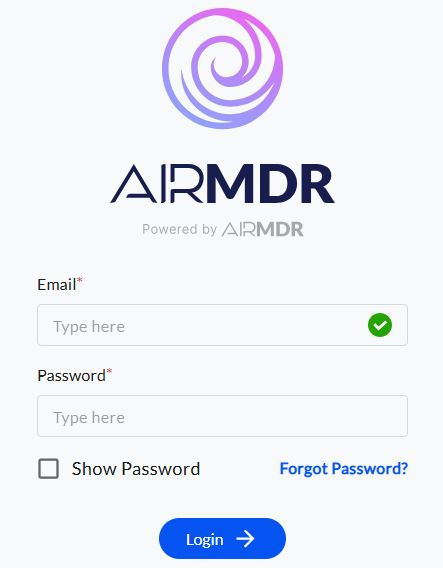
1. Navigate to [**AirMDR**](https://app.airmdr.com/auth/login), provide the credentials and click **Login.**
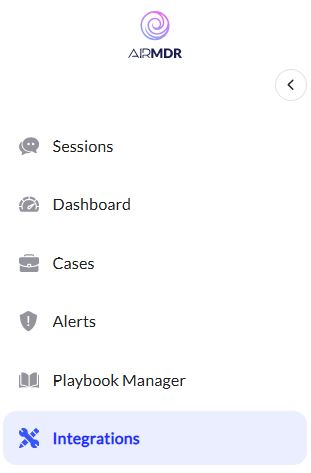
 2. Navigate to the AirMDR Integrations Dashboard in the left navigation pane and select **Integrations.**
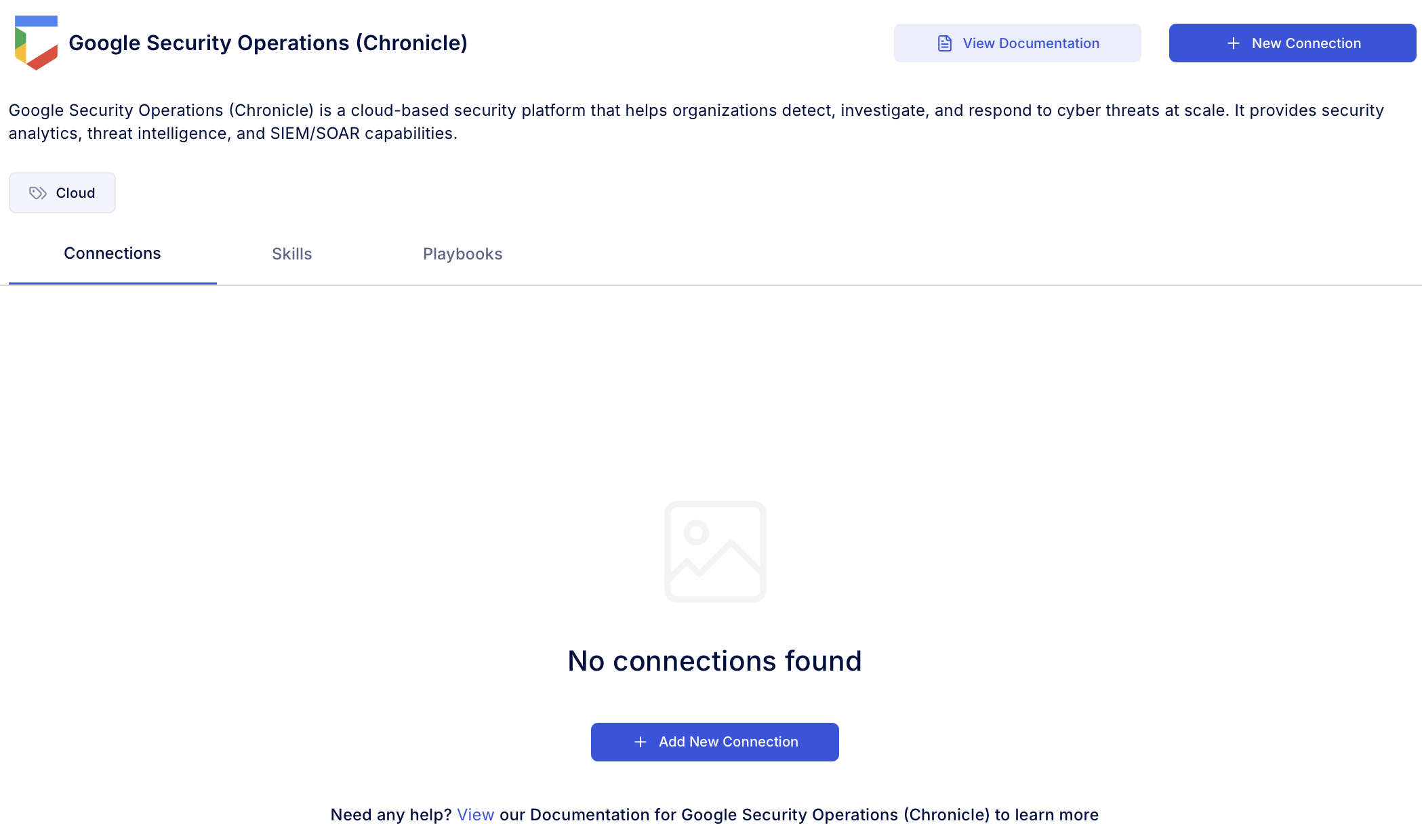
 3. Use the search option, enter the keyword “**Google Security Operations (Chronicle)**”, select the **Connections** tab, and click **Add New Connection**.
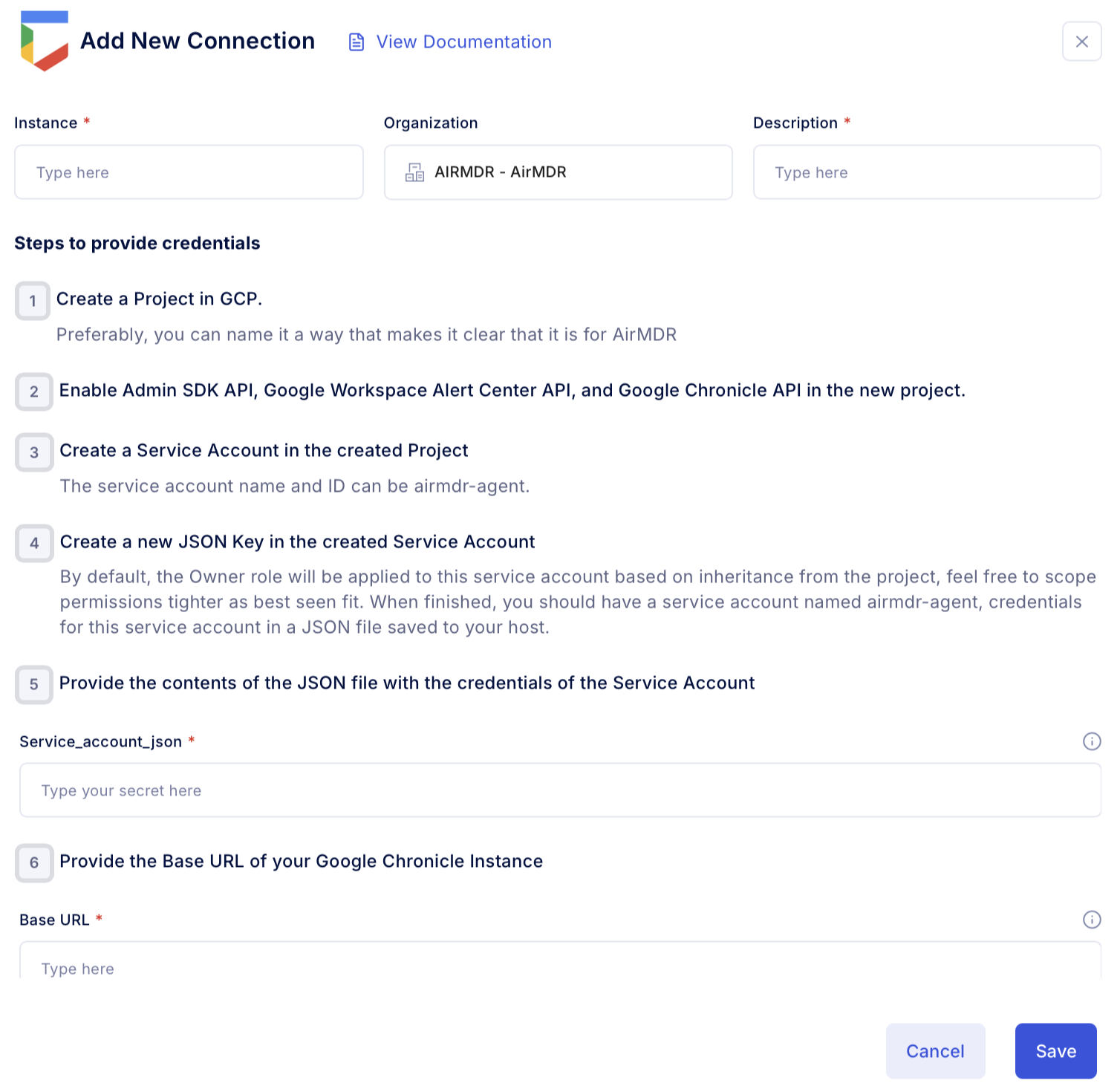
 4. Enter an unique name to the Instance (e.g., `your org name-Google Chronicle`) to easily identify the user connection by AirMDR.
5. Enter the generated **JSON key file** in the Authentication Details field params, and click **Create.**
4. Enter an unique name to the Instance (e.g., `your org name-Google Chronicle`) to easily identify the user connection by AirMDR.
5. Enter the generated **JSON key file** in the Authentication Details field params, and click **Create.**