> ## Documentation Index
> Fetch the complete documentation index at: https://docs.airmdr.com/llms.txt
> Use this file to discover all available pages before exploring further.
# Microsoft Defender for Endpoint
> Microsoft Defender for Endpoint (MDE) is an enterprise-grade endpoint security platform that helps prevent, detect, investigate, and respond to advanced threats across endpoints. While MDE primarily focuses on endpoint protection, it also integrates with other Microsoft security solutions to provide extended protection across identities, cloud workloads, and networks.
### Pre-requisites
User organization must have an eligible **Defender for Endpoint** license.
### Set Up App Registrations in the Azure Portal
App registrations in **Microsoft Entra ID (Azure AD)** allow applications to authenticate and access Microsoft resources securely.
1. Log in to your [Azure Portal](https://portal.azure.com/).
2. Go to **Microsoft Entra ID** (formerly Azure AD).
3. In the left menu, click **Manage** → **App registrations**.
1. Click **+ New registration**.
2. Provide the mandatory details:
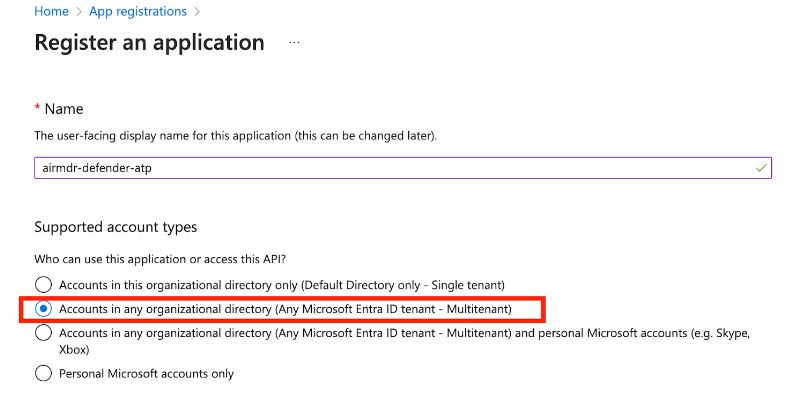
* (**Name**: Enter a name for your app (e.g., `airmdr-defender-atp`).
* **Supported Account Types**: Select "*Accounts in any organizational directory (Any Microsoft Entra ID tenant - Multitenant)*" option).
 3. Click **Register**.
**Redirect URI (Optional)**: If your app uses authentication, enter a URL (e.g., `https://myapp.com/auth`).
1. After successful registration, you will see the **App Overview** page.
Copy **Application (Client) ID** – Identifies your app.
Copy **Directory (Tenant) ID** – Identifies your Azure AD tenant.
1. In the application Overview page left navigation pane, select **Manage** dropdown.
2. Click **API Permissions**.
3. Click **+ Add a permission**
4. Select **APIs my organization uses** tab.
5. Search and select the API "**WindowsDefenderATP**".
3. Click **Register**.
**Redirect URI (Optional)**: If your app uses authentication, enter a URL (e.g., `https://myapp.com/auth`).
1. After successful registration, you will see the **App Overview** page.
Copy **Application (Client) ID** – Identifies your app.
Copy **Directory (Tenant) ID** – Identifies your Azure AD tenant.
1. In the application Overview page left navigation pane, select **Manage** dropdown.
2. Click **API Permissions**.
3. Click **+ Add a permission**
4. Select **APIs my organization uses** tab.
5. Search and select the API "**WindowsDefenderATP**".
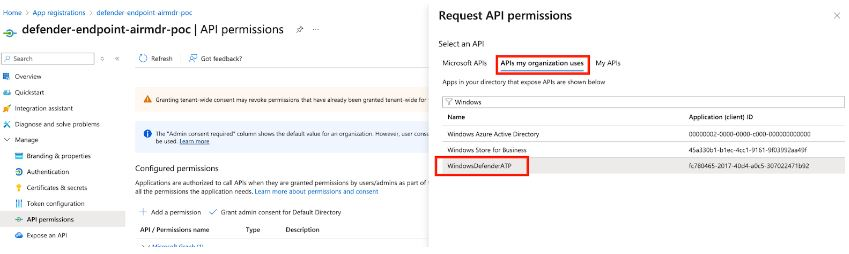 6. Click on **Application permissions**.
7. Select the required permissions:
* **To Fetch List of Alerts** - `Alert.ReadWrite.All`
* **To Run Advanced Hunting Query** - `AdvancedQuery.Read.All`
* **To Get Machine Live Response** - `Machine.LiveResponse`
* **To Get List of Machines** - `Machine.ReadWrite.All`
* **Additional Permissions (Optional)** - (`Alert.Read.All`, `File.Read.All`,`IP.Read.All`,`Machine.Read.All`,`SecurityRecommendation.Read.All`,`Software.Read.All`,`URL.Read.All`,`User.Read.All`,`Vulnerability.Read.All`)
8. Click **Add permissions** at the bottom of the page.
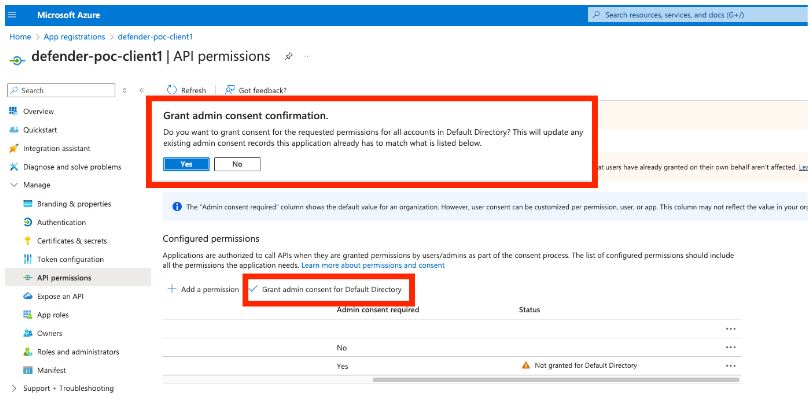
9. Click **API permissions**, select **Yes** for **Grant admin consent confirmation** to allow access.
6. Click on **Application permissions**.
7. Select the required permissions:
* **To Fetch List of Alerts** - `Alert.ReadWrite.All`
* **To Run Advanced Hunting Query** - `AdvancedQuery.Read.All`
* **To Get Machine Live Response** - `Machine.LiveResponse`
* **To Get List of Machines** - `Machine.ReadWrite.All`
* **Additional Permissions (Optional)** - (`Alert.Read.All`, `File.Read.All`,`IP.Read.All`,`Machine.Read.All`,`SecurityRecommendation.Read.All`,`Software.Read.All`,`URL.Read.All`,`User.Read.All`,`Vulnerability.Read.All`)
8. Click **Add permissions** at the bottom of the page.
9. Click **API permissions**, select **Yes** for **Grant admin consent confirmation** to allow access.
 1. In the application Overview page left navigation pane, select **Manage** dropdown.
2. Click **Certificates & secrets**.
3. Click **+ New client secret**.
1. In the application Overview page left navigation pane, select **Manage** dropdown.
2. Click **Certificates & secrets**.
3. Click **+ New client secret**.
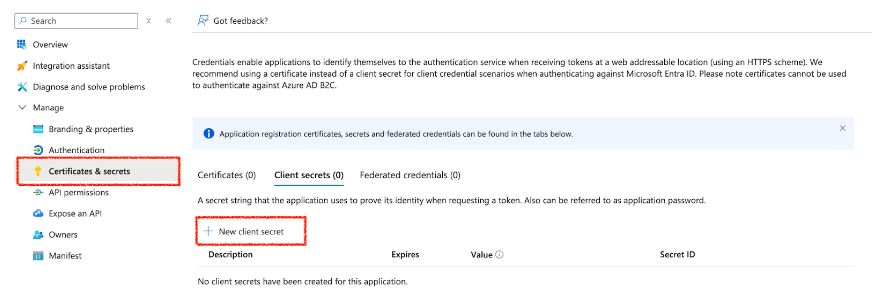 4. Enter a description (e.g., `MySecretKey`) and set expiration.
5. Click **Add**.
Copy and secure the **Value** (**Client Secret**) immediately – (It won’t be shown again!)
Email the **Tenant ID**, **Client ID** and the **Client Secret Value** to AirMDR or self Configure MDE in AirMDR Integrations Dashboard.
### Configure Microsoft Defender for Endpoint in AirMDR Integrations Dashboard
1. Navigate to [AirMDR](https://app.airmdr.com/auth/login), provide the credentials and click **Login.**
4. Enter a description (e.g., `MySecretKey`) and set expiration.
5. Click **Add**.
Copy and secure the **Value** (**Client Secret**) immediately – (It won’t be shown again!)
Email the **Tenant ID**, **Client ID** and the **Client Secret Value** to AirMDR or self Configure MDE in AirMDR Integrations Dashboard.
### Configure Microsoft Defender for Endpoint in AirMDR Integrations Dashboard
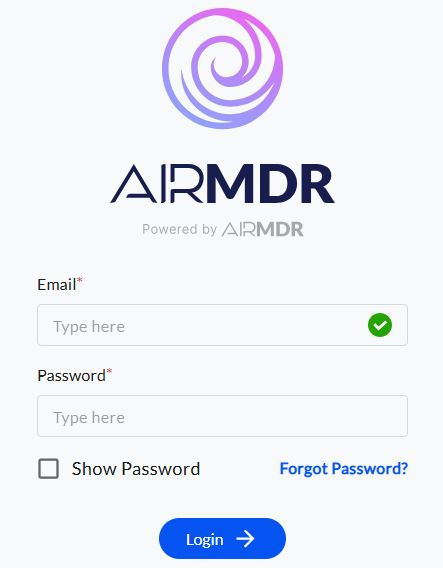
1. Navigate to [AirMDR](https://app.airmdr.com/auth/login), provide the credentials and click **Login.**
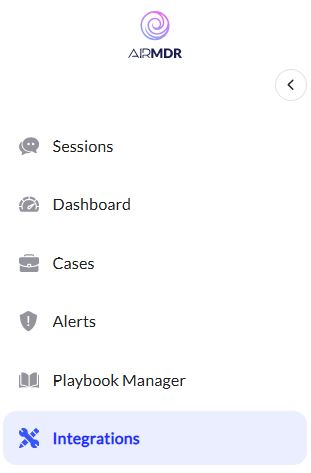
 2. Navigate to the AirMDR Integrations Dashboard in the left navigation pane and select **Integrations.**
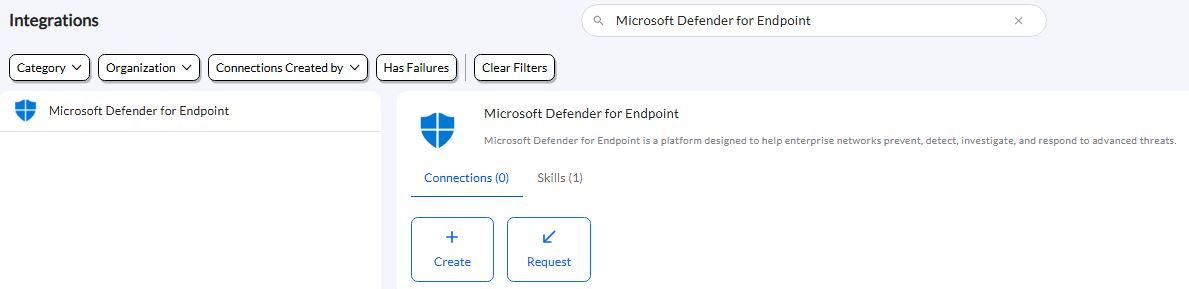
 3. Use the search option, enter the keyword "**Microsoft Defender for Endpoint**", select the **Connections** tab, and click the **+ Create** icon.
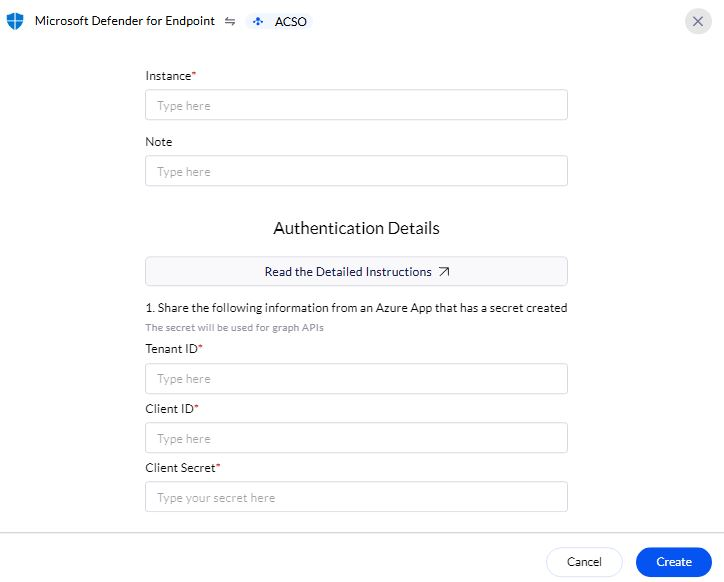
 4. Enter the generated **Tenant ID, Client ID** and the **Client Secret** in the Authentication Details field params, and click **Save.**
 ### Evaluate Microsoft Defender for Endpoint (MDE)
### Pre-requisites
**Azure App Registration** with API permissions for **Defender for Endpoint**.
**Client ID, Tenant ID, and Client Secret**.
Open **cURL** and run the following command to check if your API Access is working:
MDE uses **OAuth 2.0 authentication**. First, request an access token from **Microsoft Entra ID (Azure AD)**:
```text theme={null}
curl -X POST "https://login.microsoftonline.com//oauth2/v2.0/token" \
-H "Content-Type: application/x-www-form-urlencoded" \
-d "client_id=" \
-d "client_secret=" \
-d "grant_type=client_credentials" \
-d "scope=https://api.security.microsoft.com/.default"
```
**Replace:**
* `` – Your Azure Directory (Tenant) ID.
* `` – Your App Registration **Client ID**.
* `` – Your App Registration **Client Secret**.
**Expected Response (Success)**:
```json theme={null}
{
"token_type": "Bearer",
"expires_in": 3599,
"access_token": "eyJ0eXAiOiJKV1QiLCJhb..."
}
```
* This verifies if the user can retrieve **device information** based on the assigned scope.
Once you have the `access_token`, use it in API calls.
* **To Get Device List**
```text theme={null}
curl -X GET "https://api.security.microsoft.com/api/machines" \
-H "Authorization: Bearer " \
-H "Content-Type: application/json"
```
**Expected Response:** A JSON list of devices onboarded to Defender for Endpoint.
* **To Get Alerts**
```text theme={null}
curl -X GET "https://api.security.microsoft.com/api/alerts" \
-H "Authorization: Bearer " \
-H "Content-Type: application/json"
```
**Expected Response:**
A list of security alerts detected by Microsoft Defender.
**Troubleshooting Authentication Issues**
| Error Code | Possible Issue | Solution |
| ------------------------- | ---------------------------- | -------------------------------------- |
| 401 Unauthorized | Invalid token | Regenerate token, check credentials |
| 403 Forbidden | Insufficient API permissions | Grant admin consent in Azure Portal |
| 400 Bad Request | Incorrect request format | Verify API endpoint and headers |
| 500 Internal Server Error | Service issue | Retry later, check the Defender status |
### Evaluate Microsoft Defender for Endpoint (MDE)
### Pre-requisites
**Azure App Registration** with API permissions for **Defender for Endpoint**.
**Client ID, Tenant ID, and Client Secret**.
Open **cURL** and run the following command to check if your API Access is working:
MDE uses **OAuth 2.0 authentication**. First, request an access token from **Microsoft Entra ID (Azure AD)**:
```text theme={null}
curl -X POST "https://login.microsoftonline.com//oauth2/v2.0/token" \
-H "Content-Type: application/x-www-form-urlencoded" \
-d "client_id=" \
-d "client_secret=" \
-d "grant_type=client_credentials" \
-d "scope=https://api.security.microsoft.com/.default"
```
**Replace:**
* `` – Your Azure Directory (Tenant) ID.
* `` – Your App Registration **Client ID**.
* `` – Your App Registration **Client Secret**.
**Expected Response (Success)**:
```json theme={null}
{
"token_type": "Bearer",
"expires_in": 3599,
"access_token": "eyJ0eXAiOiJKV1QiLCJhb..."
}
```
* This verifies if the user can retrieve **device information** based on the assigned scope.
Once you have the `access_token`, use it in API calls.
* **To Get Device List**
```text theme={null}
curl -X GET "https://api.security.microsoft.com/api/machines" \
-H "Authorization: Bearer " \
-H "Content-Type: application/json"
```
**Expected Response:** A JSON list of devices onboarded to Defender for Endpoint.
* **To Get Alerts**
```text theme={null}
curl -X GET "https://api.security.microsoft.com/api/alerts" \
-H "Authorization: Bearer " \
-H "Content-Type: application/json"
```
**Expected Response:**
A list of security alerts detected by Microsoft Defender.
**Troubleshooting Authentication Issues**
| Error Code | Possible Issue | Solution |
| ------------------------- | ---------------------------- | -------------------------------------- |
| 401 Unauthorized | Invalid token | Regenerate token, check credentials |
| 403 Forbidden | Insufficient API permissions | Grant admin consent in Azure Portal |
| 400 Bad Request | Incorrect request format | Verify API endpoint and headers |
| 500 Internal Server Error | Service issue | Retry later, check the Defender status |