> ## Documentation Index
> Fetch the complete documentation index at: https://docs.airmdr.com/llms.txt
> Use this file to discover all available pages before exploring further.
# Microsoft Defender
> The Microsoft Defender integration enables AirMDR to authenticate to Microsoft Defender APIs and retrieve incident and security context for investigation, enrichment, and workflow automation.
## Overview
The **Microsoft Teams integration** uses an application registration in Microsoft Entra ID and authenticates with Tenant ID, Client ID, and Client Secret. Microsoft documents this as the standard application-based method for accessing Microsoft Defender APIs without a user session.
### Supported Versions
| Component | Supported Version |
| :----------------------------------- | :---------------------------------- |
| Microsoft Defender XDR | Current cloud tenant |
| Microsoft Defender for Endpoint APIs | Current supported API set |
| Microsoft Entra ID | Current supported cloud directory |
| AirMDR Platform | Current supported cloud deployments |
Microsoft provides separate but similar app-registration guidance for **Microsoft Defender XDR** and **Microsoft Defender for Endpoint**, both using Microsoft Entra application authentication.
### Authentication
AirMDR uses **application-based OAuth authentication** through Microsoft Entra ID.
| Credential | Description |
| :---------------- | :---------------------------------------------------------------------------------------- |
| **Tenant ID** | Directory (tenant) identifier from the Microsoft Entra app |
| **Client ID** | Application (client) identifier from the Microsoft Entra app |
| **Client Secret** | Secret generated under the app registration |
| **Remote Agent** | Optional AirMDR routing component selected in AirMDR, not generated in Microsoft Defender |
### Pre-requisites
Active tenant in Microsoft Entra ID
Access to Microsoft Defender for Endpoint (or relevant Defender service with API data)
### Set Up Steps
1. Log in to your [Azure Portal](https://portal.azure.com/).
2. Go to **Microsoft Entra ID** (formerly Azure AD).
3. In the left menu, click **Manage** → **App registrations**.
1. Click **+ New registration**.
2. Provide the mandatory details:
* (**Application Name**: Enter a name for your app (e.g., `airmdr-defender`).
* **Supported Account Types**: Select "*Accounts in any organizational directory (Any Microsoft Entra ID tenant - Multitenant)*" option). 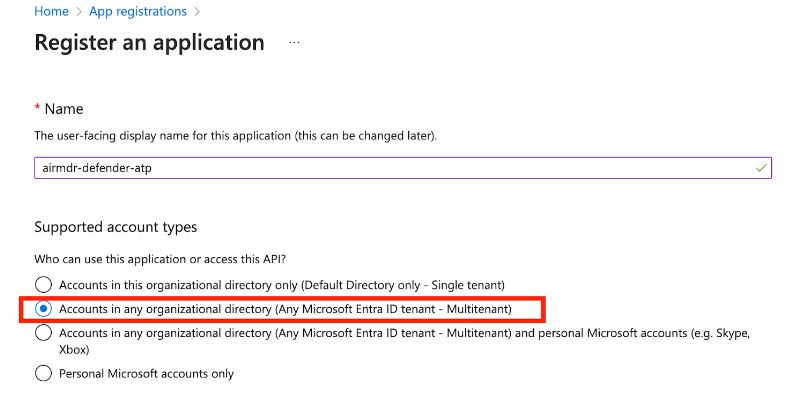 3. Click **Register**.
**Redirect URI (Optional)**: If your app uses authentication, enter a URL (e.g., `https://myapp.com/auth`).
1. After successful registration, you will see the **App Overview** page.
Copy **Application (Client) ID** – Identifies your app.
Copy **Directory (Tenant) ID** – Identifies your Azure AD tenant.
1. In the application Overview page left navigation pane, select **Manage** dropdown.
2. Click **API Permissions**.
3. Click **+ Add a permission**
4. Select **APIs my organization uses** tab.
5. Search and select the API "**Microsoft Threat Protection**".
6. Click on **Application permissions**.
7. Select the required permissions:
* **To Fetch List of Incidents** - `Incident.Read.All`
8. Click **Add permissions** at the bottom of the page.
9. Click **API permissions**, select **Yes** for **Grant admin consent confirmation** to allow access.
1. In the application Overview page left navigation pane, select **Manage** dropdown.
2. Click **Certificates & secrets**.
3. Click **+ New client secret**.
3. Click **Register**.
**Redirect URI (Optional)**: If your app uses authentication, enter a URL (e.g., `https://myapp.com/auth`).
1. After successful registration, you will see the **App Overview** page.
Copy **Application (Client) ID** – Identifies your app.
Copy **Directory (Tenant) ID** – Identifies your Azure AD tenant.
1. In the application Overview page left navigation pane, select **Manage** dropdown.
2. Click **API Permissions**.
3. Click **+ Add a permission**
4. Select **APIs my organization uses** tab.
5. Search and select the API "**Microsoft Threat Protection**".
6. Click on **Application permissions**.
7. Select the required permissions:
* **To Fetch List of Incidents** - `Incident.Read.All`
8. Click **Add permissions** at the bottom of the page.
9. Click **API permissions**, select **Yes** for **Grant admin consent confirmation** to allow access.
1. In the application Overview page left navigation pane, select **Manage** dropdown.
2. Click **Certificates & secrets**.
3. Click **+ New client secret**. 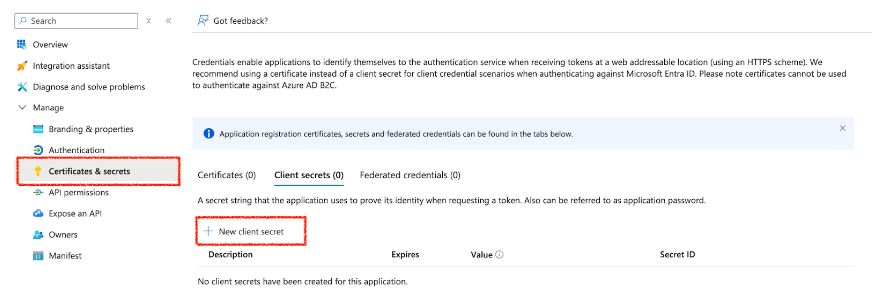 4. Enter a description (e.g., `MySecretKey`) and set expiration.
5. Click **Add**.
Copy and secure the **Value** (**Client Secret**) immediately – (It won’t be shown again!)
Email the **Tenant ID**, **Client ID** and the **Client Secret Value** to AirMDR or self Configure Microsoft Defender in AirMDR Integrations Dashboard.
### Evaluate Microsoft Defender
### Pre-requisites
**Azure App Registration** with API permissions for **Microsoft Defender.**
**Client ID, Tenant ID, and Client Secret**.
Open **cURL** and run the following command to check if your API Access is working:
MDE uses **OAuth 2.0 authentication**. First, request an access token from **Microsoft Entra ID (Azure AD)**:
```text theme={null}
curl -X POST "https://login.microsoftonline.com//oauth2/v2.0/token" \
-H "Content-Type: application/x-www-form-urlencoded" \
-d "client_id=" \
-d "client_secret=" \
-d "grant_type=client_credentials" \
-d "scope=https://api.security.microsoft.com/.default"
```
**Replace:**
* `` – Your Azure Directory (Tenant) ID.
* `` – Your App Registration **Client ID**.
* `` – Your App Registration **Client Secret**.
**Expected Response (Success)**:
```json theme={null}
{
"token_type": "Bearer",
"expires_in": 3599,
"access_token": "eyJ0eXAiOiJKV1QiLCJhb..."
}
```
* This verifies if the user can retrieve **device information** based on the assigned scope.
Once you have the `access_token`, use it in API calls.
* **To Get Device List**
```text theme={null}
curl -X GET "https://api.security.microsoft.com/api/machines" \
-H "Authorization: Bearer " \
-H "Content-Type: application/json"
```
**Expected Response:** A JSON list of devices onboarded to Microsoft Defender.
* **To Get Alerts**
```text theme={null}
curl -X GET "https://api.security.microsoft.com/api/alerts" \
-H "Authorization: Bearer " \
-H "Content-Type: application/json"
```
**Expected Response:**
A list of security alerts detected by Microsoft Defender.
### Configure Microsoft Teams in AirMDR Integrations Dashboard
1. Navigate to [AirMDR](https://app.airmdr.com/auth/login), provide the credentials and click **Login**
2. Navigate to the AirMDR Integrations Dashboard in the left navigation pane and select **Integrations**.
3. Use the search option, enter the keyword "**Microsoft Defender**", select the **Connections** tab, and click **+ Create** button.
4. Enter an unique name to the Instance (e.g., `your org name-Microsoft Defender`) to easily identify the user connection by AirMDR.
5. Enter the generated **Tenant ID, Client ID** and the **Client Secret** in the Authentication Details field params, and click **Save.**
### Skills provided by this Integration
| **Skill ID** | **Purpose** |
| :----------------------------------------------- | :-------------------------------------------------------------------------------------------------------------------------------------------------------------------------------------------------------------------------------------------------------------------------------------------------------------------------------------------------------------------------------------------------------------------------------------------------------------------------------------------------------------------------------------------------------------------------------------------------------------------------------------------------------------------------------------------------------------------------------------------------------------------------------------------------------------------------------------------------------------------------------------------------------------------------------------------------------------------------------------------------------------------------------------------------------------------- |
| List Microsoft Defender Incidents for Detections | Fetches and normalizes all security incidents from Microsoft Defender XDR using the Incidents API (GET /api/incidents on [api.security.microsoft.com](http://api.security.microsoft.com)) with full pagination support for detection workflows. Microsoft Defender XDR aggregates incidents across all Defender services — Endpoint, Identity, Cloud Apps, Office 365, and Sentinel. Each incident is expanded into alert-level rows using Spark SQL, producing a normalized dataset with incident metadata (ID, name, severity, status, classification, determination, assigned analyst) and per-alert fields (alert ID, title, category, severity, status, service source, detection source). The duration and duration\_type parameters scope results to a rolling time window via OData filter on createdTime or lastUpdateTime. Use this skill as the detection entry point for automated triage, alert correlation, and scheduled detection pipelines. |
| List Microsoft Defender Incidents | Retrieves a paginated list of security incidents from Microsoft Defender XDR using the Incidents API (GET /api/incidents on [api.security.microsoft.com](http://api.security.microsoft.com)). Microsoft Defender XDR aggregates incidents across all Defender services - Endpoint, Identity, Cloud Apps, Office 365, and Sentinel - into a unified incident queue. Each incident object includes the incident ID, name, severity (Informational, Low, Medium, High), status (Active, Resolved, Redirected), classification, determination, assigned analyst, creation and last update timestamps, and a nested list of alerts from the originating Defender services. The duration and duration\_type parameters construct an OData filter applied against either createdTime or lastUpdateTime, scoping results to a rolling time window. Use this skill for SOC triage, daily alert review, or SIEM enrichment. Pivot to get\_microsoft\_defender\_incident for full incident details including alerts, devices, and entities. |
| Get Microsoft Defender Incident | Retrieves full details of a single incident by ID from Microsoft Defender XDR using the Incidents API (GET /api/incidents/ {incidentld} on [api.security.microsoft.com](http://api.security.microsoft.com) ). The response includes the complete incident object with incident ID, name, severity (Informational, Low, Medium, High), status (Active, Resolved, Redirected), classification, determination, assigned analyst, creation and last update timestamps, and the full list of associated alerts. Each alert contains the alert ID, service source (indicating the originating Defender service such as MicrosoftDefenderForEndpoint, MicrosoftDefenderForldentity, MicrosoftCloudAppSecurity, MicrosoftDefenderForOffice365), title, description, severity, status, category, devices, and entities. Use this skill during incident triage to get the full attack chain across all Defender services, or during incident response to understand the scope and impact of a specific incident. Obtain incident IDs from list\_microsoft\_defender\_incidents. |
To view the details of Input Parameters and Output for the respective skills
* Go to [AirMDR → Microsoft Defender](https://app.airmdr.com/integrationsv2/e9ad6674-0214-40a9-9235-6cec9be12943/skills?search=Microsoft%20defender) Integration page.
* Select the **Skills** tab and click on the required listed skills.
## Additional Information
| Error Code | Possible Issue | Solution |
| :------------------------ | :--------------------------- | :------------------------------------- |
| 401 Unauthorized | Invalid token | Regenerate token, check credentials |
| 403 Forbidden | Insufficient API permissions | Grant admin consent in Azure Portal |
| 400 Bad Request | Incorrect request format | Verify API endpoint and headers |
| 500 Internal Server Error | Service issue | Retry later, check the Defender status |
* Secure service account credentials
* Use built-in RBAC from Microsoft Defender for Endpoint and related Defender services.
* Assign only the minimum required permissions using Microsoft Entra ID roles.
* Enforce:
* Multi-Factor Authentication (MFA)
* Device compliance checks
* Location-based access restrictions
* Ensure all endpoints:
* Are onboarded to Microsoft Defender for Endpoint
* Meet compliance policies
* Enable:
* Attack Surface Reduction (ASR) rules
* Endpoint Detection and Response (EDR)
* Disable:
* Unnecessary services and ports
* Ensure encryption:
* In transit → TLS 1.2+
* At rest → Microsoft-managed or customer-managed keys
* 📧 Contact [**AirMDR Support**](mailto:support@airmdr.com) through your designated support channel.
* 🔁 Rotate:
* Client secrets (recommended every 30–90 days)
* Certificates before expiration
* Implement automated rotation where possible
* 🔄 Reconnect in AirMDR when secrets are changed.
4. Enter a description (e.g., `MySecretKey`) and set expiration.
5. Click **Add**.
Copy and secure the **Value** (**Client Secret**) immediately – (It won’t be shown again!)
Email the **Tenant ID**, **Client ID** and the **Client Secret Value** to AirMDR or self Configure Microsoft Defender in AirMDR Integrations Dashboard.
### Evaluate Microsoft Defender
### Pre-requisites
**Azure App Registration** with API permissions for **Microsoft Defender.**
**Client ID, Tenant ID, and Client Secret**.
Open **cURL** and run the following command to check if your API Access is working:
MDE uses **OAuth 2.0 authentication**. First, request an access token from **Microsoft Entra ID (Azure AD)**:
```text theme={null}
curl -X POST "https://login.microsoftonline.com//oauth2/v2.0/token" \
-H "Content-Type: application/x-www-form-urlencoded" \
-d "client_id=" \
-d "client_secret=" \
-d "grant_type=client_credentials" \
-d "scope=https://api.security.microsoft.com/.default"
```
**Replace:**
* `` – Your Azure Directory (Tenant) ID.
* `` – Your App Registration **Client ID**.
* `` – Your App Registration **Client Secret**.
**Expected Response (Success)**:
```json theme={null}
{
"token_type": "Bearer",
"expires_in": 3599,
"access_token": "eyJ0eXAiOiJKV1QiLCJhb..."
}
```
* This verifies if the user can retrieve **device information** based on the assigned scope.
Once you have the `access_token`, use it in API calls.
* **To Get Device List**
```text theme={null}
curl -X GET "https://api.security.microsoft.com/api/machines" \
-H "Authorization: Bearer " \
-H "Content-Type: application/json"
```
**Expected Response:** A JSON list of devices onboarded to Microsoft Defender.
* **To Get Alerts**
```text theme={null}
curl -X GET "https://api.security.microsoft.com/api/alerts" \
-H "Authorization: Bearer " \
-H "Content-Type: application/json"
```
**Expected Response:**
A list of security alerts detected by Microsoft Defender.
### Configure Microsoft Teams in AirMDR Integrations Dashboard
1. Navigate to [AirMDR](https://app.airmdr.com/auth/login), provide the credentials and click **Login**
2. Navigate to the AirMDR Integrations Dashboard in the left navigation pane and select **Integrations**.
3. Use the search option, enter the keyword "**Microsoft Defender**", select the **Connections** tab, and click **+ Create** button.
4. Enter an unique name to the Instance (e.g., `your org name-Microsoft Defender`) to easily identify the user connection by AirMDR.
5. Enter the generated **Tenant ID, Client ID** and the **Client Secret** in the Authentication Details field params, and click **Save.**
### Skills provided by this Integration
| **Skill ID** | **Purpose** |
| :----------------------------------------------- | :-------------------------------------------------------------------------------------------------------------------------------------------------------------------------------------------------------------------------------------------------------------------------------------------------------------------------------------------------------------------------------------------------------------------------------------------------------------------------------------------------------------------------------------------------------------------------------------------------------------------------------------------------------------------------------------------------------------------------------------------------------------------------------------------------------------------------------------------------------------------------------------------------------------------------------------------------------------------------------------------------------------------------------------------------------------------- |
| List Microsoft Defender Incidents for Detections | Fetches and normalizes all security incidents from Microsoft Defender XDR using the Incidents API (GET /api/incidents on [api.security.microsoft.com](http://api.security.microsoft.com)) with full pagination support for detection workflows. Microsoft Defender XDR aggregates incidents across all Defender services — Endpoint, Identity, Cloud Apps, Office 365, and Sentinel. Each incident is expanded into alert-level rows using Spark SQL, producing a normalized dataset with incident metadata (ID, name, severity, status, classification, determination, assigned analyst) and per-alert fields (alert ID, title, category, severity, status, service source, detection source). The duration and duration\_type parameters scope results to a rolling time window via OData filter on createdTime or lastUpdateTime. Use this skill as the detection entry point for automated triage, alert correlation, and scheduled detection pipelines. |
| List Microsoft Defender Incidents | Retrieves a paginated list of security incidents from Microsoft Defender XDR using the Incidents API (GET /api/incidents on [api.security.microsoft.com](http://api.security.microsoft.com)). Microsoft Defender XDR aggregates incidents across all Defender services - Endpoint, Identity, Cloud Apps, Office 365, and Sentinel - into a unified incident queue. Each incident object includes the incident ID, name, severity (Informational, Low, Medium, High), status (Active, Resolved, Redirected), classification, determination, assigned analyst, creation and last update timestamps, and a nested list of alerts from the originating Defender services. The duration and duration\_type parameters construct an OData filter applied against either createdTime or lastUpdateTime, scoping results to a rolling time window. Use this skill for SOC triage, daily alert review, or SIEM enrichment. Pivot to get\_microsoft\_defender\_incident for full incident details including alerts, devices, and entities. |
| Get Microsoft Defender Incident | Retrieves full details of a single incident by ID from Microsoft Defender XDR using the Incidents API (GET /api/incidents/ {incidentld} on [api.security.microsoft.com](http://api.security.microsoft.com) ). The response includes the complete incident object with incident ID, name, severity (Informational, Low, Medium, High), status (Active, Resolved, Redirected), classification, determination, assigned analyst, creation and last update timestamps, and the full list of associated alerts. Each alert contains the alert ID, service source (indicating the originating Defender service such as MicrosoftDefenderForEndpoint, MicrosoftDefenderForldentity, MicrosoftCloudAppSecurity, MicrosoftDefenderForOffice365), title, description, severity, status, category, devices, and entities. Use this skill during incident triage to get the full attack chain across all Defender services, or during incident response to understand the scope and impact of a specific incident. Obtain incident IDs from list\_microsoft\_defender\_incidents. |
To view the details of Input Parameters and Output for the respective skills
* Go to [AirMDR → Microsoft Defender](https://app.airmdr.com/integrationsv2/e9ad6674-0214-40a9-9235-6cec9be12943/skills?search=Microsoft%20defender) Integration page.
* Select the **Skills** tab and click on the required listed skills.
## Additional Information
| Error Code | Possible Issue | Solution |
| :------------------------ | :--------------------------- | :------------------------------------- |
| 401 Unauthorized | Invalid token | Regenerate token, check credentials |
| 403 Forbidden | Insufficient API permissions | Grant admin consent in Azure Portal |
| 400 Bad Request | Incorrect request format | Verify API endpoint and headers |
| 500 Internal Server Error | Service issue | Retry later, check the Defender status |
* Secure service account credentials
* Use built-in RBAC from Microsoft Defender for Endpoint and related Defender services.
* Assign only the minimum required permissions using Microsoft Entra ID roles.
* Enforce:
* Multi-Factor Authentication (MFA)
* Device compliance checks
* Location-based access restrictions
* Ensure all endpoints:
* Are onboarded to Microsoft Defender for Endpoint
* Meet compliance policies
* Enable:
* Attack Surface Reduction (ASR) rules
* Endpoint Detection and Response (EDR)
* Disable:
* Unnecessary services and ports
* Ensure encryption:
* In transit → TLS 1.2+
* At rest → Microsoft-managed or customer-managed keys
* 📧 Contact [**AirMDR Support**](mailto:support@airmdr.com) through your designated support channel.
* 🔁 Rotate:
* Client secrets (recommended every 30–90 days)
* Certificates before expiration
* Implement automated rotation where possible
* 🔄 Reconnect in AirMDR when secrets are changed.