> ## Documentation Index
> Fetch the complete documentation index at: https://docs.airmdr.com/llms.txt
> Use this file to discover all available pages before exploring further.
# Microsoft Graph
> Microsoft Graph is an API that allows developers to access Microsoft 365 data and services. It provides a unified endpoint (https://graph.microsoft.com) to interact with various Microsoft services.
### Pre-requisites
Microsoft 365 Tenant & Azure AD Access
* A **Microsoft 365 account** with **Azure Active Directory (Azure AD)** access
* If you don’t have one, you can sign up for a free trial at [https://signup.microsoft.com](https://signup.microsoft.com) and receive an *your‑[tenant.onmicrosoft.com](http://tenant.onmicrosoft.com)* domain plus a 30‑day evaluation of Microsoft 365 and Azure AD.
Azure AD App Registration Permissions
* **Global Admin** or **App Registration Administrator** role in Azure AD is required to register an app in **Azure Active Directory**
### Setup Microsoft Graph API
Setting up the **Microsoft Graph API** involves a few steps, including registering an app in **Azure AD** and configuring permissions.
1. Go to [Azure Portal](https://portal.azure.com/).
2. Search and select "Microsoft Entra ID" in the search bar.
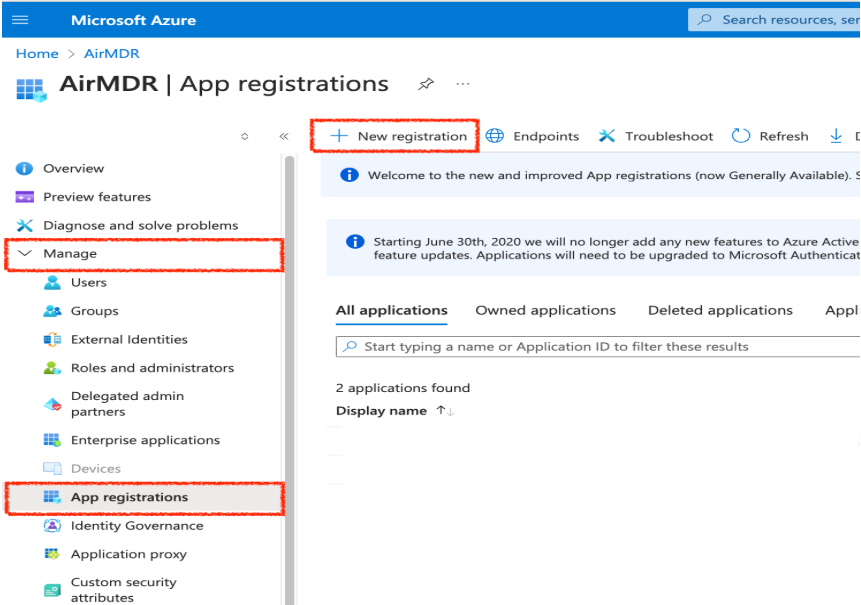
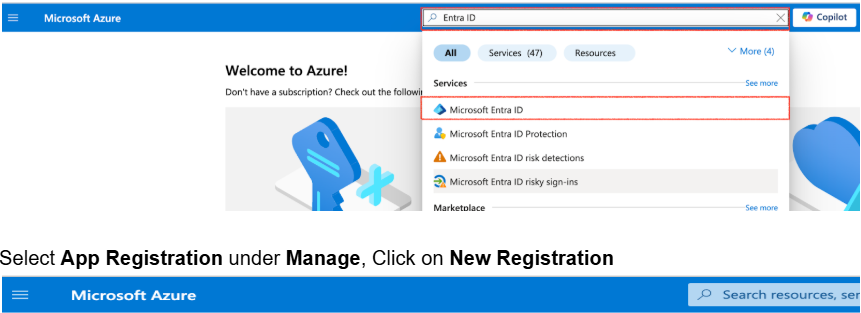 3. Navigate to **Manage** → **App registrations.**
4. Click **+ New registration.**
3. Navigate to **Manage** → **App registrations.**
4. Click **+ New registration.**
 5. Provide:
* **Name**: For e.g., "graphapi-client-airmdr"
* **Supported account types**: Select “*Accounts in any organizational directory (Any Microsoft Entra ID tenant - Multitenant)*” option).
6. Click **Register.**
Post successful registration, the application must open automatically if not
1. Search for Microsoft Entra ID.
2. Select **Manage** → **App registrations.**
3. Select the **All Applications** tab.
1. Search and click on the registered app (For e.g., "graphapi-client-airmdr").
1. Go to **Manage** → **API Permissions** in the app settings.
2. Click **+ Add a permission.**
3. Select **Microsoft Graph.**
4. Choose **Application permissions**.
5. Provide:
* **Name**: For e.g., "graphapi-client-airmdr"
* **Supported account types**: Select “*Accounts in any organizational directory (Any Microsoft Entra ID tenant - Multitenant)*” option).
6. Click **Register.**
Post successful registration, the application must open automatically if not
1. Search for Microsoft Entra ID.
2. Select **Manage** → **App registrations.**
3. Select the **All Applications** tab.
1. Search and click on the registered app (For e.g., "graphapi-client-airmdr").
1. Go to **Manage** → **API Permissions** in the app settings.
2. Click **+ Add a permission.**
3. Select **Microsoft Graph.**
4. Choose **Application permissions**.
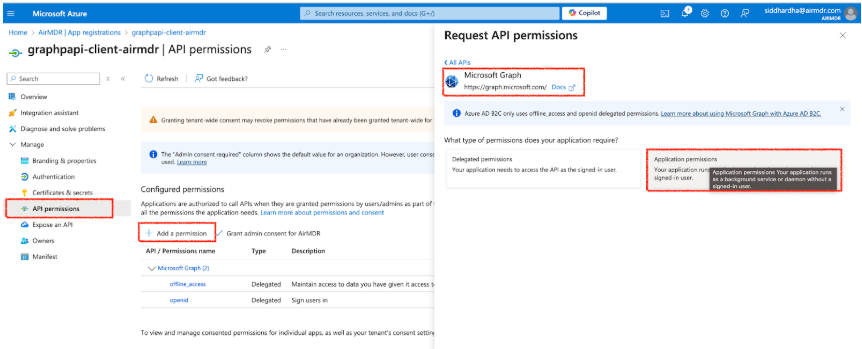 5. To use the Skills in AirMDR Integration select the required permissions as stated below:
* **To Disable / Enable User** - `User.EnableDisableAccount.All` + `User.Read.All`
* **To Fetch User Details** - `User.Read.All`
* **To Fetch Audit Logs (Sign Ins or Directory Audits)** - `AuditLog.Read.All`
* **To Reset User Password** - `User-PasswordProfile.ReadWrite.All`
* **To Fetch User Groups** - `Directory.Read.All`
* **To Revoke Sign-In Session** - `User.RevokeSessions.All`
* **To Fetch Office Calendar on userId** - `Calendars.Read`
* **To List Alerts** - `SecurityEvents.Read.All` + `SecurityAlert.Read.All` + `SecurityIncident.Read.All`
* **To Run Hunting Query** - `ThreatHunting.Read.All`
* **To List / Update Incident and Create Incident** - `SecurityIncident.ReadWrite.All`
* **To Send an Email** - `Mail.Send`
6. Click on **Add Permissions**.
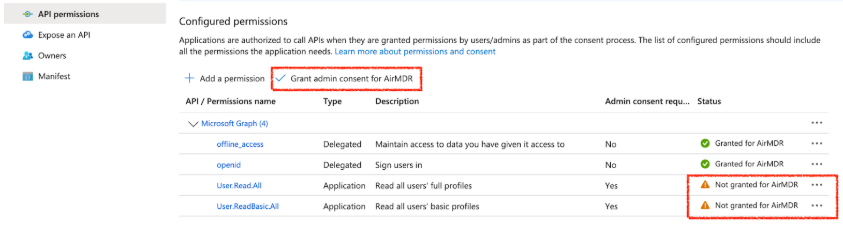
7. In API permissions, click **Grant admin consent**.
8. In the **Grant admin consent** confirmation modal, click **Yes**.
5. To use the Skills in AirMDR Integration select the required permissions as stated below:
* **To Disable / Enable User** - `User.EnableDisableAccount.All` + `User.Read.All`
* **To Fetch User Details** - `User.Read.All`
* **To Fetch Audit Logs (Sign Ins or Directory Audits)** - `AuditLog.Read.All`
* **To Reset User Password** - `User-PasswordProfile.ReadWrite.All`
* **To Fetch User Groups** - `Directory.Read.All`
* **To Revoke Sign-In Session** - `User.RevokeSessions.All`
* **To Fetch Office Calendar on userId** - `Calendars.Read`
* **To List Alerts** - `SecurityEvents.Read.All` + `SecurityAlert.Read.All` + `SecurityIncident.Read.All`
* **To Run Hunting Query** - `ThreatHunting.Read.All`
* **To List / Update Incident and Create Incident** - `SecurityIncident.ReadWrite.All`
* **To Send an Email** - `Mail.Send`
6. Click on **Add Permissions**.
7. In API permissions, click **Grant admin consent**.
8. In the **Grant admin consent** confirmation modal, click **Yes**.
 1. In the left navigation pane, go to **Manage** → **Certificates & secrets.**
2. Select **Client Secrets** tab.
3. Click **+ New client secret.**
1. In the left navigation pane, go to **Manage** → **Certificates & secrets.**
2. Select **Client Secrets** tab.
3. Click **+ New client secret.**
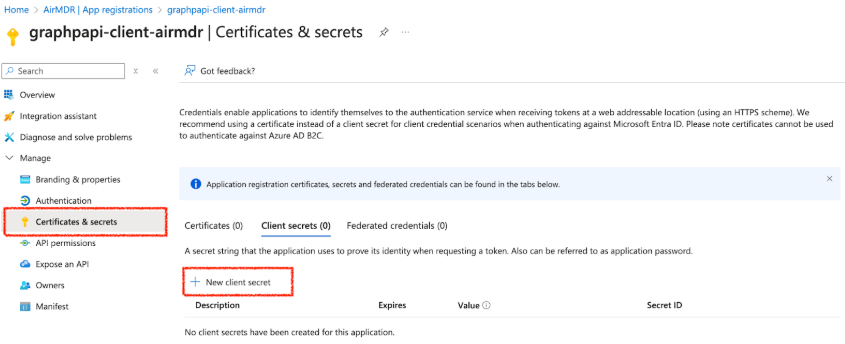 4. Add a **description** and **expiration period.**
5. Click **Add**.
Copy and securely save the **Client Secret Value** (it won’t be shown again)
To access the Client ID, and the Tenant ID to use in Graph API authentication
1. Go to [Azure Portal](https://portal.azure.com/).
2. Navigate to **Azure Active Directory.**
3. Click **App registrations.**
4. Select your **registered app.**
5. Under the **Overview** section, locate the **Application (client) ID** and **Tenant ID (Directory ID).**
6. Click the **Copy** icon **📋** next to the Client ID, and the Tenant ID respectively.
Now, your **Tenant ID** and **Client ID** are copied and ready to use for authentication in Microsoft Graph API.
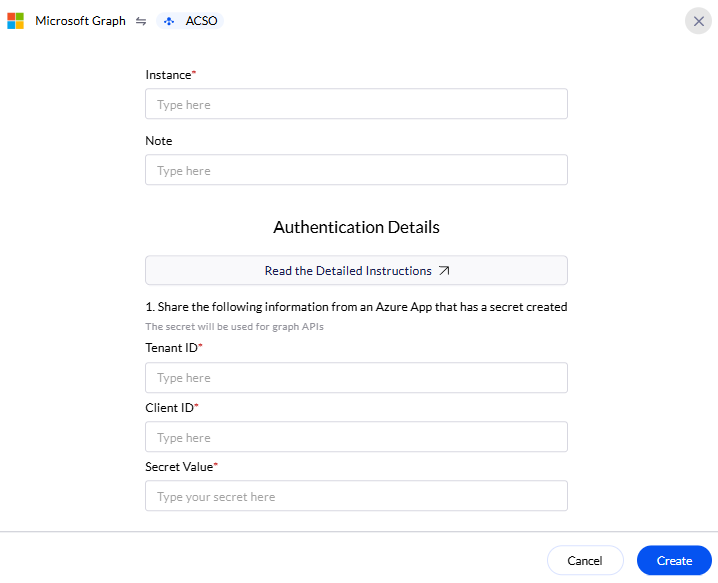
Share the **Tenant ID**, **Client ID**, and **Client Secret Value** securely with the AirMDR operations team or self-configure them in the AirMDR Integrations Dashboard.
### Skills Provided by this Integration
| Skill ID | Purpose |
| :----------------- | :------------------------------ |
| **Calendars.Read** | Fetch Office Calendar on userId |
### Configure Microsoft Graph in AirMDR Integrations Dashboard
1. Navigate to [AirMDR](https://app.airmdr.com/auth/login), provide the credentials and click **Login.**
4. Add a **description** and **expiration period.**
5. Click **Add**.
Copy and securely save the **Client Secret Value** (it won’t be shown again)
To access the Client ID, and the Tenant ID to use in Graph API authentication
1. Go to [Azure Portal](https://portal.azure.com/).
2. Navigate to **Azure Active Directory.**
3. Click **App registrations.**
4. Select your **registered app.**
5. Under the **Overview** section, locate the **Application (client) ID** and **Tenant ID (Directory ID).**
6. Click the **Copy** icon **📋** next to the Client ID, and the Tenant ID respectively.
Now, your **Tenant ID** and **Client ID** are copied and ready to use for authentication in Microsoft Graph API.
Share the **Tenant ID**, **Client ID**, and **Client Secret Value** securely with the AirMDR operations team or self-configure them in the AirMDR Integrations Dashboard.
### Skills Provided by this Integration
| Skill ID | Purpose |
| :----------------- | :------------------------------ |
| **Calendars.Read** | Fetch Office Calendar on userId |
### Configure Microsoft Graph in AirMDR Integrations Dashboard
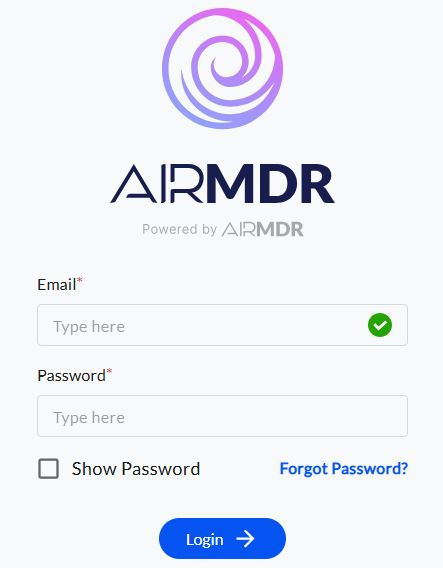
1. Navigate to [AirMDR](https://app.airmdr.com/auth/login), provide the credentials and click **Login.**
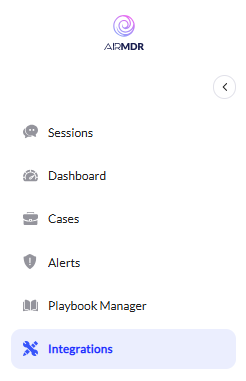
 2. Navigate to the AirMDR Integrations Dashboard in the left navigation pane and select **Integrations.**
 3. Use the search option, enter the keyword "**Microsoft Graph**", select the **Connections** tab, and click the **+ Create** icon.
 4. Enter the generated **Tenant ID, Client ID** and the **Client Secret** in the Authentication Details field params, and click **Create.**