> ## Documentation Index
> Fetch the complete documentation index at: https://docs.airmdr.com/llms.txt
> Use this file to discover all available pages before exploring further.
# Mimecast
> Mimecast provides cloud-based email security, archiving, and continuity services. It is to protect against email-borne threats like phishing, ransomware, impersonation attacks, and data leaks.
### Pre-requisites
User must have access to the **Mimecast Administration Console** with **Full Administrator** or a role that includes **API Application Management**
### Generate **v2 API keys in Mimecast UI**
To create **API 2.0 keys** in Mimecast Administration Console
1. Log in to your Mimecast Login page.
2. Enter your administrator credentials (Email and Password).
1. In the console, navigate to **Administration** → **Services** → **API** → **Applications**.
2. Click **New Application**.
3. Fill in the required fields:
* **Application Name**: Enter a unique name for your application.
* **Category**: Select an appropriate category (e.g., "Process Automation").
* **Service Application**: Check this box if your application is a service.
* **Description**: Provide a brief description of the application.
4. Click **Next**.
5. Enter the **Developer Name** and **Email Address** of the person responsible for the application.
6. Review your entries and click **Add**.
After creating the application, Mimecast requires a 30-minute period before you can generate the Client ID and Client Secret.
1. Post waiting period (>30 minutes), locate your application in the list.
2. Click the **Actions** (three dots) button next to your application and select **Manage API 2.0 Credentials**.
3. In the "Generate New Keys" dialog:
* Click **Generate** to create new credentials.
If your Mimecast environment uses Single Sign-On (SSO), you need to temporarily disable it to generate API keys.
* Mimecast will display the new **Client ID** and **Client Secret**.
Copy and securely store these credentials, as the **Client Secret** will not be retrievable later.
4. Click **Close** to exit the dialog.
Email the **Client ID** and **Client Secret** to AirMDR or self Configure Mimecast in AirMDR Integrations Dashboard.
### Evaluate API Keys with credentials
Open **cURL** and run the following command to check if your API Access is working:
**Example cURL request:**
```
curl -X POST "YOUR_BASE_URL/oauth/token" \
-H "Content-Type: application/x-www-form-urlencoded" \
-d "client_id=YOUR_CLIENT_ID&client_secret=YOUR_CLIENT_SECRET&grant_type=client_credentials"
```
### Configure Mimecast in AirMDR Integrations Dashboard
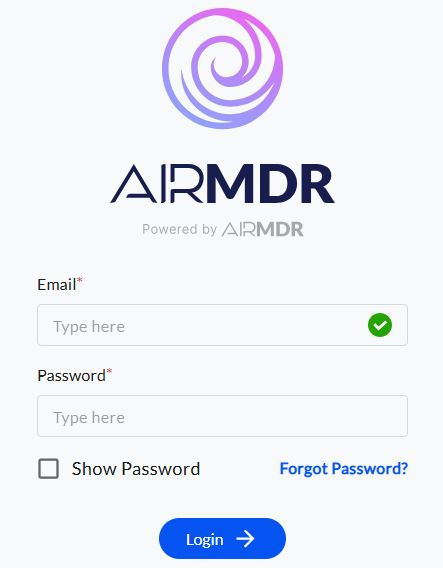
1. Navigate to [AirMDR](https://app.airmdr.com/auth/login), provide the credentials and click **Login.**
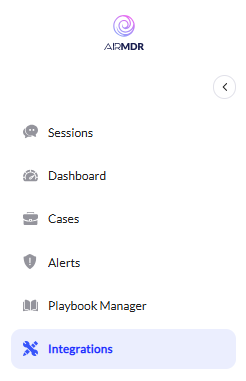
 2. Navigate to the AirMDR Integrations Dashboard in the left navigation pane and select **Integrations.**\
\\
2. Navigate to the AirMDR Integrations Dashboard in the left navigation pane and select **Integrations.**\
\\
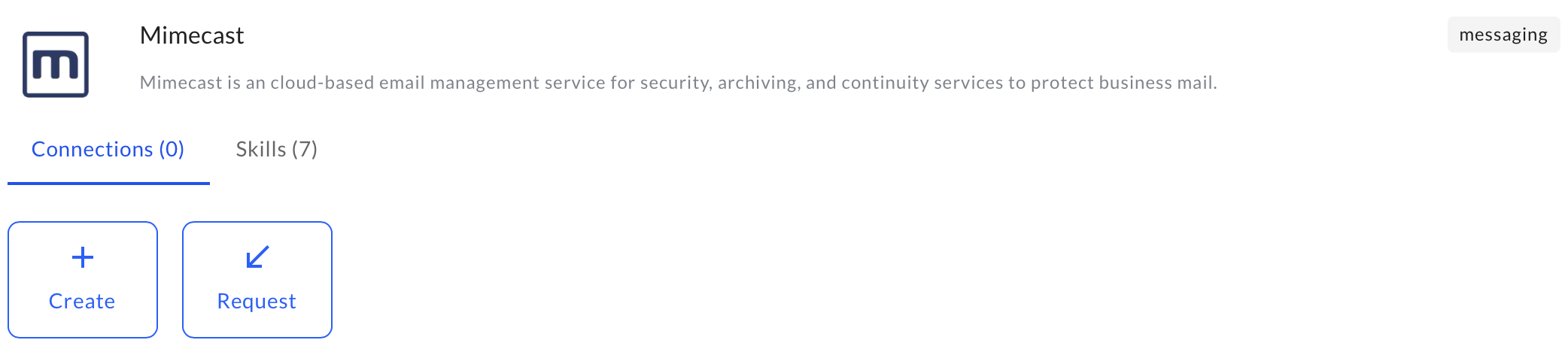
 3. Use the search option, enter the keyword "**Mimecast**", select the **Connections** tab, and click the **+ Create** icon.\\
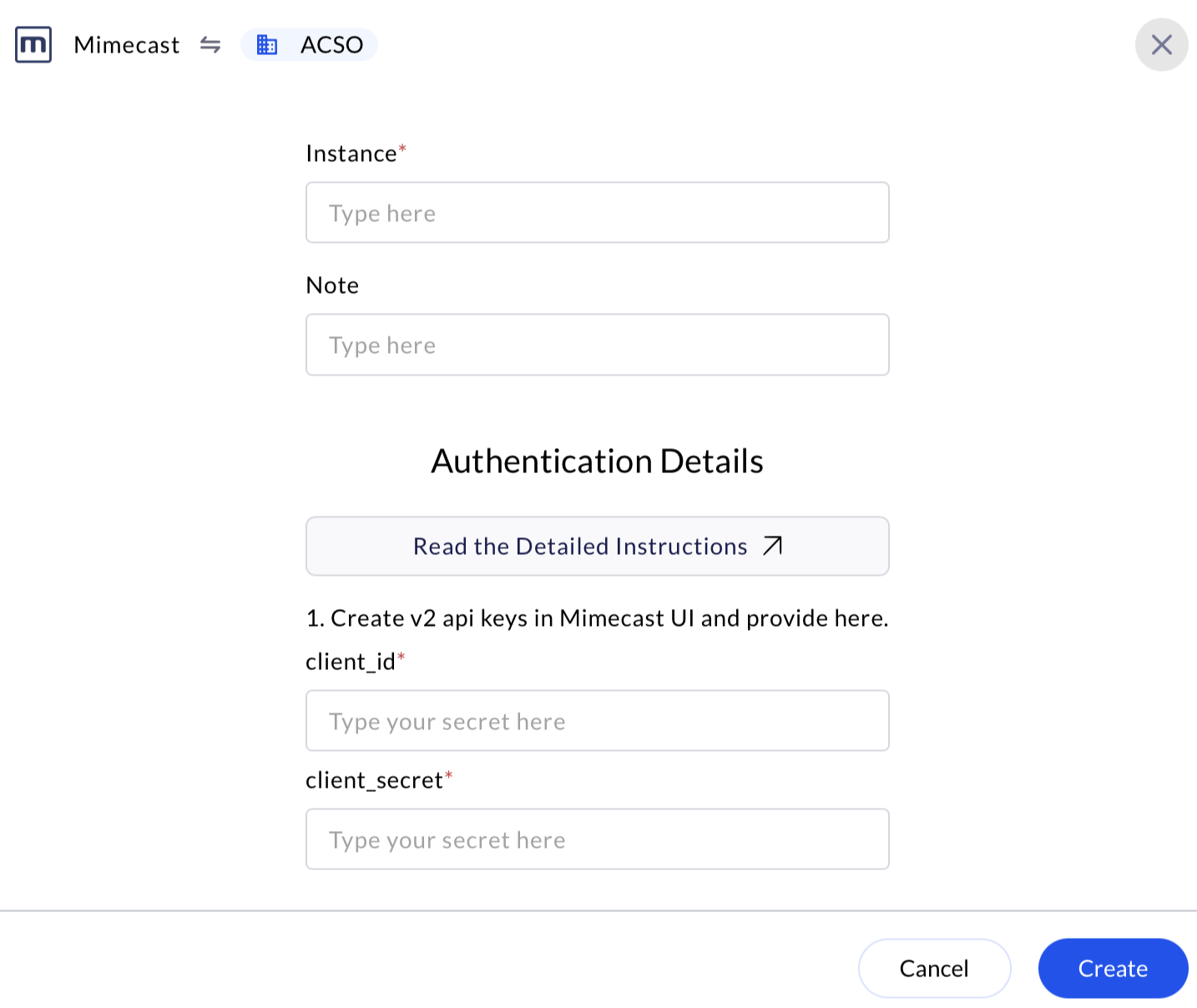
 4. Enter the generated **Client ID** and **Client Secret** in the Authentication Details field params, and click **Create.**\\