> ## Documentation Index
> Fetch the complete documentation index at: https://docs.airmdr.com/llms.txt
> Use this file to discover all available pages before exploring further.
# Navan
> AirMDR integrates with NAVAN to securely retrieve authorized travel and booking data for centralized monitoring and analysis.
## Purpose
The NAVAN integration enables AirMDR to authenticate with NAVAN and retrieve the API data authorized for your organization.
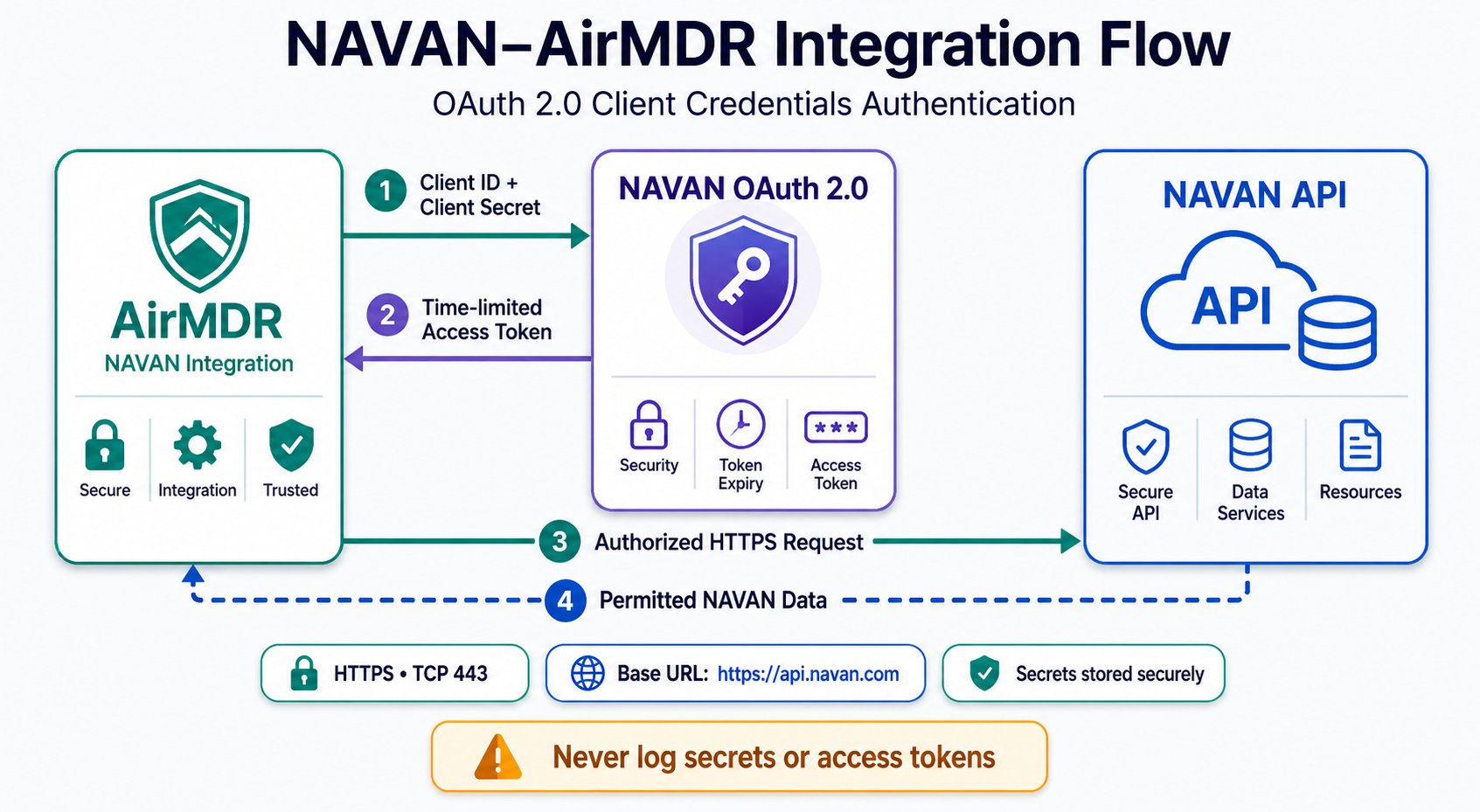
NAVAN uses the OAuth 2.0 Client Credentials grant for application-to-application authentication. AirMDR uses the Client ID and Client Secret to obtain a temporary access token before requesting permitted NAVAN data.
## Supported Versions
| Component | Supported Configuration |
| :----------------------- | :----------------------------------------------------- |
| NAVAN API | Current REST-based NAVAN API enabled for the customer |
| Authentication | OAuth 2.0 Client Credentials |
| Production Base URL | `https://api.navan.com` |
| Token endpoint | `POST /ta-auth/oauth/token` |
| Example booking endpoint | `GET /v1/bookings` |
| Transport protocol | HTTPS |
| Network port | TCP 443 |
| AirMDR | NAVAN connector version available in the AirMDR tenant |
**NAVAN Booking API, Expense API, and other API products may require separate enablement.**
## Authentication Method
NAVAN uses OAuth 2.0 Client Credentials authentication
**Authentication flow**
1. AirMDR sends the Client ID and Client Secret to the NAVAN token endpoint.
2. NAVAN validates the credentials and associated permissions.
3. NAVAN returns a temporary access token.
4. AirMDR sends the token in subsequent API requests.
5. NAVAN returns only the data permitted for the credentials.
The authorization header uses the following format:
`Authorization: Bearer `
* Only authorized NAVAN administrators should create API credentials.
* Create dedicated API credentials for AirMDR.
* Do not reuse credentials belonging to another application.
* Provide access only to the required NAVAN API.
* Restrict credential rotation and revocation to authorized administrators.
* Use IP allowlisting when supported.
* Review API access periodically.
## Pre-requisites
>
> Users must have Administrator access to the **NAVAN** UI with sufficient privileges to access to **Travel admin → Settings → Integrations**.
>
>
>
> Required NAVAN API entitlement enabled for the organization.
>
Confirm whether AirMDR requires NAVAN Booking, Expense, or another API before generating the credentials.
## Setup Steps
 1. Open the [NAVAN](https://login.navan.com/u/login/identifier?state=hKFo2SA5aHZjNTZPWGw4dGJ0Vm1SRWkxQm1xTVBjbjNveUxOWKFur3VuaXZlcnNhbC1sb2dpbqN0aWTZIHhzNVZHMm92ZTVqSnJNTlFWR1ZIUm1HbkpKRFcxUjc2o2NpZNkgV2tKOG95eGM5bmtRM2NqOTF4aldINDZ0VFNaOEhuVEw) application.
2. Sign in using an administrator account.
3. Select **Admin**.
4. Open the **Travel admin** tab.
If **Admin** or **Travel admin** is unavailable, contact your NAVAN administrator.
1. From **Travel admin**, select **Settings**.
2. Select **Integrations**.
3. Locate the **NAVAN API Credentials** section.
4. Navigate to **Admin → Travel admin → Settings → Integrations**.
1. In the **NAVAN API Credentials** section, click **Create new**.
2. In **Description**, enter a recognizable credential name.
1. Open the [NAVAN](https://login.navan.com/u/login/identifier?state=hKFo2SA5aHZjNTZPWGw4dGJ0Vm1SRWkxQm1xTVBjbjNveUxOWKFur3VuaXZlcnNhbC1sb2dpbqN0aWTZIHhzNVZHMm92ZTVqSnJNTlFWR1ZIUm1HbkpKRFcxUjc2o2NpZNkgV2tKOG95eGM5bmtRM2NqOTF4aldINDZ0VFNaOEhuVEw) application.
2. Sign in using an administrator account.
3. Select **Admin**.
4. Open the **Travel admin** tab.
If **Admin** or **Travel admin** is unavailable, contact your NAVAN administrator.
1. From **Travel admin**, select **Settings**.
2. Select **Integrations**.
3. Locate the **NAVAN API Credentials** section.
4. Navigate to **Admin → Travel admin → Settings → Integrations**.
1. In the **NAVAN API Credentials** section, click **Create new**.
2. In **Description**, enter a recognizable credential name.
Example: `AirMDR NAVAN Integration`
3. If the **Allowed IP Addresses** field is displayed, enter the approved AirMDR public egress IP addresses or subnet masks.
4. Review the entered information.
5. Click **Create**.
Enter only verified AirMDR public egress IP addresses. Private network addresses cannot identify API traffic originating over the internet.
After the credentials are created, NAVAN displays a confirmation window.
1. Copy the value displayed as **Client ID**.
2. Copy the value displayed as **Secret Key**.
3. Store the Secret Key in an approved secrets manager.
4. If available, select **Copy All** to copy all credential details.
5. Verify that the Client ID and Secret Key were saved successfully.
6. Click **Done** only after saving the Secret Key.
Use the NAVAN values in AirMDR as follows:
| NAVAN Value | AirMDR Field |
| :---------------------- | :------------ |
| Client ID | Client ID |
| Secret Key | Client Secret |
| API production endpoint | Base URL |
**Copy and securely save the Secret Key in your credential Manager or Vault.**
**NAVAN does not display the Secret Key again after the confirmation window is closed.**
* The documented production Base URL for the NAVAN TMC/Booking API is [https://api.navan.com](https://api.navan.com).
* The Base URL is not generated in the credential confirmation window.
* Before entering it in AirMDR, verify that:
* The URL begins with `https://`.
* The URL does not have a trailing slash.
* The URL matches the credential environment.
* Any sandbox, regional, or customer-specific URL has been confirmed by NAVAN.
Do not infer or construct a sandbox URL. Obtain it directly from NAVAN.
### Validate Connectivity
This validation is optional and should be performed only from an approved administrative workstation.
**Request:**
```text theme={null}
export NAVAN_CLIENT_ID=''
export NAVAN_CLIENT_SECRET=''
export NAVAN_BASE_URL='https://api.navan.com'
curl --request POST \
--url "${NAVAN_BASE_URL}/ta-auth/oauth/token" \
--header "Content-Type: application/x-www-form-urlencoded" \
--data-urlencode "grant_type=client_credentials" \
--data-urlencode "client_id=${NAVAN_CLIENT_ID}" \
--data-urlencode "client_secret=${NAVAN_CLIENT_SECRET}"
```
**Sample successful response:**
A successful response contains an access token and related token metadata.
Do not copy the access token into documentation, tickets, emails, or chat messages.
## Configure NAVAN in AirMDR Integrations Dashboard
1. Navigate to [AirMDR](https://app.airmdr.com/auth/login), provide the credentials and click **Login**
2. Navigate to the AirMDR Integrations Dashboard in the left navigation pane and select **Integrations**.
3. Use the search option, enter the keyword "**Navan**", select the **Connections** tab, and click **+ Create** button.
4. Enter an unique name to the Instance (e.g., `your org name-Navan`) to easily identify the user connection by AirMDR.
5. Enter the application credentials like **Client ID** and **Client Secret** in the Authentication Details field params, and click **Save**.
## Skills provided by this Integration
| **Skill ID** | **Purpose** |
| :----------------------- | :----------------------------------------------------------------------------------- |
| Get Navan Users | Get company users from Navan for mapping travelers and bookers |
| Search Navan User Travel | Search a traveler's Navan bookings and group them by trip |
| Get Navan Bookings | Read back travel bookings from Navan for verification, reconciliation, and reporting |
To view the details of Input Parameters and Output for the respective skills
* Go to [AirMDR → Navan](https://app.airmdr.com/integrationsv2/3dc9f8bb-f27e-4d77-ad5c-4cee7d1efd69/skills?search=navan) Integration page.
* Select the **Skills** tab and click on the required listed skills.
## Additional Information
| Error | Probable Cause | Recommended Resolution |
| :--------------------------------------------- | :----------------------------------------------------------------- | :---------------------------------------------------------------------------------- |
| `400 Bad Request` | Missing parameter, malformed request, or incorrect content type | Confirm the Client Credentials request and use `application/x-www-form-urlencoded`. |
| `401 Unauthorized` | Incorrect credentials, rotated secret, or expired token | Verify the Client ID and Client Secret and request a new token. |
| `403 Forbidden` | API not enabled, insufficient permission, or IP allowlist mismatch | Confirm the entitlement and verify the AirMDR egress IP addresses. |
| `404 Not Found` | Incorrect Base URL or endpoint | Verify the Base URL and endpoint against the enabled NAVAN API documentation. |
| `429 Too Many Requests` | API request limit exceeded | Honor `Retry-After` and apply bounded exponential backoff. |
| `5xx Server Error` | Temporary NAVAN service issue | Retry with bounded backoff and escalate persistent failures. |
| Connection fails after enabling IP restriction | Missing or incorrect IP address | Compare the allowlist with AirMDR’s actual public egress addresses. |
| Client Secret unavailable | The credential window was closed | Rotate the key or generate replacement credentials. |
**Recovery procedure**
1. Record the timestamp, endpoint, HTTP status, and sanitized request ID.
2. Confirm that the Base URL matches the credential environment.
3. Check the Client ID for leading or trailing spaces.
4. Re-enter the Client Secret from the approved secrets manager.
5. Verify the IP allowlist.
6. Confirm API access and permissions with NAVAN.
7. Retry temporary `429` and `5xx` errors with bounded backoff.
8. Rotate the Client Secret if credential exposure or loss is suspected.
Monitor authentication, connection health, API responses, retries, and synchronization results.
**Recommended monitoring events**
* Connection-test success or failure
* Token request outcome
* API endpoint and HTTP method
* HTTP response status
* Request or correlation ID
* Execution start and completion time
* Execution duration
* Number of records processed
* Retry count
* Credential rotation
* Credential revocation
* Configuration changes
**Sample sanitized logs**
```text theme={null}
INFO navan.connection_test status=success base_url=https://api.navan.com
INFO navan.sync endpoint=/v1/bookings status=200 records=100 duration_ms=842
WARN navan.sync endpoint=/v1/bookings status=429 retry=1 retry_after_s=30
ERROR navan.authentication status=401 reason=credential_rejected
```
**Recommended log levels**
| Log Level | Recommended Use |
| :-------- | :------------------------------------------------------------------ |
| `INFO` | Successful connection tests and synchronization summaries |
| `WARN` | Rate limits, timeouts, retries, and upcoming credential rotation |
| `ERROR` | Authentication, authorization, or terminal synchronization failures |
| `DEBUG` | Temporary troubleshooting with secrets and sensitive data redacted |
**Never log the Client Secret, access token, complete Authorization header, or unrestricted API response body.**
### ✅ Do
* Create dedicated credentials for AirMDR.
* Apply least-privilege access.
* Store credentials in an approved secrets manager.
* Use verified IP allowlisting where supported.
* Restrict credential management to authorized administrators.
* Use HTTPS over TCP port 443.
* Redact secrets and sensitive responses from logs.
* Rotate and revoke credentials through an approved process.
* Monitor repeated authentication failures.
* Document the credential owner and purpose.
### ❌ Avoid
* Sharing credentials through email, chat, or support tickets.
* Reusing credentials assigned to another application.
* Hard-coding secrets in scripts or configuration files.
* Committing credentials to source control.
* Assuming an unverified Base URL or API entitlement.
* Logging complete Authorization headers.
* Disabling TLS certificate verification.
* Using unrestricted access when verified IP allowlisting is available.
* 📧 Contact [**AirMDR Support**](mailto:support@airmdr.com) through your designated support channel.
* 🔁 Rotate credentials regularly. Recommended cadence: Every 90 days or as per internal security policy
* 🔄 Reconnect in AirMDR when secrets are changed.
**Data exchanged**
Depending on the enabled NAVAN API, the integration may process:
* Booking identifiers
* Travel itinerary information
* Traveler information
* Booking status
* Origin and destination
* Travel dates
* Expense or transaction information, if separately enabled
* API execution and synchronization metadata
The exact data fields depend on the API entitlement and permissions configured for the organization.
**Network requirements**
| Purpose | Method | Endpoint | Port |
| :------------------ | :----- | :------------------------------------------ | :------ |
| Obtain access token | `POST` | `https://api.navan.com/ta-auth/oauth/token` | TCP 443 |
| Retrieve bookings | `GET` | `https://api.navan.com/v1/bookings` | TCP 443 |
**Security controls**
* Use HTTPS for all API traffic.
* Store the Client Secret in an approved secrets manager.
* Restrict credential access using role-based permissions.
* Redact secrets and access tokens from logs.
* Apply organizational retention requirements to retrieved NAVAN data.
* Use IP allowlisting where supported.
* Review access periodically.
Confirm NAVAN’s applicable at-rest encryption and compliance controls using your organization’s NAVAN security or contractual documentation.