> ## Documentation Index
> Fetch the complete documentation index at: https://docs.airmdr.com/llms.txt
> Use this file to discover all available pages before exploring further.
# OpenAI
> Enable secure integration between AirMDR and OpenAI by generating and configuring an Admin Key for OpenAI client authentication.
### 🔑 Admin Key Creation & Data Logging Configuration Guide in OpenAI for Authentication
This guide walks OpenAI account administrators through generating a new **Admin API key** and enabling **data logging** in the **Data Controls** section for audit, compliance, and operational purposes.
### ✅ **Prerequisites**
Ensure you meet these prerequisites before starting:
* Admin access to **AirMDR** application
* You must have access to the [OpenAI Developer Platform](https://platform.openai.com/account) with **Admin privileges** in your OpenAI organization
* Permissions to manage API keys and system-wide data settings
### Generate a New Admin API Key
To generate an Admin key in the OpenAI Platform for integrating with AirMDR, follow these steps:
1. Navigate to [Open AI](https://platform.openai.com) Platform.
2. Click **Login** in the top-right corner, and authenticate with your admin credentials.
1. In the Left Navigation pane, enter the value "**Admin API Keys**" in the Search bar.
2. Go to [Admin Keys management page](https://platform.openai.com/settings/organization/admin-keys).
3. Click on the **“+ Create new Admin key”** button. A pop-up modal will show up.
 4. In the Create new admin key pop-up modal
* Provide a descriptive name for the API key (e.g., `AirMDR Integration`).
* In the Permissions, select the **Read only** option.
4. In the Create new admin key pop-up modal
* Provide a descriptive name for the API key (e.g., `AirMDR Integration`).
* In the Permissions, select the **Read only** option.
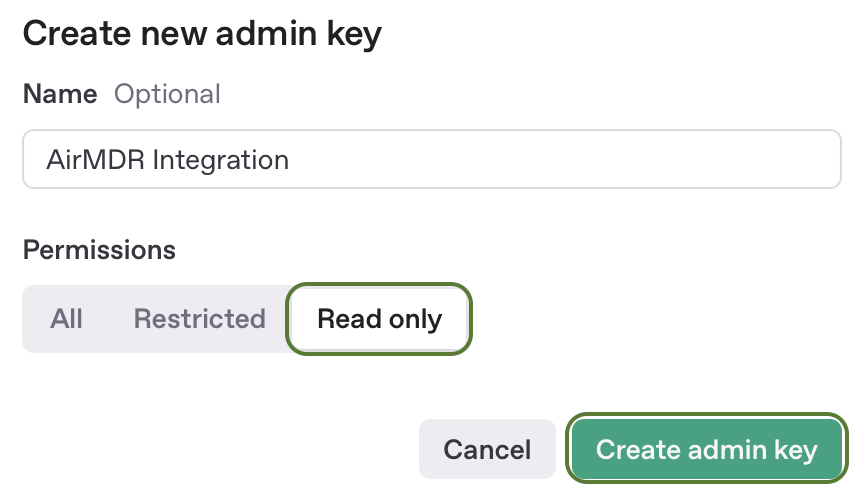 5. Click **Create admin key** to generate the key.
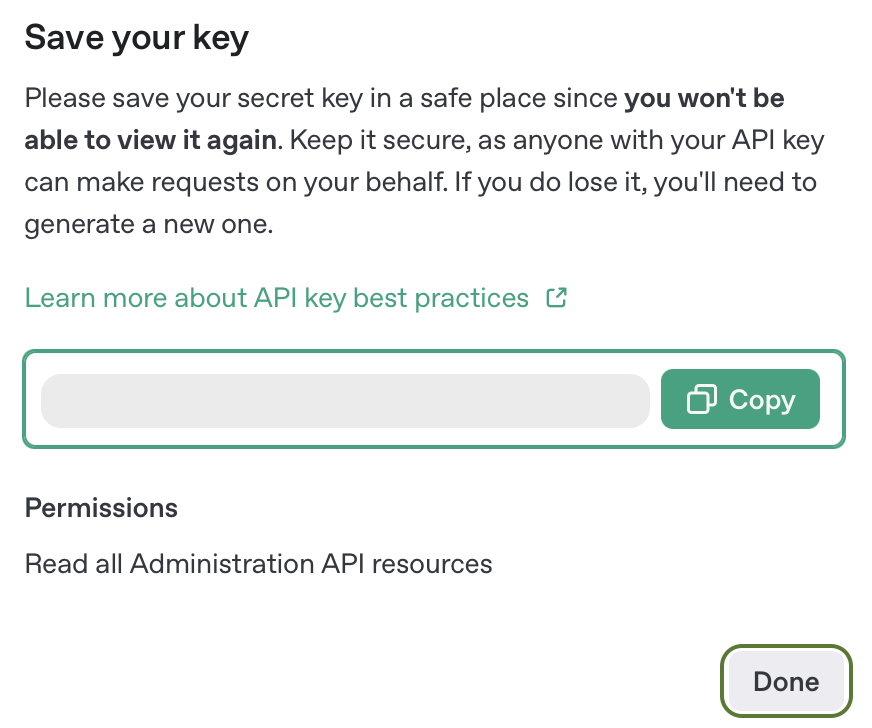
1. A modal will display your new **secret API key**.
2. Click **Copy** to save it to your clipboard.
This is the only time the **API Key** will be displayed. \
Copy and securely save the secret API key in your preferred password manager or secure storage solution.
3. Once you successfully copy and securely saved the Key, click **Done**.
5. Click **Create admin key** to generate the key.
1. A modal will display your new **secret API key**.
2. Click **Copy** to save it to your clipboard.
This is the only time the **API Key** will be displayed. \
Copy and securely save the secret API key in your preferred password manager or secure storage solution.
3. Once you successfully copy and securely saved the Key, click **Done**.
 You can **Edit** the *Name* and *Permissions* or **Delete** the Secret Key entirely.
 Email the **Admin** **API key** to AirMDR \
or \
Self [configure](https://docs.airmdr.com/Integrations/OpenAI#configure-openai-in-the-airmdr-integrations-dashboard) OpenAI in the AirMDR Integrations Dashboard.
### Enable Data Logging in Data Controls
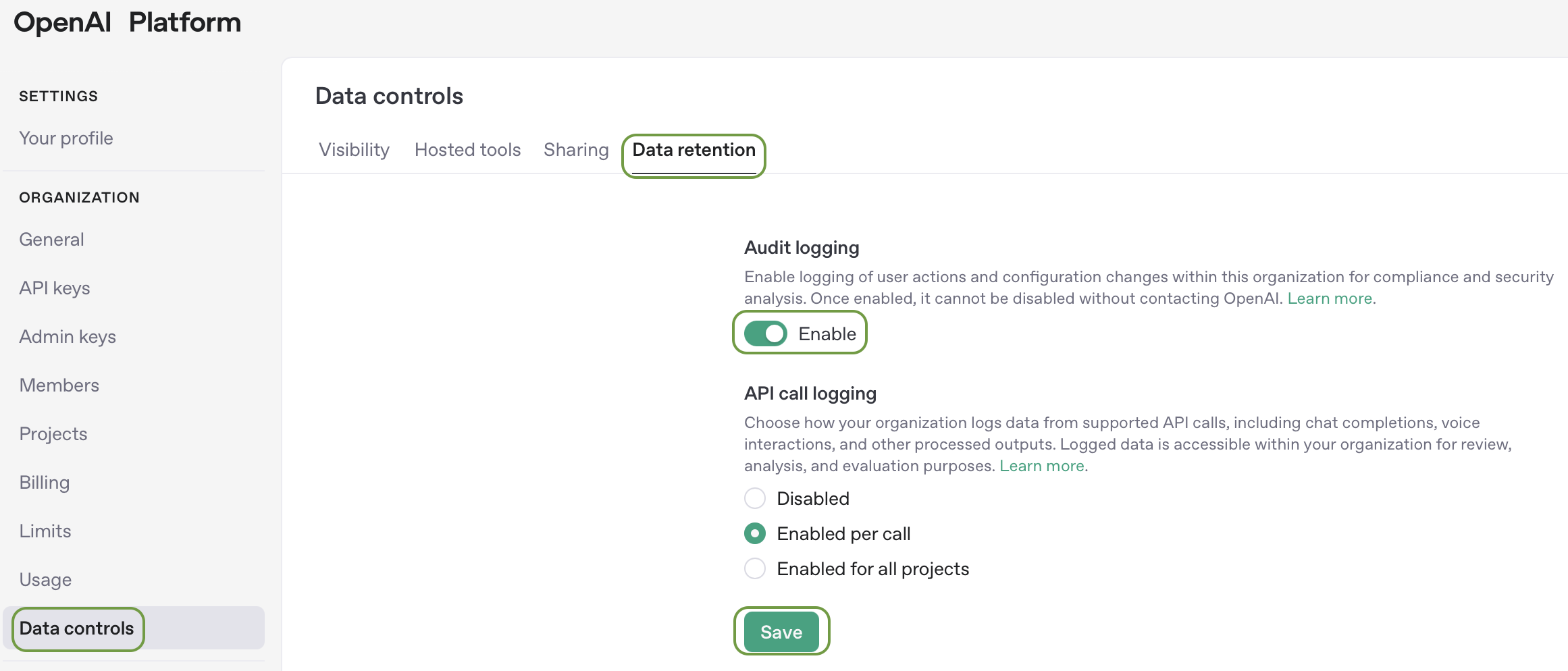
1. Go to [Organization → Data Controls → Data retention](https://platform.openai.com/settings/organization/data-controls/data-retention).
2. Locate the **Audit Logging** toggle.
3. Set it to **Enabled (ON)**.
4. Click **Save**.
Email the **Admin** **API key** to AirMDR \
or \
Self [configure](https://docs.airmdr.com/Integrations/OpenAI#configure-openai-in-the-airmdr-integrations-dashboard) OpenAI in the AirMDR Integrations Dashboard.
### Enable Data Logging in Data Controls
1. Go to [Organization → Data Controls → Data retention](https://platform.openai.com/settings/organization/data-controls/data-retention).
2. Locate the **Audit Logging** toggle.
3. Set it to **Enabled (ON)**.
4. Click **Save**.
 5. Review the logging policy and retention notice.
6. Confirm your changes if prompted.
1. Perform a test API call using the new Admin key.
2. Confirm activity is recorded under **Usage** or via your **audit log provider** (if integrated).
### Post-Setup Security Best Practices (Optional)
* Rotate keys periodically and delete unused ones.
* Regularly review your organization’s data control settings for compliance.
* Monitor usage under: [https://platform.openai.com/account/usage](https://platform.openai.com/account/usage)
* Never share your API key publicly.
* Use environment variables or secret vaults (like AWS Secrets Manager, Azure Key Vault).
* Rotate keys regularly and revoke unused keys from the [API Key page](https://platform.openai.com/account/api-keys).
### Skills Provided by this Integration
| Skill ID | Purpose |
| :------------------------ | :----------------------------------------------------------------------------------------------------------------- |
| **Get OpenAI Audit Logs** | Retrieve audit logs from the OpenAI platform with filtering capabilities for time ranges, actors, and event types. |
To view the details of Input Parameters and Output for the respective skills
* Go to [AirMDR → OpenAI](https://app.airmdr.com/integrations?search=OpenAI) Integration page.
* Select the **Skills** tab and click on the required listed skills.
### OpenAI API Testing
Open **cURL** and run the following command to check if your API Key is working:
**Sample** `cURL`**Command**
```
curl --location 'https://api.openai.com/v1/organization/audit_logs' \
--header 'Authorization: Bearer ' \
--header 'Content-Type: application/json'
```
> Replace `ADMIN_API_KEY` with your actual secret API key.
**Sample JSON Response**
```
{
"object": "list",
"data": [
{
"object": "organization.audit_log",
"id": "audit_log-YuMhFDGx9KyuKeCzOlgMUQmK",
"type": "login.succeeded",
"effective_at": 1751865809,
"actor": {
"type": "session",
"session": {
"user": {
"id": "user-mT5AyiS89mUCGccNnsiiFTFg",
"email": "user@company.com"
},
"ip_address": "209.35.227.192",
"user_agent": "Mozilla/5.0 (Macintosh; Intel Mac OS X 10_15_7) AppleWebKit/537.36 (KHTML, like Gecko) Chrome/136.0.0.0 Safari/537.36",
"ja3": "dc34fcc82fa919512cc12b7def99183c",
"ja4": "q13d0313h3_55b375c5d22e_226f3f127bbe",
"ip_address_details": {
"country": "GB",
"city": "Manchester",
"region": "England",
"region_code": "ENG",
"asn": "213176",
"latitude": "53.48095",
"longitude": "-2.23743"
}
}
}
}
],
"first_id": "audit_log-YuMhFDGx9KyuKeCzOlgMUQmK",
"last_id": "audit_log-YuMhFDGx9KyuKeCzOlgMUQmK",
"has_more": true
}
```
### Configure OpenAI in the AirMDR Integrations Dashboard
1. Navigate to [AirMDR](https://app.airmdr.com/auth/login), provide the credentials, and click **Login**
5. Review the logging policy and retention notice.
6. Confirm your changes if prompted.
1. Perform a test API call using the new Admin key.
2. Confirm activity is recorded under **Usage** or via your **audit log provider** (if integrated).
### Post-Setup Security Best Practices (Optional)
* Rotate keys periodically and delete unused ones.
* Regularly review your organization’s data control settings for compliance.
* Monitor usage under: [https://platform.openai.com/account/usage](https://platform.openai.com/account/usage)
* Never share your API key publicly.
* Use environment variables or secret vaults (like AWS Secrets Manager, Azure Key Vault).
* Rotate keys regularly and revoke unused keys from the [API Key page](https://platform.openai.com/account/api-keys).
### Skills Provided by this Integration
| Skill ID | Purpose |
| :------------------------ | :----------------------------------------------------------------------------------------------------------------- |
| **Get OpenAI Audit Logs** | Retrieve audit logs from the OpenAI platform with filtering capabilities for time ranges, actors, and event types. |
To view the details of Input Parameters and Output for the respective skills
* Go to [AirMDR → OpenAI](https://app.airmdr.com/integrations?search=OpenAI) Integration page.
* Select the **Skills** tab and click on the required listed skills.
### OpenAI API Testing
Open **cURL** and run the following command to check if your API Key is working:
**Sample** `cURL`**Command**
```
curl --location 'https://api.openai.com/v1/organization/audit_logs' \
--header 'Authorization: Bearer ' \
--header 'Content-Type: application/json'
```
> Replace `ADMIN_API_KEY` with your actual secret API key.
**Sample JSON Response**
```
{
"object": "list",
"data": [
{
"object": "organization.audit_log",
"id": "audit_log-YuMhFDGx9KyuKeCzOlgMUQmK",
"type": "login.succeeded",
"effective_at": 1751865809,
"actor": {
"type": "session",
"session": {
"user": {
"id": "user-mT5AyiS89mUCGccNnsiiFTFg",
"email": "user@company.com"
},
"ip_address": "209.35.227.192",
"user_agent": "Mozilla/5.0 (Macintosh; Intel Mac OS X 10_15_7) AppleWebKit/537.36 (KHTML, like Gecko) Chrome/136.0.0.0 Safari/537.36",
"ja3": "dc34fcc82fa919512cc12b7def99183c",
"ja4": "q13d0313h3_55b375c5d22e_226f3f127bbe",
"ip_address_details": {
"country": "GB",
"city": "Manchester",
"region": "England",
"region_code": "ENG",
"asn": "213176",
"latitude": "53.48095",
"longitude": "-2.23743"
}
}
}
}
],
"first_id": "audit_log-YuMhFDGx9KyuKeCzOlgMUQmK",
"last_id": "audit_log-YuMhFDGx9KyuKeCzOlgMUQmK",
"has_more": true
}
```
### Configure OpenAI in the AirMDR Integrations Dashboard
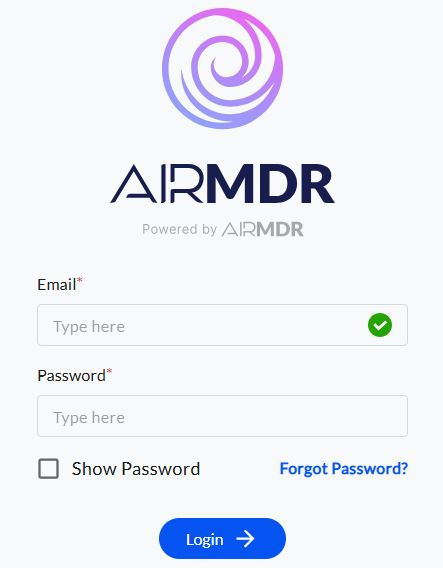
1. Navigate to [AirMDR](https://app.airmdr.com/auth/login), provide the credentials, and click **Login**
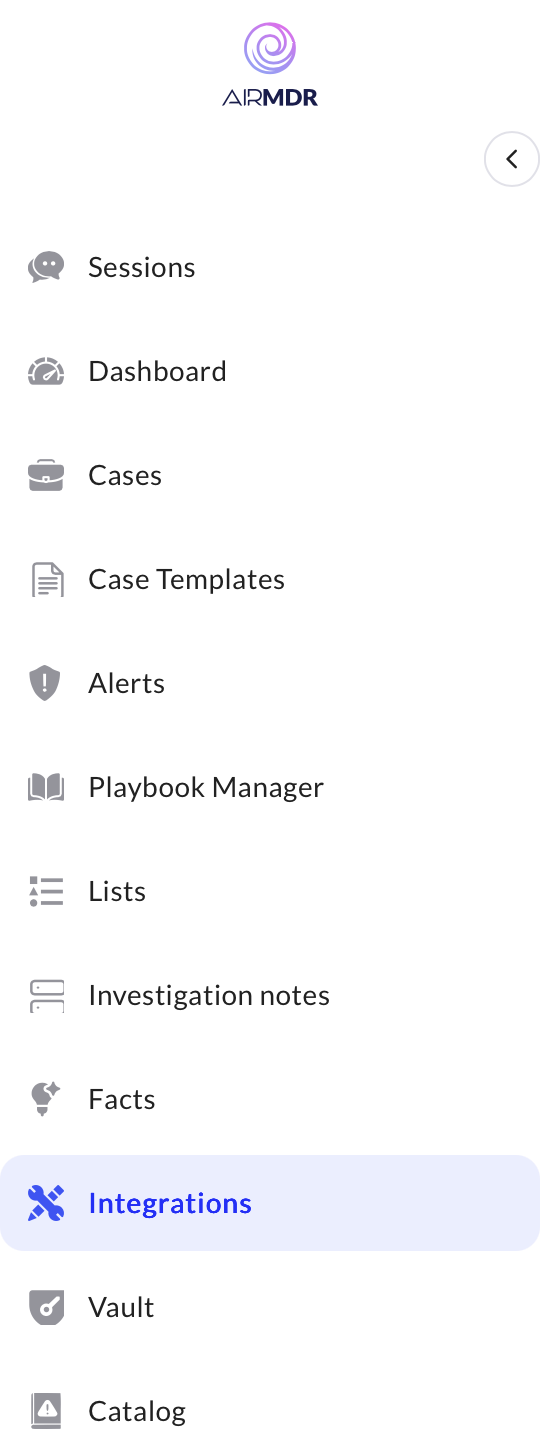
 2. Navigate to the AirMDR Integrations Dashboard in the left navigation pane and select **Integrations.**
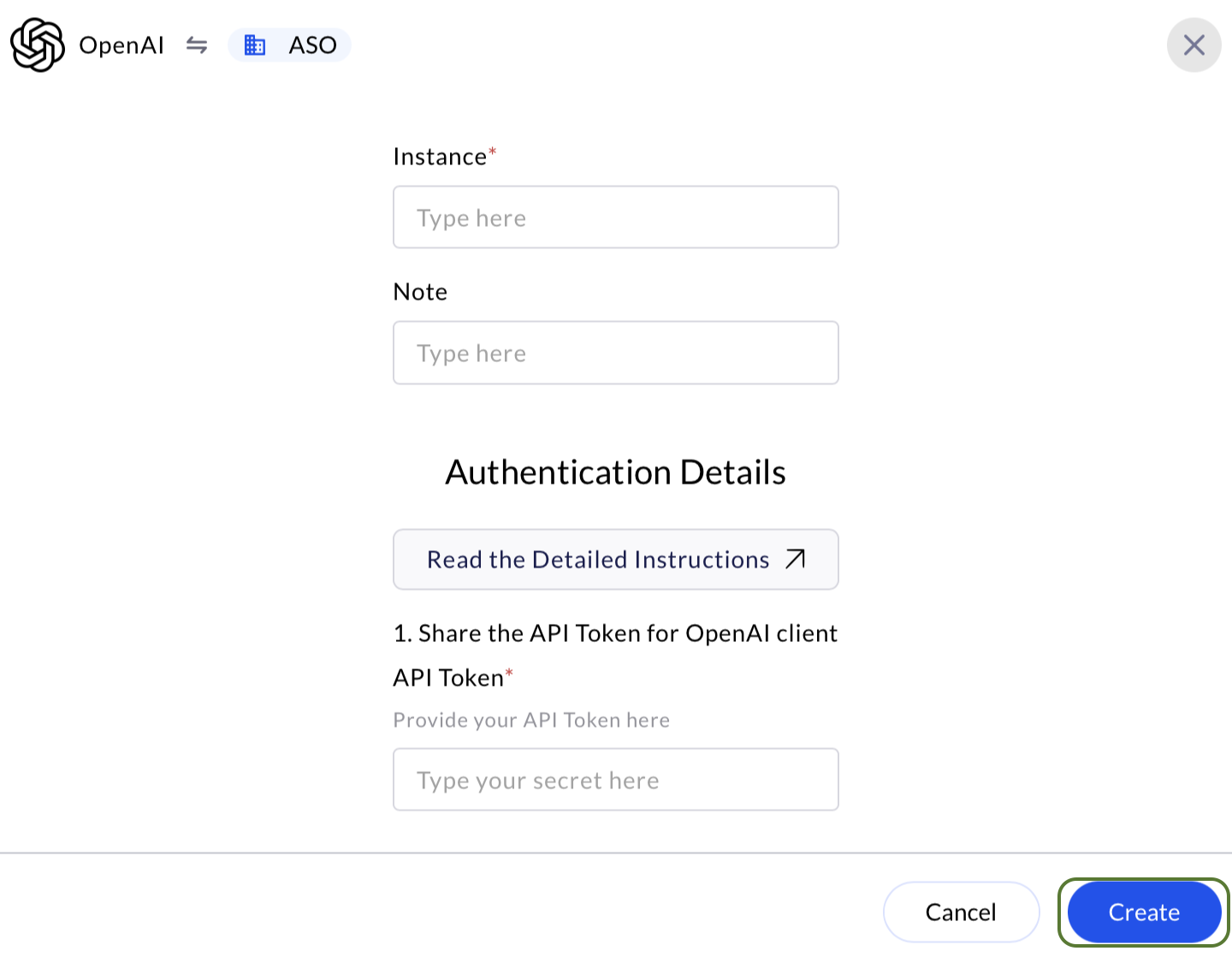
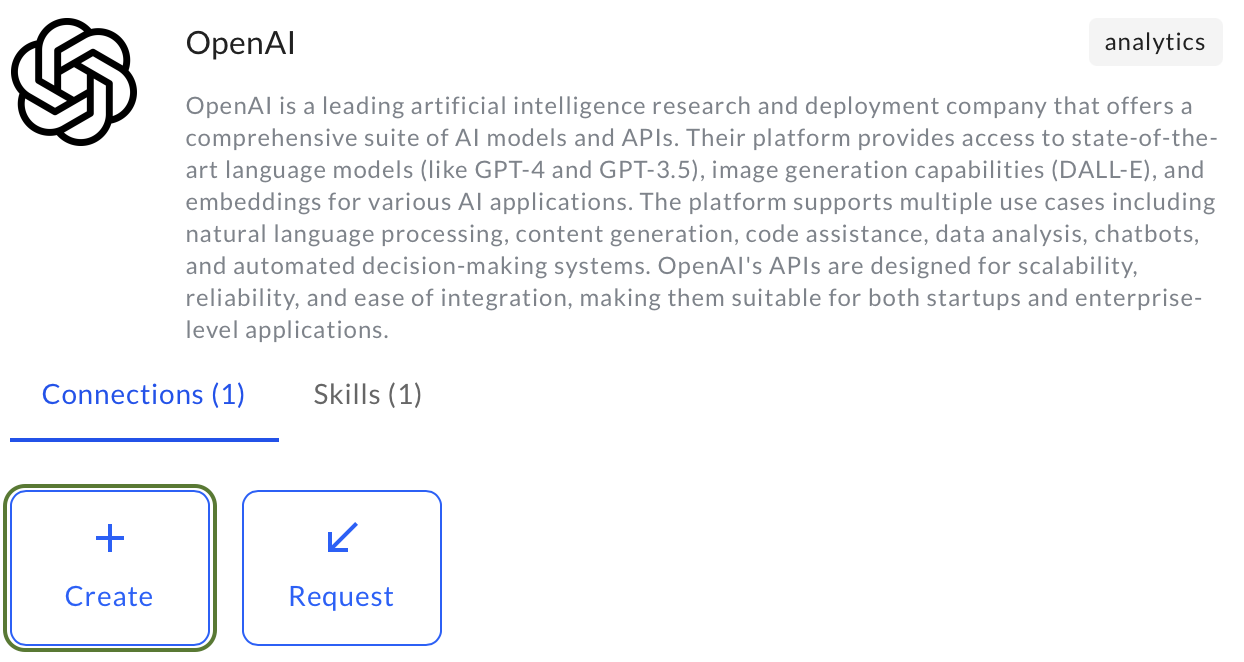
 3. Use the search option, enter the keyword "**OpenAI**", select the **Connections** tab, and click **Create**.
 4. Enter an unique name to the Instance (e.g., `your org name-OpenAI`) to easily identify the user connection by AirMDR.
5. Enter the generated **API Token (Admin API Key)** in the Authentication Details field params, and click **Create.**
4. Enter an unique name to the Instance (e.g., `your org name-OpenAI`) to easily identify the user connection by AirMDR.
5. Enter the generated **API Token (Admin API Key)** in the Authentication Details field params, and click **Create.**