> ## Documentation Index
> Fetch the complete documentation index at: https://docs.airmdr.com/llms.txt
> Use this file to discover all available pages before exploring further.
# OpenCVE
> OpenCVE is an open-source platform and web service that helps users track and monitor CVEs (Common Vulnerabilities and Exposures) in real time.
### Sign Up for OpenCVE
You will need a valid credentials (Username and Password) for OpenCVE client.
1. Open your browser and go to: 👉 [**https://www.opencve.io**](https://www.opencve.io)**.**
2. On the top-right corner of the homepage, click the **“Register”** button.\\
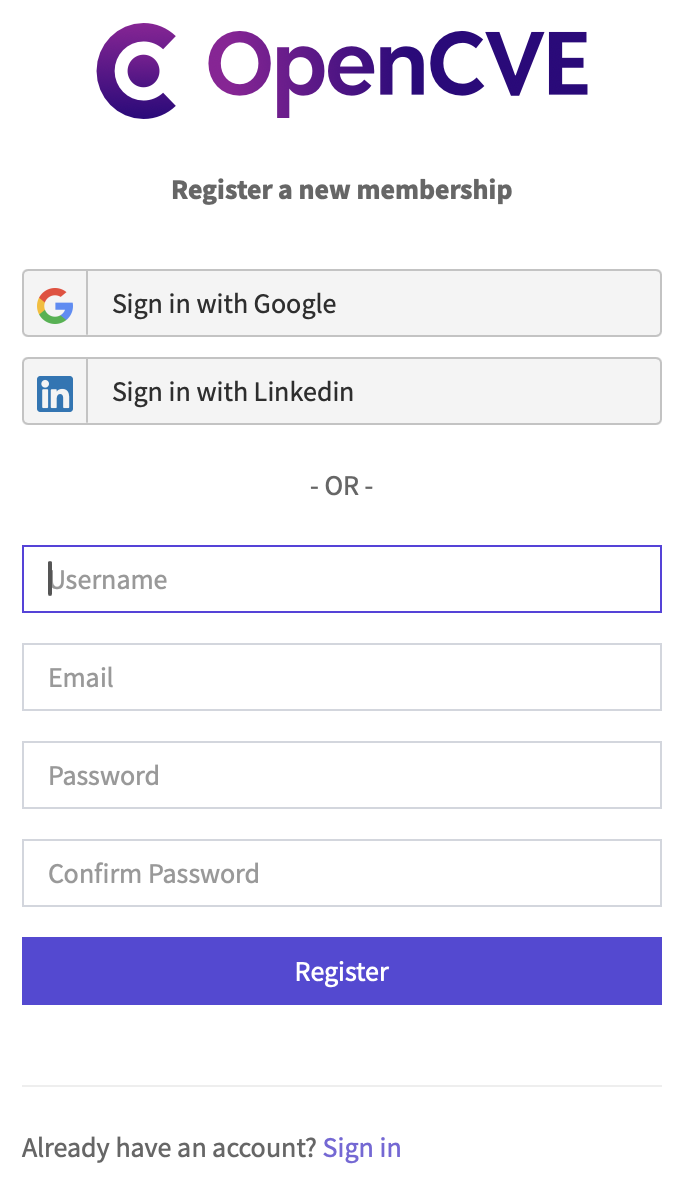
 3. Fill in the Registration Form fields with the necessary requirements:
* **Username**: Choose a unique username.
* **Email Address**: Use a valid email (you will need to verify it).
* **Password**: Create a strong password.
* **Confirm Password**: Re-type the password to confirm.
4. Click on the **“Register”** button to complete the registeration.\\
3. Fill in the Registration Form fields with the necessary requirements:
* **Username**: Choose a unique username.
* **Email Address**: Use a valid email (you will need to verify it).
* **Password**: Create a strong password.
* **Confirm Password**: Re-type the password to confirm.
4. Click on the **“Register”** button to complete the registeration.\\
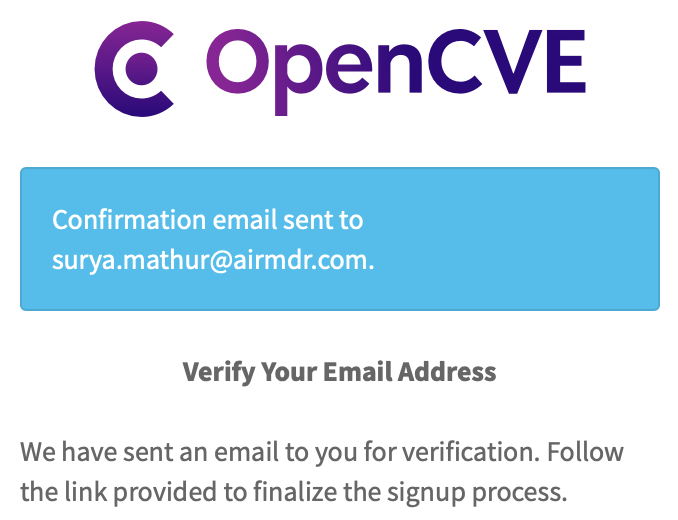
 You will need to confirm your email address by clicking the link in the verification email.
1. Check your Email inbox for a verification email from [OpenCVE](no-reply@opencve.io).\\
You will need to confirm your email address by clicking the link in the verification email.
1. Check your Email inbox for a verification email from [OpenCVE](no-reply@opencve.io).\\
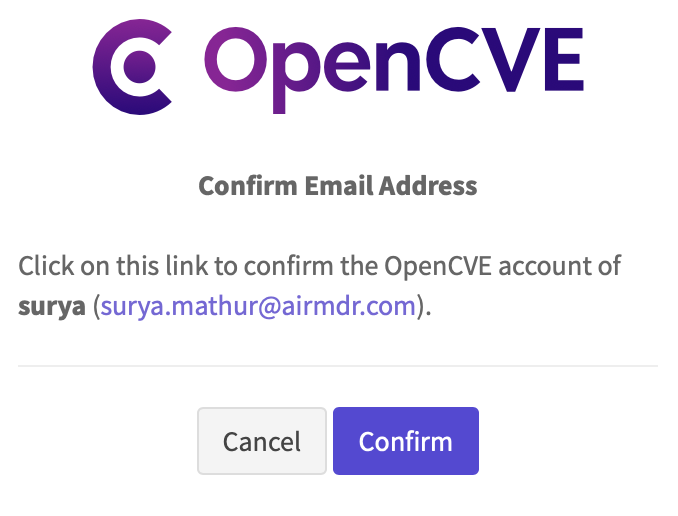
 2. Click the link inside the email and **Confirm** to activate your account.\\
 1. Once verified, go back to [OpenCVE](https://www.opencve.io).
2. On the top-right corner of the homepage, click the **“Sign in”** button.
3. Enter the necessary credentials your Username or email and Password, and click **Sign In** button.\\
1. Once verified, go back to [OpenCVE](https://www.opencve.io).
2. On the top-right corner of the homepage, click the **“Sign in”** button.
3. Enter the necessary credentials your Username or email and Password, and click **Sign In** button.\\
 After logging in, you can:
* **Subscribe** to vendors, products, or keywords to track CVEs.
* Set up **notifications** for new vulnerabilities.
* Browse the CVE feed and view detailed reports.
Email the **Username and Password** to AirMDR or self Configure OpenCVE in the AirMDR Integrations Dashboard.
### Evaluate OpenCVE API
Open **cURL** and run the following command to check if your API Access is working:
**Example cURL request:**
```
curl --location 'https://app.opencve.io/api/cve?vendor=microsoft&cvss=critical&page=1' \
--header 'Content-Type: application/json' \
--header 'Authorization: Basic a3VzaGFsQGFpcm1kci5jb206SkZLOGtocSF6d3k5amhrNHh1Yg=='
```
### Configure OpenCVE in the AirMDR Integrations Dashboard
1. Navigate to [AirMDR](https://app.airmdr.com/auth/login), provide the credentials, and click **Login**.\\
After logging in, you can:
* **Subscribe** to vendors, products, or keywords to track CVEs.
* Set up **notifications** for new vulnerabilities.
* Browse the CVE feed and view detailed reports.
Email the **Username and Password** to AirMDR or self Configure OpenCVE in the AirMDR Integrations Dashboard.
### Evaluate OpenCVE API
Open **cURL** and run the following command to check if your API Access is working:
**Example cURL request:**
```
curl --location 'https://app.opencve.io/api/cve?vendor=microsoft&cvss=critical&page=1' \
--header 'Content-Type: application/json' \
--header 'Authorization: Basic a3VzaGFsQGFpcm1kci5jb206SkZLOGtocSF6d3k5amhrNHh1Yg=='
```
### Configure OpenCVE in the AirMDR Integrations Dashboard
1. Navigate to [AirMDR](https://app.airmdr.com/auth/login), provide the credentials, and click **Login**.\\
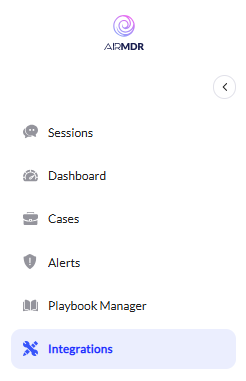 2. Navigate to the AirMDR Integrations Dashboard in the left navigation pane and select **Integrations**.
3. Use the search option, enter the keyword "**OpenCVE**", select the **Connections** tab, and click **Create**.\\
2. Navigate to the AirMDR Integrations Dashboard in the left navigation pane and select **Integrations**.
3. Use the search option, enter the keyword "**OpenCVE**", select the **Connections** tab, and click **Create**.\\
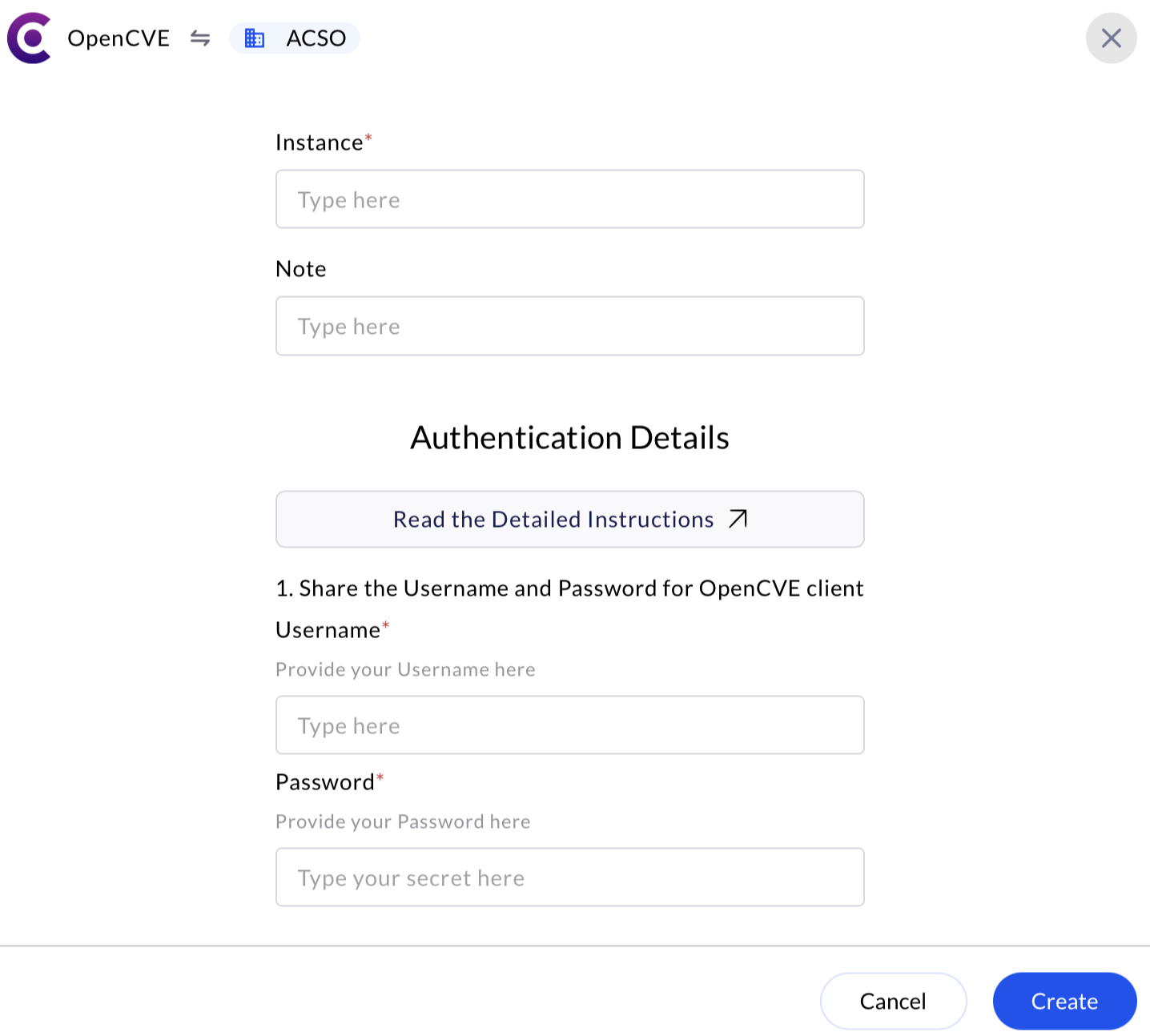
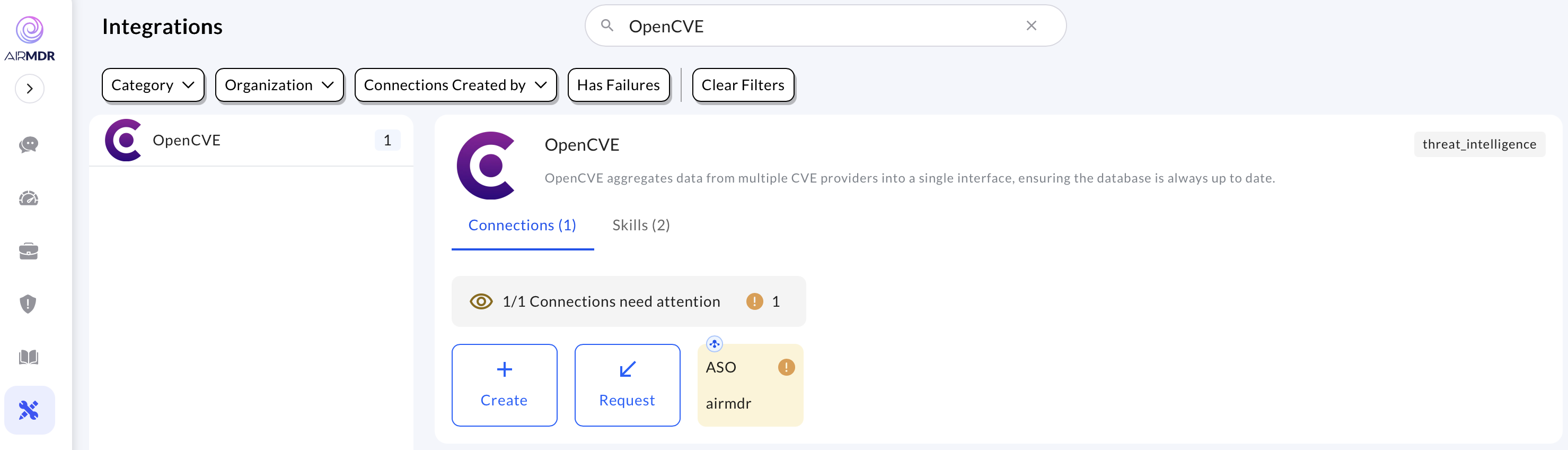 4. Enter the credentials (**Username** and **Password**) in the Authentication Details field params, and click **Create.**\\