> ## Documentation Index
> Fetch the complete documentation index at: https://docs.airmdr.com/llms.txt
> Use this file to discover all available pages before exploring further.
# Push Security
> Push Security empowers organizations to extend real-time visibility and enforcement capabilities directly into the browser, safeguarding identities across federated and non-federated SaaS environments. It is designed to assist security administrators and IT professionals in preventing identity-based attacks such as phishing, credential theft, session hijacking, and account misuse.
### Overview
This Push Security documentation provides comprehensive guidance for integrating **Push Security** with the **AirMDR platform** to enhance identity threat detection, enable real-time browser-based telemetry ingestion, and automate incident response workflows.
### Pre-requisites
>
> Users must have **Admin** access to create new API Token.
>
### Generate SOCRadar API Token and Company ID
1. Log in to the [Push Security](https://login.pushsecurity.com/u/login/) admin console.
2. Enter your **admin credentials** (username and password), and click **Continue**.
1. After logging in, click on the **Dashboard**, locate the left sidebar.
 2. Navigate to ⚙️**Settings** → **API Keys** section.
3. Click on **+** **API Key**.
2. Navigate to ⚙️**Settings** → **API Keys** section.
3. Click on **+** **API Key**.
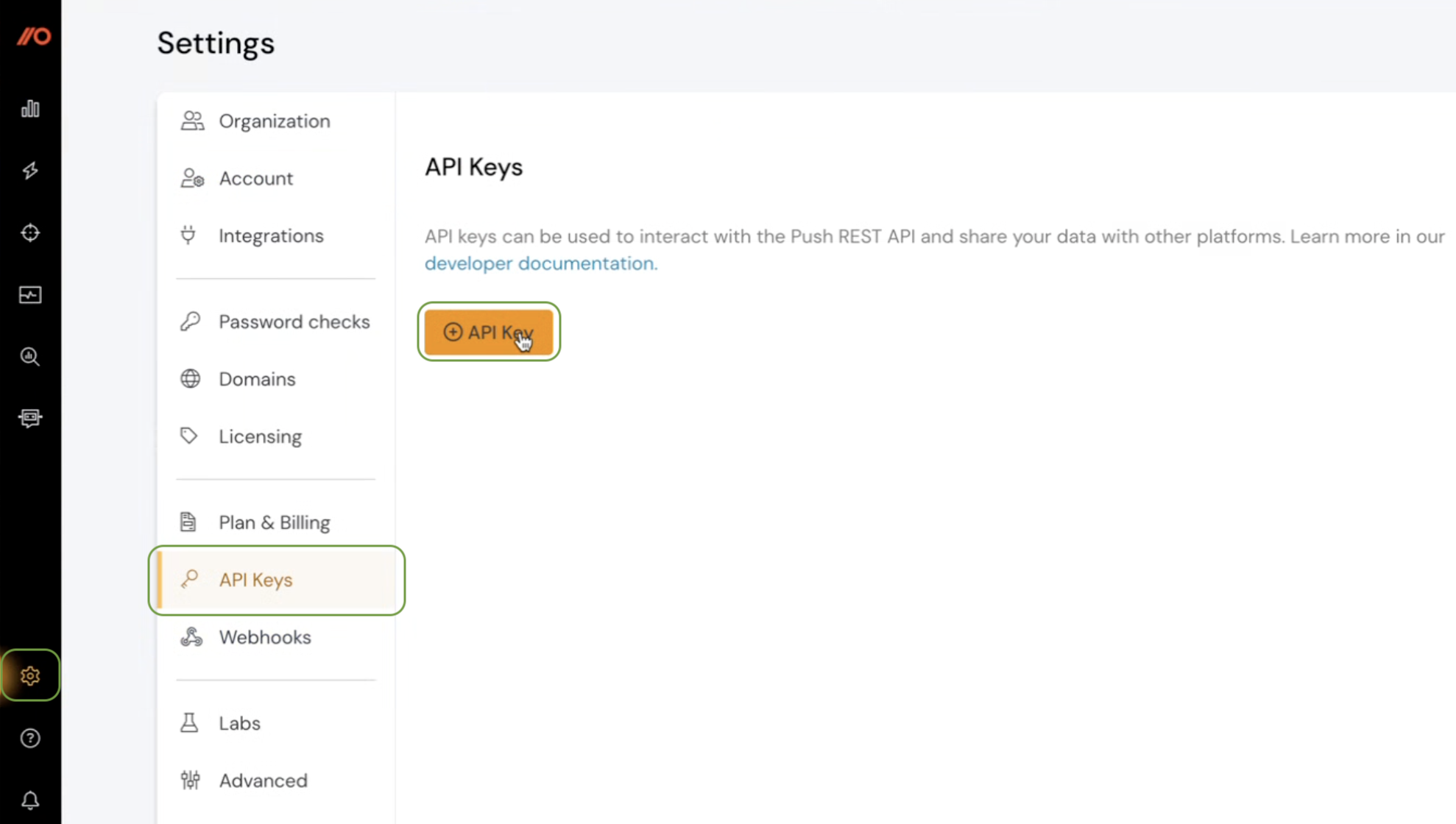 4. Enter a descriptive name in the provided field (e.g.,`AirMDR Integration Key`).
5. Set appropriate permissions.
* **Read only** – limited to GET requests
* **Full access** – grants all CRUD (GET, POST, PUT, DELETE)
4. Enter a descriptive name in the provided field (e.g.,`AirMDR Integration Key`).
5. Set appropriate permissions.
* **Read only** – limited to GET requests
* **Full access** – grants all CRUD (GET, POST, PUT, DELETE)
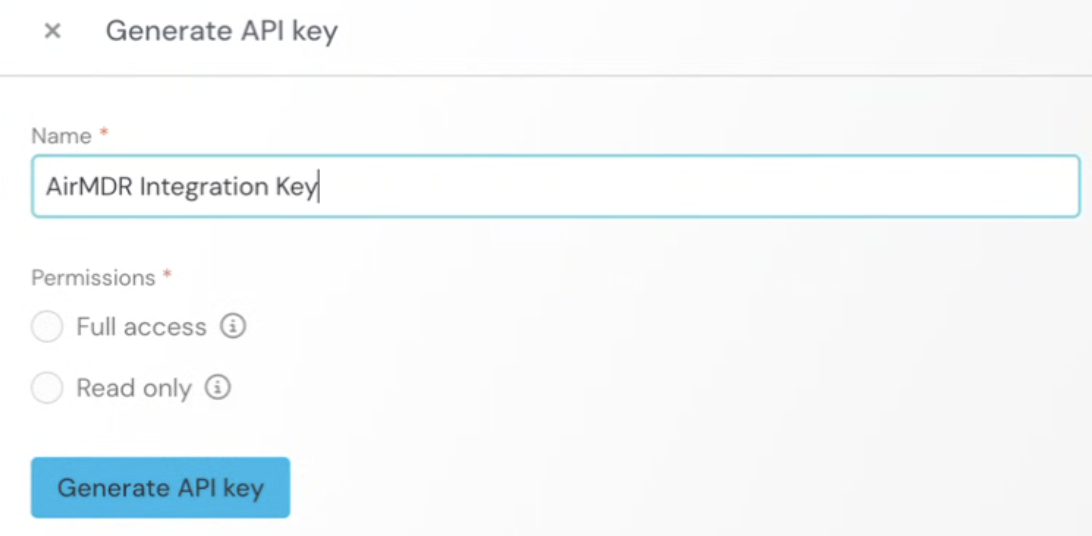 6. Click **Generate API key** button.
 This is the only time the **API Token** will be displayed. \
Copy and securely save the token in your organization's credentials management system.
All the generated API Keys are displayed as List under ⚙️**Settings** → **API Keys** section.\
\
Admin can Manage/Delete the generated API Keys.
Securely share the **API Token** and **Company ID** to AirMDR \
or \
Self configure Push Security in the AirMDR Integrations Dashboard.
### Skills Provided by this Integration
| Skill ID | Purpose |
| -------- | ------- |
| | |
| | |
To view the details of Input Parameters and Output for the respective skills
* Go to [AirMDR → Push Security](https://app.airmdr.com/integrations?search=Push+Security) Integration page.
* Select the **Skills** tab and click on the required listed skills.
### Configure SOCRadar in AirMDR Integrations Dashboard
1. Navigate to [AirMDR](https://app.airmdr.com/auth/login), provide the credentials and click **Login**
This is the only time the **API Token** will be displayed. \
Copy and securely save the token in your organization's credentials management system.
All the generated API Keys are displayed as List under ⚙️**Settings** → **API Keys** section.\
\
Admin can Manage/Delete the generated API Keys.
Securely share the **API Token** and **Company ID** to AirMDR \
or \
Self configure Push Security in the AirMDR Integrations Dashboard.
### Skills Provided by this Integration
| Skill ID | Purpose |
| -------- | ------- |
| | |
| | |
To view the details of Input Parameters and Output for the respective skills
* Go to [AirMDR → Push Security](https://app.airmdr.com/integrations?search=Push+Security) Integration page.
* Select the **Skills** tab and click on the required listed skills.
### Configure SOCRadar in AirMDR Integrations Dashboard
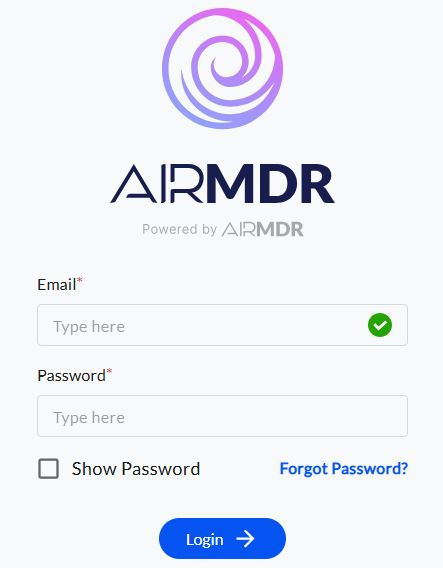
1. Navigate to [AirMDR](https://app.airmdr.com/auth/login), provide the credentials and click **Login**
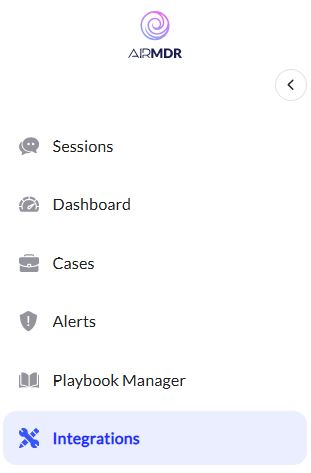
 2. Navigate to the AirMDR Integrations Dashboard in the left navigation pane and select **Integrations**
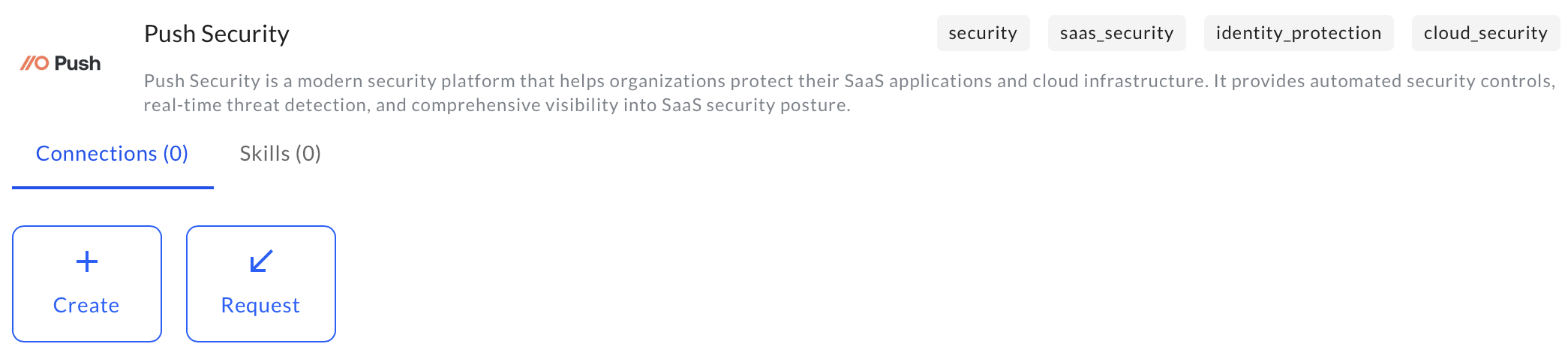
 3. Use the search option, enter the keyword "**Soc Radar**", select the **Connections** tab, and click **+ Create** button.
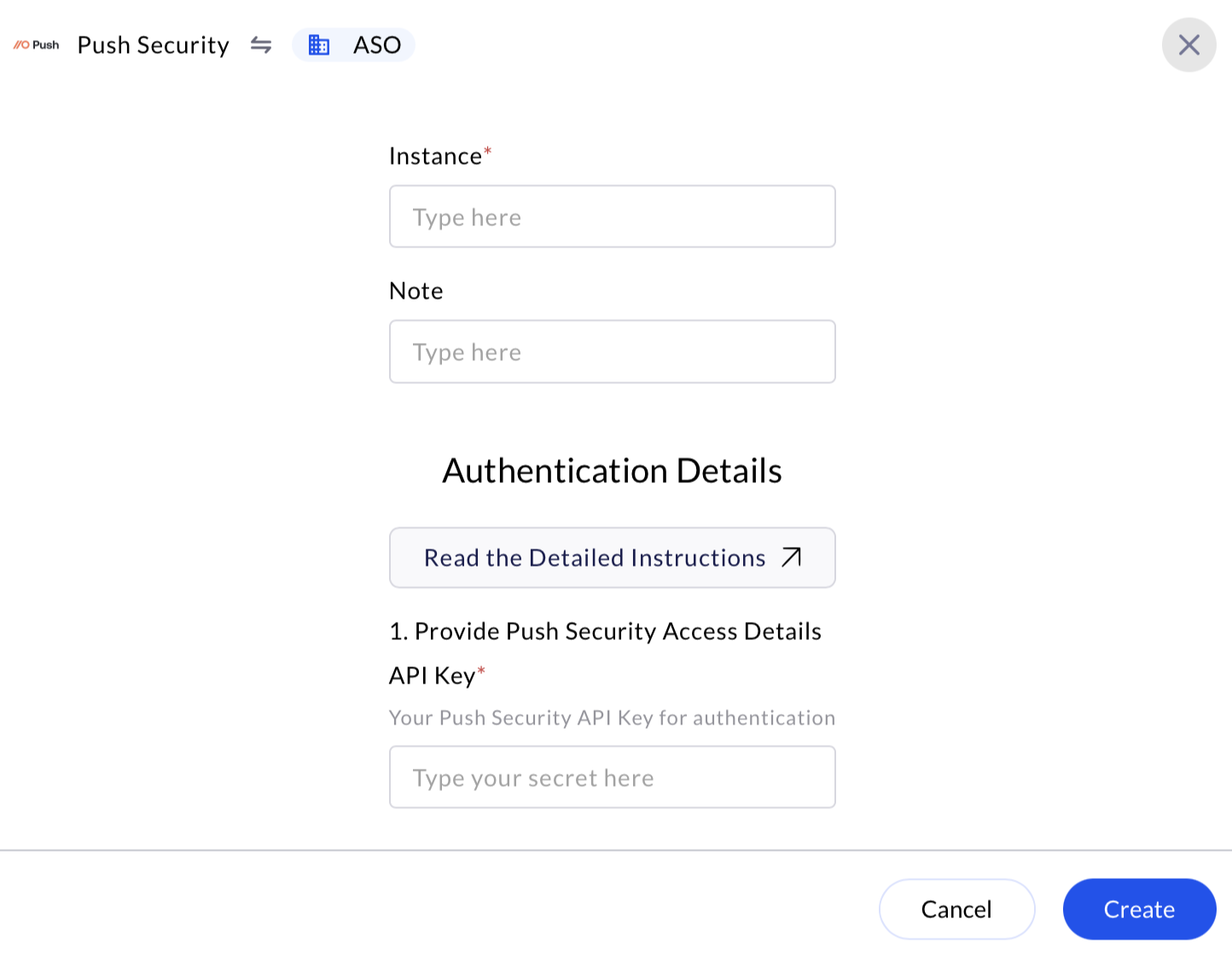
 4. Enter an unique name to the Instance (e.g., `your org name-Push Security`) to easily identify the user connection by AirMDR.
5. Enter the generated **API Key** in the Authentication Details field params, and click **Create.**
4. Enter an unique name to the Instance (e.g., `your org name-Push Security`) to easily identify the user connection by AirMDR.
5. Enter the generated **API Key** in the Authentication Details field params, and click **Create.**
 ### Evaluate SOCRadar API Token
Basic cURL Syntax - Open **cURL** and run the following command to test your API Token:
```
curl -X GET \
https:///api/v1/accounts \
-H "Accept: application/json" \
-H "x-api-key: "
```
Replace:
* `` with the specific API endpoint you want to test.
* `` with your company’s Push environment.
* `` with your actual API Key.
### ✅ Expected Responses
* **200 OK**: The key is valid and has correct permissions.
* **401 Unauthorized**: Key is incorrect or expired.
* **403 Forbidden**: Permissions insufficient for the requested action.
* **429 Too Many Requests**: You've exceeded rate limits (10 requests/sec, with brief burst allowance)
### 📌 Best Practices
* Use a **dedicated API key** for AirMDR with scoped access
* Monitor API usage to avoid rate limits
* Implement retry/backoff logic in AirMDR’s ingestion layer
* Enable logging for all ingested events
### Evaluate SOCRadar API Token
Basic cURL Syntax - Open **cURL** and run the following command to test your API Token:
```
curl -X GET \
https:///api/v1/accounts \
-H "Accept: application/json" \
-H "x-api-key: "
```
Replace:
* `` with the specific API endpoint you want to test.
* `` with your company’s Push environment.
* `` with your actual API Key.
### ✅ Expected Responses
* **200 OK**: The key is valid and has correct permissions.
* **401 Unauthorized**: Key is incorrect or expired.
* **403 Forbidden**: Permissions insufficient for the requested action.
* **429 Too Many Requests**: You've exceeded rate limits (10 requests/sec, with brief burst allowance)
### 📌 Best Practices
* Use a **dedicated API key** for AirMDR with scoped access
* Monitor API usage to avoid rate limits
* Implement retry/backoff logic in AirMDR’s ingestion layer
* Enable logging for all ingested events