> ## Documentation Index
> Fetch the complete documentation index at: https://docs.airmdr.com/llms.txt
> Use this file to discover all available pages before exploring further.
# Rapid7
> Rapid7 provides security solutions for vulnerability management, incident detection, response, and cloud security. Rapid7 platform helps organizations identify and mitigate risks, detect threats, and respond to incidents efficiently.
### Generate Rapid 7 API & Setup Deployment Region
You will need an API key to interact with the Rapid7 InsightAppSec API.
1. Go to the [Rapid7 Insight Platform](https://insight.rapid7.com/).
2. Click on the gear icon (⚙️) at the page's top right corner.
3. From the dropdown menu, select "**API Keys**".
4. Choose the Type of API Key (User Key or Organization Key) to Generate:
* **User Key:** Represents your user account and inherits your account’s permissions. All users can generate a User Key.
* **Organization Key:** This key represents the entire organization and provides comprehensive access across all products. Only platform or organization administrators can generate an Organization Key.
5. Click **Generate**.
* For a **User Key**:
* Click on "New User Key."
* In the "Generate New User Key" panel, select your organization and provide a descriptive name for the key.
* Click "**Generate**".
* For an **Organization Key**:
User must have Admin/Super Admin access to create Organization Key.
* Click on the "Organization Keys" tab.
* Click "New Organization Key."
* In the "Generate New Organization Key" panel, select the organization and provide a descriptive name for the key.
* Click "**Generate**".
Copy and securely save the generated **API token** (it won’t be shown again).
Each region has specific endpoints that your network must communicate with.
Ensure your network allows outbound connectivity to these hostnames over TCP port 443.
| Region | Web Data | Deployment Endpoint | API Endpoint | S3 (Agent Downloads) |
| ----------------- | ------------------------------------------- | -------------------------------------------- | ------------------------------------- | --------------------------------- |
| United States - 1 | `exposure-analytics.insight.rapid7.com` | `us.deployment.endpoint.ingress.rapid7.com` | `us.api.endpoint.ingress.rapid7.com` | `s3.amazonaws.com` |
| United States - 2 | `us2.exposure-analytics.insight.rapid7.com` | `us2.deployment.endpoint.ingress.rapid7.com` | `us2.api.endpoint.ingress.rapid7.com` | `s3.us-east-2.amazonaws.com` |
| United States - 3 | `us3.exposure-analytics.insight.rapid7.com` | `us3.deployment.endpoint.ingress.rapid7.com` | `us3.api.endpoint.ingress.rapid7.com` | `s3.us-west-2.amazonaws.com` |
| Canada | `ca.exposure-analytics.insight.rapid7.com` | `ca.deployment.endpoint.ingress.rapid7.com` | `ca.api.endpoint.ingress.rapid7.com` | `s3.ca-central-1.amazonaws.com` |
| Europe | `eu.exposure-analytics.insight.rapid7.com` | `eu.deployment.endpoint.ingress.rapid7.com` | `eu.api.endpoint.ingress.rapid7.com` | `s3.eu-central-1.amazonaws.com` |
| Japan | `ap.exposure-analytics.insight.rapid7.com` | `ap.deployment.endpoint.ingress.rapid7.com` | `ap.api.endpoint.ingress.rapid7.com` | `s3.ap-northeast-1.amazonaws.com` |
| Australia | `au.exposure-analytics.insight.rapid7.com` | `au.deployment.endpoint.ingress.rapid7.com` | `au.api.endpoint.ingress.rapid7.com` | `s3.ap-southeast-2.amazonaws.com` |
Since Rapid7 does not natively provide UUIDs for API keys, you can:
* Store the API key and UUID mapping in your internal **configuration files** or **database**.
* Use the UUID as an identifier when logging API calls for tracking purposes.
To get the **UUID** of an asset, use the following API call:
```
curl --location 'https://{region}.api.insight.rapid7.com/idr/v2/investigations' \
--header 'X-Api-Key: {API Key}' \
--header 'Content-Type: application/json'
```
### Configure Slack in the AirMDR Integrations Dashboard
1. Navigate to [AirMDR](https://app.airmdr.com/auth/login), provide the credentials, and click **Login**.\\
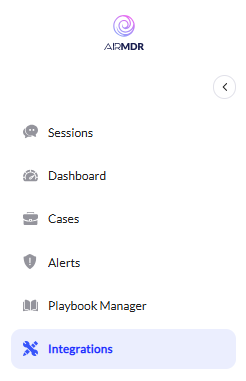 2. Navigate to the AirMDR Integrations Dashboard in the left navigation pane and select **Integrations**.
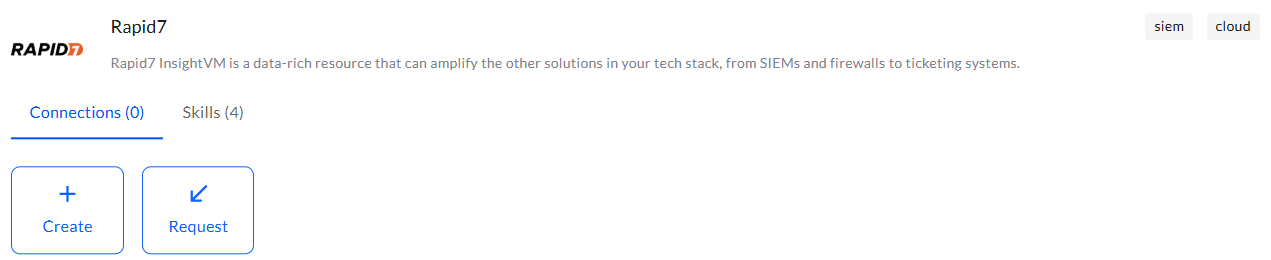
3. Use the search option, enter the keyword "**Rapid 7**", select the **Connections** tab, and click **Create**.\\
2. Navigate to the AirMDR Integrations Dashboard in the left navigation pane and select **Integrations**.
3. Use the search option, enter the keyword "**Rapid 7**", select the **Connections** tab, and click **Create**.\\
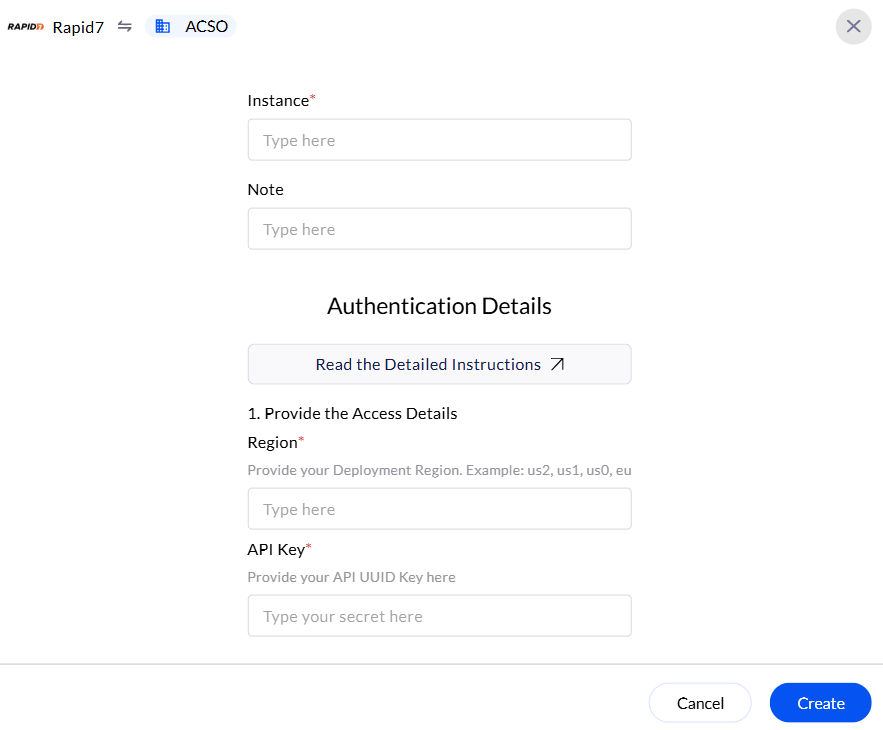
 4. Enter the generated **API** token in the Authentication Details field params, and click **Create.**\\