> ## Documentation Index
> Fetch the complete documentation index at: https://docs.airmdr.com/llms.txt
> Use this file to discover all available pages before exploring further.
# SOCRadar Extended Threat Intelligence
> SOCRadar Extended Threat Intelligence (XTI) is a comprehensive cybersecurity platform designed to provide organizations with proactive, actionable insights into the evolving threat landscape. By integrating multiple modules, XTI offers a unified approach to threat detection, analysis, and mitigation, enhancing an organization's ability to respond to cyber threats effectively.
### Overview
This document provides a clear, step-by-step guide to integrate SOC Radar, a cyber threat intelligence platform, with AirMDR, a Managed Detection and Response (MDR) service. Integrating these systems enhances threat visibility, accelerates incident response, and streamlines threat intelligence sharing.
### Pre-requisites
> Users must have **Admin** access to create new API Token.
### Generate SOCRadar API Token and Company ID
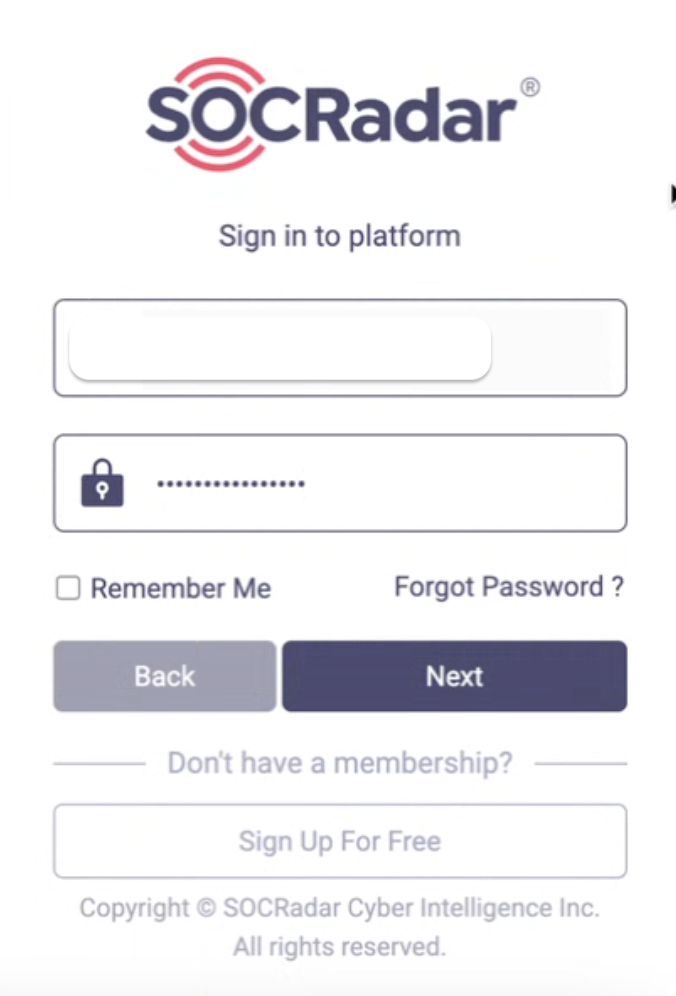
1. Login to the [SOCRadar Dashboard](https://socradar.io).
2. Enter your **admin credentials** (username and password), and click **Next**.
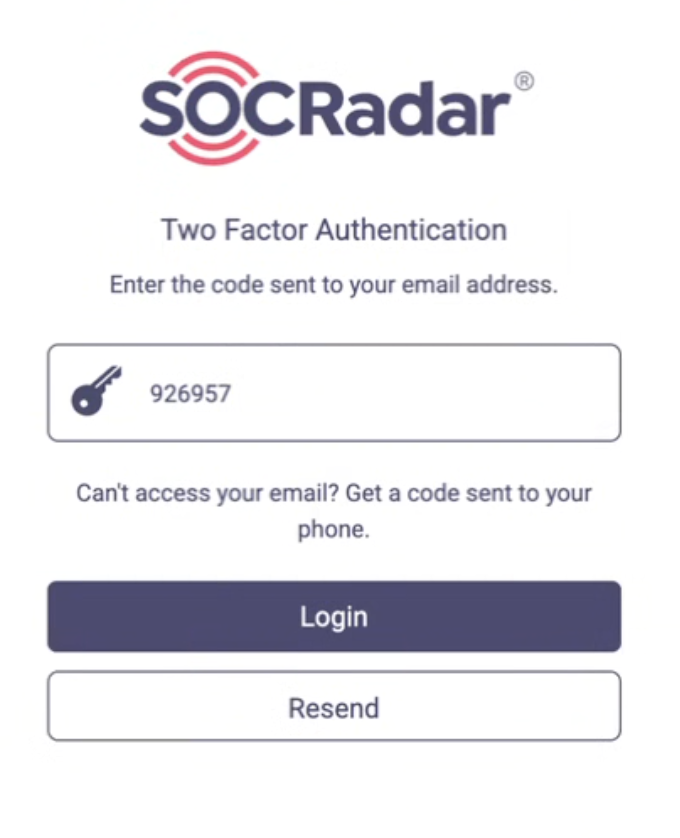
 3. Enter the Two Factor Authentication code sent to your email address, and **Login** to the platform.
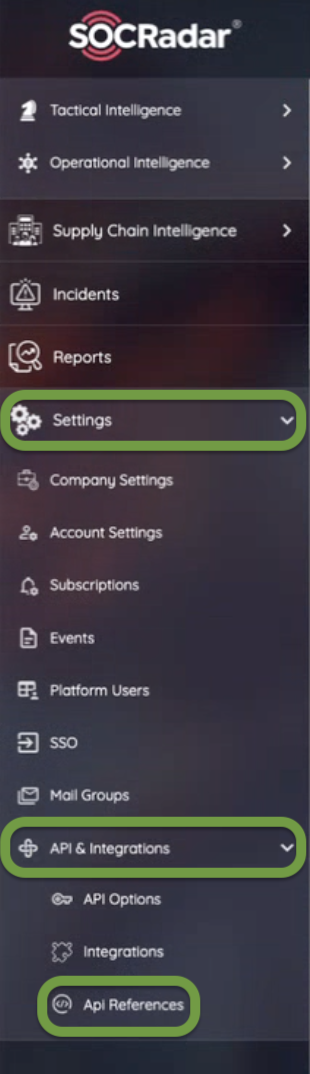
 1. After logging in, on the main dashboard, locate the left sidebar.
2. Navigate to ⚙️**Settings** → **API & Integrations** → **API Options**.
1. After logging in, on the main dashboard, locate the left sidebar.
2. Navigate to ⚙️**Settings** → **API & Integrations** → **API Options**.
 3. Click on **+** **Generate New API Token**.
4. Enter a descriptive name in the provided field (e.g.,`AirMDR Integration Token`).
5. Set appropriate permissions (`Alerts (Read Access)`, `Incidents (Read Access)`).
6. Click **Generate** button.
This is the only time the **API Token** will be displayed. \
Copy and securely save the token in your organization's credentials management system.
1. After logging in, on the main dashboard, locate the left sidebar.
2. Navigate to ⚙️**Settings** → **Company Profile**.
3. On the **Company Profile** page, look for the section labeled **Company Information**.
4. Locate the field labeled **Company ID** (usually displayed prominently or within metadata).
5. Click the **copy** icon next to the **Company ID**.\
or
Alternatively, select and manually copy the displayed ID.
User with only administrative privileges can view the **Company ID**.
Contact [SOCRadar support](support@socradar.io) if the **Company ID** field is not visible.
Securely share the **API Token** and **Company ID** to AirMDR \
or \
Self configure SOCRadar in the AirMDR Integrations Dashboard.
### Skills Provided by this Integration
| Skill ID | Purpose |
| -------------------------------------- | ------------------------------------------------------------------------------------------------- |
| **Fetch Soc Radar Incidents** | Fetch incidents from Soc Radar, including detailed summaries for analysis or monitoring. |
| **Fetch Soc Radar Company Audit Logs** | Fetch company audit logs from Soc Radar, including detailed summaries for analysis or monitoring. |
To view the details of Input Parameters and Output for the respective skills
* Go to [AirMDR → SOCRadar](https://app.airmdr.com/integrations?search=Soc+Radar) Integration page.
* Select the **Skills** tab and click on the required listed skills.
### Configure SOCRadar in AirMDR Integrations Dashboard
1. Navigate to [AirMDR](https://app.airmdr.com/auth/login), provide the credentials and click **Login**
3. Click on **+** **Generate New API Token**.
4. Enter a descriptive name in the provided field (e.g.,`AirMDR Integration Token`).
5. Set appropriate permissions (`Alerts (Read Access)`, `Incidents (Read Access)`).
6. Click **Generate** button.
This is the only time the **API Token** will be displayed. \
Copy and securely save the token in your organization's credentials management system.
1. After logging in, on the main dashboard, locate the left sidebar.
2. Navigate to ⚙️**Settings** → **Company Profile**.
3. On the **Company Profile** page, look for the section labeled **Company Information**.
4. Locate the field labeled **Company ID** (usually displayed prominently or within metadata).
5. Click the **copy** icon next to the **Company ID**.\
or
Alternatively, select and manually copy the displayed ID.
User with only administrative privileges can view the **Company ID**.
Contact [SOCRadar support](support@socradar.io) if the **Company ID** field is not visible.
Securely share the **API Token** and **Company ID** to AirMDR \
or \
Self configure SOCRadar in the AirMDR Integrations Dashboard.
### Skills Provided by this Integration
| Skill ID | Purpose |
| -------------------------------------- | ------------------------------------------------------------------------------------------------- |
| **Fetch Soc Radar Incidents** | Fetch incidents from Soc Radar, including detailed summaries for analysis or monitoring. |
| **Fetch Soc Radar Company Audit Logs** | Fetch company audit logs from Soc Radar, including detailed summaries for analysis or monitoring. |
To view the details of Input Parameters and Output for the respective skills
* Go to [AirMDR → SOCRadar](https://app.airmdr.com/integrations?search=Soc+Radar) Integration page.
* Select the **Skills** tab and click on the required listed skills.
### Configure SOCRadar in AirMDR Integrations Dashboard
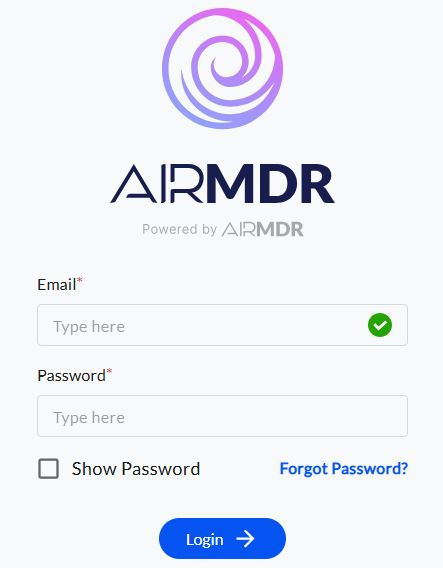
1. Navigate to [AirMDR](https://app.airmdr.com/auth/login), provide the credentials and click **Login**
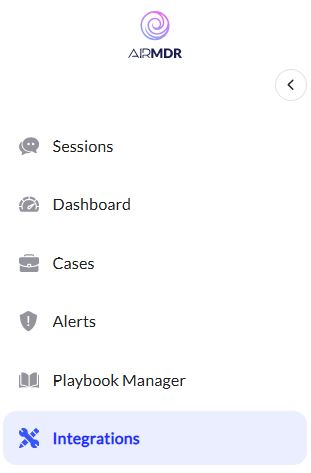
 2. Navigate to the AirMDR Integrations Dashboard in the left navigation pane and select **Integrations**
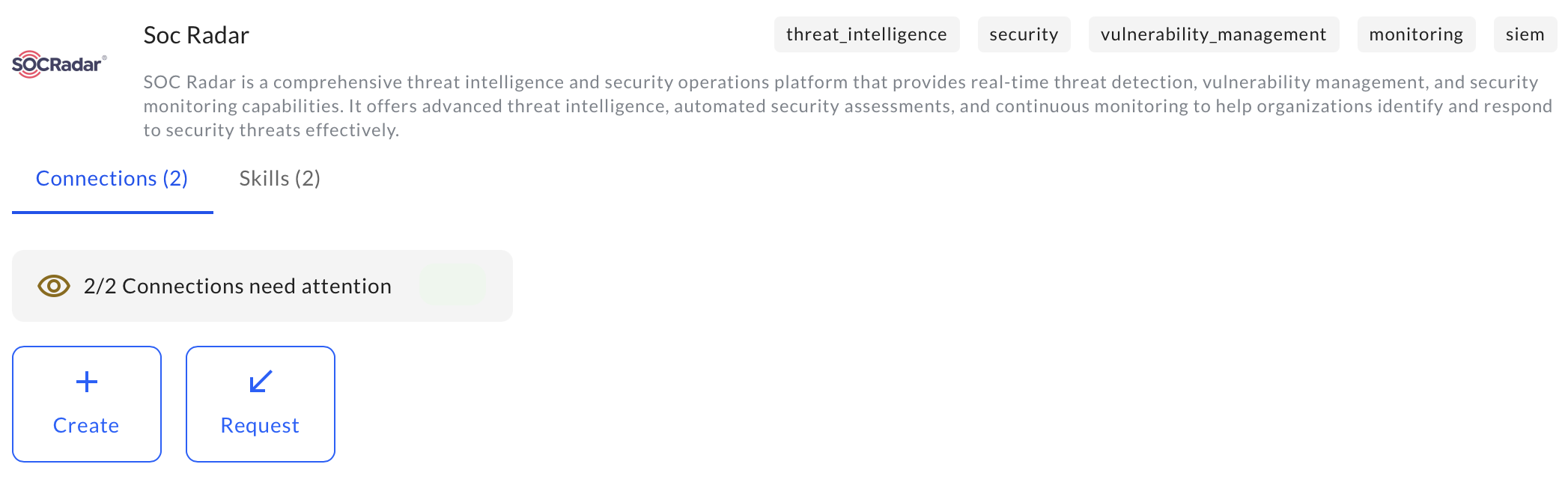
 3. Use the search option, enter the keyword "**Soc Radar**", select the **Connections** tab, and click **+ Create** button.
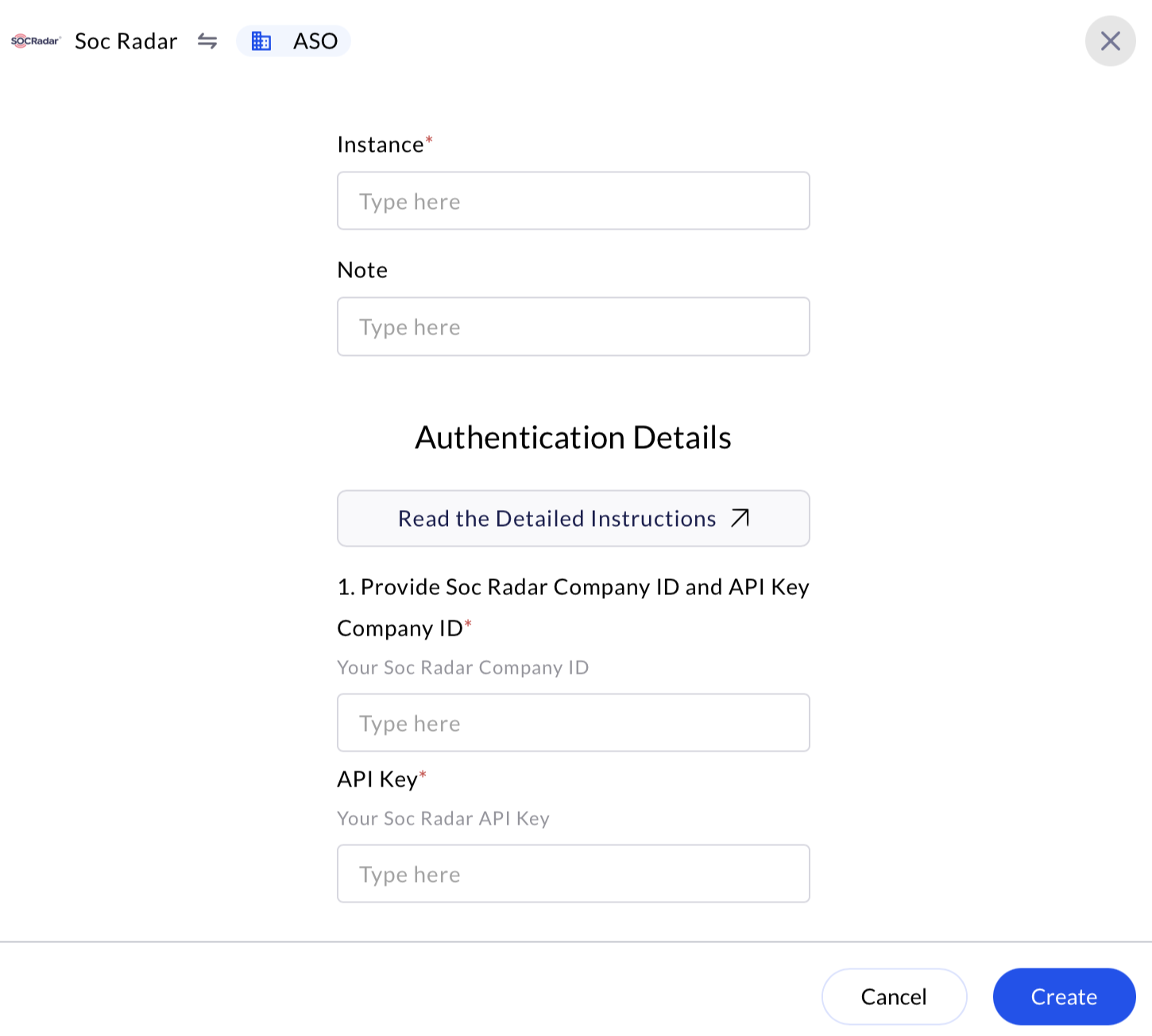
 4. Enter an unique name to the Instance (e.g., `your org name-SOCRadar`) to easily identify the user connection by AirMDR.
5. Enter the generated **Company ID** and **API Token** in the Authentication Details field params, and click **Create.**
4. Enter an unique name to the Instance (e.g., `your org name-SOCRadar`) to easily identify the user connection by AirMDR.
5. Enter the generated **Company ID** and **API Token** in the Authentication Details field params, and click **Create.**
 ### Evaluate SOCRadar API Token
Basic cURL Syntax - Open **cURL** and run the following command to test your API Token:
```
curl -X GET "https://api.socradar.io/api/v1/" \
-H "Authorization: Bearer your_api_token" \
-H "Content-Type: application/json"
```
Replace:
* `` with the specific API endpoint you want to test.
* `` with your actual API token.
**Example: Fetch Alerts (GET Request):**
To evaluate the alerts endpoint:
```
curl -X GET "https://api.socradar.io/api/v1/alerts" \
-H "Authorization: Bearer your_actual_api_token" \
-H "Content-Type: application/json"
```
Expected Response Example:
```
{
"alerts": [
{
"id": "123456789",
"title": "Potential Data Leak",
"severity": "High",
"status": "Open",
"created_at": "2025-06-07T08:30:00Z"
},
{
"id": "987654321",
"title": "Suspicious Activity Detected",
"severity": "Medium",
"status": "In Progress",
"created_at": "2025-06-07T06:20:00Z"
}
],
"total": 2
}
```
**Validate API Token Status**
To confirm your API token validity:
```
curl -X GET "https://api.socradar.io/api/v1/token/status" \
-H "Authorization: Bearer your_actual_api_token" \
-H "Content-Type: application/json"
```
Expected Response Example:
```
{
"status": "active",
"permissions": ["alerts:read", "incidents:read"],
"created_at": "2025-06-07T05:00:00Z",
"expires_at": "2026-06-07T05:00:00Z"
}
```
### **Troubleshooting Common Issues:**
* **401 Unauthorized**:
* Confirm the API token is correct.
* Ensure token permissions match the endpoint accessed.
* **404 Not Found**:
* Check the endpoint URL carefully; it may be incorrect.
* **403 Forbidden**:
* Verify if the token has appropriate permissions.
### Evaluate SOCRadar API Token
Basic cURL Syntax - Open **cURL** and run the following command to test your API Token:
```
curl -X GET "https://api.socradar.io/api/v1/" \
-H "Authorization: Bearer your_api_token" \
-H "Content-Type: application/json"
```
Replace:
* `` with the specific API endpoint you want to test.
* `` with your actual API token.
**Example: Fetch Alerts (GET Request):**
To evaluate the alerts endpoint:
```
curl -X GET "https://api.socradar.io/api/v1/alerts" \
-H "Authorization: Bearer your_actual_api_token" \
-H "Content-Type: application/json"
```
Expected Response Example:
```
{
"alerts": [
{
"id": "123456789",
"title": "Potential Data Leak",
"severity": "High",
"status": "Open",
"created_at": "2025-06-07T08:30:00Z"
},
{
"id": "987654321",
"title": "Suspicious Activity Detected",
"severity": "Medium",
"status": "In Progress",
"created_at": "2025-06-07T06:20:00Z"
}
],
"total": 2
}
```
**Validate API Token Status**
To confirm your API token validity:
```
curl -X GET "https://api.socradar.io/api/v1/token/status" \
-H "Authorization: Bearer your_actual_api_token" \
-H "Content-Type: application/json"
```
Expected Response Example:
```
{
"status": "active",
"permissions": ["alerts:read", "incidents:read"],
"created_at": "2025-06-07T05:00:00Z",
"expires_at": "2026-06-07T05:00:00Z"
}
```
### **Troubleshooting Common Issues:**
* **401 Unauthorized**:
* Confirm the API token is correct.
* Ensure token permissions match the endpoint accessed.
* **404 Not Found**:
* Check the endpoint URL carefully; it may be incorrect.
* **403 Forbidden**:
* Verify if the token has appropriate permissions.