> ## Documentation Index
> Fetch the complete documentation index at: https://docs.airmdr.com/llms.txt
> Use this file to discover all available pages before exploring further.
# SumoLogic
> Sumo Logic is a cloud-based log management and analytics platform used for monitoring, troubleshooting, and securing applications and infrastructure. It collects, analyzes, and visualizes machine data (logs, metrics, and traces) to help your organizations gain real-time insights into IT environments.
### Generate SumoLogic Access Key and Access ID
Sumo Logic has two user interfaces (UIs):
1. **Classic UI** – The older interface, which some legacy users may still be using.
2. **New UI (Cloud SIEM & Observability UI)** – A modernized version with enhanced features and improved navigation.
### To Generate Access Key and Access ID - SumoLogic Classic UI
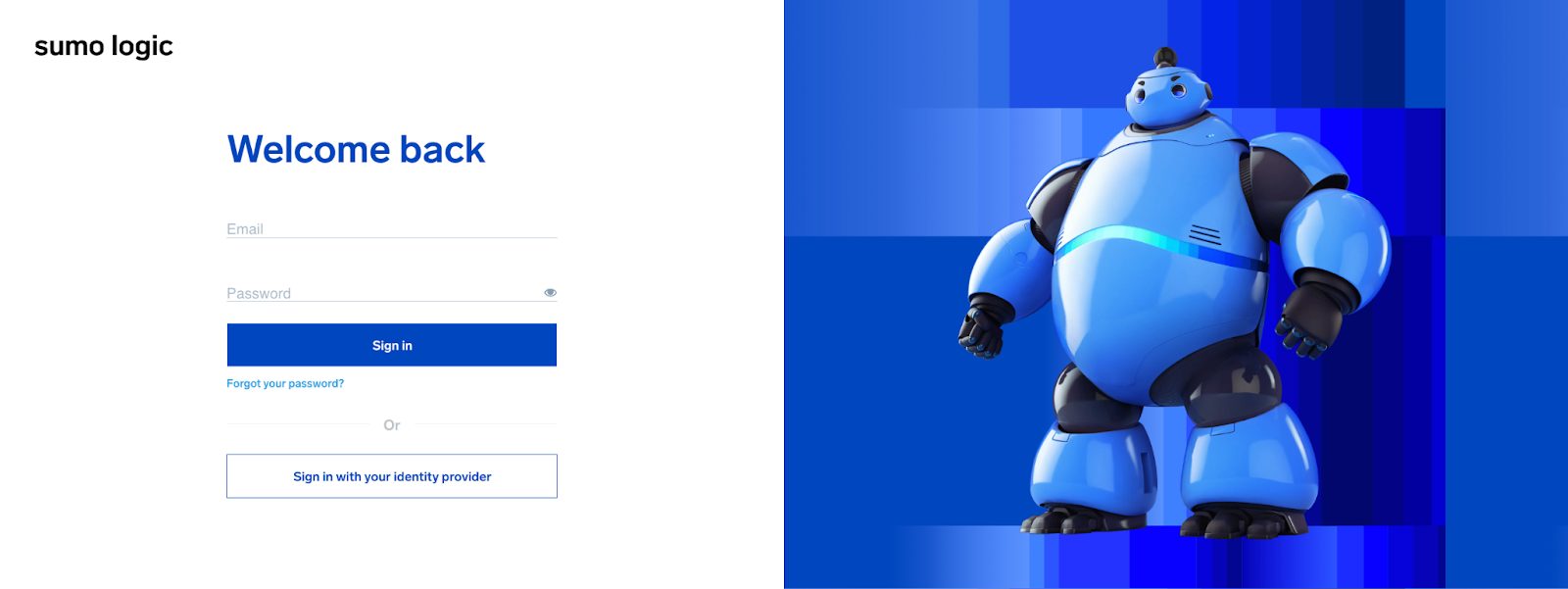
1. Login to the [SumoLogic portal](https://service.sumologic.com/ui/) with your credentials.
2. Provide the necessary credentials (**Email** and **Password**), and click **Sign In**.
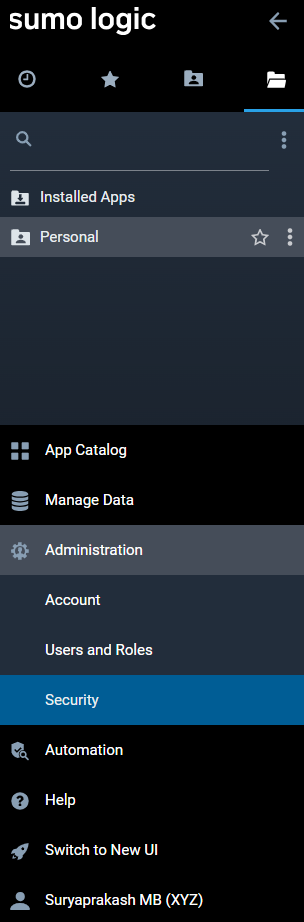
 1. In the left navigation pane, select **Administration** → **Security**.
 2. In the top menu, select the **Access Keys** tab.
3. Click on the **+ Add Access Key** icon.
2. In the top menu, select the **Access Keys** tab.
3. Click on the **+ Add Access Key** icon.
 4. In the **Add New Access Key** window, enter a descriptive name for the key in the **Name** field.
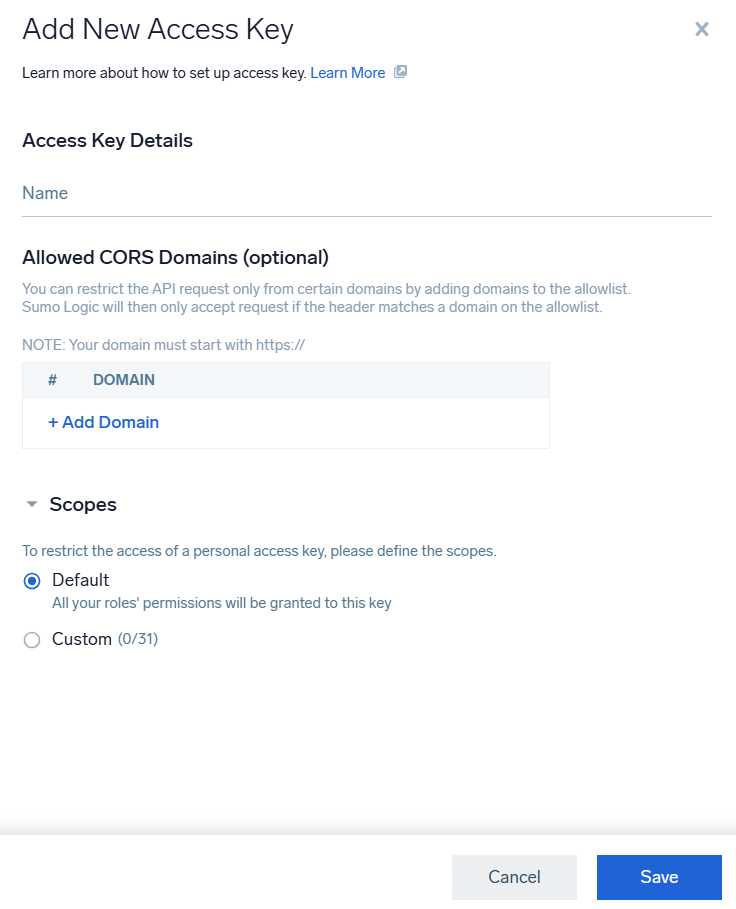 5. (Optional) In the **Allowed CORS Domains** field, specify any domains from which the access key can access Sumo Logic APIs.
6. Choose the appropriate **Scopes** for the key:
* **Default**: Grants all permissions.
* **Custom**: Select specific permissions by choosing the desired **View** and **Manage** permissions.
7. Click **Save** to generate the Access ID and Access Key.
5. (Optional) In the **Allowed CORS Domains** field, specify any domains from which the access key can access Sumo Logic APIs.
6. Choose the appropriate **Scopes** for the key:
* **Default**: Grants all permissions.
* **Custom**: Select specific permissions by choosing the desired **View** and **Manage** permissions.
7. Click **Save** to generate the Access ID and Access Key.
 This is the only time the **Access ID** and **Access Key** will be displayed. \
Copy and securely store both values before clicking **Done**.
Administrators can only manage access keys for the organization by navigating to **Administration** → **Security** → **Access Keys** in the main menu.
Email the **Access ID** and **Access Key** to AirMDR or self Configure Duo Security in the AirMDR Integrations Dashboard.
### To Generate Access Key and Access ID - SumoLogic New UI
1. Login to the [SumoLogic portal](https://service.sumologic.com/ui/) with your credentials.
2. Provide the necessary credentials (**Email** and **Password**), and click **Sign In**.
1. In the main menu, click on your **username**.
2. Select **Preferences**.
This is the only time the **Access ID** and **Access Key** will be displayed. \
Copy and securely store both values before clicking **Done**.
Administrators can only manage access keys for the organization by navigating to **Administration** → **Security** → **Access Keys** in the main menu.
Email the **Access ID** and **Access Key** to AirMDR or self Configure Duo Security in the AirMDR Integrations Dashboard.
### To Generate Access Key and Access ID - SumoLogic New UI
1. Login to the [SumoLogic portal](https://service.sumologic.com/ui/) with your credentials.
2. Provide the necessary credentials (**Email** and **Password**), and click **Sign In**.
1. In the main menu, click on your **username**.
2. Select **Preferences**.
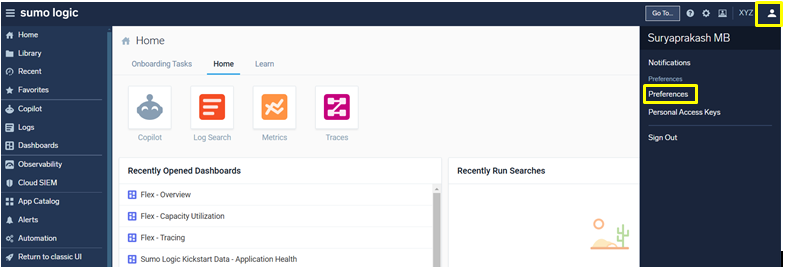 3. Click on the **Personal Access Keys** tab.
4. Click on the **+ Add Access Key** icon.
3. Click on the **Personal Access Keys** tab.
4. Click on the **+ Add Access Key** icon.
 5. In the **Add New Access Key** window, enter a descriptive name for the key in the **Name** field.
6. (Optional) In the **Allowed CORS Domains** field, specify any domains from which the access key can access Sumo Logic APIs.
7. Choose the appropriate **Scopes** for the key:
* **Default**: Grants all permissions.
* **Custom**: Select specific permissions by choosing the desired **View** and **Manage** permissions.
8. Click **Save** to generate the Access ID and Access Key.
This is the only time the **Access ID** and **Access Key** will be displayed. \
Copy and securely store both values before clicking **Done**.
Administrators can only manage access keys for the organization by navigating to **Administration** → **Security** → **Access Keys** in the main menu.
Email the **Access ID** and **Access Key** to AirMDR or self Configure Duo Security in the AirMDR Integrations Dashboard.
### SumoLogic API Testing
Open **cURL** and run the following command to check if your API Key is working:
```
curl --location --request POST 'https://api.sumologic.com/api/v1/search/jobs' \
--header 'Content-Type: application/json' \
--user ':' \
--data-raw '{
"query": "_sourceCategory=* | count by _sourceName",
"from": "",
"to": "",
"timeZone": "UTC"
}'
```
Response
```
{"valid": true}
```
### Configure SumoLogic in the AirMDR Integrations Dashboard
1. Navigate to [AirMDR](https://app.airmdr.com/auth/login), provide the credentials, and click **Login**
5. In the **Add New Access Key** window, enter a descriptive name for the key in the **Name** field.
6. (Optional) In the **Allowed CORS Domains** field, specify any domains from which the access key can access Sumo Logic APIs.
7. Choose the appropriate **Scopes** for the key:
* **Default**: Grants all permissions.
* **Custom**: Select specific permissions by choosing the desired **View** and **Manage** permissions.
8. Click **Save** to generate the Access ID and Access Key.
This is the only time the **Access ID** and **Access Key** will be displayed. \
Copy and securely store both values before clicking **Done**.
Administrators can only manage access keys for the organization by navigating to **Administration** → **Security** → **Access Keys** in the main menu.
Email the **Access ID** and **Access Key** to AirMDR or self Configure Duo Security in the AirMDR Integrations Dashboard.
### SumoLogic API Testing
Open **cURL** and run the following command to check if your API Key is working:
```
curl --location --request POST 'https://api.sumologic.com/api/v1/search/jobs' \
--header 'Content-Type: application/json' \
--user ':' \
--data-raw '{
"query": "_sourceCategory=* | count by _sourceName",
"from": "",
"to": "",
"timeZone": "UTC"
}'
```
Response
```
{"valid": true}
```
### Configure SumoLogic in the AirMDR Integrations Dashboard
1. Navigate to [AirMDR](https://app.airmdr.com/auth/login), provide the credentials, and click **Login**
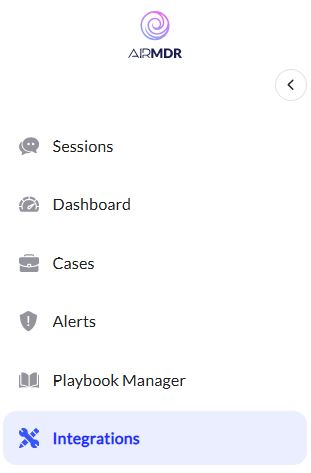
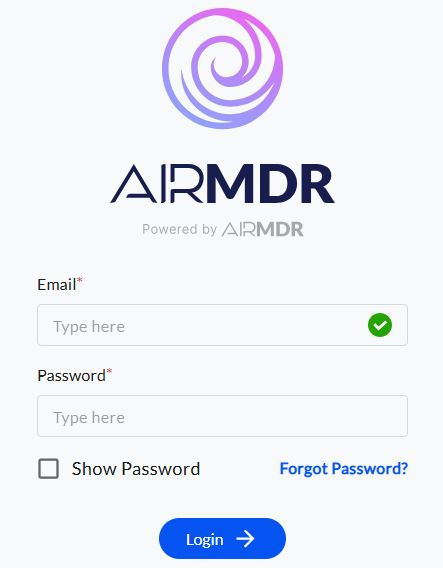 2. Navigate to the AirMDR Integrations Dashboard in the left navigation pane and select **Integrations**
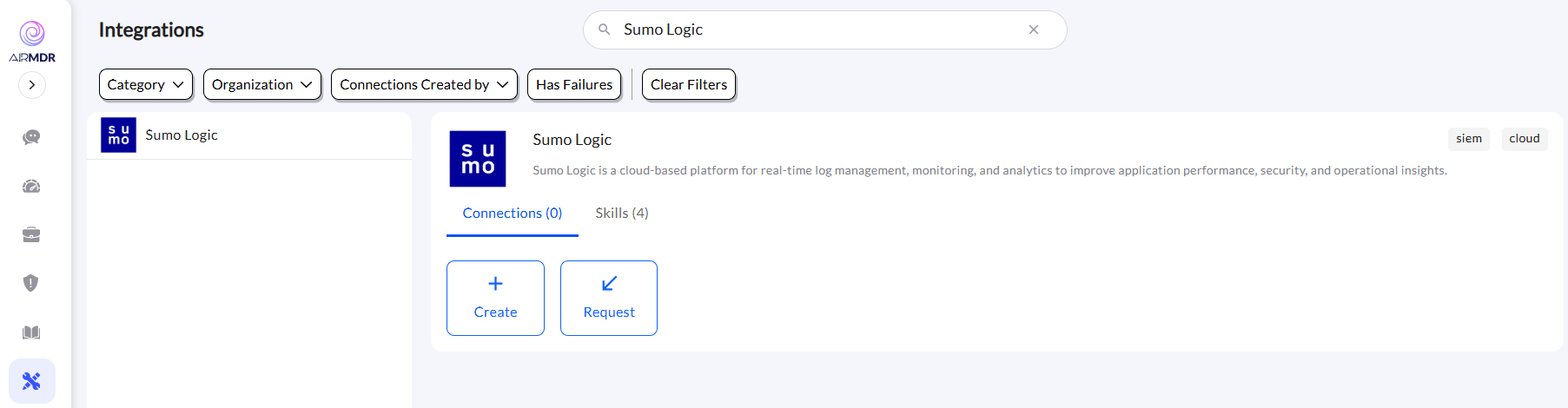
 3. Use the search option, enter the keyword "**SumoLogic**", select the **Connections** tab, and click **Create**.
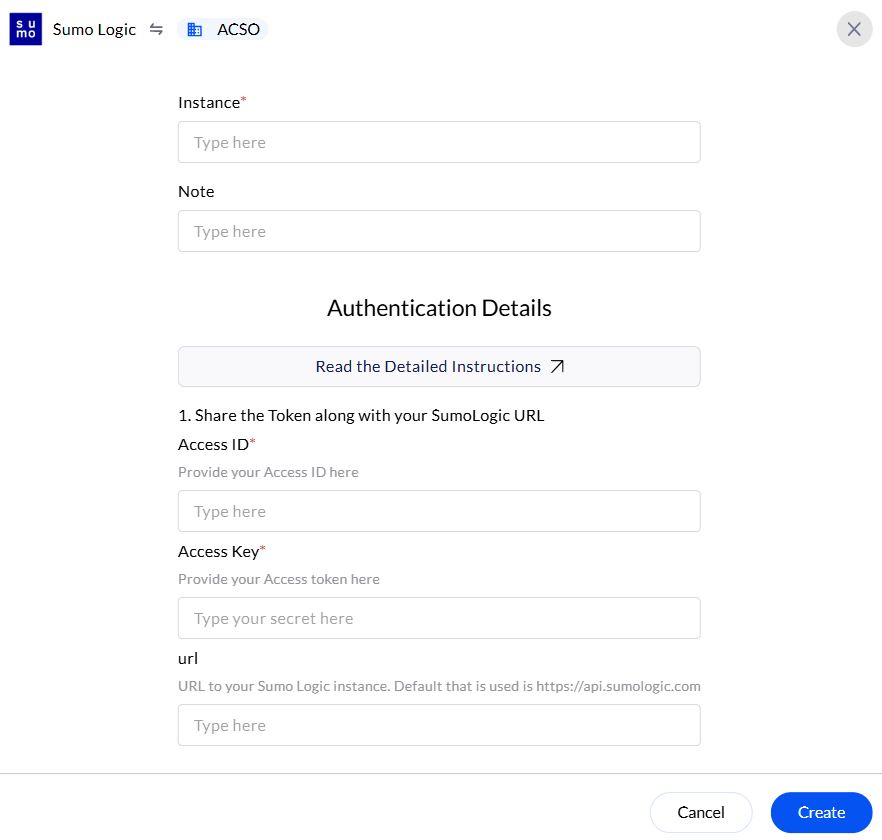
 4. Enter the generated **Access ID** and **Access Key** in the Authentication Details field params, and click **Create.**