> ## Documentation Index
> Fetch the complete documentation index at: https://docs.airmdr.com/llms.txt
> Use this file to discover all available pages before exploring further.
# Google SSO Set-up and Configuration
> AirMDR supports Google single sign-on to authenticate users for access to the AirMDR application.
### Overview
AirMDR supports SAML 2.0 Single Sign-On (SSO) with Google Workspace so your users can authenticate to AirMDR using their Google identities. This centralizes access control, reduces password sprawl, and enables security controls such as MFA and conditional access policies managed in Google Admin.
### Pre-requisites
* Google Workspace **Super Admin** access to Google Admin Console.
* AirMDR **Super Admin** access.
* Decide which users/OUs should be enabled for this SSO app.
### SSO Set-up & Configuration
1. Go to [Google Admin](https://admin.google.com/).
2. Sign in with an admin account.
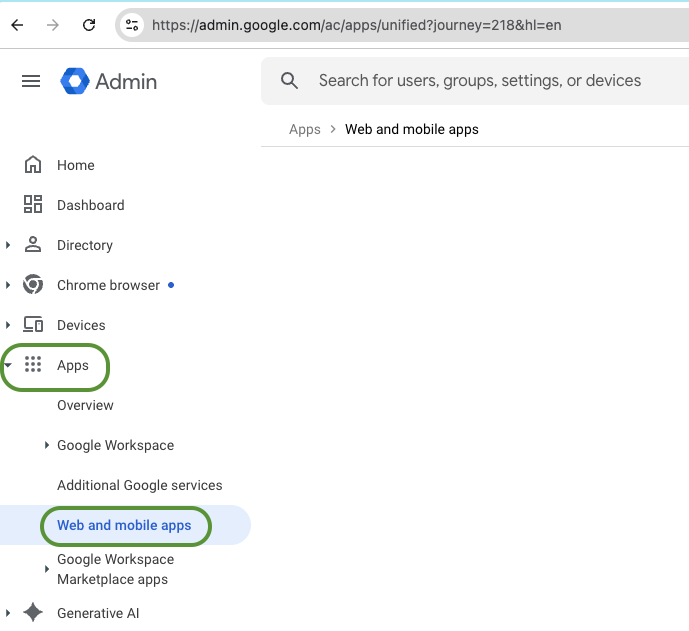
3. In the left-hand navigation pane, select **Apps → Web and mobile apps**.
 4. Add Custom SAML app
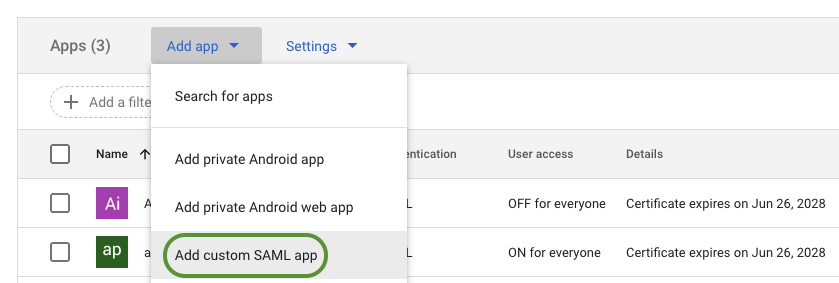
1. Click **Add app → Add custom SAML app**
4. Add Custom SAML app
1. Click **Add app → Add custom SAML app**
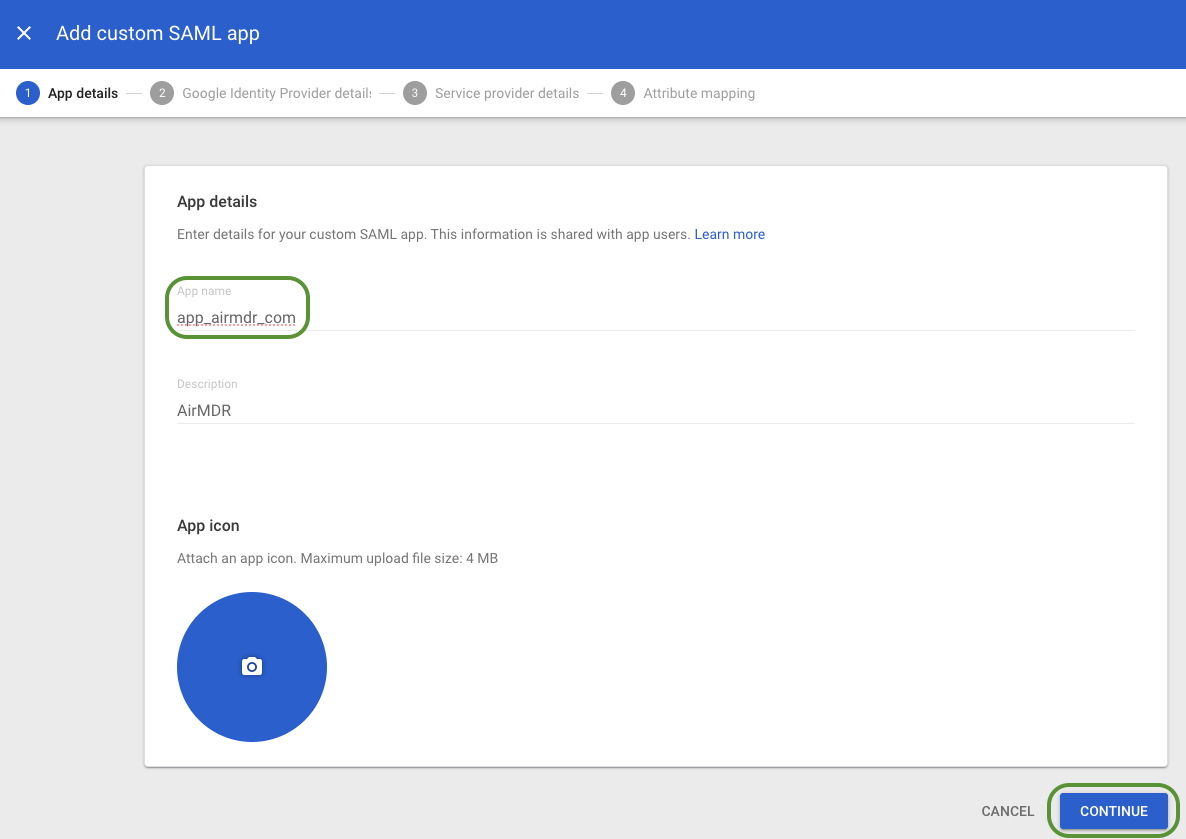
 2. Provide a name to the application
Example: **app\_airmdr\_com** (logo optional)
3. Click **Continue**.
2. Provide a name to the application
Example: **app\_airmdr\_com** (logo optional)
3. Click **Continue**.
 5. Collect IdP details
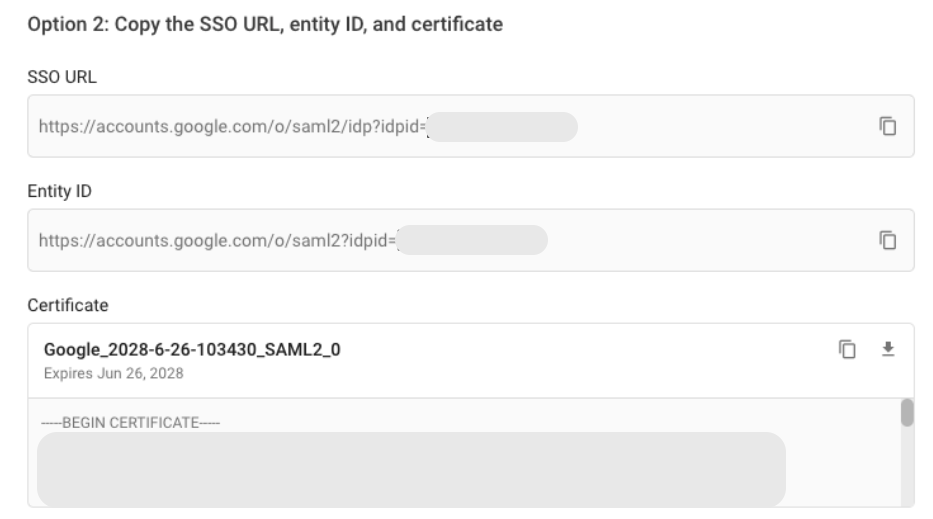
Copy and securely save the **Identity Provider (IdP)** details, you’ll paste these into AirMDR later
* From the **Google IdP Information** screen, **save** the following:
* **SSO URL (IdP SSO URL)**\
`https://accounts.google.com/o/saml2/idp?idpid=
5. Collect IdP details
Copy and securely save the **Identity Provider (IdP)** details, you’ll paste these into AirMDR later
* From the **Google IdP Information** screen, **save** the following:
* **SSO URL (IdP SSO URL)**\
`https://accounts.google.com/o/saml2/idp?idpid=`
* **Entity ID (Issuer)**\
`https://accounts.google.com/o/saml2?idpid=`
* **Certificate** (download the X.509 certificate).
If the downloaded Google certificate has a file extension of `.cert`.\
Users must ensure the file extension is changed to `.crt` before uploading in to the AirMDR.
For example: `Google.crt`
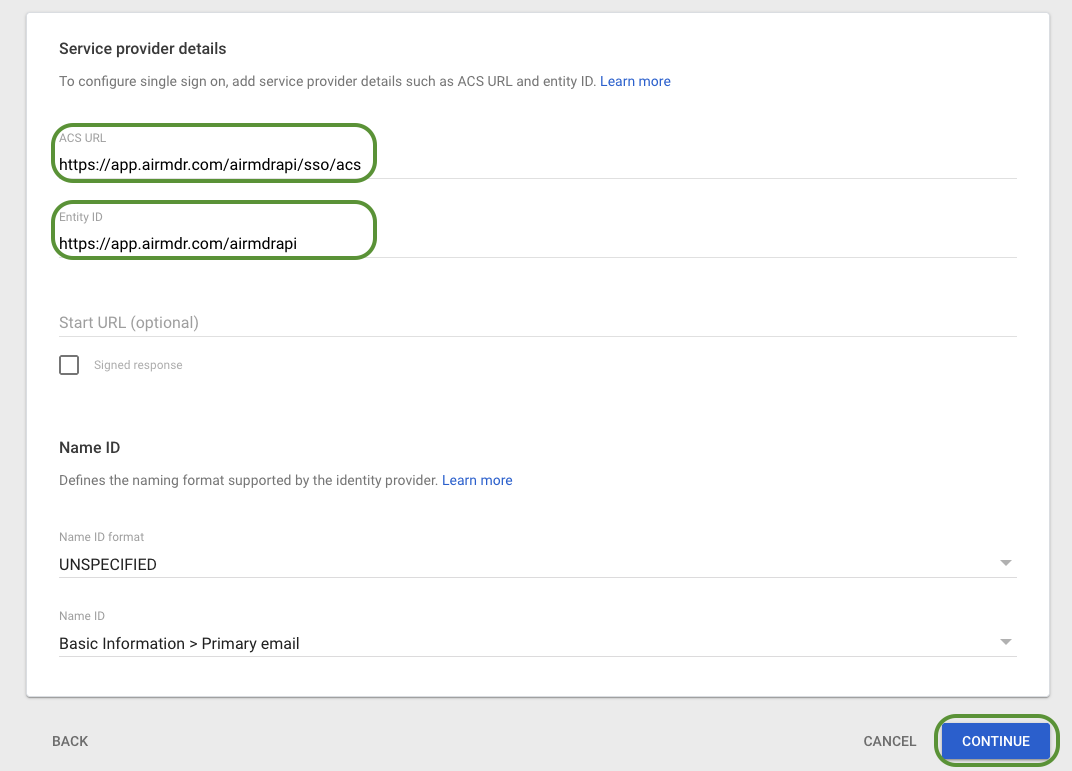
 6. **Service Provider (SP) details for AirMDR**
* Enter the following **exact values** when prompted:
* **ACS URL**: `https://app.airmdr.com/airmdrapi/sso/acs`
* **Entity ID (SP)**: `https://app.airmdr.com/airmdrapi`
* Click **Continue** → **Finish**.
6. **Service Provider (SP) details for AirMDR**
* Enter the following **exact values** when prompted:
* **ACS URL**: `https://app.airmdr.com/airmdrapi/sso/acs`
* **Entity ID (SP)**: `https://app.airmdr.com/airmdrapi`
* Click **Continue** → **Finish**.
 7. **Turn the app ON for users**
* In the apps list, click the SAML app you just created (e.g., *app\_airmdr\_com*) to open its settings page.
* **Enable user access**
1. In the app’s overview page, locate **User access**
7. **Turn the app ON for users**
* In the apps list, click the SAML app you just created (e.g., *app\_airmdr\_com*) to open its settings page.
* **Enable user access**
1. In the app’s overview page, locate **User access**
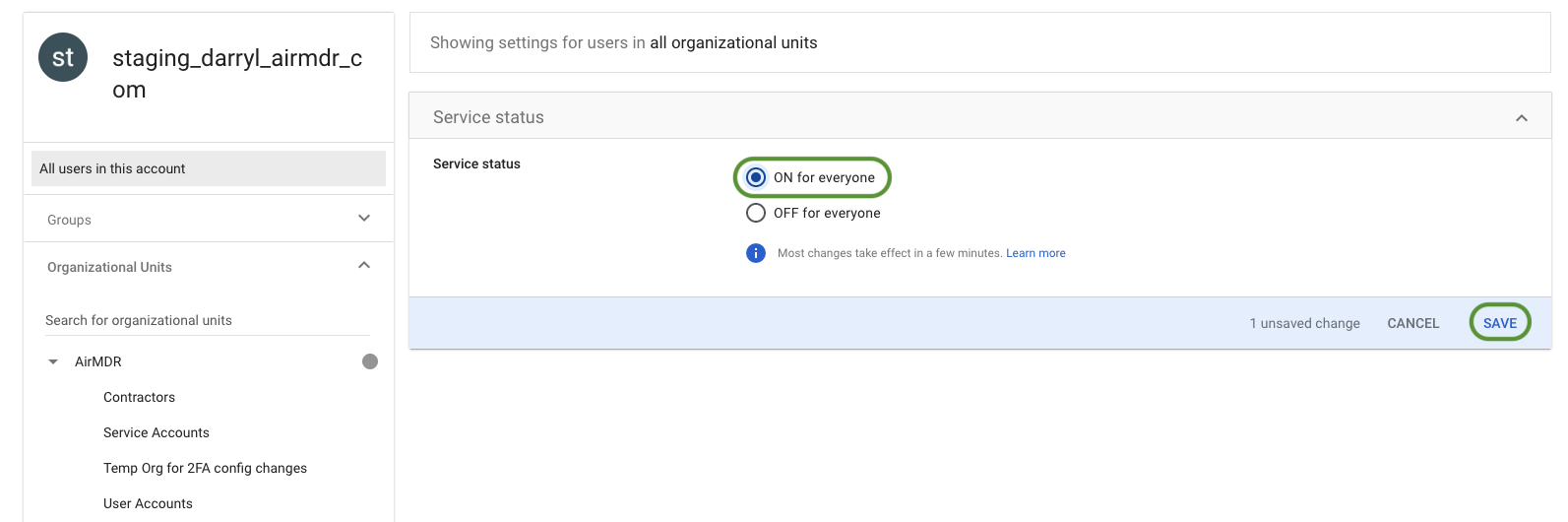
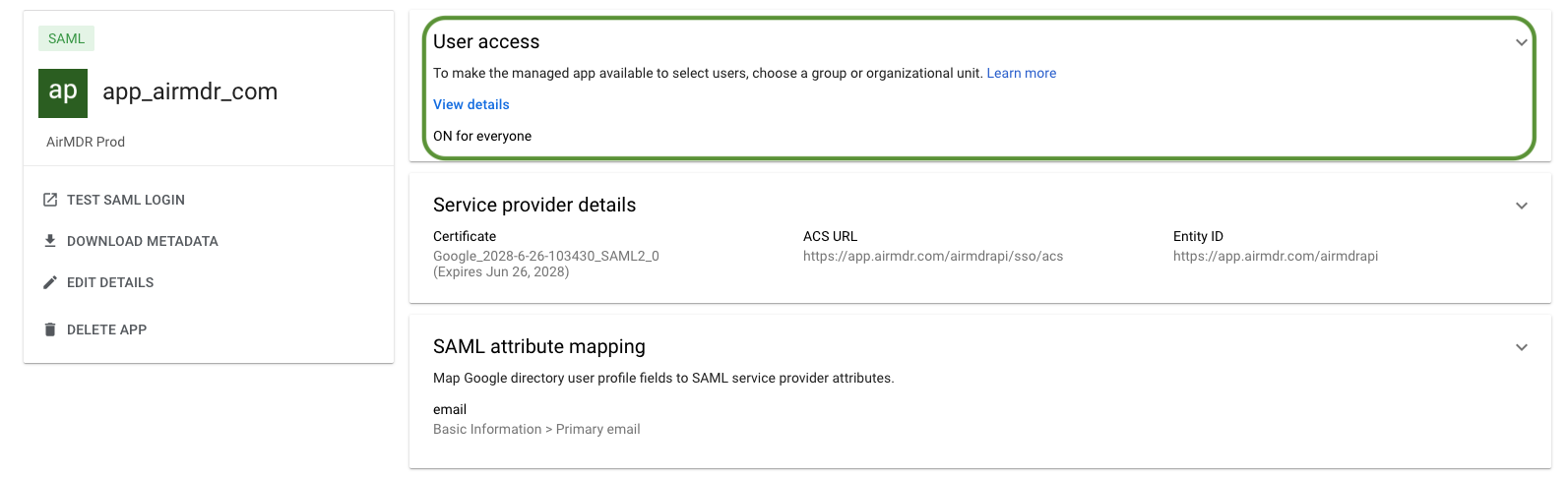 2. Click the **▾** (dropdown) next to **User access**, switch it **ON for everyone**
3. Click **SAVE** (mandatory to save the changes made).
2. Click the **▾** (dropdown) next to **User access**, switch it **ON for everyone**
3. Click **SAVE** (mandatory to save the changes made).
1. Sign in to [AirMDR](https://app.airmdr.com) with your credentials.
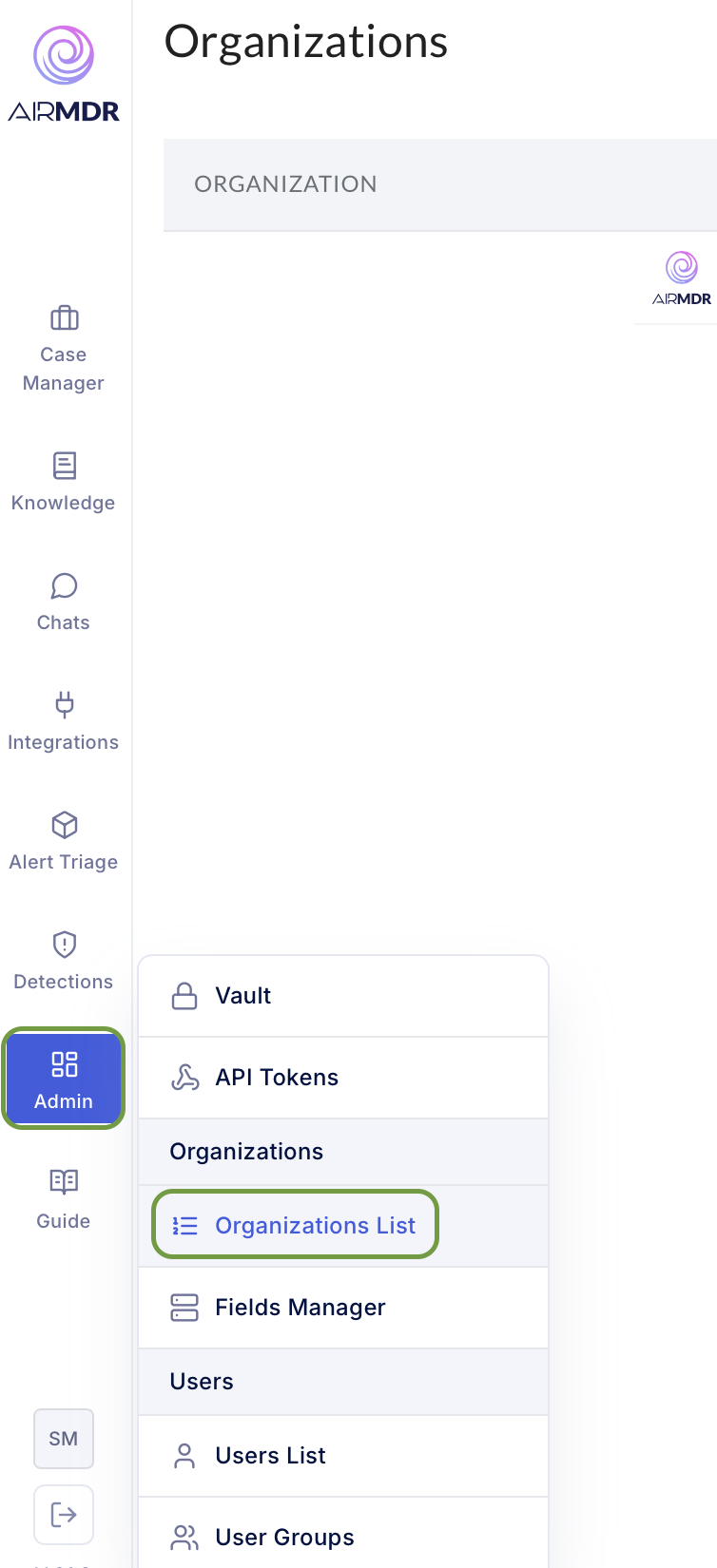
2. Open your organization
* **Admin → Organizations List** → click your **Org Name**.
 3. **Edit SSO settings**
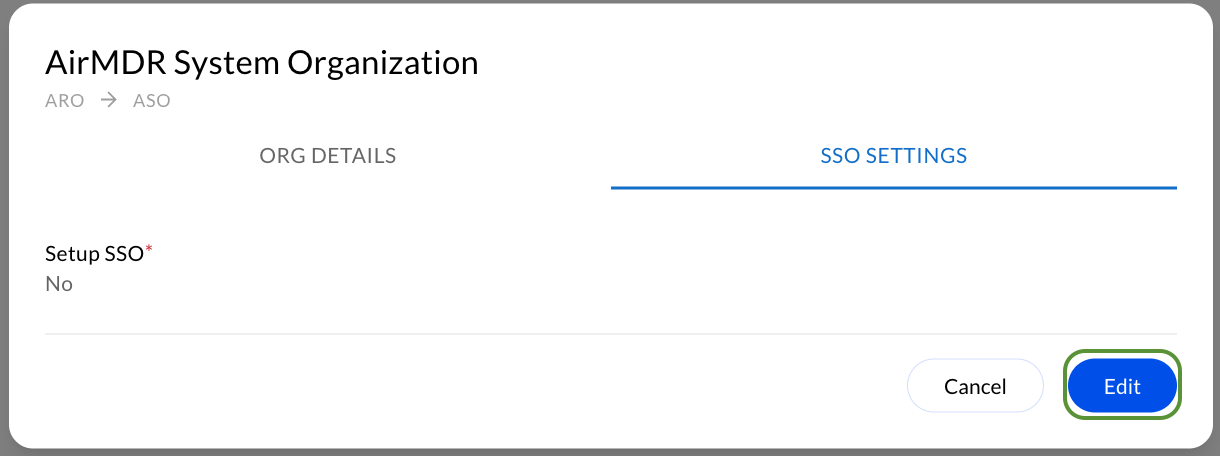
1. In **SSO Settings**, click **Edit.**
3. **Edit SSO settings**
1. In **SSO Settings**, click **Edit.**
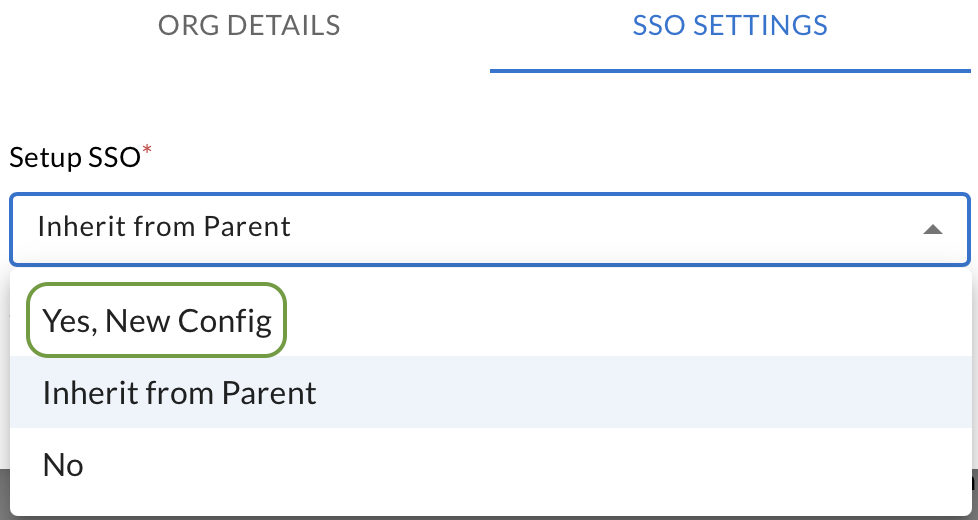
 2. Choose **Yes, New Config**.
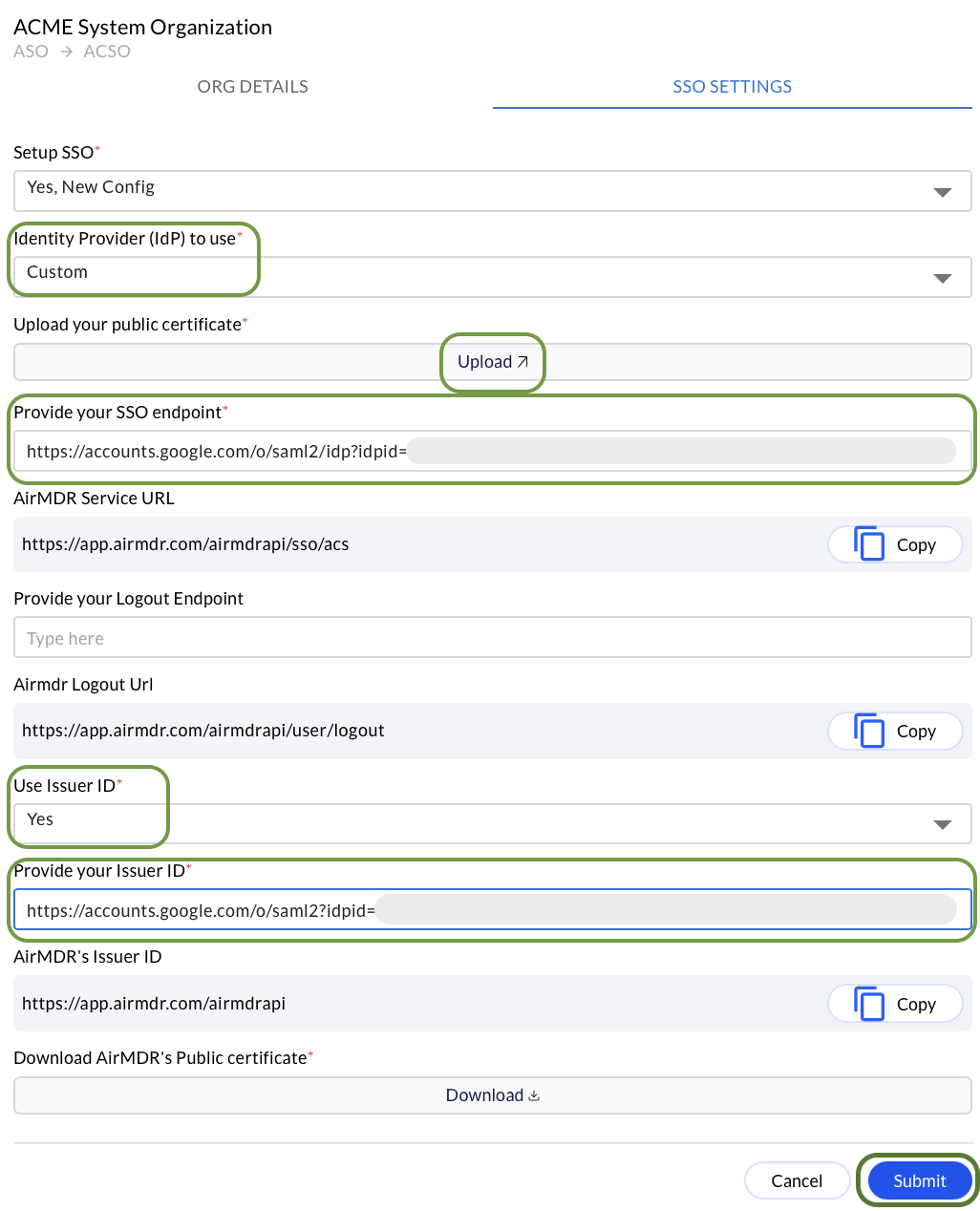
 4. **Complete the fields** (paste values collected in the **Google IdP Information** screen)
* **Identity Provider**: **Custom**
* **Certificate**: **Upload** the X.509 certificate downloaded from Google
* **SSO endpoint (IdP SSO URL)**: `https://accounts.google.com/o/saml2/idp?idpid=
4. **Complete the fields** (paste values collected in the **Google IdP Information** screen)
* **Identity Provider**: **Custom**
* **Certificate**: **Upload** the X.509 certificate downloaded from Google
* **SSO endpoint (IdP SSO URL)**: `https://accounts.google.com/o/saml2/idp?idpid=`
* **Use Issuer ID**: **Yes**
* **Issuer ID (IdP Entity ID)**: `https://accounts.google.com/o/saml2?idpid=`
5. Click **Submit**.
## Field mapping (quick reference)
| Where | Field label | Value |
| :------------------------ | :--------------------- | :----------------------------------------------------- |
| **Google → IdP info** | **SSO URL** | `https://accounts.google.com/o/saml2/idp?idpid=` |
| **Google → IdP info** | **Entity ID (Issuer)** | `https://accounts.google.com/o/saml2?idpid=` |
| **Google → IdP info** | **Certificate** | Download X.509 certificate |
| **Google → SP details** | **ACS URL** | `https://app.airmdr.com/airmdrapi/sso/acs` |
| **Google → SP details** | **SP Entity ID** | `https://app.airmdr.com/airmdrapi` |
| **AirMDR → SSO Settings** | **Identity Provider** | **Custom** |
| **AirMDR → SSO Settings** | **SSO endpoint** | Paste **SSO URL** from Google |
| **AirMDR → SSO Settings** | **Use Issuer ID** | **Yes** |
| **AirMDR → SSO Settings** | **Issuer ID** | Paste **Entity ID (Issuer)** from Google |
| **AirMDR → SSO Settings** | **Certificate** | Upload the Google X.509 certificate |
## Validation
* In Google Admin, ensure **User access = ON** for the target OU/group.
* In AirMDR, after **Submit**, log out and initiate login via **Sign in with SSO** (or use your org-specific SSO link if provided).
* If sign-in fails, double-check:
* Typos in **SSO endpoint** and **Issuer ID** (must match Google exactly).
* Certificate uploaded is the **current** Google IdP certificate.
Hurray! You are Logged in Successfully