

https://app.airmdr.com/mcp. It connects the AI assistant you already use (Claude, ChatGPT, Gemini, Cursor, or any client that supports the Model Context Protocol) to your AirMDR account. You ask about your security operations in plain language, and the answers come from finished investigations.
That last part is the difference. Most security MCP servers give an assistant raw logs and leave the investigating to it, which is slow, expensive and easy to get wrong. The AirMDR server works one level up. The assistant reads cases that Darryl has already investigated and our analysts have already reviewed, along with the evidence, the step-by-step investigation trace and every change made since. It can tell you what happened, and it can show you how we know.
This post covers what the server does, how access is controlled, how to connect Claude in about two minutes, and six things you can do with it on day one.
What the AirMDR MCP server does
The Model Context Protocol (MCP) is an open standard that lets AI assistants call tools on other systems. The AirMDR MCP server gives your assistant a set of AirMDR tools, and the assistant decides which ones to call to answer your question.- Cases. Search and summarize cases, read timelines, findings, evidence, comments and action items, and see how a case changed over its life.
- Alerts and investigations. Review alerts and alert sources, see which alert types are suppressed and why, and read the full trace of how Darryl investigated an alert.
- Dashboards and reports. Read any built-in dashboard (Executive, SOC Performance, Case Analytics, Case Quality, Investigation Credits, Alert Budget, Detection and more) or your own custom dashboards, plus Security Review reports. With write access, the assistant can also build, schedule and email custom dashboards.
- Detection coverage. Check coverage against MITRE ATT&CK, the detection rules in your SIEM, and the log sources feeding it.
- Platform health. See integration status (expired, failing or near expiry), remote agent status, users and the audit log.
- Knowledge. Read the playbooks, facts, allow and block lists, and organization context Darryl uses during investigations.
It acts as you, and only as you
The assistant never gets more access than you have. Every request runs under your AirMDR identity and role, in the organizations you can already see. If you can’t do something in the AirMDR app, the assistant can’t do it either.- Sign in per user. Everyone connects with their own AirMDR login, password or SSO, through OAuth. API tokens are for admins only.
- Read only by default. When you sign in, you choose Read only or Read and make changes. Read only is preselected.
- Confirmation for anything that matters. Actions that use investigation credits, delete something or send email are flagged so your assistant asks before running them. Bulk case updates show a preview first.
- Secrets stay out of the conversation. Values that look like keys, tokens, passwords or webhook URLs are redacted before the assistant sees them.
- Email stays inside your organization. Scheduled or emailed dashboards can only go to active users in your AirMDR organization.
- Everything is logged. Every tool call is recorded with the tool, user, organization and outcome. Argument values and credentials are never logged.
- Sessions expire. A connection renews while you use it, for up to 7 days. Signing out of AirMDR, or an admin deactivating your account, also ends access.
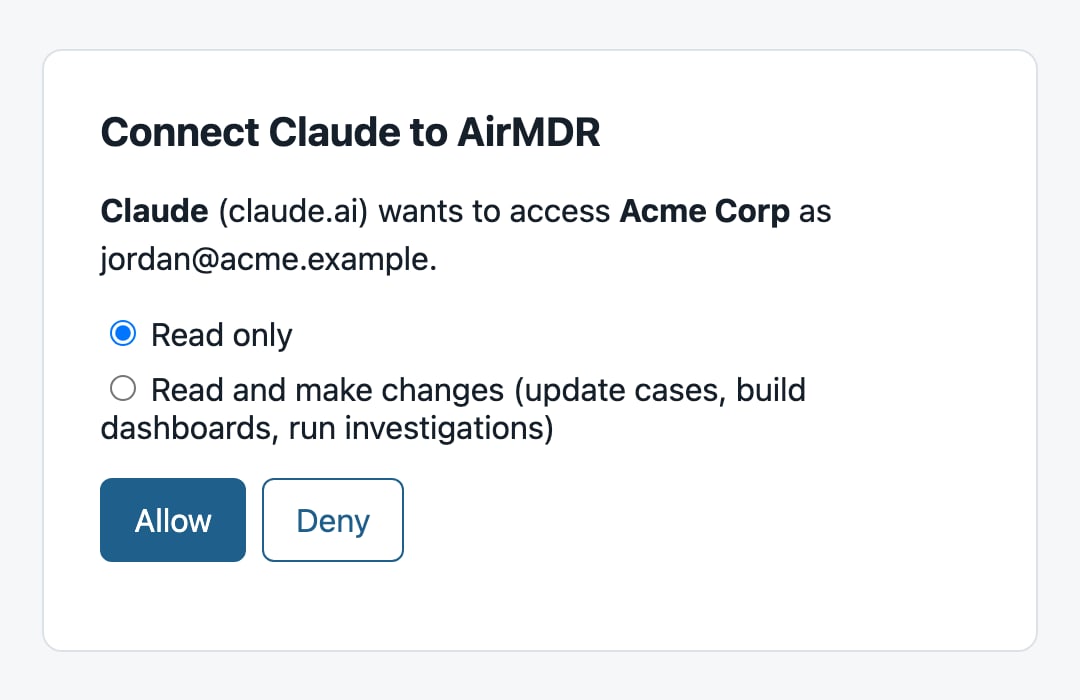
The consent page every user sees when connecting an assistant. Read only is selected by default.
Connect Claude in about two minutes
- In Claude (claude.ai or the desktop app), open Settings → Connectors and click Add custom connector.
- Enter the name AirMDR and the URL
https://app.airmdr.com/mcp, then click Add. - Click Connect. The AirMDR sign-in page opens, and your password or SSO both work.
- Choose Read only or Read and make changes, then click Allow.
- In a new chat, turn on the AirMDR connector from the tools menu and ask your first question.
/mcp, select airmdr and choose Authenticate. Steps for ChatGPT, Gemini, Cursor and the rest are in the setup guide.
Use case 1: the weekly briefing, without waiting for the weekly report
Leadership questions rarely line up with the reports you already have. Ask for the briefing you actually need:Give me an executive security briefing for the last 30 days. Cover case volume, true vs. false positives, MTTA, MTTI and MTTC against SLA, the top alert sources and categories, and how much of the work AirMDR’s AI handled end to end. Finish with the three things leadership should know.The assistant pulls the Executive, SOC Performance and Case Analytics dashboards and writes the summary. Then keep going: “Break the false positives down by alert source,” or “Compare this month with last month. What’s trending up?” When the result is worth keeping, turn it into a dashboard.
Use case 2: dashboards, built two ways
A good answer usually becomes a question you want answered every week. The AirMDR MCP server gives you two ways to keep it. A live dashboard inside AirMDR. With Read and make changes access, describe the dashboard you want and the assistant builds it as a custom dashboard in your AirMDR account, using the same widgets as the dashboard builder in the app:Create a dashboard called “Weekly SOC review” with case volume by severity, true vs. false positives, mean time to resolve and the top 10 alert sources for the last 7 days. Then email it to me and the security team every Monday at 9am.The assistant creates the dashboard, adds and lays out the widgets, and sets up the schedule. The dashboard lives in AirMDR at app.airmdr.com/custom-dashboard, updates with live data, and your team can open it there like any other dashboard. Changes are one more request away: “Add a widget for investigation credits used,” or “Make it the last 30 days.” Scheduled emails only go to active users in your AirMDR organization.
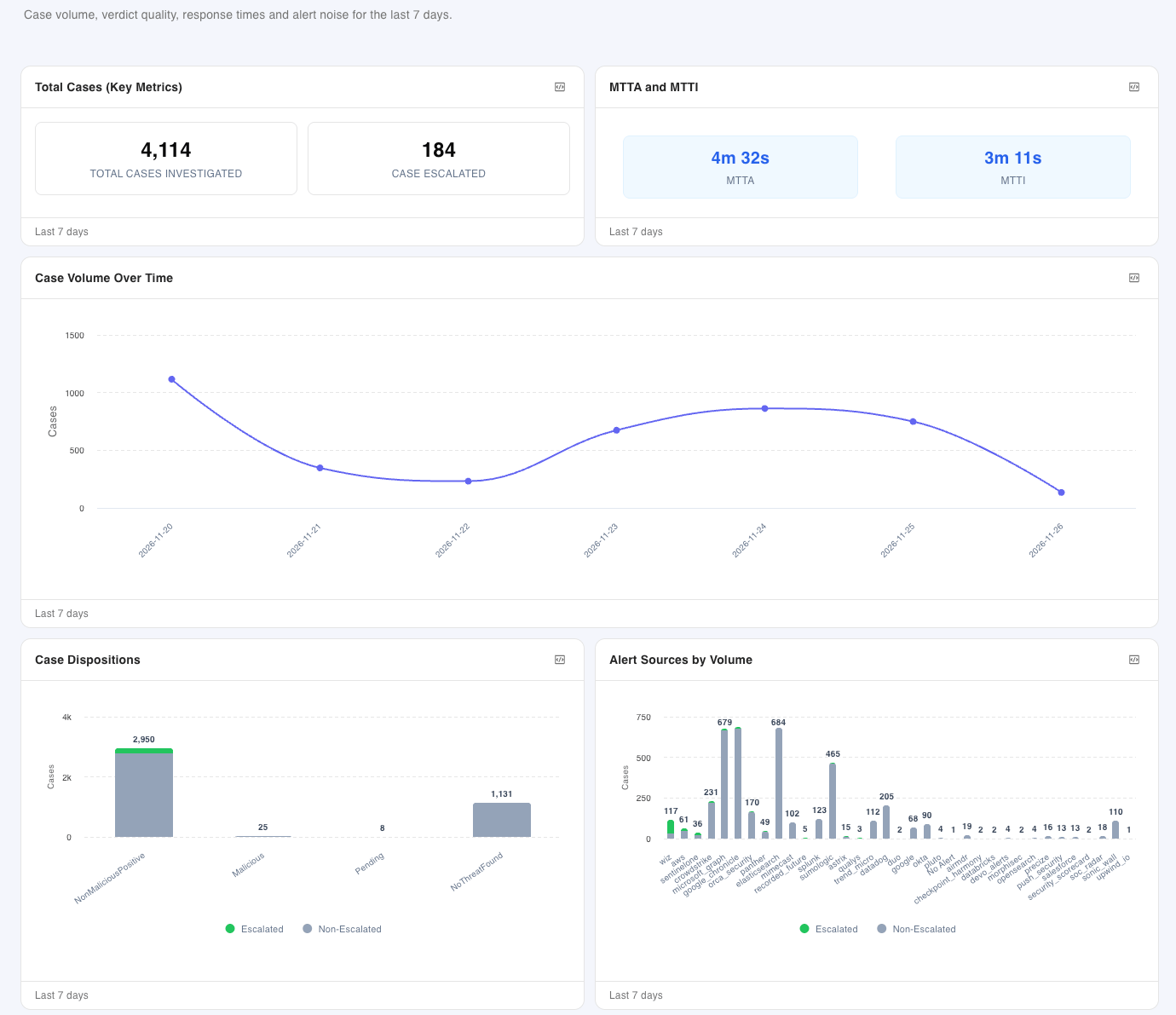
The "Weekly SOC review" dashboard the assistant built in AirMDR from the prompt above, shown for AirMDR's internal organization. It's a regular custom dashboard: live data, editable in the app, and emailed on a schedule.
Build an interactive dashboard of the last 90 days: weekly case volume by severity, true-positive rate by alert source, MTTA and MTTC trends against SLA, and the five noisiest detection rules. Use a clean layout I can share with leadership.This works on a Read only connection, because nothing changes in AirMDR. The result is a snapshot of the data at the time you asked, and you can share or export it however your assistant allows.
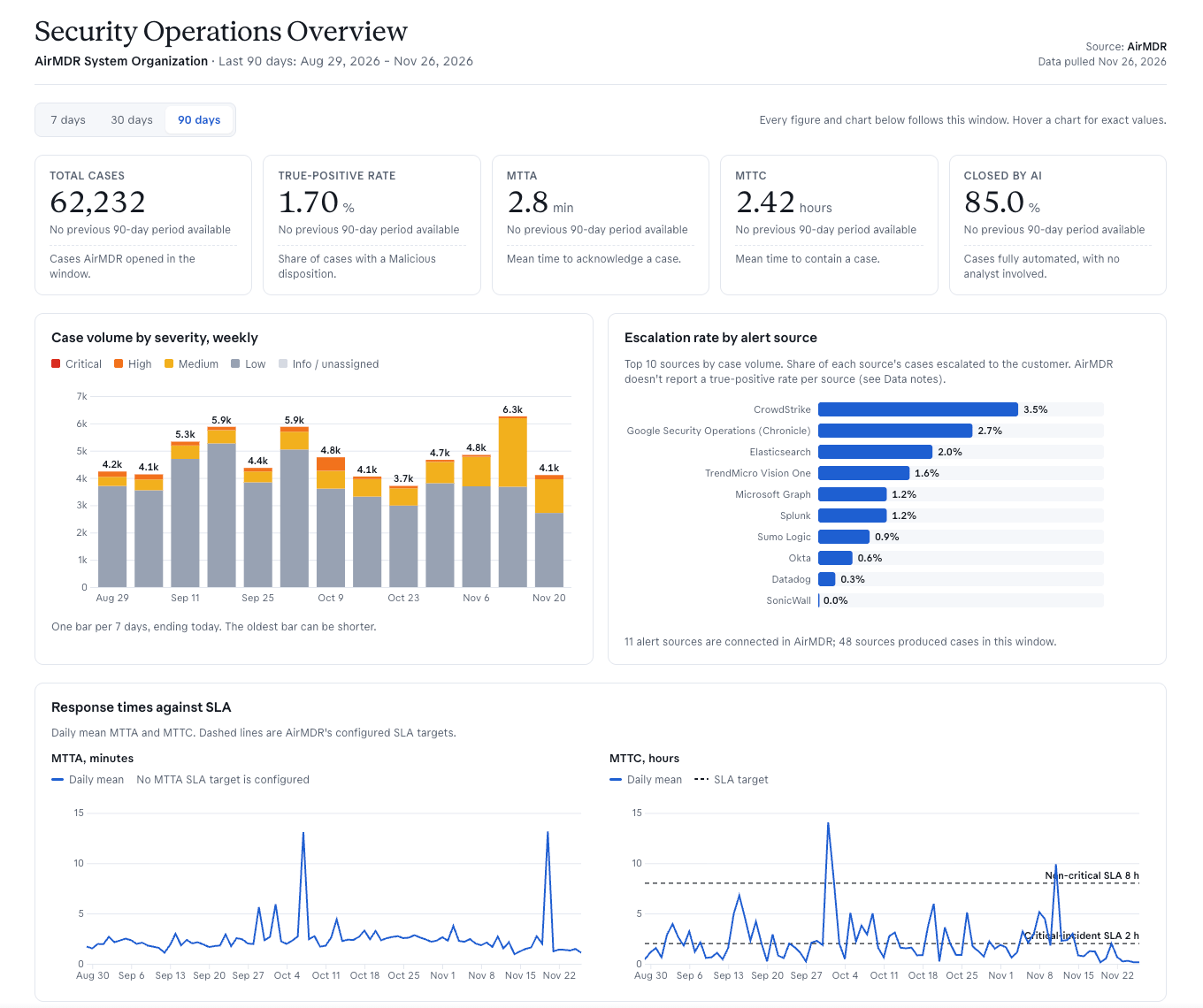
An interactive dashboard Claude built from AirMDR data in a single request, shown for AirMDR's internal organization. The time filter, KPI tiles and charts all come from the AirMDR MCP server.
Use case 3: see how a verdict was reached
A verdict is only as useful as your confidence in it. Ask for the reasoning:Find the most severe true-positive case from the last 30 days and write it up as an incident report. Cover what triggered it, the timeline, the key findings and the evidence behind each one, what the AI investigation actually checked step by step, and the final disposition and open action items.The assistant reads the case, its findings and the evidence behind them, then opens the investigation trace: each step Darryl ran, the query or lookup it made, what came back, and how that moved the verdict. The same works in reverse for the alerts you’re most likely to question: “Why was the impossible-travel alert for the finance team closed as benign?”
Use case 4: where the AI and the analysts disagreed
Anyone using AI in the SOC should be able to check its work themselves. The AirMDR server splits each case’s history into eras: the AI investigation, then each analyst hand-off.For the 5 most recent escalated cases, compare what the AI investigation concluded with what analysts changed afterwards. Did anyone override the AI’s verdict? How long did the AI take compared with the full case lifecycle? Include each case’s quality score.You get a direct answer to where Darryl was right, where a human changed the outcome, and how much time the AI saved before an analyst picked the case up.
Use case 5: blind spots and broken plumbing
Missed detections usually come from gaps nobody looked at, not from clever attackers.Where are our detection blind spots? Map coverage against MITRE ATT&CK, list the log sources feeding the SIEM, and give me the top 5 techniques we can’t detect today, with the log source or detection rule that would close each gap.Follow it with a quick operational check: “Are any integrations expired or failing? Which alert types are suppressed, and why?” An expired API key on an EDR integration is easy to miss in a console and hard to miss in a morning briefing.
Use case 6: from answer to action
With Read and make changes access, the assistant can act on what it finds, and every change is checked against your role and recorded in the case timeline under your name.Find every open phishing case from today that mentions the finance team, set them to high severity, assign them to me, and add a comment that we’re checking for credential reuse.Bulk updates show a preview of every case and field before anything changes, with up to 50 cases at a time. Starting an investigation, re-running one or asking Darryl uses investigation credits, so your assistant asks before it runs them.
What changes for your team
Works with the assistant you already use
What to do this week
- Connect one assistant. Pick the one your team already uses and connect it with Read only access. It takes about two minutes, and nothing changes in AirMDR.
- Ask the three questions you ask us most. Response times, why a specific alert was closed, and what’s still open are good places to start. If the answer isn’t what you expected, the investigation trace shows why.
- Decide who gets write access. Check your organization’s AI policy, then decide who should be able to update cases and build dashboards from an assistant. Everyone else can stay read only.