

Pre-requisites
Set Up App Registrations in the Azure Portal
App registrations in Microsoft Entra ID (Azure AD) allow applications to authenticate and access Microsoft resources securely.1
Azure Portal Access
- Log in to your Azure Portal.
- Go to Microsoft Entra ID (formerly Azure AD).
- In the left menu, click App registrations.
2
Register a New Application
- Click + New registration.
-
Provide the mandatory details: (Name: Enter a name for your app (e.g.,
airmdr-azure-sentinel-reader) and Supported Account Types: Select Accounts in any organizational directory (Any Microsoft Entra ID tenant - Multitenant) option).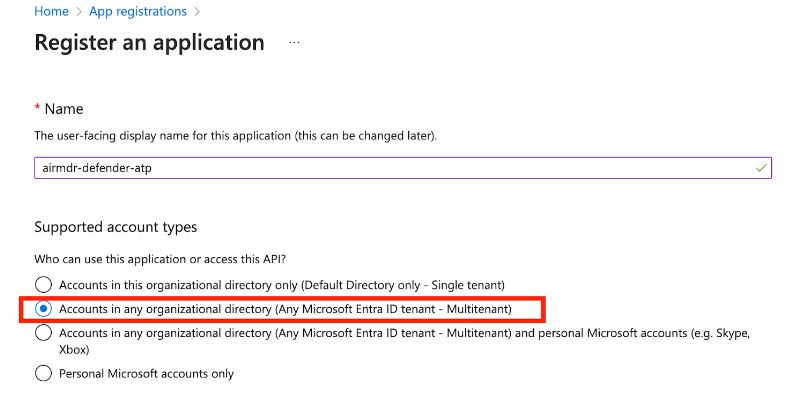
- Click Register.
3
Get Application (Client) ID and Tenant ID
- After successful registration, you will see the App Overview page.
Copy Application (Client) ID – Identifies your app.
Copy Directory (Tenant) ID – Identifies your Azure AD tenant.
4
Configure API Permissions
- In the application Overview page left navigation pane, select Manage dropdown.
- Click API Permissions.
- Click + Add a permission
- In the Request API permissions window pane > Select an API > Microsoft APIs, select “Azure Service Management”.
- Choose Application permissions.
- In the Select permissions → Permissions
- Select user impersonation and then click Add permissions at the bottom of the page.
- Click on Add a permission and select Microsoft Graph.
- Choose Application permissions.
-
Select the required permissions (
SecurityAlert.Read.All,SecurityIncident.Read.All,SecurityEvents.Read.All). - Click Add a permission.
-
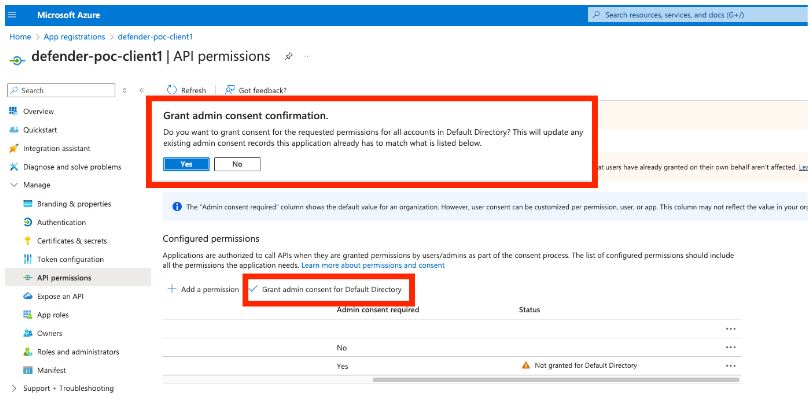
Select Grant admin consent confirmation and click Yes to allow access.
5
Create a Client Secret (For Authentication)
- In the application Overview page left navigation pane, select Manage dropdown.
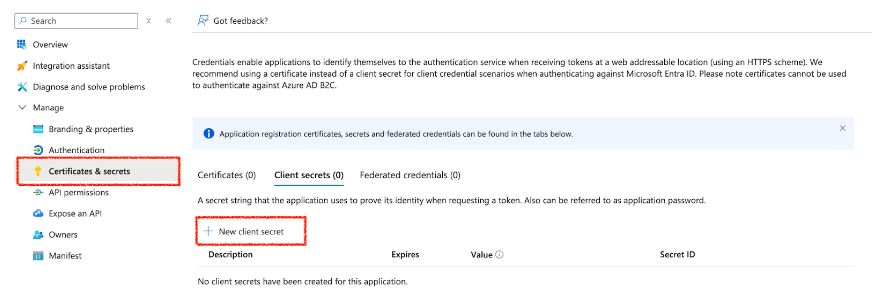
- Click Certificates & secrets.
-
Click + New client secret.
-
Enter a description (e.g.,
MySecretKey) and set expiration. - Click Add.
6
Azure Sentinel params
- Search for the Log analytics workspace (which is linked to Azure Sentinel)
- In the Overview tab.
- Copy the required values:
- Subscription ID
- Resource Group Name
- WorkspaceID
- Workspace Name
Email all the values Tenant ID, Client ID, Client Secret Value, Subscription ID, Resource Group Name, Workspace ID and the Workspace Name to AirMDR or self Configure Microsoft Sentinel (Azure Sentinel) in AirMDR Integrations Dashboard.
7
Add Sentinel Reader permission for above app registration
- Navigate to Log analytics workspaces.
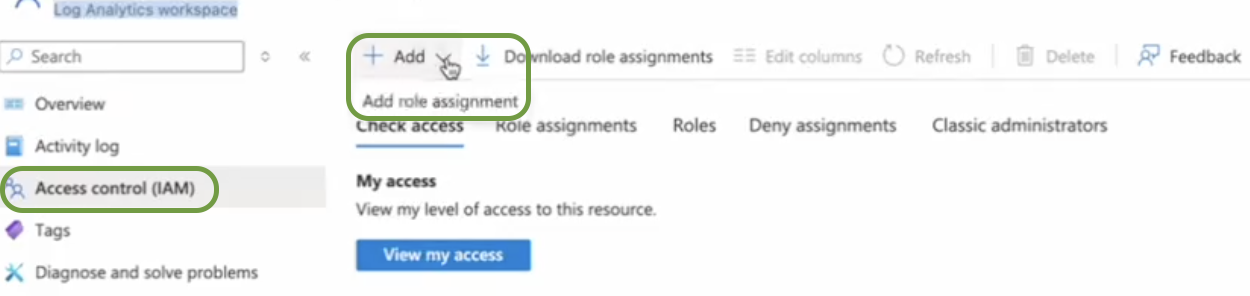
- Select Access Control (IAM).
-
In the +Add drop-down, select Add role assignment.
-
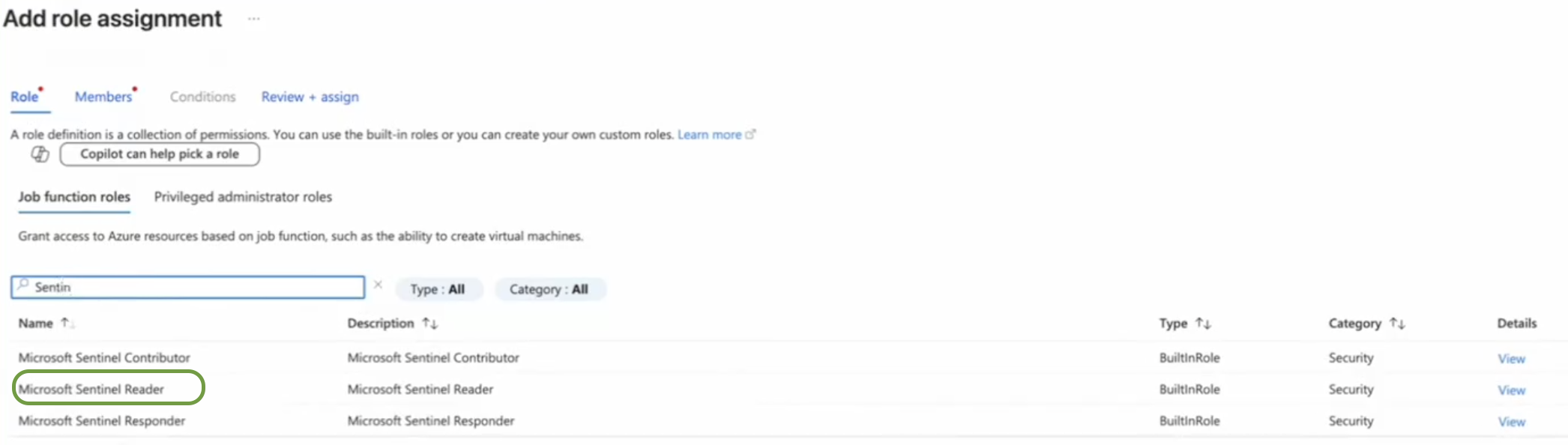
In the Role page, search and select Microsoft SentinelReader roles, click Next.
-
In the Members page, click on + Select members.

-
Search and double-click on the member (e.g.,
airmdr-azure-sentinel-reader) created earlier, click Select at the bottom of the page.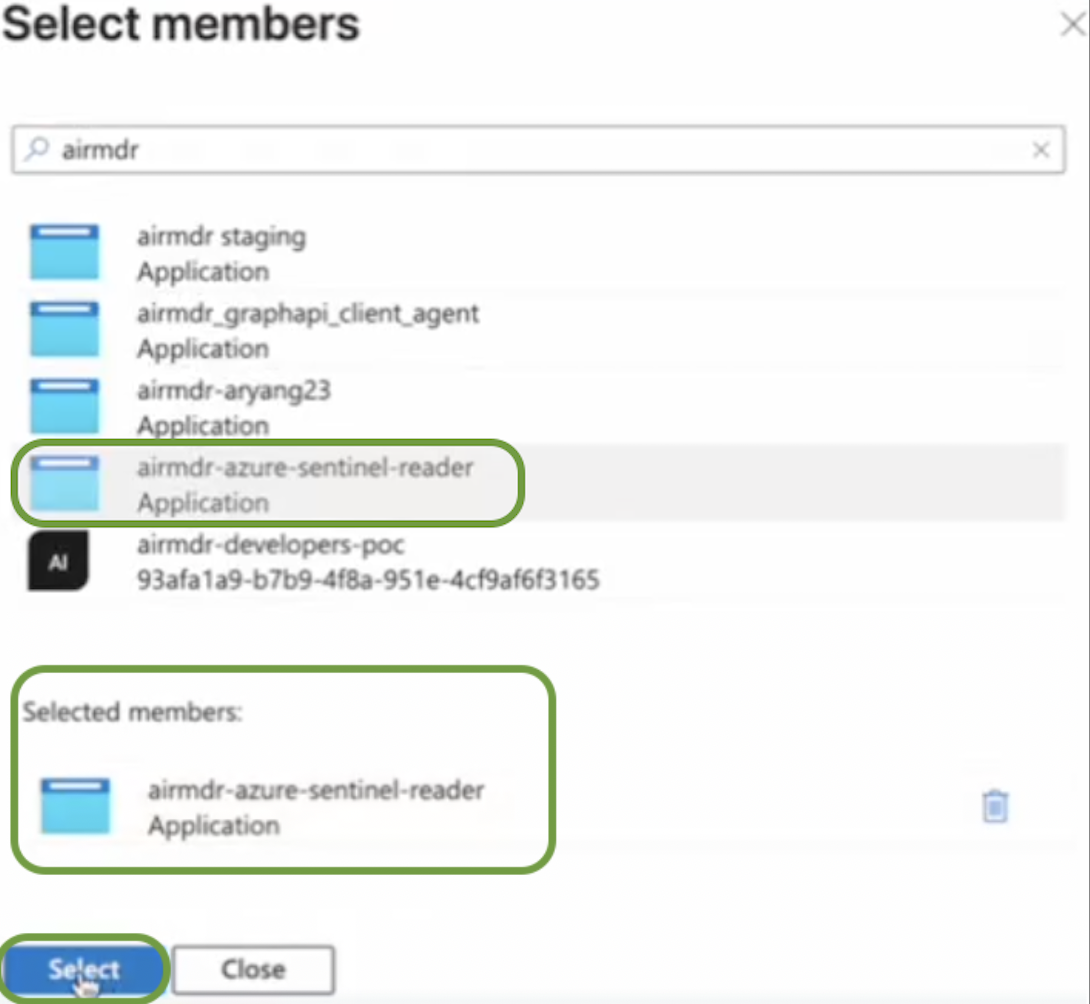
-
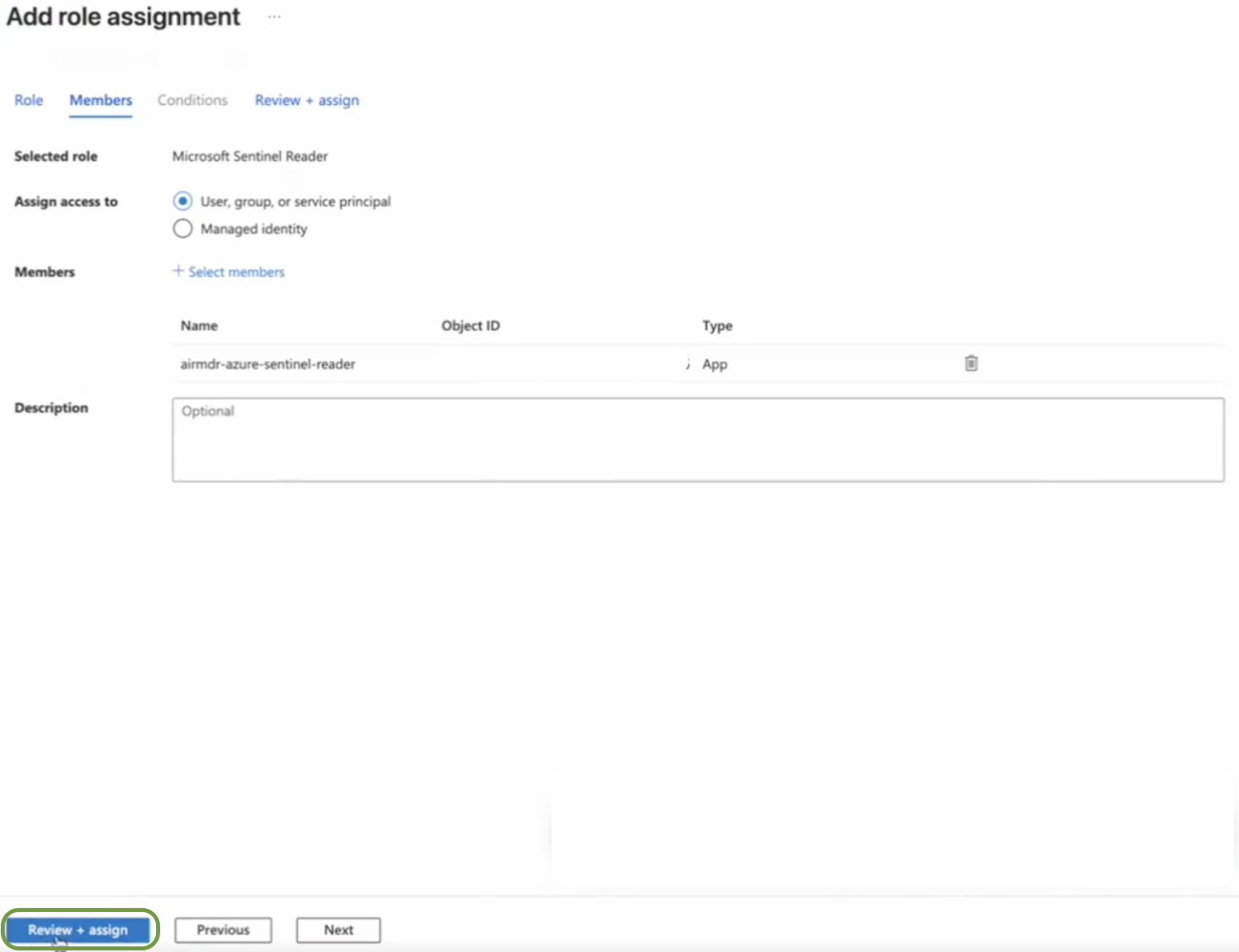
Click on the Review + assign bottom at the left bottom of the page.
Configure Microsoft Sentinel (Azure Sentinel) in AirMDR Integrations Dashboard
-
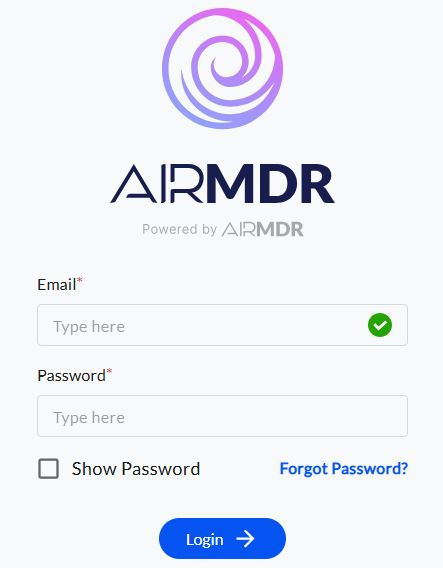
Navigate to AirMDR, provide the credentials and click Login.
-
Navigate to the AirMDR Integrations Dashboard in the left navigation pane and select Integrations.
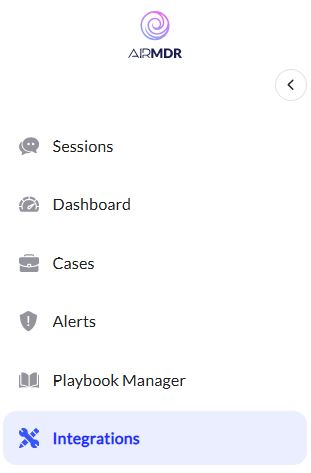
-
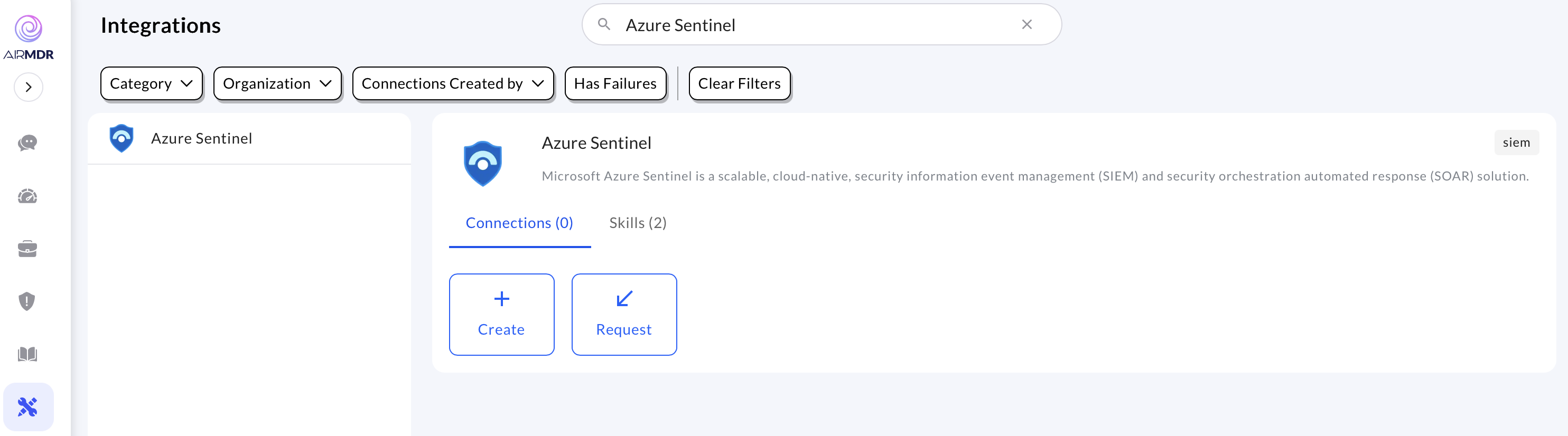
Use the search option, enter the keyword “Azure Sentinel”, select the Connections tab, and click the + Create icon.
-
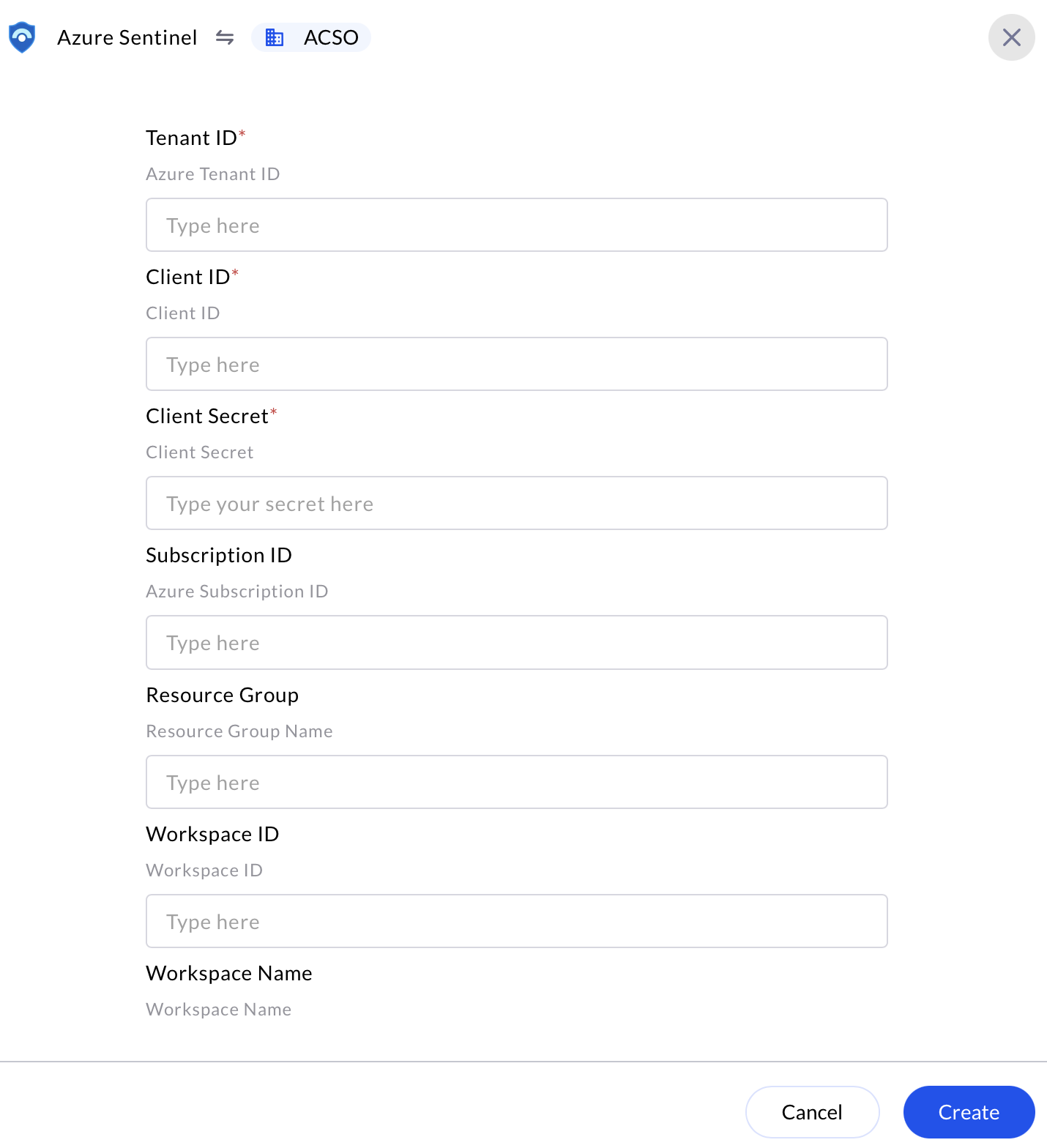
Enter the generated Tenant ID, Client ID, Client Secret, Subscription ID, Resource Group, Workspace ID and the Workspace Name in the Authentication Details field params, and click Create.
Evaluate Microsoft Sentinel (Azure Sentinel)
Pre-requisites
Azure App Registration with API permissions for Azure Sentinel.
Client ID, Tenant ID, and Client Secret.
1
Obtain an Access Token
Open cURL and run the following command to check if your API Access is working:Azure Sentinel uses OAuth 2.0 authentication. First, request an access token from Microsoft Entra ID (Azure AD):Replace:
<tenant_id>– Your Azure Directory (Tenant) ID.<client_id>– Your App Registration Client ID.<client_secret>– Your App Registration Client Secret.
- This verifies if the user can retrieve device information based on the assigned scope.
2
Step 2
Test API Access with MDEOnce you have the Expected Response:
A JSON list of devices onboarded to Defender for Endpoint.Expected Response:A list of security alerts detected by Microsoft Sentinel (Azure Sentinel).Authentication and Authorization Errors
access_token, use it in API calls.- To Get Device List
- To Get Alerts
Troubleshooting Authentication Issues