

Purpose
The GitHub App integration enables AirMDR to authenticate securely with GitHub using an app-based trust model. This allows AirMDR to access approved repository and organization data, enrich alerts with GitHub context, and automate workflows using GitHub events and metadata within AirMDR playbooks. GitHub recommends **GitHub Apps **for long-lived integrations instead of personal access tokens.Pre-requisites
Before configuring the GitHub App integration, ensure the following:- A valid GitHub account or GitHub organization
- Permission to create a GitHub App
- Permission to install the app on the required account, organization, or repositories
- Administrative access to AirMDR Integrations
- A secure location to store the downloaded PEM private key
Supported Versions
This setup flow is based on GitHub’s current GitHub App registration and installation model.
Authentication Method
AirMDR uses GitHub App authentication.Required Credentials
How GitHub App Authentication Works
GitHub App authentication works in the following sequence:- AirMDR uses the App ID and PEM private key to generate a JWT
- GitHub uses that JWT to issue an installation access token
- AirMDR uses the installation access token to call GitHub APIs for the installed app scope
Role-Based Access Considerations
To create or install a GitHub App, the user must have sufficient administrative access to the target account, organization, or repository. GitHub notes that installing a GitHub App generally requires organization ownership, repository admin rights, or equivalent authority depending on the target scope.This step requires admin privileges.
Setup Steps
1
Create a GitHub App
- Sign in to GitHub.
- In the upper-right corner, click your profile picture.
- Navigate to the correct settings page:
- For a personal account app: click Settings
- For an organization-owned app: click Your organizations → select the organization → Settings
- In the left sidebar, click Developer settings → GitHub Apps
- Click on New GitHub App.
Configure the App
Enter the required app information, such as:- GitHub App name
- Homepage URL
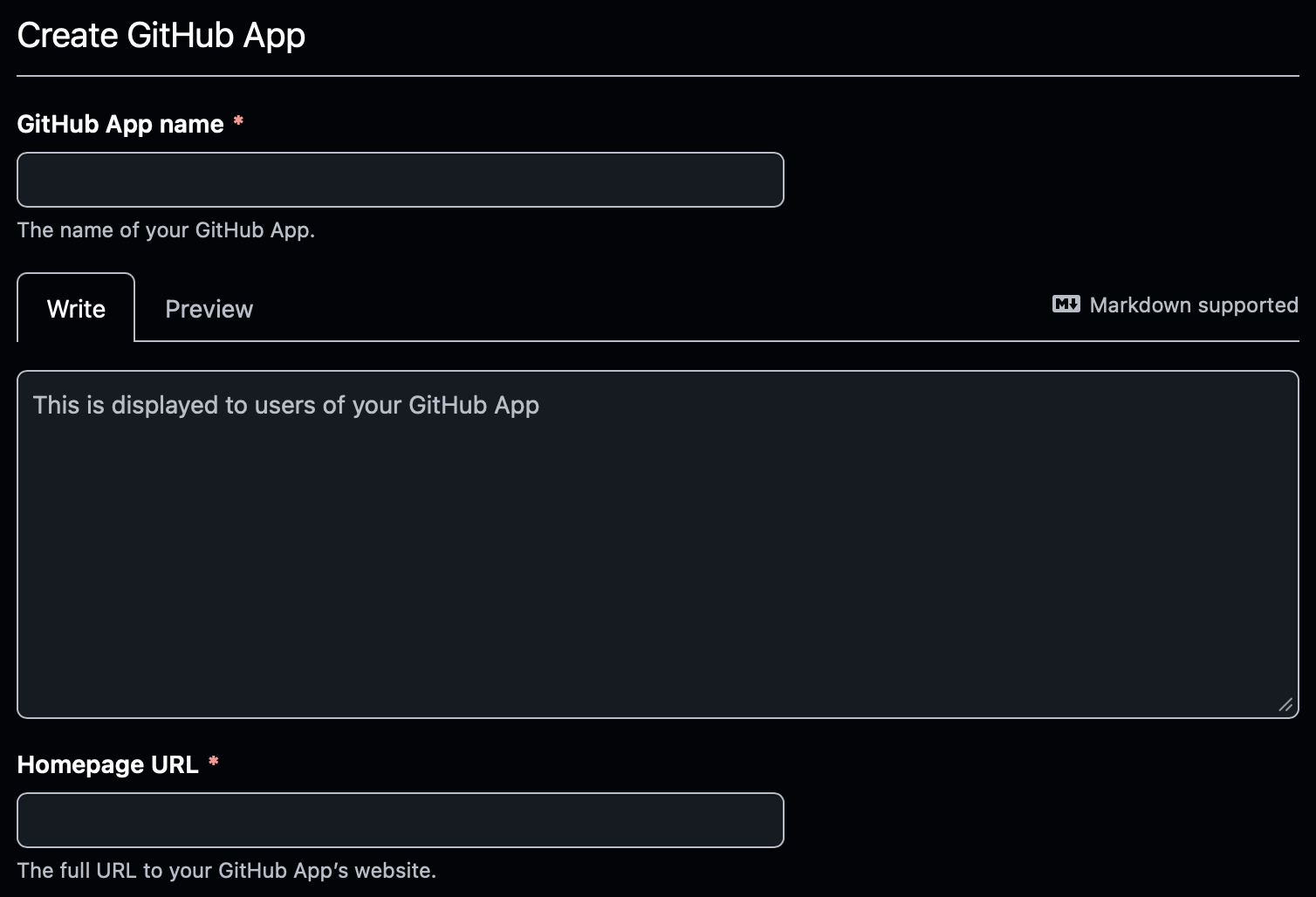
- Webhook URL (if your use case requires webhooks)

- Permissions
- Repository access
- Organization permissions (if applicable)
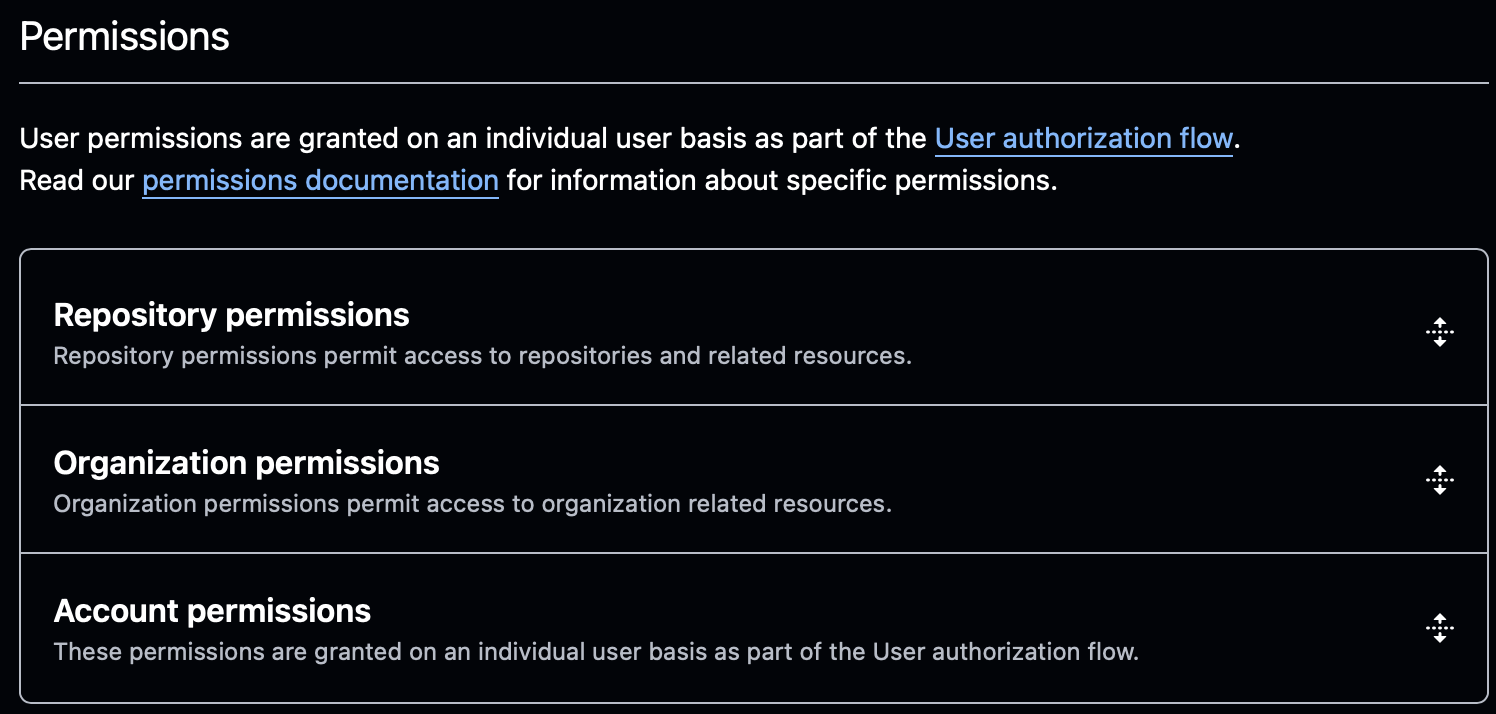
Grant only the permissions required for the AirMDR use case.
2
Retrieve the App ID
After the app is created:Use this value in AirMDR as the App ID.
- Remain on the GitHub App settings page.
- Locate the App ID shown in the app details.
Example
3
Generate the PEM Private Key
- On the GitHub App settings page, scroll to the Private keys section.
- Click on “Generate a private key”.
- A PEM file is downloaded to your local machine.
Store the PEM file securely. You will need to upload or paste its contents into AirMDR.
GitHub allows multiple private keys, which supports safe key rotation.
4
Install the GitHub App
After creating the GitHub App, it must be installed on the target account or organization.
- In the GitHub App settings page, click Install App.
- Select the target:
- Personal account
- Organization
- Choose one of the following:
- All repositories
- Only selected repositories
- Complete the installation.
5
Retrieve the Installation ID
After installation, GitHub creates an Installation ID for that installed app instance.In this example:GitHub also documents that installation authentication requires the installation ID, and that installation IDs can be obtained through installation context or API responses.
UI Method
- Open the GitHub App installation page.
- Look at the browser URL.
6
Provide the Credentials in AirMDR
Done! now you have the required credentials
Share the **App ID, Installation ID **and PEM Key securely to AirMDR.
(or)
Self Configure GitHub App in the AirMDR Integrations Dashboard.
(or)
Self Configure GitHub App in the AirMDR Integrations Dashboard.
UI Path Reference
Skills Provided by this Integration
Data Flow & Security
Data Exchanged
Depending on the permissions granted to the GitHub App, AirMDR may access:- Repository metadata
- Organization metadata
- Security findings
- Pull request context
- Workflow and commit information
- Other GitHub resources within the approved installation scope
Security Controls
GitHub Endpoints
Typical GitHub endpoints include:Authentication Security Model
- AirMDR does not authenticate with a personal access token
- Authentication is scoped to the installed GitHub App
- Effective permissions depend on:
- App permissions
- Installation scope
- Repository selection
Monitoring & Logs
Integration activity can be monitored from the AirMDR integration logs.Sample Log Entry
Recommended Log Levels
Error Handling
Support & Maintenance
- 📧 Contact AirMDR Support through your designated support channel.
- 🔁 Rotate credentials regularly in GitHub App.
- 🔄 Reconnect in AirMDR when secrets are changed.
Configure GitHub App in AirMDR Integrations Dashboard
- Navigate to AirMDR, provide the credentials and click Login.
- Navigate to the AirMDR Integrations Dashboard in the left navigation pane and select Integrations.
- Use the search option, enter the keyword “GitHub”, select the Connections tab, and click Add New Connection.
- Enter an unique name to the Instance (e.g.,
your org name-GitHub App) and brief Description to easily identify the user connection by AirMDR. - Enter the generated App_id, Install_ID, Pem Key and Expiry (optional) in the Authentication Details field params, and click Save.