

Purpose
This guide explains how to integrate the Microsoft Active Directory (AD) integration with AirMDR to query directory information such as users, groups, and organizational units using the LDAP protocol. This integration is typically used for:- User enrichment during investigations
- Identity validation during incident response
- Mapping AD users to security events
- Group membership lookups
Pre-requisites
Before setting up the Microsoft Active Directory integration in AirMDR, ensure the following requirements are met:Active Directory Environment
- A Microsoft Active Directory Domain Services (AD DS) environment must be available.
- At least one Domain Controller (DC) must be reachable from the AirMDR environment.
- LDAP services must be enabled on the Domain Controller.
- If LDAPS (port 636) is used:
- The Domain Controller must have a valid TLS certificate
- The certificate must be issued by a trusted certificate authority
-
TLS must be enabled on the LDAP service
LDAPS is recommended to ensure encrypted communication between AirMDR and Active Directory.
Authentication Method
AirMDR authenticates to Active Directory using a service account and LDAP bind using username and passwordRequired Parameters
Supported Versions
The AirMDR Active Directory integration supports:- Microsoft Active Directory Domain Services (AD DS)
- Windows Server 2012 / 2016 / 2019 / 2022
- LDAP / LDAPS directory services
-
On-premises Active Directory deployments
Azure AD (Entra ID) is not supported through LDAP. Use the Microsoft Graph integration instead.
Generate Microsoft Active Directory (AD) LDAP server details, Service account credentials and Base Distinguished Name (DN)
1
Identify the LDAP Server (Domain Controller)
- Log in to the Domain Controller.
- Open Server Manager.
- Navigate to Tools → Active Directory Users and Computers
-
In the left navigation panel, identify your Domain Controller hostname.
Example: dc01.company.local
2
Determine the LDAP Port
Active Directory supports two LDAP ports:
To verify:
- Open Command Prompt on the domain controller.
-
Run:
Example:This returns the active domain controller and confirms LDAP services.AirMDR recommends LDAPS (port 636) for encrypted connections.
3
Create a Service Account
A dedicated service account should be created for the integration.
- Navigate to open Server Manager → Tools → Active Directory Users and Computers.
-
Click on “Create a new user in the current container”.

-
Enter the required Field Values.
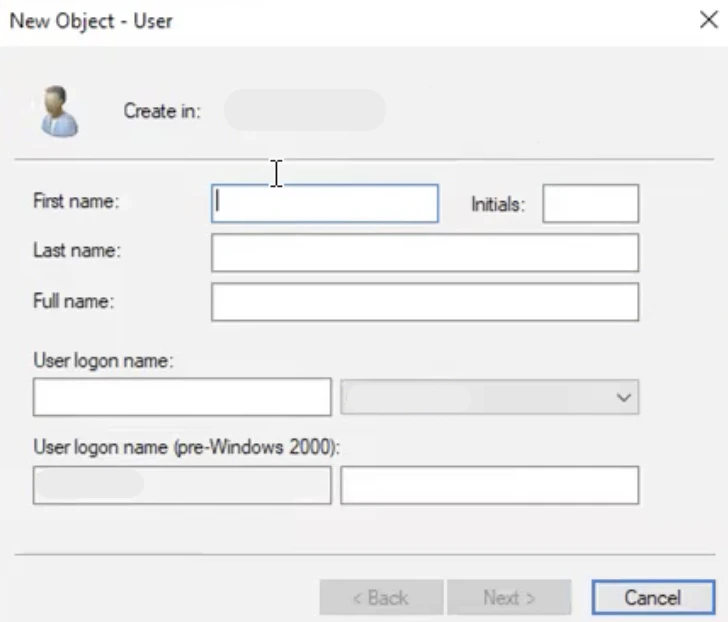
- Click Next.
-
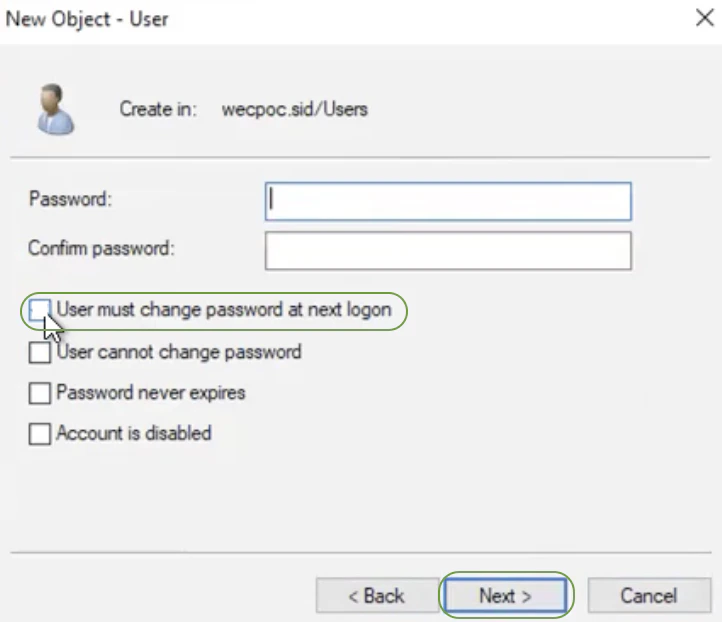
Configure password settings:
- Set a secure password
- Uncheck User must change password at next logon
- Enable Password never expires (recommended for service accounts)
-
Click Finish.
 The service account will be used as the LDAP bind user.
4
Retrieve the Service Account Username
The LDAP bind username can be expressed in either format:User Principal Name (UPN): airmdr-service@company.localorDomain format: COMPANY\airmdr-service
Either format is accepted by most LDAP clients.
5
Determine the Base Distinguished Name (Base DN)
The Base DN defines where LDAP searches begin in the directory tree.To obtain it:
- Navigate to open Server Manager → Tools → Active Directory Users and Computers.
- Right-click the domain root.
- Select Properties
- Go to the Attribute Editor tab.
-
Locate the attribute: distinguishedName
Example value: DC=company,DC=local
Example Configuration:
Data Flow & Security
Data Retrieved
The integration typically queries:- User objects
- Group memberships
- Email addresses
- Security identifiers (SID)
- Organizational unit membership
Encryption
Network Ports
Skills Provided by this Integration
Configure Active Directory in AirMDR Integrations Dashboard
- Navigate to AirMDR, provide the credentials and click Login.
- Navigate to the AirMDR Integrations Dashboard in the left navigation pane and select Integrations.
- Use the search option, enter the keyword “Active Directory”, select the Connections tab, and click + Add New Connection.
- Enter an unique name to the Instance (e.g.,
your org name-Active Directory) and brief Description to easily identify the user connection by AirMDR. - Enter the generated LDAP Server details, Service Account Credentials, and base Distinguished Name (DN) in the Authentication Details field params, and click Save.
Error Handling
Support & Maintenance
- 📧 Contact AirMDR Support through your designated support channel.
- 🔁 Rotate credentials regularly in Microsoft Active Directory (AD).
- 🔄 If a domain controller changes:
- Update the LDAP Server hostname in the integration configuration.