

Purpose
The BeyondTrust integration enables AirMDR to connect with BeyondTrust APIs and retrieve relevant access, session, audit, and security event information. This helps SOC teams investigate privileged access activity, correlate incidents, and automate response actions from AirMDR playbooks.Supported Versions
Menu names may vary slightly depending on your BeyondTrust deployment version.
Authentication
AirMDR uses OAuth 2.0 authentication to securely connect to BeyondTrust APIs.Role-Based Access Considerations
- Create a dedicated API account specifically for AirMDR.
- Follow the Principle of Least Privilege.
- Avoid using personal administrator accounts.
- Periodically rotate OAuth credentials.
- Store secrets securely.
BeyondTrust Integration Setup Steps
1
Log in to BeyondTrust Admin Console
- Open a supported browser.
- Go to the BeyondTrust admin URL:
https://<your-beyondtrust-domain>/login - Sign in with an administrator account.
Admin privileges are required to create or edit API accounts.
2
Identify the Base URL
- In the browser address bar, copy the BeyondTrust domain.
- Remove
/loginfrom the URL. - Use the remaining value as the Base URL.
Example:
Login URL:https://company.beyondtrustcloud.com/login
Base URL:https://company.beyondtrustcloud.comUse this Base URL while configuring the BeyondTrust integration in AirMDR.
3
Open API Configuration
- From the left navigation menu, select Management.
- Open the API Configuration tab.
- Confirm that API access is enabled.
For Remote Support or Privileged Remote Access deployments, ensure the required API options are enabled based on the AirMDR use case.If API access is disabled, AirMDR cannot authenticate or retrieve data from BeyondTrust.
4
Create a New API Account
- In API Configuration, click Add or Create New API Account.
- Enter a clear account name. For Example:
AirMDR Integration API Account. - Enable the API account.
- Select the required API permissions.
- Avoid selecting full access unless it is explicitly required and approved.
- Click Save.
5
Copy the OAuth Client ID
- Open the newly created API account.
- Locate the OAuth Client ID field.
- Copy the value.
- Store it securely for AirMDR configuration.
Example:
OAuth Client ID:
<generated-client-id>
6
Generate the OAuth Client Secret
- In the same API account screen, click Generate New Client Secret.
- Copy the generated secret immediately.
- Store the secret in an approved password vault or secret manager.
- Click Save.
Integration Credential Requirements
Use the following values in the AirMDR integration configuration screen:Where to Obtain These Credentials
The OAuth Client Secret may only be displayed once when generated. Store it securely in a password vault or secret management solution before proceeding with the AirMDR configuration.
Validate Connectivity
Use the following command to verify connectivity and token authentication:Sample cURL Request
Sample cURL Request
Sample Response
Sample Response
“access_token”: “eyJhbGciOiJIUzI1NiIs…”,“token_type”: “Bearer”,“expires_in”: 3600
Configure BeyondTrust in AirMDR Integrations Dashboard
- Navigate to AirMDR, provide the credentials and click Login
- Navigate to the AirMDR Integrations Dashboard in the left navigation pane and select Integrations.
- Use the search option, enter the keyword “Beyond Trust”, select the Connections tab, and click + Create button.
- Enter an unique name to the Instance (e.g.,
your org name-BeyondTrust) to easily identify the user connection by AirMDR. - Enter the application credentials like Instance URL and Token in the Authentication Details field params, and click Save.
Skills provided by this Integration
Additional Information
Architecture Overview Diagram
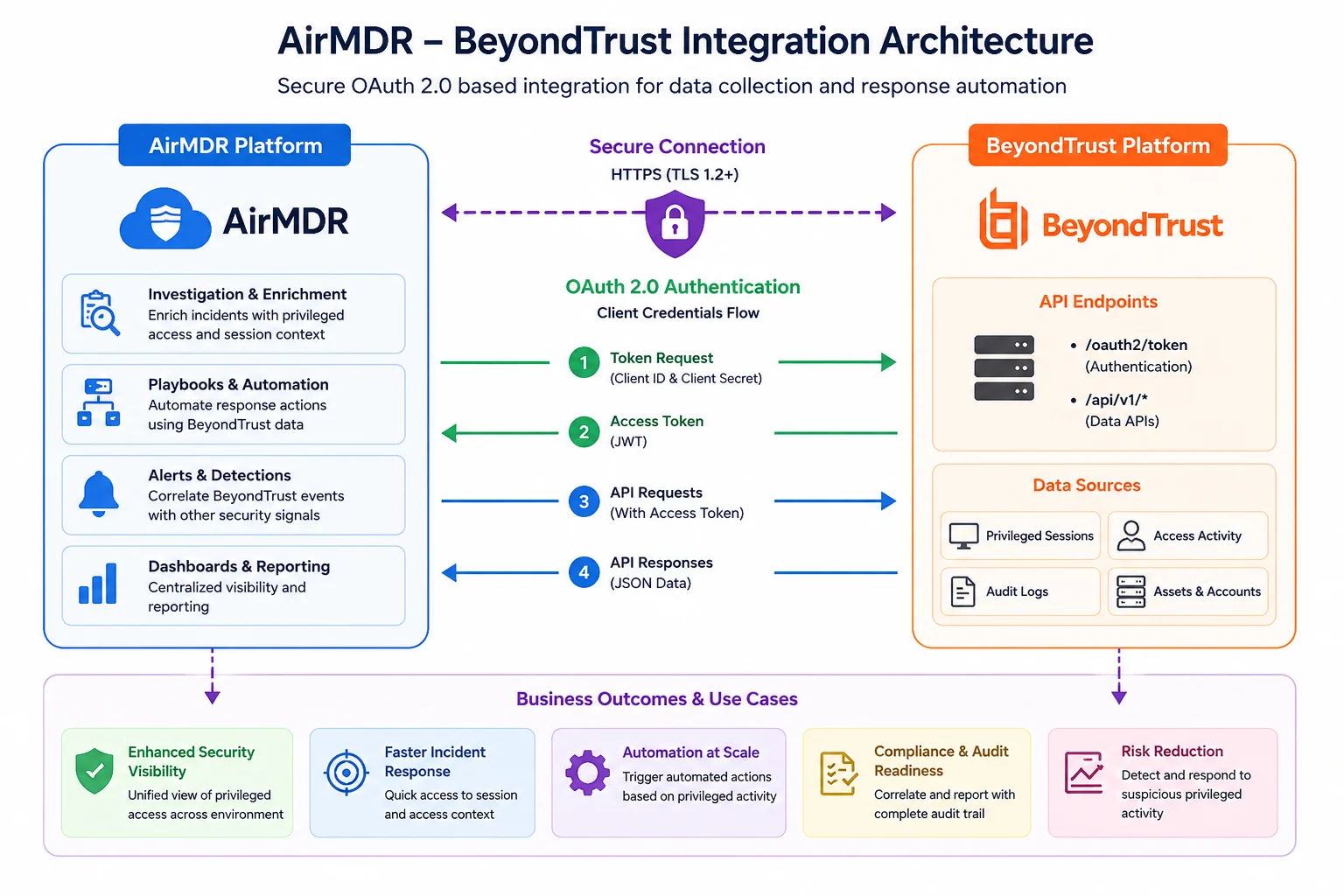
🧰 Error Handling
🧰 Error Handling
🔄 Monitoring & Logs
🔄 Monitoring & Logs
🛑 Security & Access Best Practices
🛑 Security & Access Best Practices
- Use a dedicated API account for AirMDR.
- Apply least-privilege permissions.
- Rotate OAuth credentials regularly.
- Store credentials in an approved secret manager.
- Restrict access to integration administrators.
- Monitor API usage and audit logs.
- Immediately revoke compromised credentials.
- Review permissions quarterly.
Security Recommendation: Never share OAuth Client Secrets through email, chat applications, or unsecured documentation. Use an approved enterprise secret management solution.
👉 Support & Maintenance
👉 Support & Maintenance
- 📧 Contact AirMDR Support through your designated support channel for:
- API account issues
- Tenant configuration problems
- Authentication errors
- 🔁 Rotate credentials regularly.
- Rotate OAuth Client Secrets.
- Review API account permissions.
- Disable unused API accounts.
- Revalidate connectivity after BeyondTrust upgrades.
- Monitor integration logs for failures.
- 🔄 Reconnect in AirMDR when secrets are changed.