

Purpose
Purpose
The integration gives AirMDR access to Nightfall security data for investigation and automation, according to the Nightfall products enabled in your tenant and the skills available in AirMDR. Nightfall provides APIs for data loss prevention (DLP) violations, exfiltration events, and posture events. The exact actions available in AirMDR depend on its installed integration capabilities
Supported Versions
Supported Versions
Nightfall states that its Native SaaS Apps DLP API retrieves violations from supported, connected SaaS apps. It does notretrieve violations generated by apps scanned through the Developer Platform; those use a different API family.
Authentication
Authentication
AirMDR uses a Nightfall API key, entered in its
Access considerations
Api_key field. Nightfall API requests use the header Authorization: Bearer <API_KEY> over HTTPS. The AirMDR form does not request an OAuth authorization code or a separate client secret.Access considerations
- Nightfall lists API Keys among the System Administrator permissions. Use an authorized administrator to create the key, then review who can manage it.
- Treat the key as a secret. Nightfall shows its full value at creation; after the creation window closes, it cannot be retrieved from the key list.
- Check that your Nightfall subscription and account have access to the product data you expect to use. Key creation by itself does not create app connections, policies, or violations.
- Nightfall’s role documentation describes predefined roles and states that custom roles cannot currently be created. Do not assume you can create a dedicated custom API role in the Nightfall UI.
Pre-requisites
An active Nightfall tenant at app.nightfall.ai and System Administrator role permission to create API keys.Relevant Nightfall apps and policies configured if you expect DLP violations from those apps.Access to the AirMDR organization where you will create the connection and Network access from AirMDR, or its selected Remote Agent, to the Nightfall API over HTTPS.
Setup Steps
1
Generate an API key in Nightfall
- Sign in to the Nightfall dashboard with an account authorized to manage API keys.
- Open Developer Platform → API Keys.
- Select Generate New Key.
- Enter a name that identifies its use, such as
AirMDR Integration, and create the key. - Copy the complete key immediately and keep it in an approved secret store until you enter it in AirMDR. The complete value is displayed only at creation.
Nightfall AI Credential Reference Table
Nightfall AI Credential Reference Table
Validate the key with a read-only API request (Before you configure API in AirMDR)
Validate the key with a read-only API request (Before you configure API in AirMDR)
If you need to distinguish a Nightfall authentication problem from an AirMDR configuration problem, run this optional check from an approved workstation. It requests at most one Native SaaS App violation and displays only the HTTP status, so violation details are not printed.A 200 response confirms that Nightfall accepted this request. It does not establish that every Nightfall product or AirMDR skill is available. The endpoint, Bearer authentication,
limit parameter, and documented 401 and 429 responses come from Nightfall’s Native SaaS Apps API reference.Configure Nightfall AI in AirMDR Integrations Dashboard
- Navigate to AirMDR, provide the credentials and click Login
- Navigate to the AirMDR Integrations Dashboard in the left navigation pane and select ADMIN → Integrations.
- Use the search option, enter the keyword “Nightfall AI”, select the Connections tab, and click + New Connection button.
- Use the following values in the AirMDR integration configuration screen:
Expand Advanced Configuration if required. (Optional)
- Click Save.
Skills provided by this Integration
The Netskope integration provides investigation, device and application assessment, policy review, and event retrieval skills to help security teams investigate activity, assess potential impact, and review Netskope security information.DLP Violations and Findings
DLP Violations and Findings
Use these skills to investigate sensitive-data violations, examine findings, record verdicts, and perform remediation actions.
Nightfall’s DLP APIs support retrieving violations, findings, and activity records and applying actions to violations. The action must be present in the violation’s
possibleActions value because supported remediation differs by connected application.Actions such as redaction, quarantine, deletion, link restriction, or access removal can modify customer content or sharing permissions. Require user confirmation before executing these actions.
Exfiltration, Posture, and Activity
Exfiltration, Posture, and Activity
Use these skills to investigate data movement, permission exposure, risky configuration changes, and activity associated with users or assets.
The activity skill uses the applicable actor or asset endpoint based on the selected event source:
Nightfall requires both the start and end of the activity time range. The AirMDR skill description indicates that it uses a seven-day duration when explicit times are not provided.
AI Governance and Endpoint Visibility
AI Governance and Endpoint Visibility
Use these skills to identify managed endpoint devices and AI tools discovered across the organization.This endpoint returns devices where the Nightfall endpoint agent is installed.
Nightfall documents the AI governance inventory tools as read-only. These tools support inventory views for MCP servers, plugins, hooks, IDE extensions, and the devices using them. The endpoint-device skill uses:
The Nightfall endpoint agent reported by this skill is different from the AirMDR Remote Agent configured when creating the integration connection.
MCP Discovery and Passthrough
MCP Discovery and Passthrough
Use these skills to inspect or directly call tools exposed by the Nightfall MCP server.The Nightfall MCP server skill cannot be permanently classified as read-only or write because its behavior depends on the selected MCP tool.
The MCP endpoint is:
Nightfall’s MCP catalog identifies investigation tools as read-only and remediation or policy-scope tools as state-changing. Nightfall also states that tool safety annotations are advisory and that an enabled API key is not restricted to a subset of MCP tools.
Additional Information
🛑 Security & Access Best Practices
🛑 Security & Access Best Practices
✅ Do
- Create a dedicated Nightfall API key for the AirMDR integration.
- Use a descriptive key name, such as
AirMDR-Nightfall-Production. - Store the API key only in the AirMDR credential field or an approved secrets manager.
- Restrict access to the AirMDR connection to authorized administrators and security personnel.
- Review the selected Nightfall MCP tool before running the Nightfall MCP server skill.
- Require confirmation before executing remediation or policy-changing actions.
- Check a violation’s
possibleActionsvalue before applying a remediation action. - Use read-only skills for investigation before executing a state-changing skill.
- Rotate the API key according to your organization’s credential-rotation policy.
- Update the Expiry field in AirMDR when the key has an expiration or planned rotation date.
- Test a replacement key in AirMDR before deleting the existing key.
- Delete and replace the key immediately if it is exposed or suspected to be compromised.
- Allow outbound HTTPS access to
api.nightfall.aionly from the approved AirMDR execution environment or Remote Agent. - Review Nightfall and AirMDR activity records regularly for unexpected integration actions.
- Do not share the API key through email, chat, support tickets, or documentation.
- Do not include the API key in screenshots, application logs, source code, scripts, or Git repositories.
- Do not reuse the AirMDR integration key for unrelated applications or automation.
- Do not add the
Bearerprefix when entering the key in AirMDR’s Api_key field. - Do not assume that a Nightfall API key is limited to read-only operations.
- Do not run the Nightfall MCP server skill without checking whether the selected tool changes data.
- Do not perform delete, quarantine, redact, restrict-access, or policy-scope actions without reviewing their impact.
- Do not repeat a notification or ticket-creation action automatically; repeated calls can send another notification or create another ticket.
- Do not assume that AirMDR’s Expiry field changes or renews the Nightfall key.
- Do not delete the old Nightfall key until the replacement connection has been tested successfully.
- Do not select an AirMDR Remote Agent unless it is approved, active, and able to reach the Nightfall API.
- Do not confuse the AirMDR Remote Agent with the Nightfall endpoint agent.
- Do not expose sensitive violation findings in unrestricted logs or troubleshooting records.
- Do not treat an empty API result as an authentication failure without checking the policy scope, time range, and available Nightfall events.
👉 Support & Maintenance
👉 Support & Maintenance
- 📧 Contact AirMDR Support through your designated support channel.
- 🔁 Rotate credentials regularly. Recommended cadence: As per internal security policy
- 🔄 Reconnect in AirMDR immediately when API Keys are changed.
Revoke the previous credential after confirming all consumers have migrated.
🛑 Data Flow & Security
🛑 Data Flow & Security
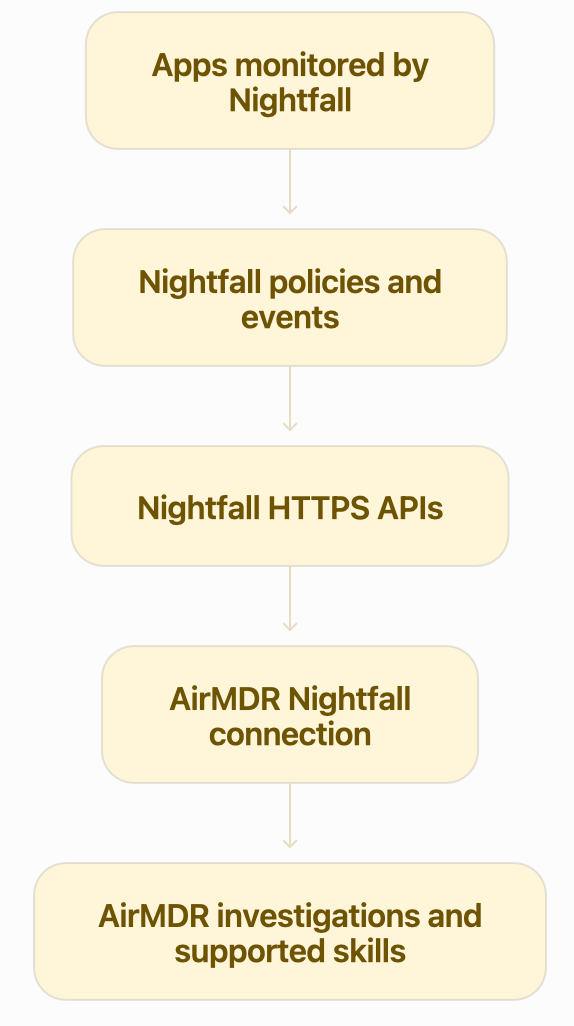
The diagram describes the expected integration flow; the records and actions AirMDR uses depend on its Nightfall skills. Nightfall’s DLP API can provide violation records, including related metadata and findings through documented endpoints. Findings may contain sensitive information, so restrict access to both systems accordingly.
🔄 Monitoring & Logs
🔄 Monitoring & Logs
- In AirMDR: Review the connection status and the execution results for Nightfall skills in your AirMDR environment. Record the instance name, operation, time, and HTTP status when investigating a failure. The exact log location and field names depend on your AirMDR deployment.
- In Nightfall: Review the dashboard for the expected events and open an event’s Event logs to see its activity history. The API also documents an activity feed for an individual violation. Event activity is useful for checking whether data exists; it is not a replacement for AirMDR connection logs.
- Recommended application log levels: Use
INFOfor successful connection or skill execution,WARNfor recoverable authentication or rate-limit problems, andERRORfor failed executions requiring investigation. Omit API keys and sensitive findings from logs.
🧰 Error Handling
🧰 Error Handling