

Purpose
Connect Tines with AirMDR to securely execute supported automation and orchestration operations using the Tines REST API.Tines does not generate a separate Tenant Key. In AirMDR, the required value is labelled Tenant Domain. Enter the base URL of your Tines tenant, such as
https://company.tines.com.Supported Versions
For a self-hosted Tines deployment, confirm that its installed version supports the API endpoints required by the AirMDR skills.
Tines API endpoints can use
/api/v1/ or /api/v2/, depending on the resource being accessed. AirMDR automatically uses the endpoint required by each supported integration skill.Authentication
The integration requires the following values:Tenant Domain format
Tenant Domain format
Enter the complete base URL: https://company.tines.comFor a self-hosted environment: https://tines.example.comDo not enter: https://login.tines.com, or https://company.tines.com/api/v1/ or company.tines.com/team/123/stories
Pre-requisites
Users must have Administrator access to the Tines UI with sufficient privileges to create an API key or approval from a Tines tenant owner.Permission to create and access the Tines API keys settings.
A tenant owner can restrict API-key creation. When this restriction is enabled, only tenant owners and users assigned the
API_KEY_CREATE tenant permission can create API keys.Setup Steps
1
Identify the Tines tenant domain
- Sign in to the Tines tenant that you want to connect with AirMDR.
- Confirm that you are in the correct tenant.
- In the browser address bar, copy only the base URL. Example: https://company.tines.com
- Save this value securely. You will enter it in the AirMDR Tenant Domain field.
If your organisation has multiple Tines tenants, verify that you copy the domain from the tenant containing the teams, stories, cases, or other resources required by AirMDR.
2
Generate an API key in Tines
- Sign in to your Tines tenant.
- Open Settings from the Tines navigation menu or user menu.
- Under Access & security, select API keys.
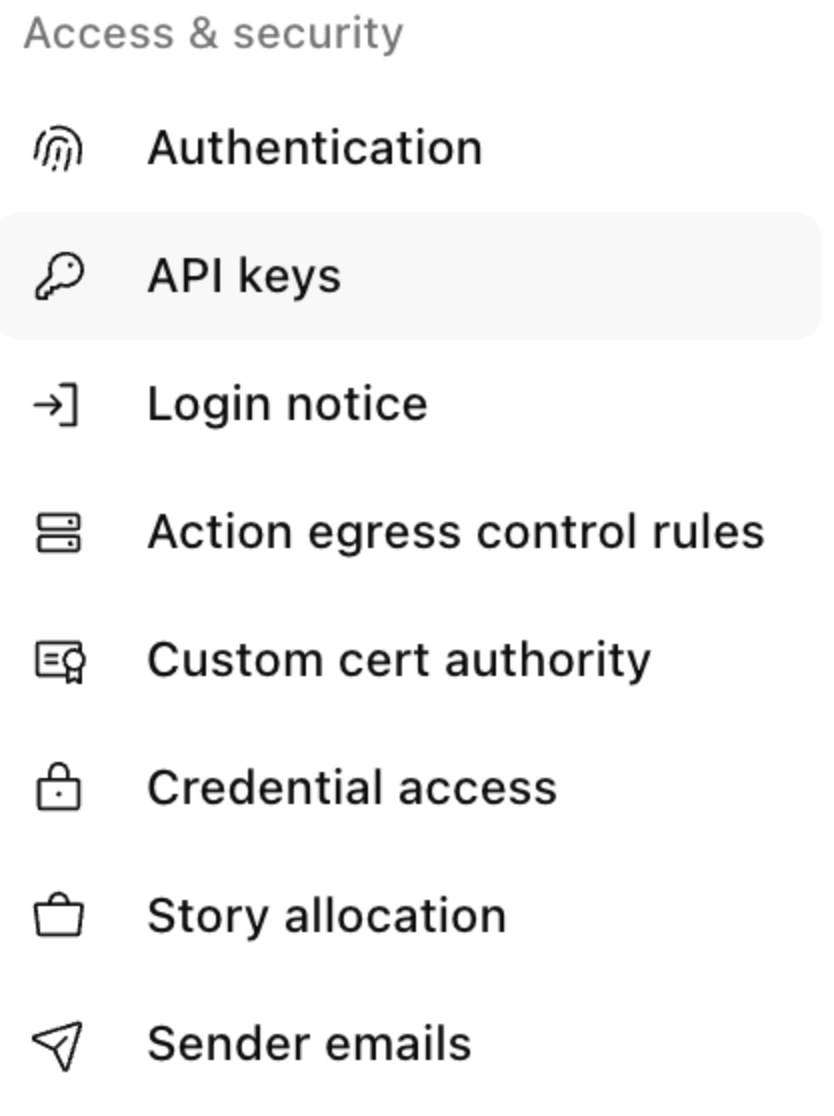
- Select New API key or Create API key.
- Select the appropriate API-key type:
- Select Team API key when AirMDR only needs access to a specific team.
- Select Service API key when AirMDR requires selected tenant-level permissions.
- Use a Personal API key only for temporary testing.
-
Do not select Tenant owner API key unless full tenant access is necessary.
Prefer a Team API key or restricted Service API key and grant only the access required by the enabled AirMDR skills.
- Enter a descriptive name, for example:
AirMDR Integration - If prompted, enter a description:
API key used by AirMDR to access approved Tines resources. - For a Team API key, select the Tines team and the minimum role required by the enabled AirMDR skills.
- For a Service API key, select only the required tenant permissions.
- Select Create.
- Copy the generated API key and store it in an approved secrets-management system.
- Store and share the token securely with AirMDR.
Tines Credential Reference Table
Tines does not generate a separate Tenant Key. Enter the Tines tenant’s base URL in the AirMDR Tenant Domain field.
Validate Connectivity
Use the following request to confirm that the tenant domain and API key can access the Tines Teams API:Sample Request
Sample Request
Sample Response
Sample Response
Sample Successful Response:
A successful request returns the teams accessible to the API key. The
/api/v1/teams endpoint and bearer-token format are documented by Tines.Do not run the command on shared systems or save the API key in shell history. Use environment variables or an approved secret manager where possible.
Configure Tines in AirMDR Integrations Dashboard
- Navigate to AirMDR, provide the credentials and click Login
- Navigate to the AirMDR Integrations Dashboard in the left navigation pane and select ADMIN → Integrations.
- Use the search option, enter the keyword “Tines”, select the Connections tab, and click + New Connection button.
- Use the following values in the AirMDR integration configuration screen:
Expand Advanced Configuration if required. (Optional)
- In Remote Agent, select an AirMDR Remote Agent only when the Tines tenant is self-hosted, privately accessible, or must be reached through an approved private network route.
- In Expiry, select the date on which AirMDR should treat the stored connection credentials as expired, according to your organisation’s credential-rotation policy.
The AirMDR Expiry setting is a connection-management control. It does not automatically configure or rotate the API key in Tines.
- Click Save.
Skills provided by this Integration
Artifact Management
Artifact Management
Story Management
Story Management
Case Management
Case Management
Resource Management
Resource Management
Record Management
Record Management
Event Management
Event Management
Workflow Execution
Workflow Execution
Case Comments
Case Comments
Case Notes
Case Notes
Team Management
Team Management
Additional Information
🧰 Error Handling
🧰 Error Handling
🔄 Monitoring & Logs
🔄 Monitoring & Logs
AirMDR monitoring
Use the AirMDR application to review:- Connection status.
- Skill execution status.
- Execution start and completion times.
- API error codes and error messages.
- Remote Agent connectivity, when applicable.
The exact log location and displayed fields can vary according to the AirMDR module from which the skill was executed.
Tines audit logs
Tines automatically records changes made through both its UI and API. Tenant administrators can access audit logs through the Tines UI or API and forward them to a SIEM or log-analysis platform. API-key creation, editing, and deletion are logged as authentication-token operations. Sensitive credential values are not included in Tines audit logs.
Relevant audit operations include:AuthenticationTokenCreationAuthenticationTokenEditAuthenticationTokenDeletion
Sample Tines audit log{"created_at": "2026-08-14T10:30:00Z","request_ip": "192.0.2.10","tenant_id": 9,"user_email": "airmdr-service@example.com","user_id": 123,"user_name": "AirMDR Integration","operation_name": "AuthenticationTokenCreation"}This sample illustrates the documented Tines audit-log structure. Actual values depend on the tenant and operation.Recommended monitoring
- Monitor repeated
401,404,429, and5xxresponses. - Review API-key creation, modification, and deletion events.
- Alert on unexpected activity from the AirMDR service account.
- Review the API key’s team roles and tenant permissions periodically.
- Monitor the AirMDR connection expiry date and planned key-rotation date.
- Monitor repeated
🛑 Security & Access Best Practices
🛑 Security & Access Best Practices
✅ Do
- Use a dedicated Team or Service API key for AirMDR.
- Follow the principle of least privilege.
- Restrict a Team API key to the team AirMDR must access.
- Store the API key only in approved secret-storage systems.
- Rotate the key periodically and after any suspected exposure.
- Set an AirMDR connection expiry date aligned with the rotation policy.
- Review Tines audit logs for unexpected API-key activity.
- Use HTTPS and validate certificates.
- Use a Remote Agent for privately accessible self-hosted environments when required.
- Delete unused or superseded keys promptly.
❌ Don’t
- Do not use a Tenant owner API key unless full tenant access is explicitly required.
- Do not use a personal API key for a long-running production integration.
- Do not enter
login.tines.comas the tenant domain. - Do not include
/api/v1,/api/v2, team paths, or story paths in the Tenant Domain field. - Do not store API keys in documentation, source control, or plain-text files.
- Do not send API keys through email, chat, or support tickets.
- Do not reuse the AirMDR API key across unrelated integrations.
- Do not log authentication headers or API-key values.
👉 Support & Maintenance
👉 Support & Maintenance
- 📧 Contact AirMDR Support through your designated support channel.
- 🔁 Rotate credentials regularly. Recommended cadence: Every 90 days or as per internal security policy
- 🔄 Reconnect in AirMDR immediately when secrets are changed.
🛑 Data Flow & Security
🛑 Data Flow & Security
Data flow
The exact information exchanged depends on the AirMDR skill being executed and the permissions assigned to the Tines API key.
Authentication flow
- AirMDR sends an HTTPS request to the configured Tines tenant domain.
- The Tines API key is supplied in the request authentication header.
- Tines validates the key and its associated user, service account, team role, or tenant permissions.
- Tines processes the request only when the key has access to the requested resource.
- The API response is returned to AirMDR over HTTPS.
Encryption
- Tines requires authenticated API communication over HTTPS.
- Tines states that customer personal data is encrypted in transit using at least TLS 1.2.
- Tines states that customer personal data stored at rest is encrypted using AES-256.
- AirMDR should store the API key as a secret and must not expose it in skill inputs, logs, screenshots, or exported troubleshooting data.
Ports and endpoints
No inbound connection from Tines is required for standard AirMDR-initiated API requests. If a supported workflow uses Tines webhooks, configure and secure the required inbound webhook separately