

Purpose
Supported Versions
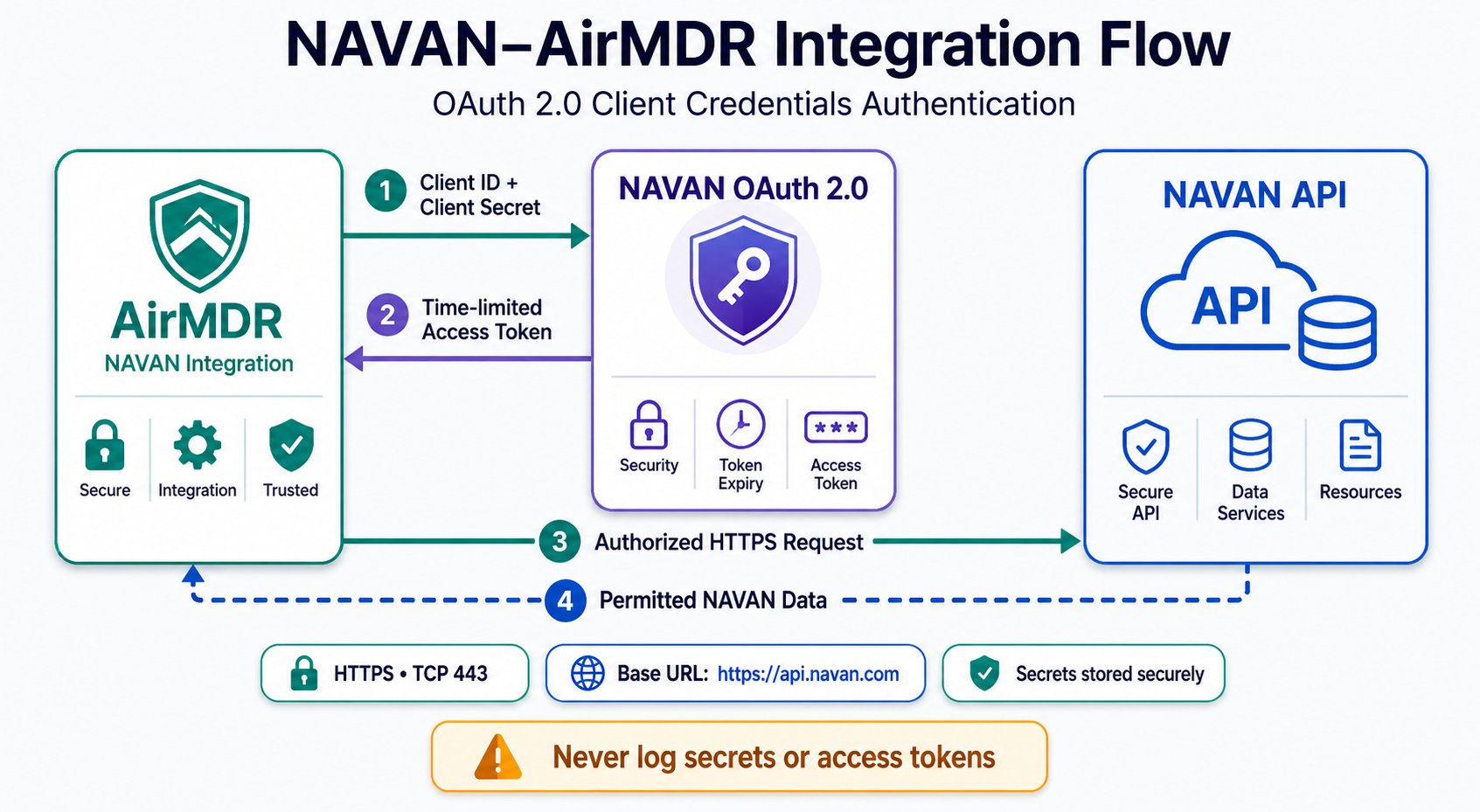
Authentication Method
Pre-requisites
Users must have Administrator access to the NAVAN UI with sufficient privileges to access to Travel admin → Settings → Integrations.Required NAVAN API entitlement enabled for the organization.
Confirm whether AirMDR requires NAVAN Booking, Expense, or another API before generating the credentials.
Setup Steps
1
Sign in to NAVAN
- Open the NAVAN application.
- Sign in using an administrator account.
- Select Admin.
- Open the Travel admin tab.
If Admin or Travel admin is unavailable, contact your NAVAN administrator.
2
Open the Integrations settings
- From Travel admin, select Settings.
- Select Integrations.
- Locate the NAVAN API Credentials section.
- Navigate to Admin → Travel admin → Settings → Integrations.
3
Create API credentials
- In the NAVAN API Credentials section, click Create new.
- In Description, enter a recognizable credential name.
Example:AirMDR NAVAN Integration - If the Allowed IP Addresses field is displayed, enter the approved AirMDR public egress IP addresses or subnet masks.
- Review the entered information.
- Click Create.
4
Copy the Client ID and Client Secret
After the credentials are created, NAVAN displays a confirmation window.
- Copy the value displayed as Client ID.
- Copy the value displayed as Secret Key.
- Store the Secret Key in an approved secrets manager.
- If available, select Copy All to copy all credential details.
- Verify that the Client ID and Secret Key were saved successfully.
- Click Done only after saving the Secret Key.
Use the NAVAN values in AirMDR as follows:
5
Obtain the Base URL
- The documented production Base URL for the NAVAN TMC/Booking API is https://api.navan.com.
- The Base URL is not generated in the credential confirmation window.
- Before entering it in AirMDR, verify that:
- The URL begins with
https://. - The URL does not have a trailing slash.
- The URL matches the credential environment.
- Any sandbox, regional, or customer-specific URL has been confirmed by NAVAN.
- The URL begins with
Validate Connectivity
This validation is optional and should be performed only from an approved administrative workstation.Sample Request & Response – /api/parse
Sample Request & Response – /api/parse
Request:Sample successful response:A successful response contains an access token and related token metadata.
Configure NAVAN in AirMDR Integrations Dashboard
- Navigate to AirMDR, provide the credentials and click Login
- Navigate to the AirMDR Integrations Dashboard in the left navigation pane and select Integrations.
- Use the search option, enter the keyword “Navan”, select the Connections tab, and click + Create button.
- Enter an unique name to the Instance (e.g.,
your org name-Navan) to easily identify the user connection by AirMDR. - Enter the application credentials like Client ID and Client Secret in the Authentication Details field params, and click Save.
Skills provided by this Integration
Additional Information
🧰 Error Handling
🧰 Error Handling
Recovery procedure
- Record the timestamp, endpoint, HTTP status, and sanitized request ID.
- Confirm that the Base URL matches the credential environment.
- Check the Client ID for leading or trailing spaces.
- Re-enter the Client Secret from the approved secrets manager.
- Verify the IP allowlist.
- Confirm API access and permissions with NAVAN.
- Retry temporary
429and5xxerrors with bounded backoff. - Rotate the Client Secret if credential exposure or loss is suspected.
🔄 Monitoring & Logs
🔄 Monitoring & Logs
Monitor authentication, connection health, API responses, retries, and synchronization results.Recommended monitoring eventsRecommended log levels
- Connection-test success or failure
- Token request outcome
- API endpoint and HTTP method
- HTTP response status
- Request or correlation ID
- Execution start and completion time
- Execution duration
- Number of records processed
- Retry count
- Credential rotation
- Credential revocation
- Configuration changes
🛑 Security & Access Best Practices
🛑 Security & Access Best Practices
✅ Do
- Create dedicated credentials for AirMDR.
- Apply least-privilege access.
- Store credentials in an approved secrets manager.
- Use verified IP allowlisting where supported.
- Restrict credential management to authorized administrators.
- Use HTTPS over TCP port 443.
- Redact secrets and sensitive responses from logs.
- Rotate and revoke credentials through an approved process.
- Monitor repeated authentication failures.
- Document the credential owner and purpose.
❌ Avoid
- Sharing credentials through email, chat, or support tickets.
- Reusing credentials assigned to another application.
- Hard-coding secrets in scripts or configuration files.
- Committing credentials to source control.
- Assuming an unverified Base URL or API entitlement.
- Logging complete Authorization headers.
- Disabling TLS certificate verification.
- Using unrestricted access when verified IP allowlisting is available.
👉 Support & Maintenance
👉 Support & Maintenance
- 📧 Contact AirMDR Support through your designated support channel.
- 🔁 Rotate credentials regularly. Recommended cadence: Every 90 days or as per internal security policy
- 🔄 Reconnect in AirMDR when secrets are changed.
🛑 Data Flow & Security
🛑 Data Flow & Security
Data exchangedDepending on the enabled NAVAN API, the integration may process:
- Booking identifiers
- Travel itinerary information
- Traveler information
- Booking status
- Origin and destination
- Travel dates
- Expense or transaction information, if separately enabled
- API execution and synchronization metadata
Security controls
- Use HTTPS for all API traffic.
- Store the Client Secret in an approved secrets manager.
- Restrict credential access using role-based permissions.
- Redact secrets and access tokens from logs.
- Apply organizational retention requirements to retrieved NAVAN data.
- Use IP allowlisting where supported.
- Review access periodically.
Confirm NAVAN’s applicable at-rest encryption and compliance controls using your organization’s NAVAN security or contractual documentation.