

Purpose
Purpose
Adaptive Security provides programmatic access to resources such as users, groups, training campaigns, and phishing simulations for reporting and security workflows.AirMDR authenticates to Adaptive Security by using an API token generated from the Adaptive Security Admin Portal. The token is supplied as a Bearer token when AirMDR sends API requests.
Supported Versions
Supported Versions
Adaptive Security is a cloud service rather than a locally installed product with traditional software-version requirements. Current published API resources use the
v2 endpoint family; for example, user information is available through /v2/users.Always refer to the current Adaptive Security API documentation when validating individual endpoint availability because API resources can change independently of the AirMDR integration.
Authentication
Authentication
Adaptive Security uses token-based authentication for its Public API. Requests include the generated token in the HTTP Credential Reference
Authorization header using the Bearer authentication scheme. APIs.ioThe actual token must be entered into AirMDR without adding
Bearer manually unless the AirMDR field specifically requests it. AirMDR handles the authorization header when making requests.Token lifecycleThe AirMDR connection configuration indicates that Adaptive Security tokens:- can have an expiration date selected when they are created;
- can be revoked;
- become unusable after expiration; and
- cause authentication requests to fail when an expired or invalid token remains configured.
Role-based access considerations
Role-based access considerations
Adaptive Security states that access to its Public API is governed by role-based access controls (RBAC).Use an account that is permitted to generate API credentials and access the resources required by the integration.
Adaptive Security’s publicly available documentation does not currently identify a specific built-in role name that must be assigned for AirMDR. Avoid documenting an unverified role such as “API Administrator.” Instead, ensure that the account can access Settings → API and that the resulting token can access the required endpoints.
Pre-requisites
An active Adaptive Security tenant with Public API access.Access to Adaptive Security Admin Portal athttps://admin.adaptivesecurity.com.
Setup Steps
1
Sign in to Adaptive Security
- Open a supported web browser.
- Navigate to https://admin.adaptivesecurity.com.
- Sign in using an Adaptive Security administrator account.
2
Open the API settings
From the Adaptive Security Admin Portal:
- Open Settings.
- Select API.
3
Generate an API token
On the API page:
- Select the option to create or generate an API token.
- Enter the requested token information, if prompted.
- Configure an appropriate expiration for the token.
- Review the access configuration displayed in the Adaptive Security UI.
- Generate the token.
Exact button names can change as Adaptive Security updates its Admin Portal. The verified navigation path is Settings → API.
- Copy the generated API token.
Do not add
Bearer, quotation marks, or additional spaces.
For Example:<ADAPTIVE_SECURITY_API_TOKEN>
Adaptive Security Credential Reference Table
Validate Connectivity
You can optionally validate the credential before adding it to AirMDR. Adaptive Security documents the following base URL: https://api.adaptivesecurity.comSample Request
Sample Request
Sample Response
Sample Response
A successful request returns HTTP:If the token is invalid or expired, the API can return:
Configure Adaptive Security in AirMDR Integrations Dashboard
- Navigate to AirMDR, provide the credentials and click Login
- Navigate to the AirMDR Integrations Dashboard in the left navigation pane and select ADMIN → Integrations.
- Use the search option, enter the keyword “Adaptive Security”, select the Connections tab, and click + New Connection button.
-
Use the following values in the AirMDR integration configuration screen:
Expand Advanced Configuration if required. (Optional)
- In Remote Agent, select an AirMDR Remote Agent only when the Adaptive Security tenant must be accessed through an approved private network route, proxy, or controlled network environment. If the Adaptive Security API is directly accessible from AirMDR over the public internet, leave this field unselected unless instructed otherwise by your AirMDR administrator.
- In Expiry, select the date on which AirMDR should treat the stored Adaptive Security credentials as expired, according to your organization’s credential-rotation policy.
The Expiry date controls credential validity in AirMDR. It does not automatically rotate, extend, or revoke the API token in Adaptive Security. Generate a replacement token in Adaptive Security, update the AirMDR connection with the new Api_token, validate the connection, and then revoke the previous token when it is no longer required. - Click Save.
Skills provided by this Integration
Security Awareness Training
Security Awareness Training
Use these skills to review security-awareness campaigns and determine whether users have completed assigned training.
Adaptive Security documents both training-campaign and training-enrollment endpoints as authenticated
GET operations.Phishing Campaigns and Simulations
Phishing Campaigns and Simulations
Use these skills to investigate simulated phishing campaigns and understand how users interacted with simulated phishing messages.
Adaptive Security documents these phishing campaign, simulation, and enrollment resources as Bearer-authenticated API endpoints.
For Get Adaptive Security phishing enrollments, AirMDR can derive the user outcome from the interaction timestamps returned by Adaptive Security. The integration should not imply that Adaptive Security returns an AirMDR-specific verdict field.
Audit and Administrative Activity
Audit and Administrative Activity
Use this skill to review administrative changes made within the Adaptive Security tenant.Adaptive Security’s API documentation shows that audit-log information can include the acting administrator, action, category, affected entities, timestamp-related information, and success status.
Individual audit-log entries can also be retrieved through:
User and Identity Information
User and Identity Information
Use these skills to retrieve information about Adaptive Security users and the groups to which they belong.
Additional Information
🧰 Error Handling
🧰 Error Handling
Adaptive Security provides structured JSON errors containing fields such as reduce API request frequency and retry after an appropriate delay.Several Adaptive API list endpoints document
error_code, message, status_code, and request_id.**Troubleshoot **
INVALID_TOKENIf AirMDR returns 401 or INVALID_TOKEN:- Open the Adaptive Security Admin Portal.
- Navigate to Settings → API.
- Verify whether the token has expired or been revoked.
- Generate a replacement token if necessary.
- Copy the new token.
- Open the Adaptive Security connection in AirMDR.
- Replace the value in Api_token.
- Update Expiry to match the new token lifecycle.
- Select Save.
- Run an Adaptive Security skill again and confirm that the request succeeds.
- Verify DNS resolution for:
- Confirm outbound HTTPS connectivity.
- Ensure TCP 443 is permitted.
- Verify proxy or firewall configuration.
- If a Remote Agent is selected, verify that the agent is online and has outbound access.
- Retest the integration.
429 as the response when the request rate is exceeded.🔄 Monitoring & Logs
🔄 Monitoring & Logs
Monitor both AirMDR connection execution and the Adaptive Security credential lifecycle.For troubleshooting, capture:Public API specifications identify For troubleshooting, temporarily capture more detailed request metadata where supported, but never log:
- execution timestamp;
- AirMDR skill name;
- HTTP status code;
- API endpoint;
- request ID, when returned;
- error code; and
- error message.
Example diagnostic log
Authentication failure example
INVALID_TOKEN as an authentication error associated with an invalid or expired token. APIs.ioRecommended logging
For normal operation, record:🛑 Security & Access Best Practices
🛑 Security & Access Best Practices
✅ DoUse a dedicated integration tokenWhere your Adaptive Security configuration permits multiple API tokens, use a token dedicated to the AirMDR integration. This makes credential rotation and audit tracking easier.Follow least privilegeGrant only the access required by the Adaptive Security skills supported in AirMDR.Set an appropriate expirationAdaptive Security allows API tokens to have a user-configured expiration. Configure an expiry period that aligns with your organization’s credential policy. Adaptive SecurityRotate tokens before expirationReplace the Adaptive Security token in AirMDR before the existing credential becomes invalid.Treat API tokens as passwordsStore tokens in approved secrets-management systems and restrict access to authorized administrators.Use HTTPSSend Adaptive Security API requests only to: https://api.adaptivesecurity.comMonitor credential activityWhere appropriate, use Adaptive Security audit information to monitor API-key creation, updates, and deletion.Preserve request IDsRecord Don’t add unless Adaptive Security formally documents those controls for the applicable service.Don’t state that the complete Adaptive API is read-onlyThe current API documentation contains functionality beyond the original reporting endpoints, including webhooks and API-key-related administration/audit capabilities. Document the behavior of the AirMDR integration and its implemented skills, rather than describing the entire Adaptive API as read-only
request_id or X-Request-ID values when troubleshooting API failures because they can help Adaptive Security Support investigate the problem.❌ Don’tDon’t expose tokensNever place a real API token in:Bearer to the AirMDR fieldEnter only: <API_TOKEN>not: Bearer <API_TOKEN>in Api_token.Don’t use expired tokensReplace an expired or revoked token immediately.Don’t document unsupported permissionsDo not state that a particular Adaptive Security role or permission is mandatory unless it is verified through the tenant UI or Adaptive Security documentation.Don’t make unverified encryption claimsAvoid statements such as:👉 Support & Maintenance
👉 Support & Maintenance
- 📧 Contact AirMDR Support through your designated support channel.
- 🔁 Rotate credentials regularly. Recommended cadence: Every 90 days or as per internal security policy
- 🔄 Reconnect in AirMDR immediately when API Keys are changed.
🛑 Data Flow & Security
🛑 Data Flow & Security
Data flowA simplified request flow is: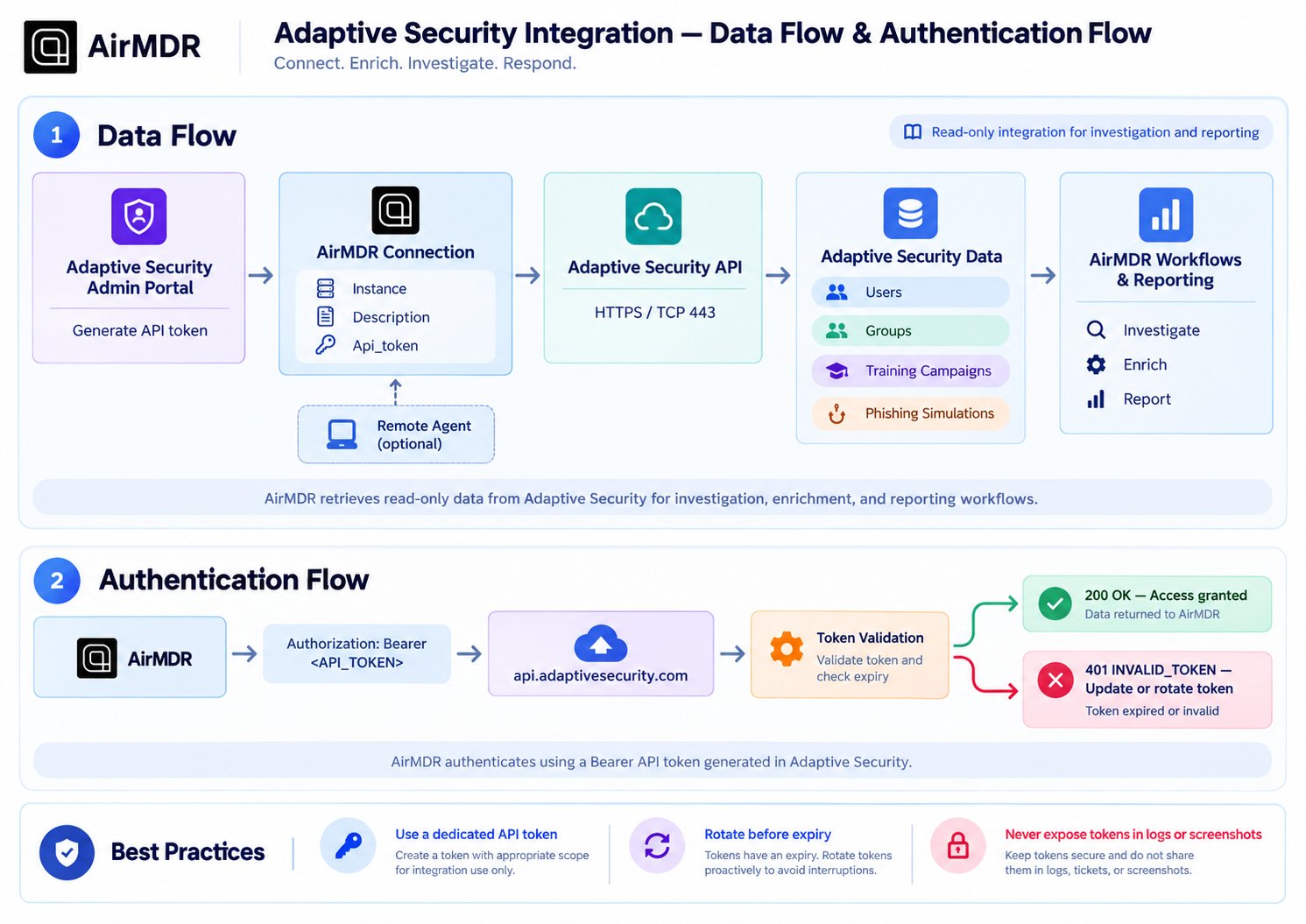
Network Requirements
Network Requirements
Data exchangedDepending on the AirMDR skill being executed, API responses can include information associated with:
- Adaptive Security users
- groups
- training campaigns and training progress
- phishing simulations
- related reporting information