

Purpose
Purpose
To connect Orca Security to AirMDR using your regional API URL and an API token. This guide explains how to obtain the credentials, create the AirMDR connection, configure Remote Agent and Expiry, and troubleshoot common issues.The data and operations available through the connection depend on:
- The Orca skills enabled in AirMDR.
- The permissions assigned to the API token.
- The accounts and resources included in the token’s scope.
- The API capabilities available to your Orca tenant.
Supported Versions
Supported Versions
Authentication
Authentication
API token authenticationCreate an API token in Orca and enter its value in the AirMDR connection.Orca publishes token-based authentication examples using this header:The
Token prefix is part of the request header. Enter only the generated secret value in AirMDR’s API Token field unless its field instructions explicitly request a complete header. Role-based access considerations
Role-based access considerations
For an integration that only retrieves data, start with a read-only role such as Viewer, then verify that it permits every required AirMDR operation. Published Orca connector instructions use Viewer for read access; this does not establish the minimum role for every AirMDR skill.
Pre-requisites
An active active Orca Security tenant with API accessAn Orca user authorized to create, manage API tokens and confirmation of the region hosting your Orca tenant.Permission to create an API token and permission to access data through that token are separate requirements.
Setup Steps
1
Sign in to the correct Orca region
- Open the Orca Security region-selection page.
- Select the region in which your organization’s Orca tenant is hosted.
- Sign in using your organization’s approved authentication method.
- Confirm that you are accessing the correct organization before creating the token.
Select the tenant’s hosting region. Your physical location does not determine the tenant region.
2
Identify the API URL
The API URL is an existing regional endpoint; it is not generated when you create a token.
- Confirm the hosting region selected during sign-in.
- Open Settings → Users & Permissions → API.
- Use any API documentation or endpoint information available to your tenant to confirm the regional API base URL.
- If the endpoint is not displayed, obtain it from your Orca administrator or Orca Support.
- Record the confirmed URL for the AirMDR connection.
Published connector guides differ for some regions.
For example, Veracode listshttps://api.eu.orcasecurity.io/api/
For Europe: Confirm the endpoint rather than replacingappwithapiyourself.
3
Open API token management
- In Orca, select Settings.
- Under Users & Permissions, select API.
- Select Add API Token. Some documented UI versions label this action Create API Token.
If the API page or token-creation action is unavailable, ask your Orca administrator to review your access.
4
Configure the token
Complete the fields displayed in the token dialog.
Example values:
A narrowly scoped token can authenticate successfully while returning only part of the organization’s data.
5
Generate and securely copy the token
- Review the role, scope, and expiration settings.
- Click Add.
- In the generated-token window, copy the token before selecting Continue.
- Store it temporarily in an approved password manager or secret-management system.
- Record its expiration date separately.
Orca Security Credential Reference Table
Validate Connectivity
You can optionally validate the Orca API URL and token before adding them to AirMDR. The following request queries up to one open alert through the Serving Layer API. Although it usesPOST, it retrieves information without changing alerts. The endpoint uses Authorization: Token <API_TOKEN>.
Prerequisite: The token must have alert-read permission and access to the required accounts or business units.
Sample Request
Sample Request
Replace
<ORCA_API_TOKEN> with your generated token. The example uses the default US API host; replace it with your confirmed regional host when applicable.This example adapts the published Serving Layer alert-query format by limiting the result to one record.A manual cURL request includes the complete endpoint path. The AirMDR API URL field contains only the host because AirMDR appends that path.
Sample Response
Sample Response
A successful request should return **HTTP **
200 OK and a JSON response. Review the body for any application-level error.Troubleshooting
Troubleshooting
This test validates alert retrieval from the machine running the command. Validate the AirMDR connection separately, and test status changes, snoozing, comments, and score updates to confirm their write permissions.
Configure Orca Security in AirMDR Integrations Dashboard
- Navigate to AirMDR, provide the credentials and click Login
- Navigate to the AirMDR Integrations Dashboard in the left navigation pane and select ADMIN → Integrations.
- Use the search option, enter the keyword “Orca Security”, select the Connections tab, and click + New Connection button.
-
Use the following values in the AirMDR integration configuration screen:
Expand Advanced Configuration if required. (Optional)
- In Remote Agent, select an AirMDR Remote Agent when Orca API requests must run through an approved network route. Ensure the selected agent can resolve and reach the regional Orca API host over HTTPS. For direct connectivity from AirMDR, leave this field unselected.
- In Expiry, select the Orca token’s expiration date or an earlier date required by your organization’s credential-rotation policy.
Expiry controls credential validity in AirMDR. It does not automatically rotate, extend, or revoke the token in Orca Security. Create a replacement token, update API Token and Expiry, save and validate the connection, and then revoke the previous token when it is no longer required. - Click Save.
Skills provided by this Integration
Alert Investigation
Alert Investigation
Alert Lifecycle Management
Alert Lifecycle Management
Changing an alert’s status, snooze period, or score manages the alert record. It does not demonstrate that the underlying cloud risk has been remediated.
Investigation Notes and Evidence
Investigation Notes and Evidence
Permissions and Roles by Skill
Read-only access is sufficient for alert retrieval. Alert-management skills require the corresponding write access. Resource scope controls which alerts the token can access; it does not grant permission to modify them.
Alert-read access is documented for Serving Layer retrieval. The granular action labels above appear in a published Orca UI walkthrough; their mapping to the exact API calls used by AirMDR must be validated before documenting them as the verified minimum.
Confirm the exact built-in role or custom permission labels against a live tenant, especially comment creation. Remove research notes from customer content, but do not replace them with an unsupported claim that Viewer, Alerts Write, or a particular custom role supports every operation.
Recommended Configuration for All Five Skills
Recommended Configuration for All Five Skills
Create a custom role named, for example, AirMDR Orca Alert Management, with:
- Alert-read access.
- Alert status-change access.
- Alert closing/verifying access.
- Alert snooze access.
- Alert score-update access.
- Alert comment-creation access, once its permission mapping is confirmed.
Resource Scope
Resource Scope
Assign the API token access to the cloud accounts or business units containing the alerts that AirMDR will retrieve or manage. Orca’s token configuration supports resource scoping.
Important: The user creating the token needs token-management privileges. The integration token itself should receive only the operational permissions above; administrator access is not established as a requirement for these skills.
Additional Information
🧰 Error Handling
🧰 Error Handling
The following describes common HTTP and connection symptoms. The returned error details should guide the final diagnosis.
Do not repeatedly retry authentication or permission failures without correcting their cause.
🔄 Monitoring & Logs
🔄 Monitoring & Logs
Review execution results in AirMDRUse INFO for routine operation and WARN/ERROR for failures. Enable DEBUG temporarily only when needed, with secrets and sensitive response data redacted.
- Open the playbook or skill execution that used the Orca connection.
- Review its status, inputs, outputs, and error details.
- Identify whether the failure concerns connectivity, authentication, authorization, or request parameters.
- Record the execution ID and timestamp for troubleshooting.
- Navigate to Settings → Users & Permissions → API.
- Locate the integration token.
- Review its expiration, role, and resource scope.
- Check relevant audit information if it is available to your tenant.
- Connection name.
- Execution ID and timestamp.
- API host and requested operation.
- HTTP status code and sanitized error.
- Remote Agent identity, when applicable.
🛑 Security & Access Best Practices
🛑 Security & Access Best Practices
✅ Do
- Create a dedicated token for the AirMDR connection.
- Grant only the permissions required by enabled skills.
- Restrict access to the necessary resources.
- Use an approved expiration date and rotate credentials in advance.
- Confirm the regional endpoint before entering credentials.
- Keep TLS certificate validation enabled.
- Store credentials in approved secret-management systems.
- Mask secrets in screenshots, recordings, and support evidence.
- Sharing tokens through email, chat, or tickets.
- Granting administrator access as a general troubleshooting measure.
- Using non-expiring tokens without policy approval.
- Entering a dashboard or region-selection URL as the API URL.
- Assuming every regional API host follows the same naming pattern.
- Assuming AirMDR Expiry changes the token in Orca.
- Assuming a Remote Agent expands the token’s access.
👉 Support & Maintenance
👉 Support & Maintenance
- 📧 Contact AirMDR Support through your designated support channel.
- 🔁 Rotate credentials regularly. Recommended cadence: As per your internal security policy
- 🔄 Replace a token before expiration
- Create a replacement token in Orca with the approved role and scope.
- Copy and securely store the new value.
- Edit the existing Orca connection in AirMDR.
- Replace API Token.
- Update Expiry.
- Save and validate a read-only skill.
- After successful validation, revoke or delete the previous token in Orca using the available token-management controls.
- Update the credential inventory and remove obsolete secret copies.
🛑 Data Flow & Security
🛑 Data Flow & Security
Data exchangedAirMDR retrieves Orca alerts through the Serving Layer API. Alert results can include associated context, such as 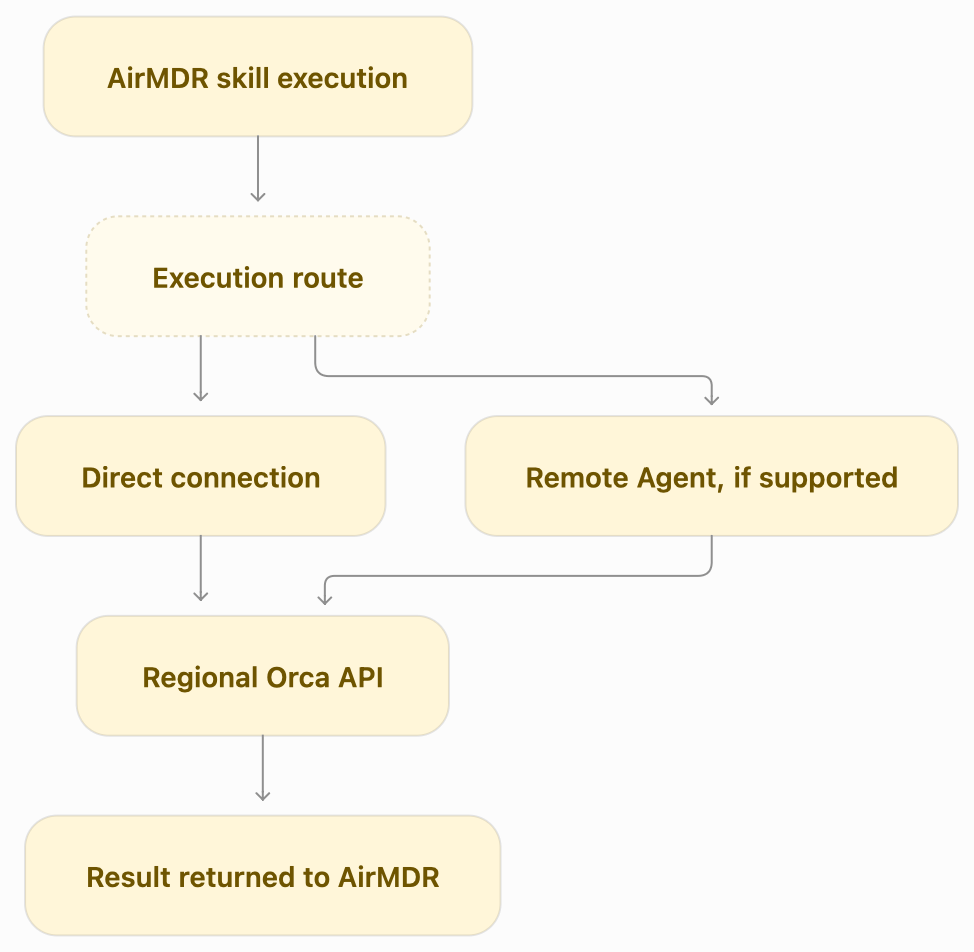
Inventory.Name and CloudAccount.* fields.The other supported skills update an alert’s status, snooze period, comments, or score. These five skills do not perform standalone asset queries.Requests are sent to the regional Orca API, either directly from AirMDR or through a selected Remote Agent.Connection flowHTTPS protects traffic in transit. Specific encryption-at-rest algorithms, retention periods, and regional-storage guarantees must be taken from the applicable vendor security documentation.